
Map Data for Import
Learn how to map user profile fields and event attributes from your database to CleverTap for accurate identity resolution and seamless data ingestion.
Overview
After configuring import, this step lets you map your data warehouse columns to CleverTap’s user profiles or events. This ensures each row of data updates the correct fields in CleverTap.
- User Profile Data: Map user-specific fields such as
email,first_name,last_name, or any other attribute from the database, to the user profile fields in CleverTap. - Event Properties: Map event-specific columns such as
add_to_cart,product_viewed,purchasedto CleverTap event properties.
Use the toggle to switch between User Profile Data and Event Data mapping options.
Switch Mapping OptionsSwitching between mapping options clears any existing field selections and mappings configured in the current option.
User Profile Data
Configure how user data is mapped and imported from the data warehouse into CleverTap. This step ensures that user profiles are correctly identified, updated, and enriched with relevant attributes.
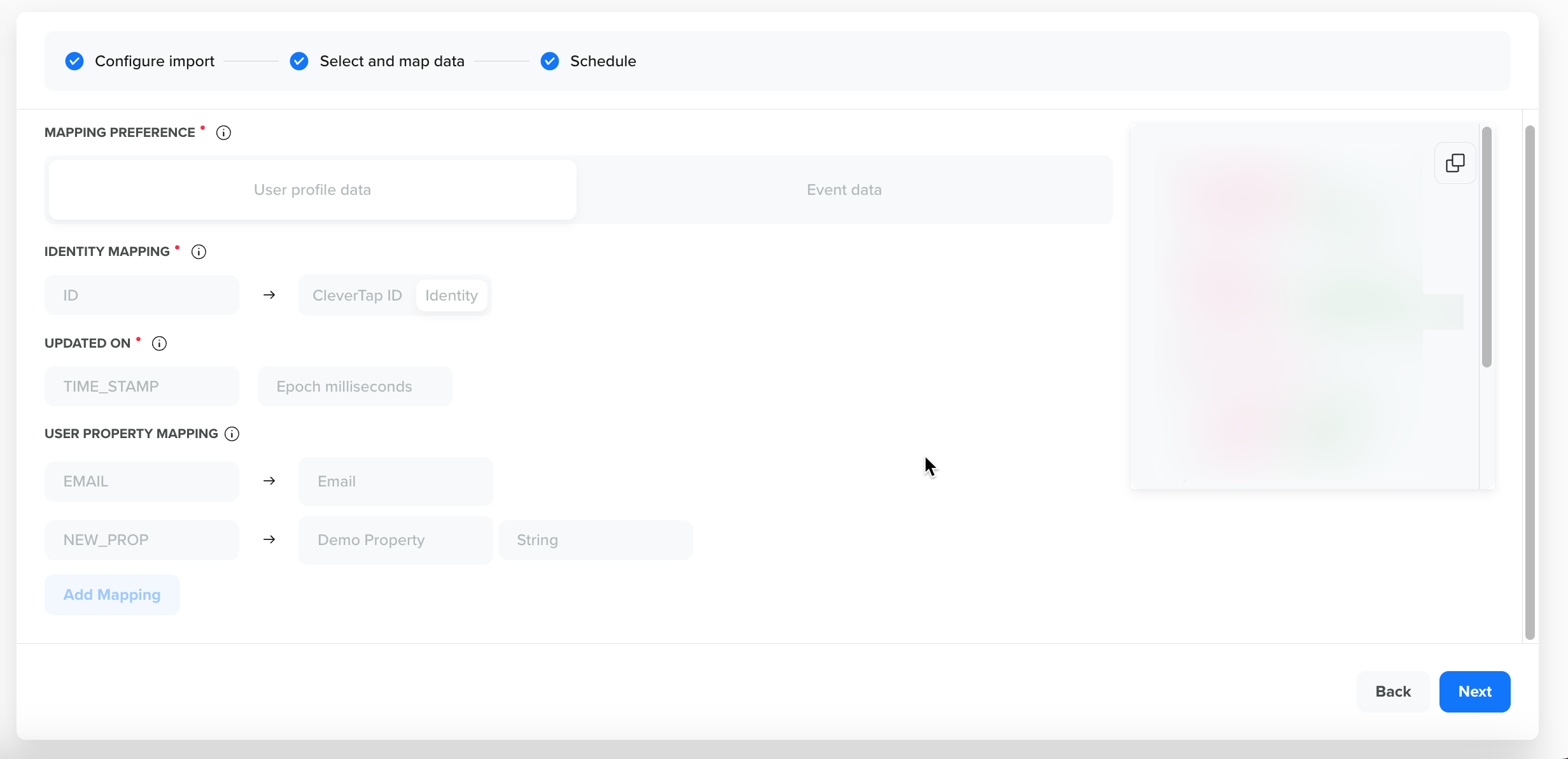
The mapping process consists of the following three steps:
- Map identity to specify how incoming user records from data warehouses are matched to user profiles in CleverTap.
- Select a timestamp column to fetch only newly added or updated records.
- Map Snowflake columns to CleverTap user properties.
Map Identity
This step specifies how incoming user records from data warehouses are matched to user profiles in CleverTap, using either a unique identity field (such as email, phone number, or user ID) or the system-generated CleverTap ID.
- Identity: A unique user identifier, such as email, phone number, or custom ID, used to match profiles in CleverTap. The maximum length allowed is 1024 characters. When using Identity:
- If a profile with the same identity already exists, CleverTap updates or adds properties to it.
- If no matching profile exists, CleverTap creates a new profile and generates a corresponding CleverTap ID.
- CleverTap ID: A system-generated unique identifier assigned to each user profile in CleverTap. The maximum length allowed is 1024 characters. When using CleverTap ID:
- The ID must be provided when making profile updates.
- If a profile with the same ID already exists, CleverTap updates or adds properties to it.
Identity Field Validation Rules
- Identity/CleverTap ID values cannot be:
undefined,null,na,n/a,0,nil,-1,infinity,-infinity,inf,-inf,nan,-nan,empty, orxxxxxx.- Values exceeding 1024 characters will be marked as errors.
Define Updated On Timestamp
Define the Updated On field to ensure CleverTap imports only new or updated rows since the last sync, optimizing performance and avoiding duplicate processing.
-
Select Timestamp Column
Select a column that tracks when each row was added or updated. The following column types are supported:NUMERICDATETIMESTAMPTIMESTAMP_WITH_TIMEZONE
-
Configure Date Format
Specify how CleverTap should interpret the timestamp values:-
If the column type is
NUMERIC, choose one of the following:- Epoch Seconds – 10-digit timestamps (for example,
1640995200) - Epoch Milliseconds – 13-digit timestamps (e.g.,
1640995200000)
- Epoch Seconds – 10-digit timestamps (for example,
-
If the column type is
DATE,TIMESTAMP, orTIMESTAMP_WITH_TIMEZONE, CleverTap automatically detects and processes the format, without requiring a format selection.
-
Map User Profile Properties
This step maps data warehouse columns to CleverTap user properties, ensuring seamless data import and accurate user profile updates. To do so, perform the following steps:
-
Select Column
Choose a column from your database that contains user-related information, such asemail,name,Customer Type, orWallet Balance. -
Assign User Property
Map the selected column to a corresponding CleverTap user property.- Select from available system properties (for example,
email_idmaps to Email). - If the desired property isn’t listed, enter a new name to create a custom property.
- Select from available system properties (for example,
System Properties
- Predefined properties such as Email and Phone have fixed data types and validation rules. For more information, refer to System User Properties.
- Validation Rules:
- Phone: Must start with
+and contain more than four digits- MSG Properties (e.g., MSG-Email, MSG-SMS): Accepts only
"0","1","true", or"false"- Property Names: Cannot include these characters:
%,>,<,!,|,&,.,:,;,$,',",\,#
- Choose Data Type
Select the appropriate data type for the column. Use the table below to determine when and how each type should be used:
| Data Type | When to Select | Example Values | Validation |
|---|---|---|---|
| String | Text values such as names, emails, or labels | "John Doe", "[email protected]", "Premium User" | No validation |
| Integer | Whole numbers, such as age or counts | 30, 120, 500 | Must be numeric |
| Float | Decimals such as ratings or prices | 4.7, 99.99, 15.5 | Must be numeric |
| Long | Large whole numbers such as IDs | 9876543210, 123456789012345 | Must be numeric |
| Boolean | True/false flags | true, false | Only accepts: "0", "1", "true", "false" |
| Date | Timestamps such as the signup or login date | 2024-03-18, 18/03/2024, 03/18/2024 | Must match selected date format. For more information, refer to Supported Date Format. |
Event Data
Configure how event data is mapped and imported from the data warehouse into CleverTap. This setup ensures event records are accurately linked to user profiles, timestamped correctly, and enriched with event-specific properties.
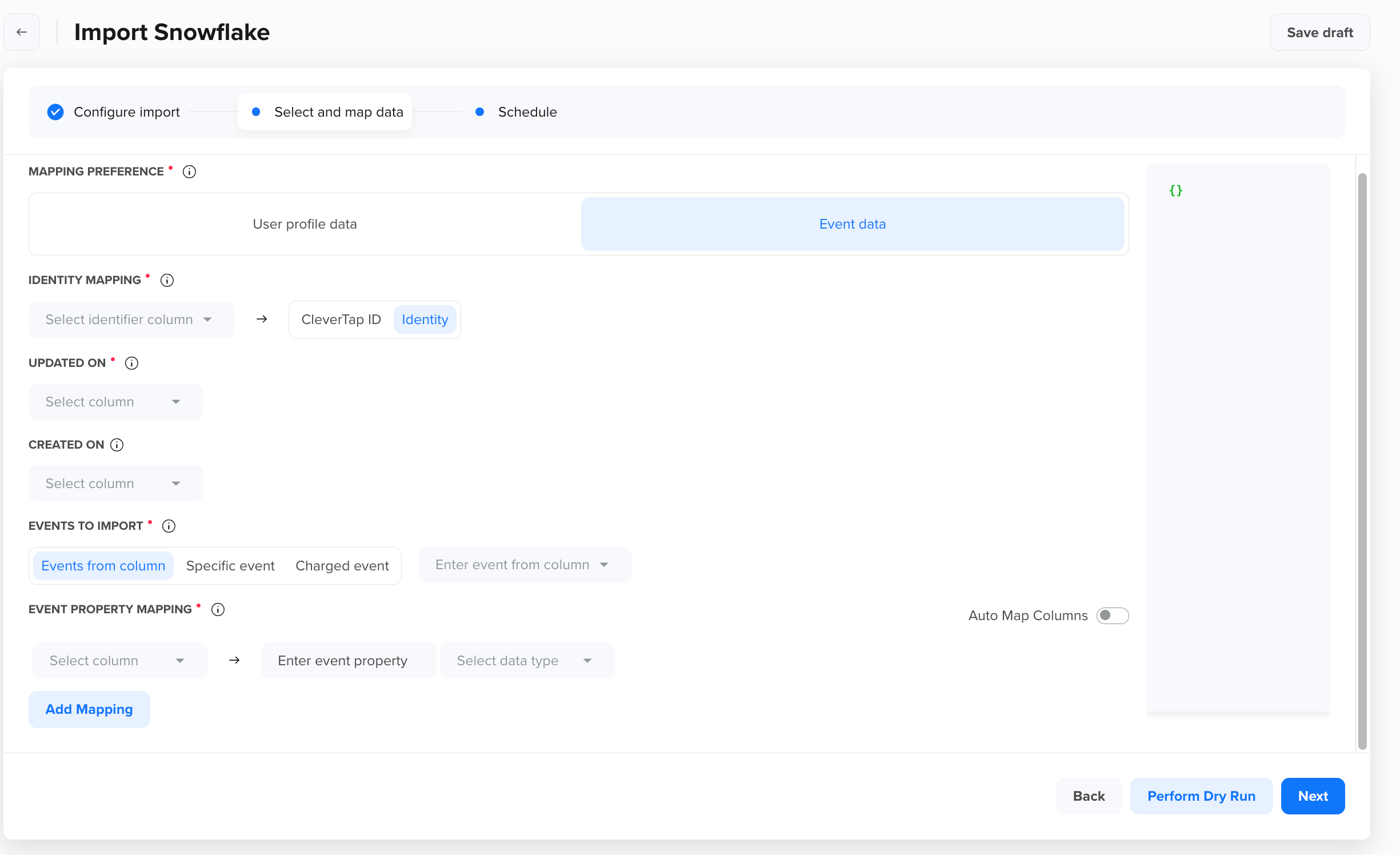
Event Data Mapping
The mapping process consists of the following five steps:
- Map identity to associate event data with user profiles in CleverTap.
- Map Updated On Column to fetch only newly added or updated rows.
- Map Created On Timestamp.
- Choose Events to Import (from a column, static value, or as a Charged event).
- Map Snowflake Columns to CleverTap Event Properties.
Map Identity
This step specifies how incoming event records from the data warehouse are matched to user profiles in CleverTap, using either a unique identity field (for example, email, phone, or user ID) or the system-generated CleverTap ID.
- Identity: Matches events to user profiles using a unique field. The maximum length allowed is 1024 characters.
- CleverTap ID: Matches records using CleverTap’s system-generated ID.
Identity Field Validation Rules
- Disallowed values:
undefined,null,na,n/a,0,nil,-1,infinity,-infinity,inf,-inf,nan,-nan,empty,xxxxxx- Values exceeding 1024 characters are marked as errors.
Map Updated On Column
This field ensures CleverTap imports only newly added or updated event records since the last sync.
-
Select Timestamp Column
Choose a column that indicates when a row was last added or updated. Supported types:NUMERICDATETIMESTAMPTIMESTAMP_WITH_TIMEZONE
-
Configure Date Format
- If the column type is
NUMERIC, choose:- Epoch Seconds (for example,
1640995200) - Epoch Milliseconds (for example,
1640995200000)
- Epoch Seconds (for example,
- If the column type is DATE, TIMESTAMP, or TIMESTAMP_WITH_TIMEZONE, CleverTap automatically processes the timestamp without requiring a format to be selected.
- If the column type is
Map Created On Timestamp
Use this field to track when each event occurred.
To map the created-on timestamp, perform the following steps:
- Select Column: Choose the column containing event timestamps.
- Configure Date Format: Select the format used in the timestamp.
For more information, refer to Supported Date Format.
Validation Rules for Timestamp
- If this field is not mapped, CleverTap uses the system timestamp, which may misrepresent actual event timing.
- Invalid formats or data types result in import errors.
Choose Events to Import
This step determines how CleverTap names each imported event.
-
Events from Column
Import different event types using a column that contains event names. Ideal for dynamic event tables. For example, if your warehouse table includes an event_name column with values such as
product_viewed,added_to_cart, andorder_placed, each row imports into CleverTap as its own event, named directly from that column value. -
Specific Event
Assign a single static event name for all imported records. Best for importing a consistent event type. For example, mapping an entire
order_historytable to a singleorder_placedevent, regardless of what the source columns are named.-
Charged Event
Import purchase or transaction data as the
Chargedevent. Selecting this option enables Item Data Mapping for the Items property. For more information, refer to Charged Event Data.
-
Validations Rules for Event Naming
- Event names must not include:
%,>,<,!,|,&,.,:,;,$,',",\,#- System events cannot be imported or processed.
Map Event Properties
This step maps columns to CleverTap event properties, providing context and detail to each event.
-
Select Column
Choose a column with event-related details such as
category,price, ortransactionID. -
Enter Event Property
Assign a name for the corresponding CleverTap event property. You can use existing property names or enter new ones to create custom event properties.
-
Select Data Type
Choose the appropriate data type based on your column values:
Data Type When to Select Example Values Validation String Text values such as category or customer type "Jeans","Premium User"No validation Integer Whole numbers, such as item count or balance 30,500Must be numeric Float Decimal values such as price or discount 4.7,99.99Must be numeric Long Large integers such as transaction IDs 123456789012345Must be numeric Boolean Binary flags, such as order status true,false,0,1Only accepts: "0", "1", "true", "false" Date Timestamps such as event or checkout time 2024-03-18,03/18/2024Must match supported format. For more information, refer to Supported Date Format.
You can toggle on Auto Map Columns to automatically match your source columns to CleverTap event properties by name, and to infer a data type for each match. Auto mapping runs once, when you first configure the import, and is not available when editing an existing import. Every auto-mapped row remains editable, so you can adjust any property name or data type it selects. To start over, turn the toggle off to clear all auto-mapped values.
Points to Remember
- System event properties cannot be imported.
- Importing
Charged: Itemis supported for Snowflake and Databricks. CleverTap will be extending support to other warehouses.- Charged event properties other than Items, such as Amount, Payment mode, and Charged ID, do not need a separate mapping step. Map them using standard Event Property Mapping, the same as any other event property.
- Event property names must not contain:
%,>,<,!,|,&,.,:,;,$,',",\,#
Charged Event Data
Charged event stores item-level detail in a reserved Items field, an array of objects where each item can carry its own sub-properties, such as category, product name, quantity, and price.
The Items array only supports the array-of-objects structure.
NoteTo import Charged event items from a warehouse that does not yet support Item Data Mapping, or to back up or migrate historical Charged event data outside a scheduled sync, use the Upload Events API instead.
To map Charged event items, perform the following steps:
-
Select Column
Choose the column that contains the array data. The destination property is always Items. You cannot map this column to a different property name.
-
Confirm Array Structure
Each item in the array must be an object with its own sub-properties, such as category, product name, and quantity, for example:
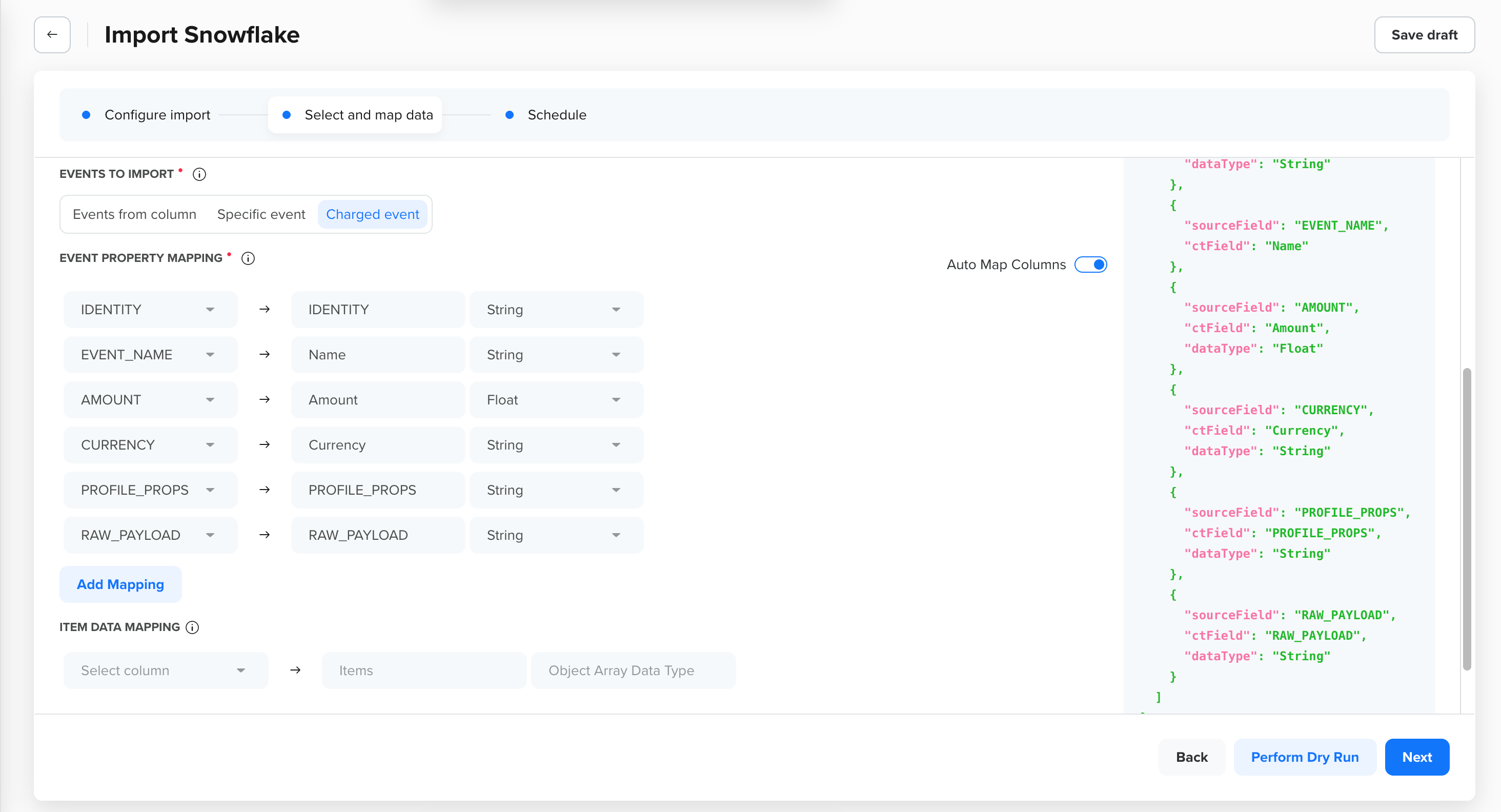
Items Data Mapping
[
  {
    "price": 194,
    "productId": 7795,
    "quantity": 7
  },
  {
    "price": 664,
    "productId": 4235,
    "quantity": 1
  }
]
TipCleverTap validates your column actual data against this structure only during Perform Dry Run or import, not when you save the mapping. If your column data does not match the array-of-objects structure, the mapping saves without error, but the import fails. Always perform a Dry Run before scheduling the import to catch mismatches early.
Supported Date Format
If the selected column is of Date datatype, then you do not need to provide the date format. You can select from the following date format patterns when mapping Date type fields:
| Format Type | Example Format |
|---|---|
| Epoch (Seconds) | 10-digit number (for example, 1640995200) |
| Epoch (Milliseconds) | 13-digit number (for example, 1640995200000) |
| Date-Time Formats | dd/MM/yyyy HH:mm:ss, MM/dd/yyyy HH:mm:ss, yyyy/dd/MM HH:mm:ss, yyyy/MM/dd HH:mm:ss, dd MMM yyyy HH:mm:ss |
| Date Only Formats | dd/MM/yyyy, MM/dd/yyyy, yyyy/dd/MM, yyyy/MM/dd, ddMMMyyyy |
Perform Dry Run (Recommended)
After completing your mapping configuration, CleverTap strongly recommends performing a Dry Run to simulate the import and validate your settings, without affecting your CleverTap account. This step helps identify potential errors early and ensures your mapping is accurate.
Click Perform Dry Run after completing your mapping configuration. CleverTap will do the following:
- Connects to the database of your data warehouse.
- Retrieve random samples from your mapped data.
- Validates the configuration as follows:
- Mapping accuracy and configuration.
- Data type compatibility.
- Field validation requirements.
- Potential errors or conflicts.
- Displays results with detailed feedback.
Dry Run Results
The dry run results display comprehensive information about your mapping validation:
| Column | Description |
|---|---|
| Result | Shows validation status (Success/Error) and specific details about the mapping validation. |
| Database Nickname | Displays the nickname of your database being used for import. |
| CleverTap Property | Shows the corresponding CleverTap property (user profile or event property) mapped from the data warehouse. |
| Data Type | Indicates the data type of the mapped property in CleverTap (String, Integer, Date, etc.). |
Validation Outcomes
After mapping data fields from the data warehouse to CleverTap, the system runs a validation check to assess configuration accuracy, data quality, and identity alignment. The outcomes are categorized as follows:
- Successful Validation: Indicates that the mapping and sample records meet CleverTap’s data structure and formatting requirements.
- User profile data or event data from your data warehouse's database was validated successfully.
- Random sample records processed without errors.
- Mapping configuration confirmed as accurate.
- Data types are properly aligned between your data warehouse and CleverTap.
- Error Detection: Indicates that the mapping contains issues that must be resolved before proceeding with the import.
- Invalid data types or formatting issues.
- Identity/CleverTap ID validation failures.
- System property validation errors (Email, Phone format issues).
- Prohibited characters in property names or event names.
- Date format mismatches.
- Interpreting Results: Use the visual indicators to understand the outcome of your validation and take the appropriate next steps.
- Green (Success): Mapping is correctly configured and ready for import.
- Red (Error): Mapping must be corrected before proceeding with import.
Sync User Profile and Event Data (Optional)
Syncing user profiles and event data lets you push the selected random data from the data warehouse to CleverTap. For user profiles and events, if the profile is not present in CleverTap, a new profile is created, and user properties are captured against this profile.
Event Data Sync During Dry RunWhen performing the dry run of event data, syncing may result in duplicate events. To maintain data integrity, avoid syncing events unless absolutely necessary.
Best Practices for Mapping
When configuring import mapping in CleverTap, keep the following best practices and tips in mind to make the most of these features:
- Validate Data Upfront: Clean and verify your source data before import. For example, ensure Email addresses are well-formed and active to avoid bounces in the future. Check phone numbers and dates to avoid errors during the Dry Run.
- Use Incremental Timestamps: Always map an “updated at” or timestamp column to enable incremental updates.
- Consistent Formats: Keep date and time formats uniform in your selected data warehouse. If you choose Date type, ensure the column’s format (YYYY-MM-DD, etc.) matches what you set in CleverTap. Inconsistent formats will cause parsing errors.
- Leverage Dry Runs: Always run the Dry Run feature before the actual import. This is like previewing a snowball before throwing it – it catches mapping issues so you can fix them without affecting live data.
- Limit Data to What’s Needed: Import only the columns you use in CleverTap. Avoid mapping extraneous fields or properties. This makes the process faster and reduces risk.
- Security and Access: Use a dedicated data warehouse user with minimal permissions for the integration. Grant only read access to the tables/columns you need.
- Naming Conventions: Use consistent names for properties and events. Avoid special characters in property keys (CleverTap does not allow the following characters:
%,<,>,!,|,&,:,;,$,',",\,#). If needed, map such keys to valid property names in CleverTap. - Segmentation of Data: Consider filtering your data warehouse data to exclude obsolete or inactive users/events before import. This keeps your CleverTap instance clean and focused on relevant customers.
By understanding these options and best practices, you can ensure your data warehouse-to-CleverTap imports run smoothly and keep your customer data accurate and up to date.
In the next step, schedule the import by choosing Repeat Intervals, Custom Schedule, or Manual Triggering. For detailed instructions, refer to Schedule Import.
Updated about 2 months ago