
PII Encryption
Learn how to protect sensitive user data while transmitting it to CleverTap using public key encryption.
Overview
Encryption secures Personally Identifiable Information (PII) by converting it into unreadable formats that only authorized users can decrypt with valid keys. PII includes sensitive data such as names, email addresses, phone numbers, custom properties, and events. By encrypting this information, CleverTap ensures data remains protected from unauthorized access throughout its lifecycle.
The encryption framework uses secure algorithms to protect data while maintaining usability for segmentation, analytics, and campaign delivery.
Encryption helps you do the following:
- Prevent unauthorized access to PII
- Transmit customer data securely across systems
- Comply with global and local data protection regulations
- Create a detailed audit trail to meet global compliance standards
Private BetaThis feature is currently available in Private Beta for selected customers. To enable PII Encryption, contact your Customer Success Manager or raise a support ticket.
Encrypt PII
CleverTap encrypts PII using multiple layers of protection, making sensitive values unreadable at different stages:
- In Transit: Encrypts data transmitted via SDKs and SFTP.
- At Rest: Encrypts stored data in databases, backups, and persistent storage.
This layered protection ensures data confidentiality, integrity, and compliance without compromising usability.
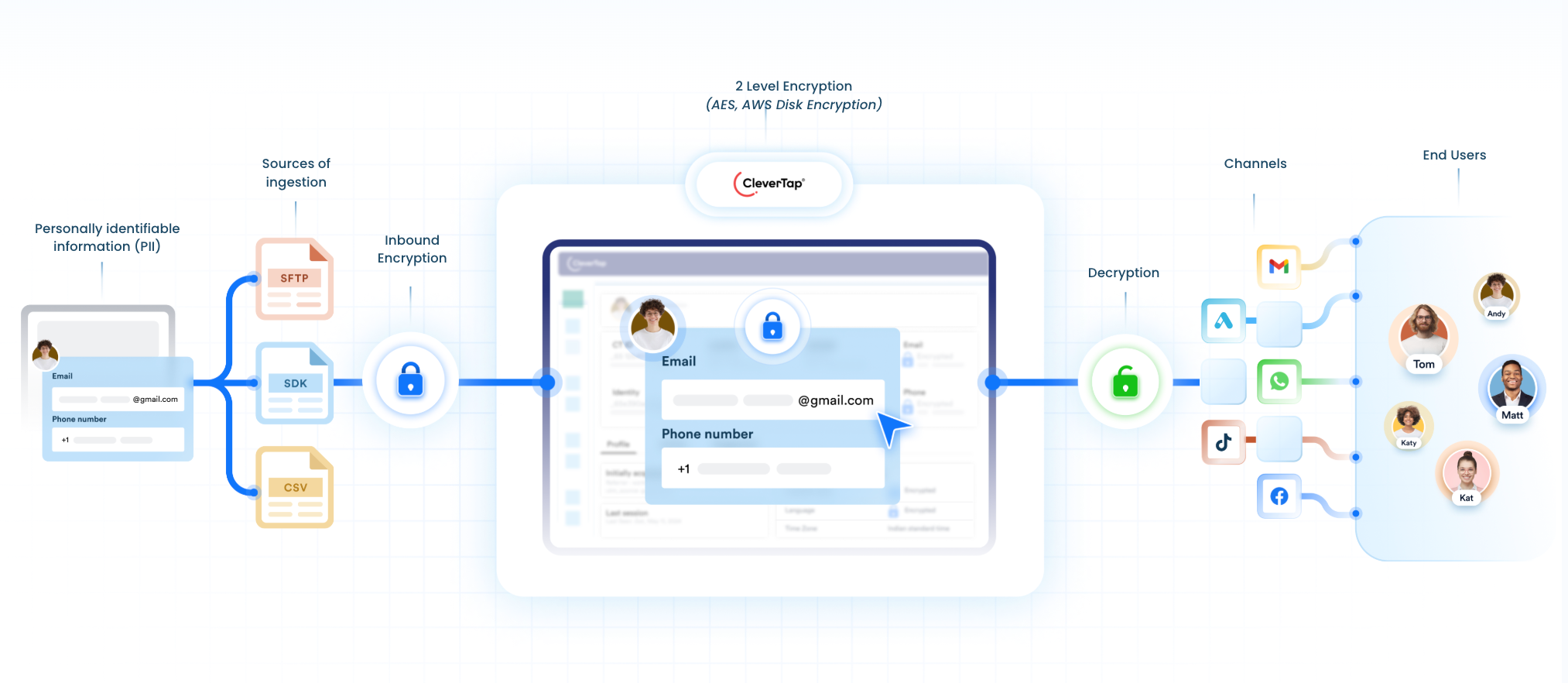
PII Encryption
Default vs. Custom Encryption
By default, CleverTap encrypts all incoming user data using AES-256 encryption and securely manages the encryption keys. This default protection applies to all user profiles and event attributes.
Custom Encryption provides an additional layer of protection over the default encryption. It allows customers to mark selected fields (such as email, phone, customerType, and so on) for encryption. CleverTap applies AES-256 encryption using customer-defined keys. It protects sensitive data without impacting performance.
Security and Compliance
PII Encryption helps your organization to do the following:
- Protect customer data against unauthorized access
- Ensure secure storage and transmission of data
- Meet compliance standards such as GDPR, CCPA, HIPAA, and ISO 27001
- Enforce role-based access and audit controls
Eligible Data
You can mark any of the following system properties for encryption:
System User Properties
- Phone number
- Identity
- Name
- Gender
- DOB (Date of Birth)
- Latitude
- Longitude
- Location
System Event Properties
- Phone number
- Identity
- For the event Identity Set, the PII property
IDis masked. - For the event Identity Reset, the PII property
IDis masked. - For the event Identity Error, the PII property
IDis masked.
For more information about system events and properties, refer to Events.
You can also enable encryption for custom events. Once you allow encryption for a custom event property, CleverTap encrypts new incoming data. CleverTap does not encrypt historical data.
Encryption Behavior Depends on the Property Type
- For profile properties, CleverTap encrypts both existing and new data once you mark the property for encryption.
- For event properties, CleverTap encrypts only new incoming data. Events are unchangeable, so CleverTap cannot modify existing events or their properties.
Encrypt Data at Rest
CleverTap automatically encrypts stored data using industry-standard encryption methods:
- Uses AES-256 encryption for all stored data
- Manages encryption keys through key management
- Implements key rotation and audit logging based on industry-accepted best practices
Encrypt Data in Transit
CleverTap secures all data transferred via SDKs (Android & iOS) and SFTP:
- Uses TLS 1.3 for transport security
- Uses AES-256 (SDK) and PGP encryption (SFTP)
- Supports mutual TLS (mTLS) for SDK communications
- Routes requests to region-specific endpoints for compliance with data residency regulations
Encrypt Custom Event Properties
You can apply encryption to event properties either individually or in bulk.
Encrypt a Single Event Property
To encrypt an individual event property, follow these steps:
- Go to Settings > Schema > Events > Custom Events.
- Click Properties for the required event.
- Click the ellipsis menu and select Encrypt.
- In the confirmation dialog, click Encrypt.
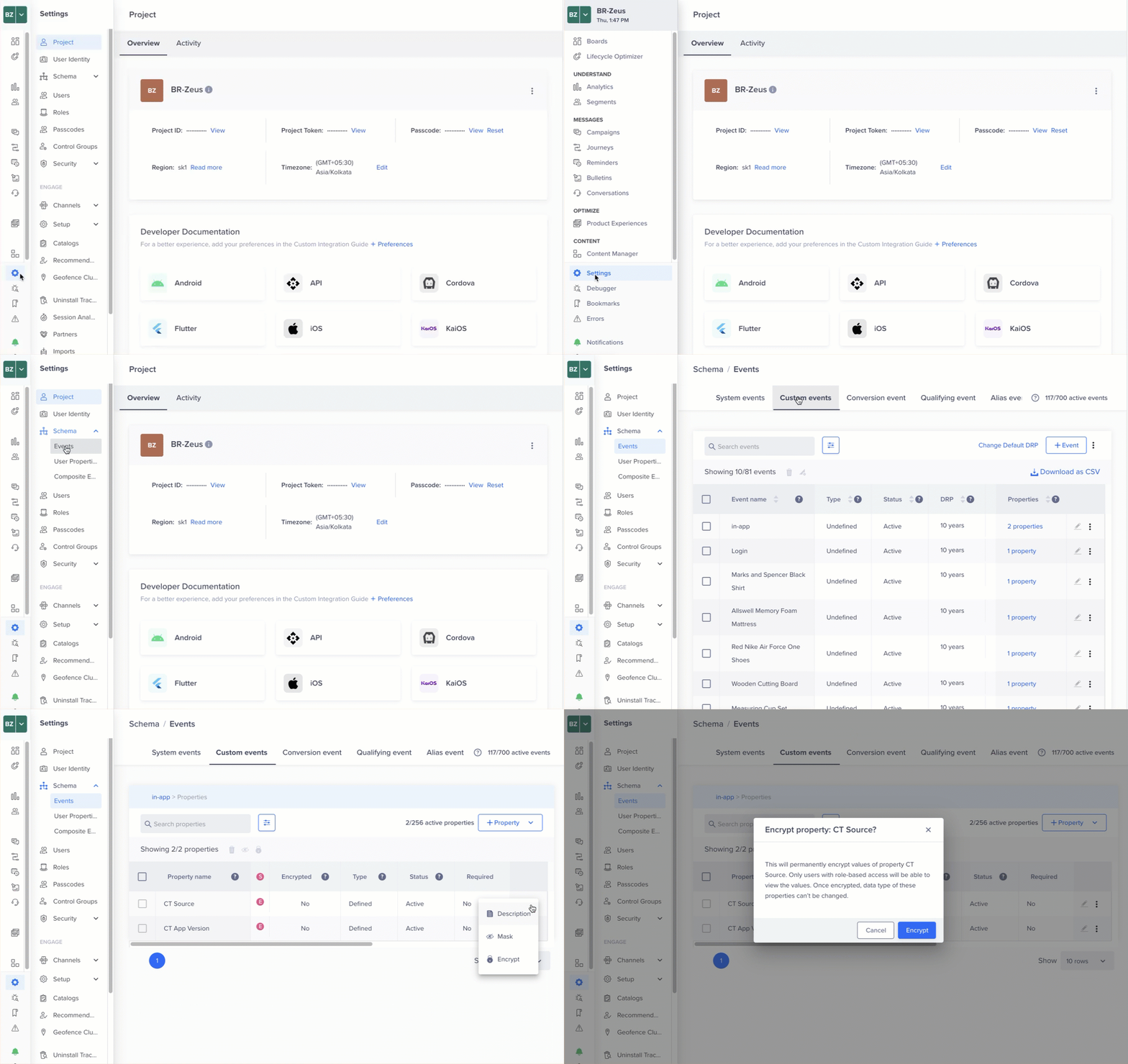
Encrypt PII Values
The following image shows the encrypted PII properties:
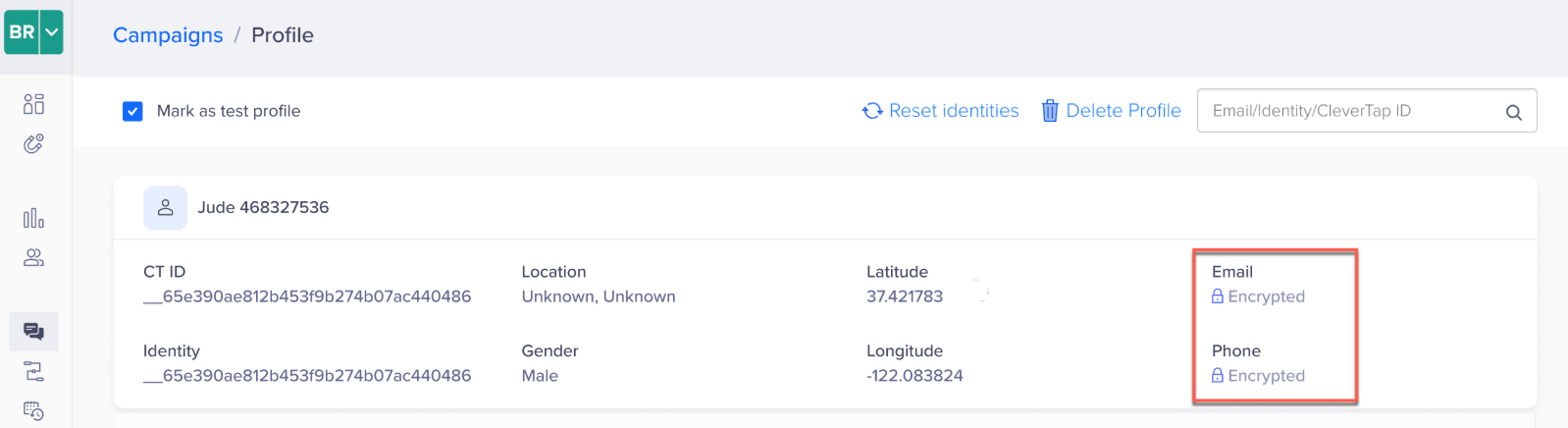
Encrypted Properties
Encrypt Multiple Event Properties
To encrypt multiple properties, follow these steps:
- Go to Settings > Schema > Events > Custom Events.
- Click Properties for the required event.
- Select multiple properties.
- Click the ellipsis menu and select Encrypt.
- In the confirmation dialog, click Encrypt.
CleverTap queues the selected fields for encryption and displays the encrypted fields as Encrypted.
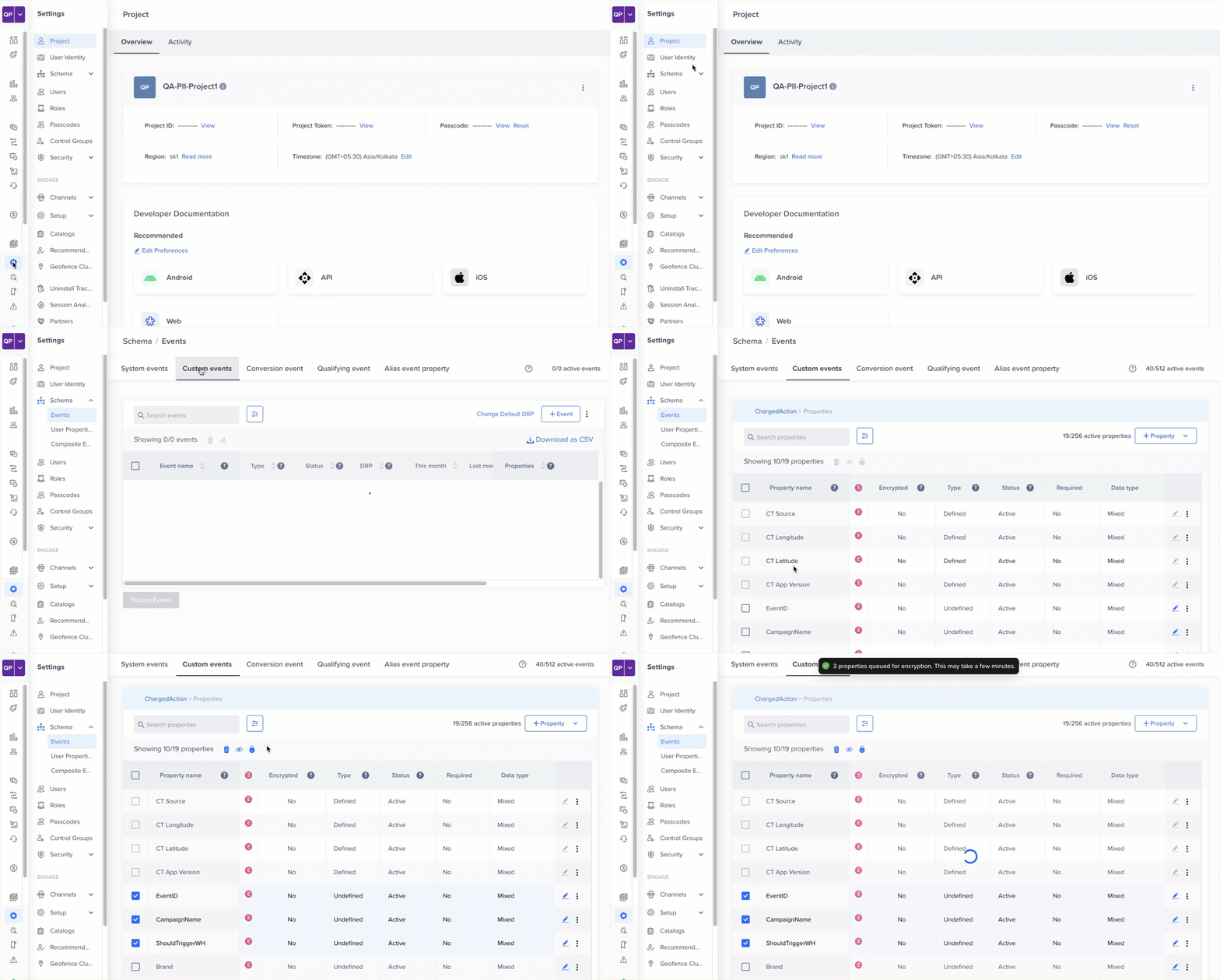
Bulk Encryption
Viewing Encrypted ValuesOnly Admins and authorized users can view or download encrypted values.
The visibility of encrypted values on the Segment and Analytics pages depends on your role. For roles without encryption access, these values remain hidden. Roles with encryption permissions can view and use the encrypted values for segmentation and analytics.
Download Restriction on PII ValuesCSV downloads follow encrypted PII access permissions. Admins and users with encrypted PII access via custom roles can view the actual values.
For users without encrypted PII access, certain fields are restricted during export, as follows:
- System user properties: Encrypted fields are unavailable for selection in the CSV download confirmation pop-up.
- Custom user properties: Encrypted columns are included in the CSV, but the values appear as blank.
Supported Entities
The following entities support encrypted data retrieval based on user permissions:
Segments
You can create segments and apply filters to encrypted fields based on your permissions. Segmentation functionality is available in Create Segment and Find People.
Create Segment with Encrypted Properties
You can use encrypted fields such as Email, Phone, Identity, and other custom properties as filters when creating segments.
Follow the steps below to create a Segment using encrypted properties:
- Go to Segments and click Segment.
- Build a segment using past or live events and filters based on encrypted fields.
The system applies permission checks to ensure only authorized users can view or segment these properties. Segments created with encrypted fields are usable across analytics and engagement workflows.
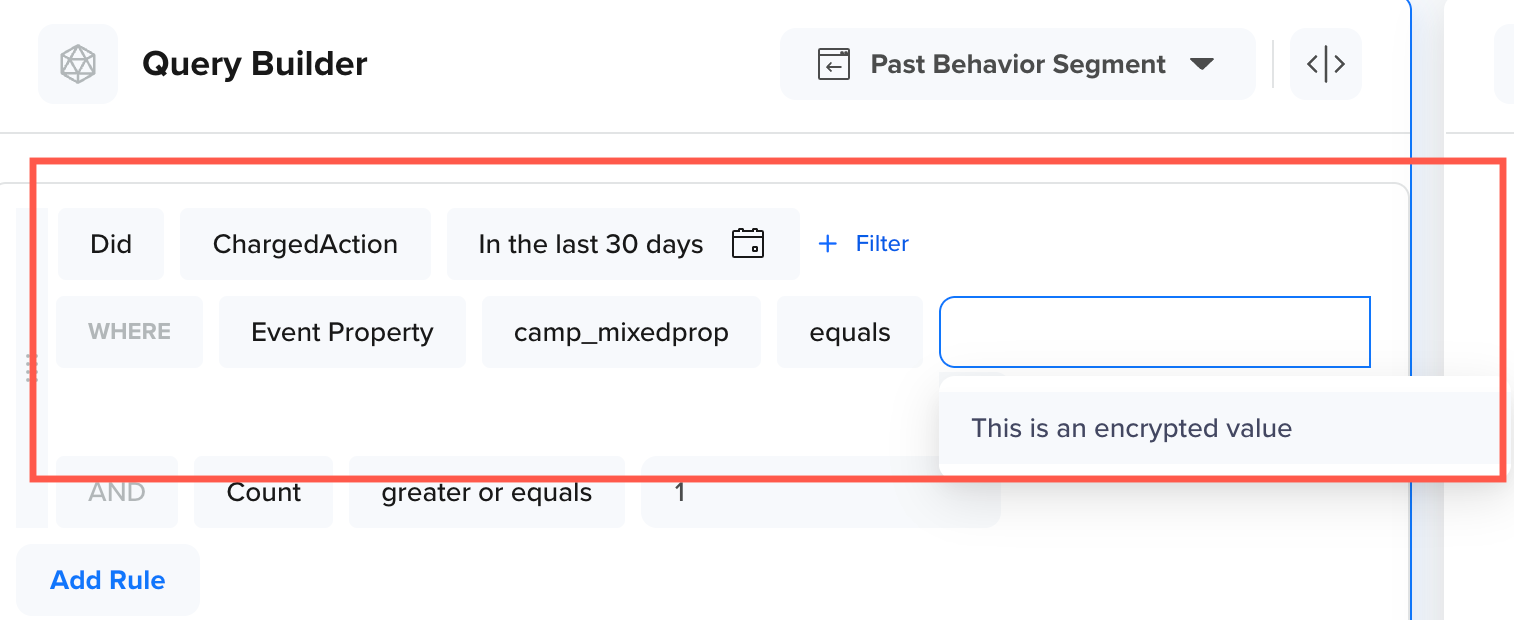
Encrypted Values in Segment Builder
Find People
If you have permission to access encrypted data, you can search for users using encrypted fields such as Email or Phone.
The following image shows how to set up an event filter rule in an analytics or engagement platform. The rule builder offers additional filtering by narrowing down event properties. When users without decryption access query encrypted fields, the list displays This is an encrypted value to indicate restricted visibility.
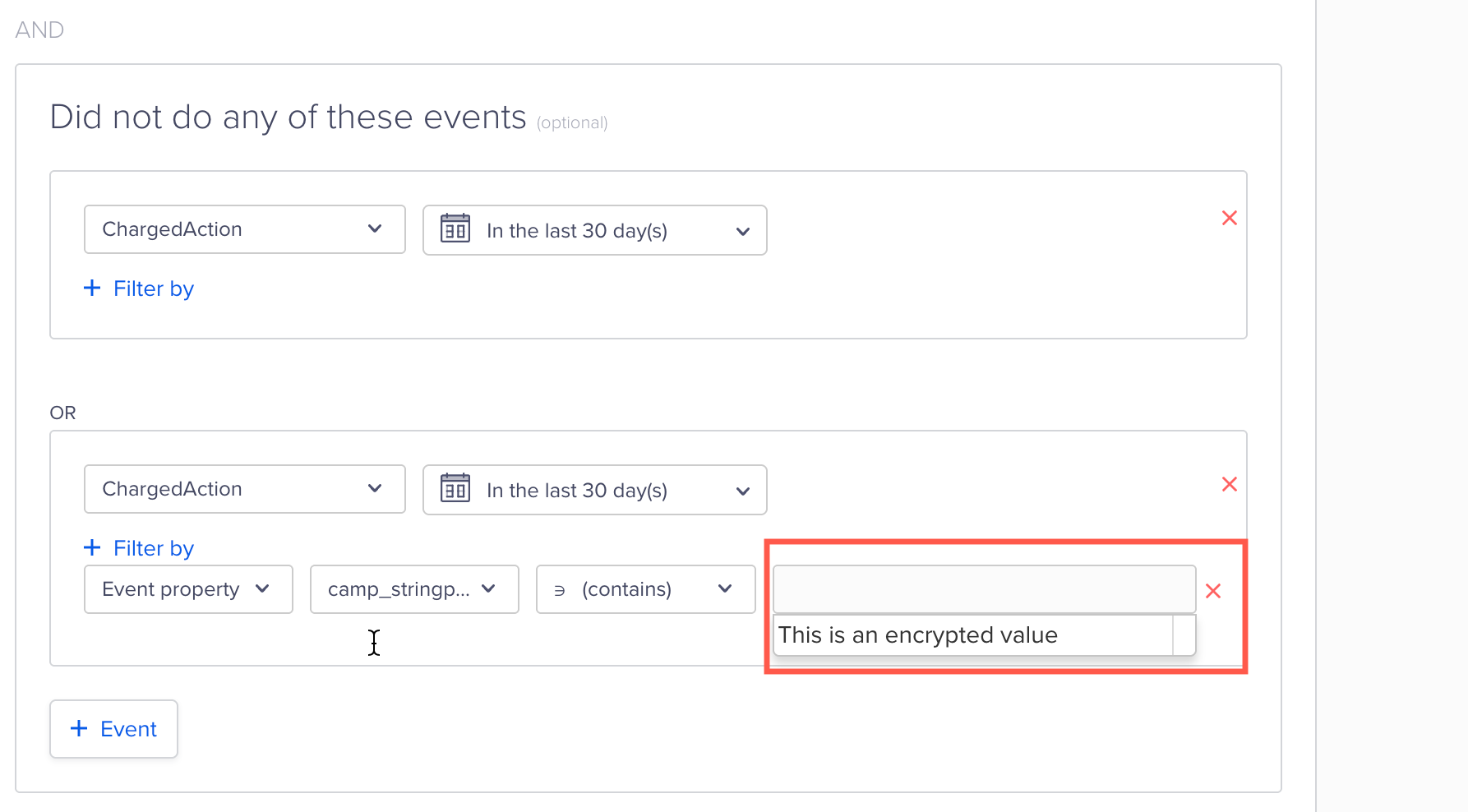
Query using Encrypted Values in Find People
For more details on user permissions and access, refer to Role-Based Access Control: Advanced Governance Limits.
Engagements
You can create Campaigns and Journeys using segments that include encrypted fields. These workflows support targeting, personalization, and analytics without exposing underlying PII.
Create Campaigns with Encrypted Properties
Follow the steps below to create a Campaign using encrypted properties:
- Go to Campaigns and click Campaign.
- In the Who section, define the segment using an encrypted property.
The following image shows the list indicating that the selected event property is encrypted:
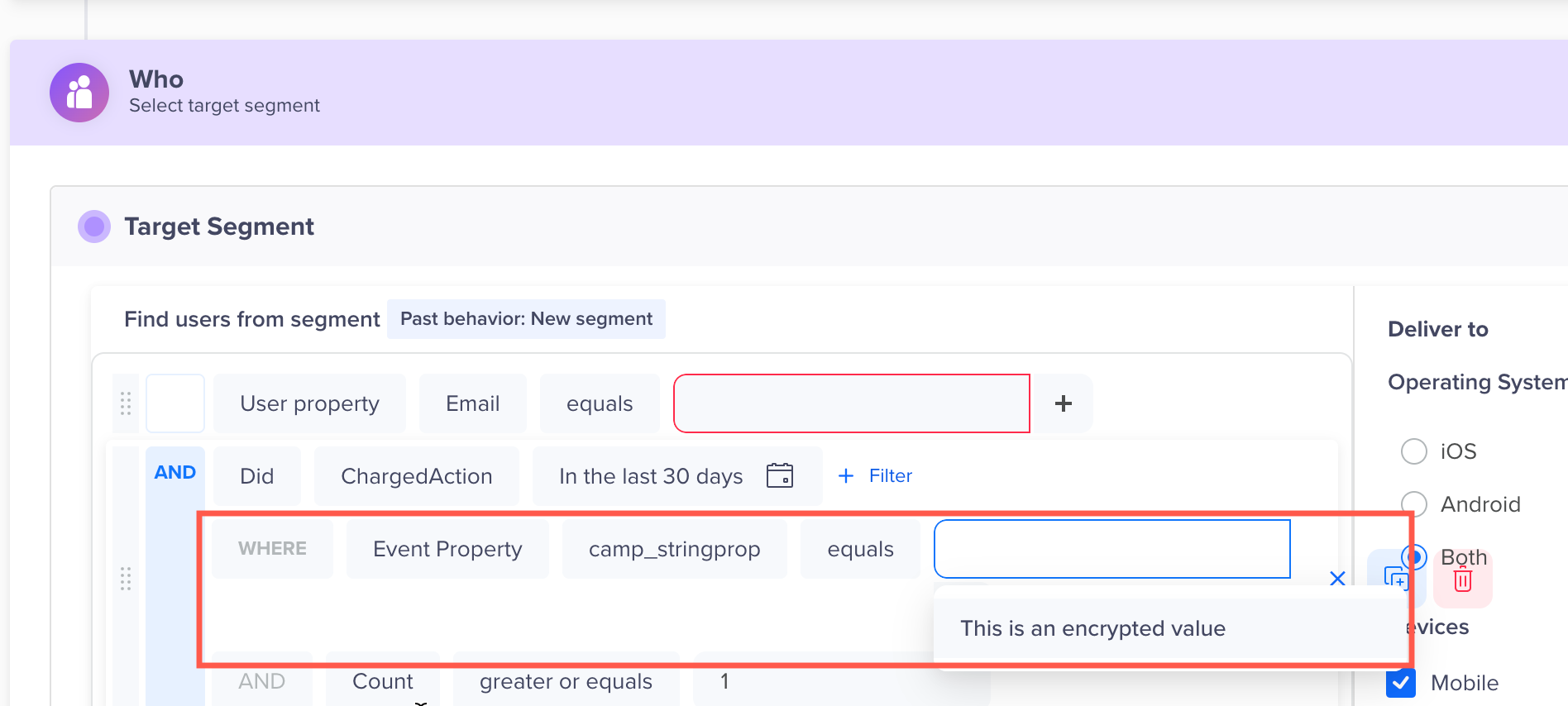
Filter using Encrypted Values in Campaigns
If the campaign user role permits access, you can use personalization fields such as email and phone. Campaign messages sent via email or push will use secure encryption.
Create Journeys with Encrypted Properties
You can create Journeys that use encrypted segments and properties for targeting and decision-making. Follow the steps below to create a Journey with encrypted properties.
- Go to Journeys and click Journey.
- Define triggers and paths using encrypted segments.
Use encrypted data fields for decision splits and personalization-based permissions.
Analytics
Users with appropriate permissions can query events using encrypted values. The list in the following image displays, This is an encrypted value, ensuring PII remains protected and usable for analytics.
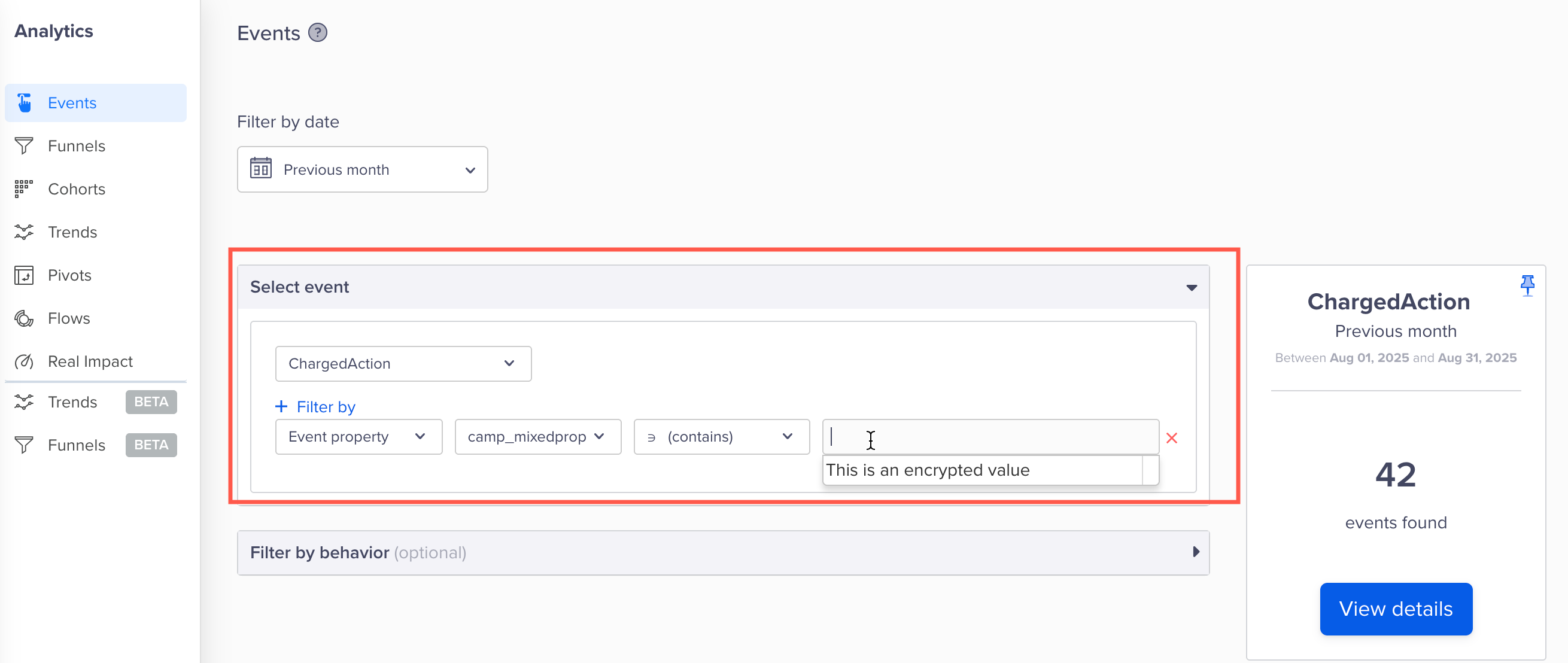
Query using Encrypted Values in Analytics
Require PermissionOnly users with appropriate permissions can use encrypted fields in engagement workflows. Unauthorized users see placeholder values or cannot select segments.
The following image shows the message displayed when access is restricted:
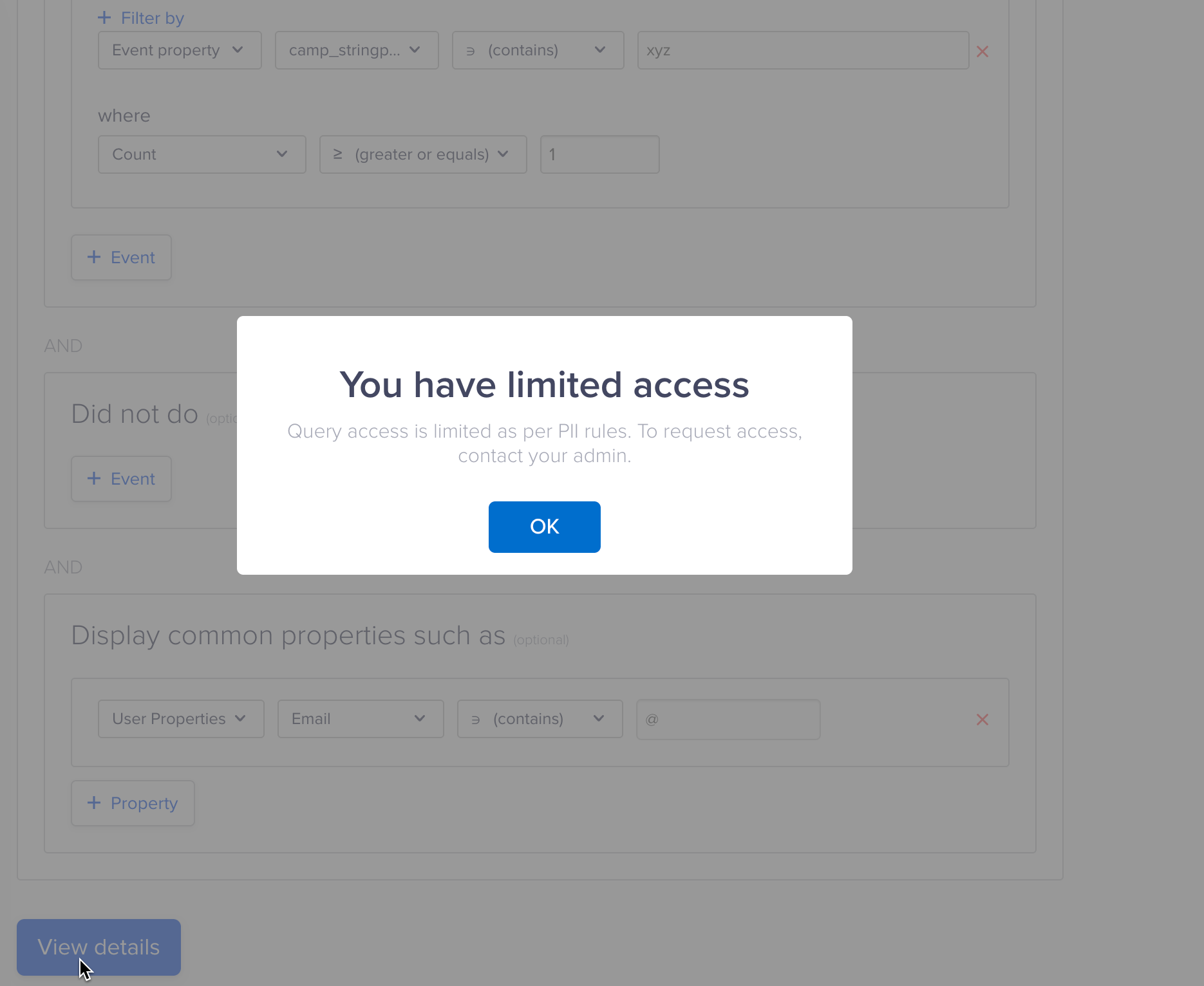
Restricted Access
Manage Entities with Encrypted Data
Campaign management involving encrypted data is supported through the Global Campaign List (GCL) and the Global Test List (GTL) with certain limitations:
- GCLs and GTLs using encrypted fields are partially supported.
- Authorized users can create and manage campaigns that use encrypted fields for segmentation and targeting.
- Campaign targeting and delivery remain functional with encrypted data, preserving confidentiality.
- Use filtered segments instead of global lists where direct access is restricted.
- Configure audience targeting using segment-based filters.
Frequently Asked Questions
The following FAQs address common questions about how PII encryption works, where it applies, and what limitations to expect.
What encryption algorithm does CleverTap use?
CleverTap supports encrypting customer data using AES-256 encryption keys.
Is data encrypted at rest?
Yes. All stored data is encrypted by default using AES-256 encryption keys, which are managed securely through key management. CleverTap also supports encrypting data using customer-managed encryption keys.
Can I search or segment on encrypted fields?
Yes. You can search and segment on encrypted fields. The usability of encrypted fields depends on your dashboard access permissions. If you have access to encrypted data, you can use these fields for segmentation and targeting without restrictions.
Can I disable encryption for a field later?
No. Encryption is irreversible.
Does encryption impact performance?
No. CleverTap handles encryption at the infrastructure level to ensure minimal latency and no noticeable impact on dashboard or campaign performance.
How does masking interact with encryption?
If a property is both encrypted and masked, encryption always prevails. Encrypted values remain protected even if masking is also applied. For more information, refer to PII Masking.
Who can view encrypted or masked values?
Access depends on the user role:
- Admins: Can view both encrypted and masked values.
- Authorized Users: Can view masked values, but encrypted values remain hidden.
- Unauthorized Users: Cannot view encrypted or masked values; the system displays placeholders instead. Queries based on PII fields are blocked.
Can I build a segment using encrypted fields?
Yes. With the right permissions, you can build a segment using encrypted fields. Only authorized users can access decrypted values.
Can campaigns be created with encrypted data?
Yes. Campaigns and Journeys can use encrypted fields for personalization and targeting, subject to role-based permissions.
Updated 2 months ago