
Activity
Learn how to view the interaction and messages between the agent and the user.
The Activity tab shows the messages the Lifecycle Agent sent to individual users. Use it to check which users the agent reached, the order in which each user received messages, and the content of each message.
Example To confirm the agent is working as intended, select a user who hasn't purchased and check that the 10% off reminder appears in their timeline.
The following image shows the Activity tab with a user selected in the Sample Users panel. (@soumya, please verify the screenshot so that the UI is recent)
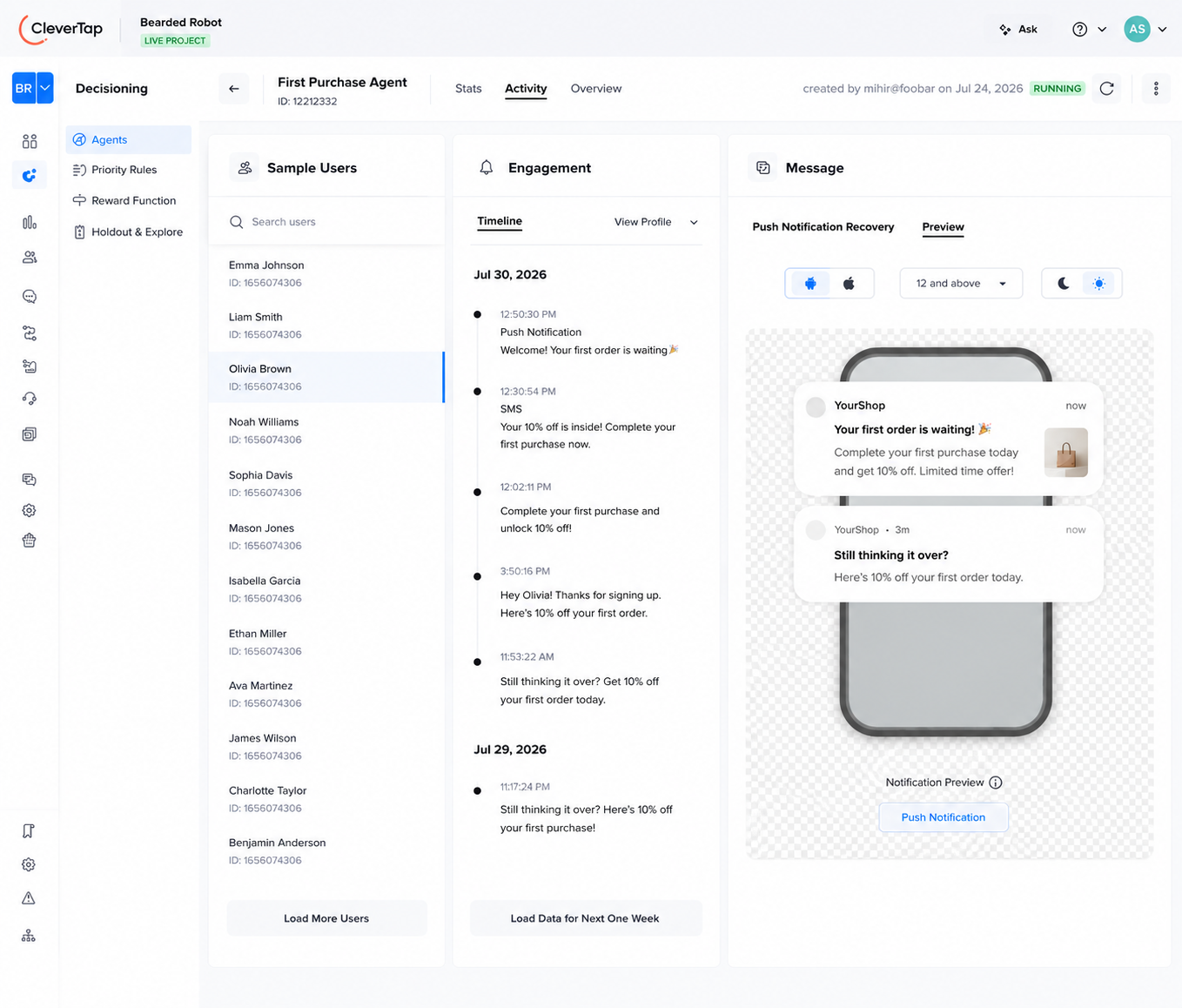
The tab is organized into three panels:
| Panel | Purpose |
|---|---|
| Sample Users | Select a user from a sample of users the agent has reached. |
| Engagement | View the messages sent to the selected user, newest first. |
| Message | Preview the selected message. |
Sample Users
The Sample Users panel lists a sample of users from the agent's audience. Select any user to load their engagement history and message details in the panels on the right.
Each entry displays:
- The user's identity name
- The user's CleverTap ID
To find a specific user, enter their name or ID in the Search users field at the top of the panel.
Engagement
The Engagement panel shows the timeline of interactions the selected user has had with the agent.
The panel header displays the selected user's name and a View Profile link. Select View Profile to open the user's full CleverTap profile.
The Timeline view lists engagements in reverse chronological order, grouped by date. Each entry shows:
- The delivery timestamp (for example, 12:50:30 PM).
- The message name (for example, Push Notification Recovery, SMS Cart Alert, WhatsApp Cart Reminder).
Select an entry to preview the message.
Message
The Message panel shows the specific message the agent sent to the selected user and explains why the agent chose it.
The panel header displays the name of the message tied to the currently selected timeline entry (for example, Push Notification Recovery).
Preview
The Preview view renders the message exactly as the user received it.
Updated about 3 hours ago