
Stats
Learn to read how Lifecycle Agent is performing over a selected date range.
Overview
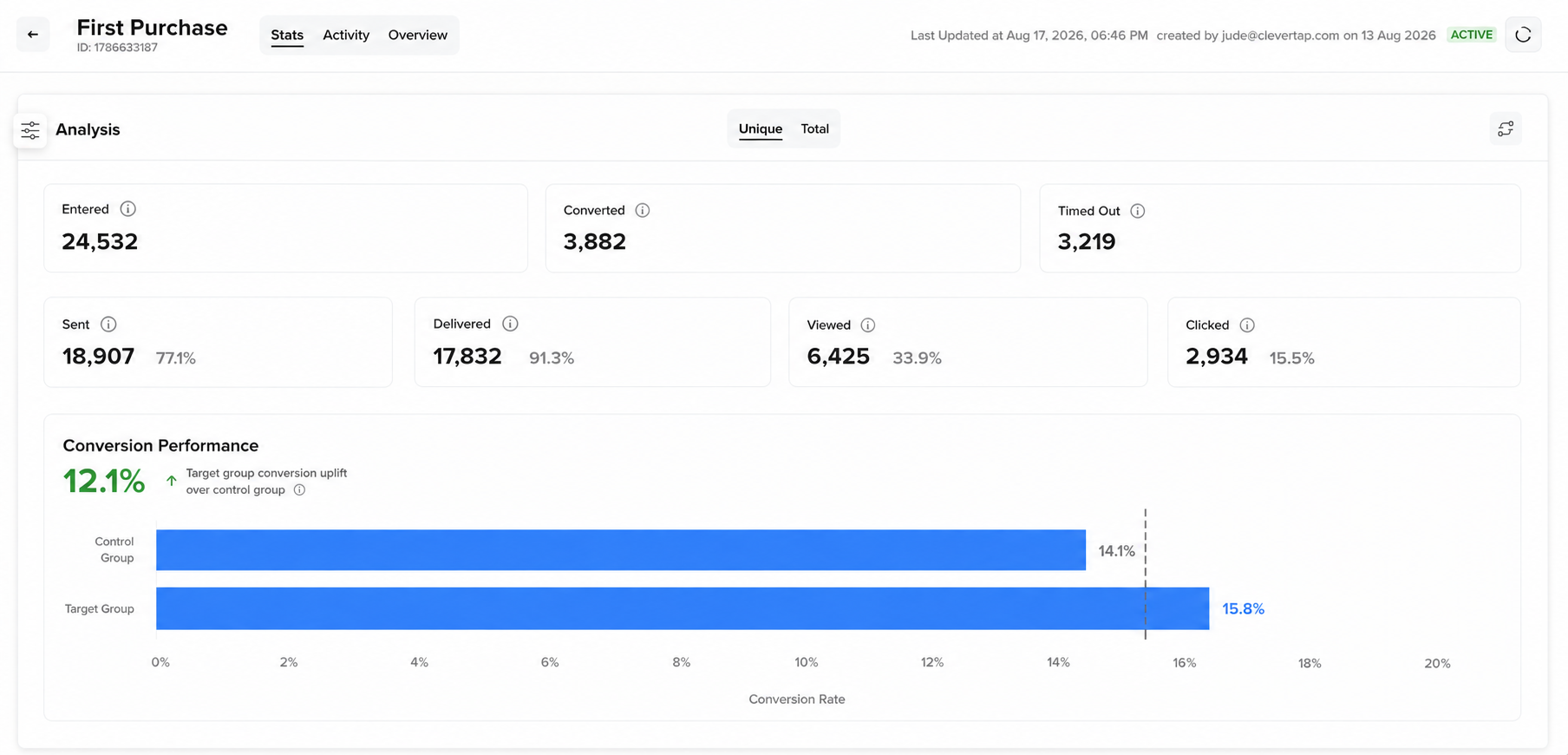
The Stats tab shows how a Lifecycle Agent is performing over a selected date range. Use it to track how many users have entered the agent, how many converted or timed out, how each message channel is contributing, and how the agent's target group is performing against the control group. The default date range is the last 30 days.
The following image shows the Stats tab with the Analysis panel, Conversion Performance chart, and Engagement Trend section:
Lifecycle Agent Stats
Metric Categories
The Stats tab groups metrics into the following sections:
- Analysis: Key engagement metrics are displayed in this section. Use the Unique / Total toggle to switch between user counts and event counts.
- Conversion Performance: A side-by-side comparison of conversions in the target group and the control group, highlighting conversion uplift over the control group.
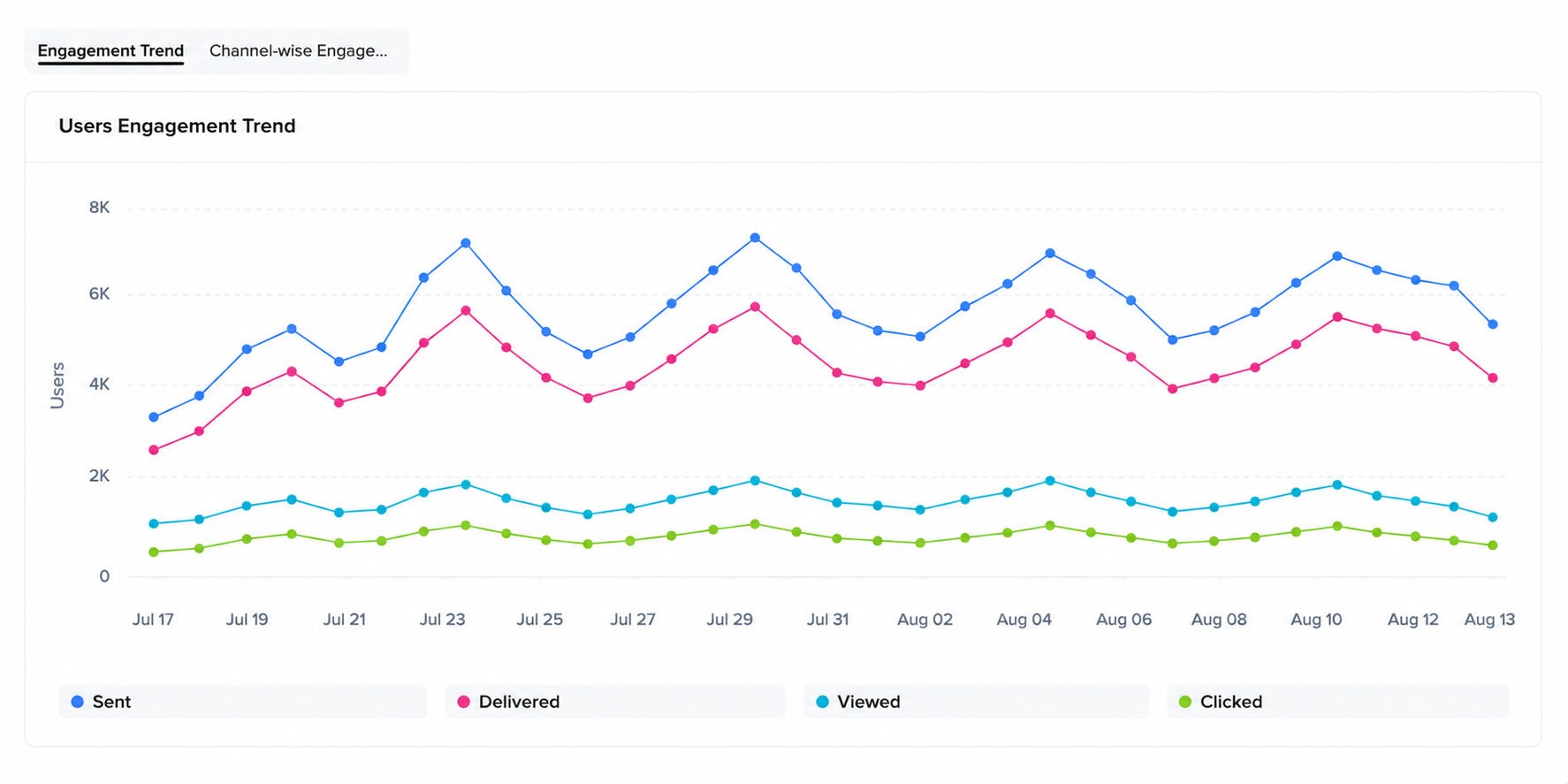
- Engagement Trend: A trend chart of engagement metrics across the selected date range.
- Channel-wise Engagement: A per-channel breakdown of messages sent, delivered, viewed, and clicked.
Analysis Section
The Analysis section reports the following metrics for the selected date range:
| Metric | Description |
|---|---|
| Entered | Users who entered the agent. |
| Converted | Users who performed the agent's goal event within the conversion window. |
| Timed Out | Users who exited the agent without meeting the goal. |
| Sent | Messages the agent sent across all channels. |
| Delivered | Messages confirmed as delivered across all channels. |
| Viewed | Messages the user opened or viewed. |
| Clicked | Messages the user clicked. |
Conversion Performance
The Conversion Performance section compares the target group with the control group, allowing you to measure the agent's incremental uplift.
The section shows:
- A conversion count for the selected date range.
- A percentage delta labeled Compared to Control Group, expressed as relative uplift using the formula (target group conversion rate − control group conversion rate) / control group conversion rate × 100.
- A horizontal bar chart with two bars for the conversion rate, that is, the Target Group and the Control Group.
Engagement Trend
The Users Engagement Trend chart plots engagement metrics across the selected date range.
Engagement Trend
The chart plots four series:
- Sent
- Delivered
- Viewed
- Clicked
Channel-Wise Engagement
The Channel-wise Engagement table breaks down engagement metrics by channel for the selected date range.
The table has the following columns:
| Column | Description |
|---|---|
| Channel Name | Delivery channel used by the agent. |
| No of Campaigns | Number of campaigns the agent ran on that channel. |
| Sent | Messages sent through that channel. |
| Delivered | Messages confirmed as delivered. Shows N/A for channels that do not report delivery callbacks. |
| Viewed | Messages viewed. |
| Clicked | Messages clicked. |
| CTR | Click-through rate for the channel. |
The Lifecycle Agent supports the following channels: Push Notifications, Email, SMS, WhatsApp, Web Push, and Inbox.
Updated about 3 hours ago