
Journey Builder: Build with AI
Learn how to build a Journey from a natural-language prompt using Journey Builder agent.
Overview
Journey Agent lets you create customer journeys using natural-language prompts. Describe your goal, for example, "Create a re-engagement journey for inactive users", and the system automatically converts it into a structured journey workflow.
AvailabilityJourney Agent is available on Pro and Ultimate plans. To access this feature, contact your Customer Success Manager.
Creating a journey using Journey Agent includes the following four key stages:
- AskAI
Enter your journey objective in the Build with AI input field. For example, "Create a re-engagement journey for users inactive for 30 days." - Journey Builder
The system interprets your prompt and generates a visual journey with predefined triggers, actions, and conditions. You can modify these elements directly in the builder. - Review Journey
Review the generated journey to confirm the audience reach, key touchpoints, and engagement logic. You can proceed to manually edit the journey to make further tweaks. - Publish Journey
Once you have finished building the journey, click Publish to launch your journey. You can monitor its performance later in the Journey Dashboard.
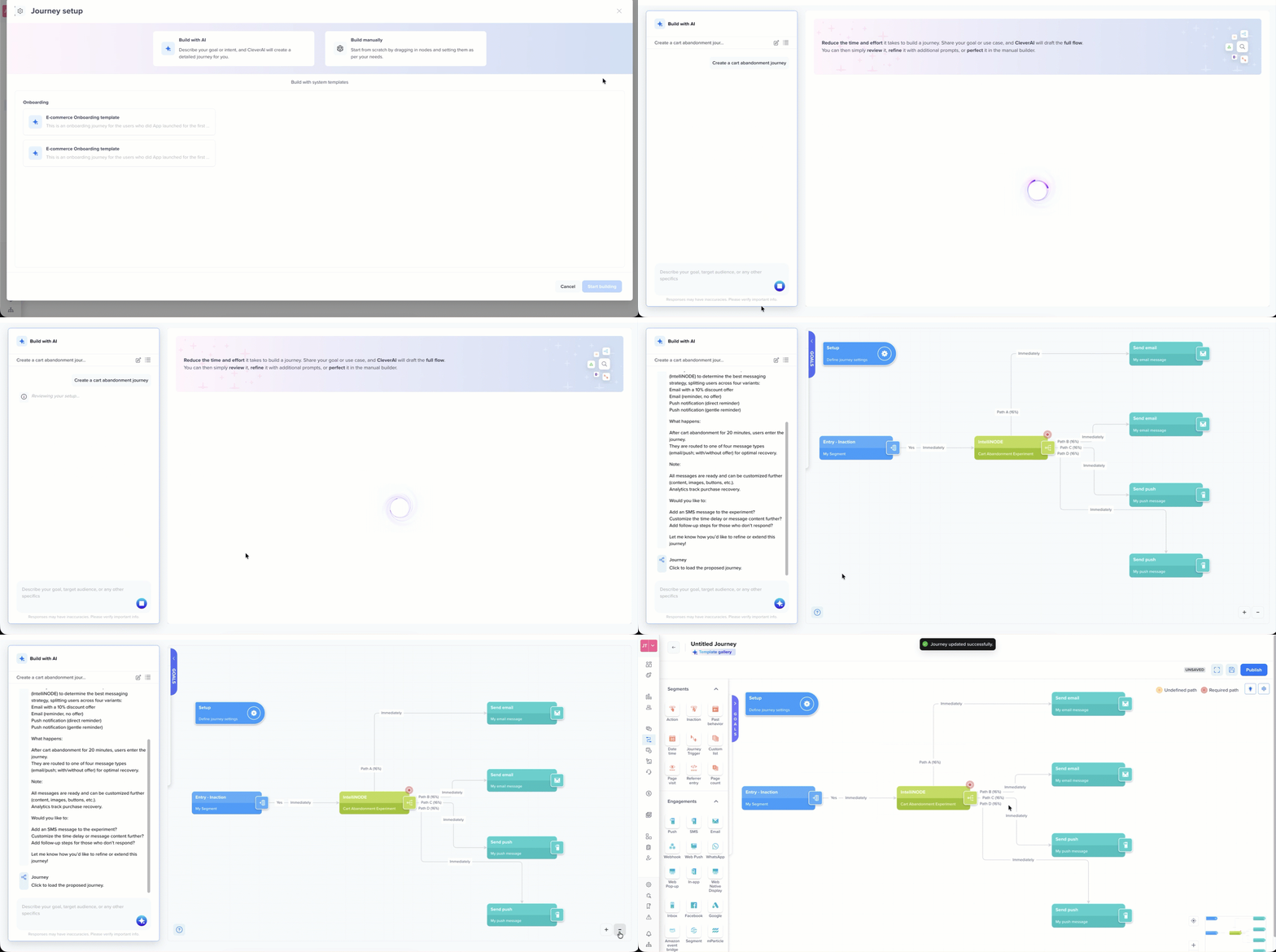
Journey Builder Agent
Build a Journey with AI
To create a journey using prompts, perform the following steps:
-
Go to Journeys and click + Journey.
-
Select Build with AI.
-
In the AskAI prompt input field, enter your journey description. For example,
Create an onboarding journey for Ecommerce app. The system generates a visual flow with:- Entry: The event or condition that triggers the journey (for example, App Installed).
- Actions: Users receive a Push Notification.
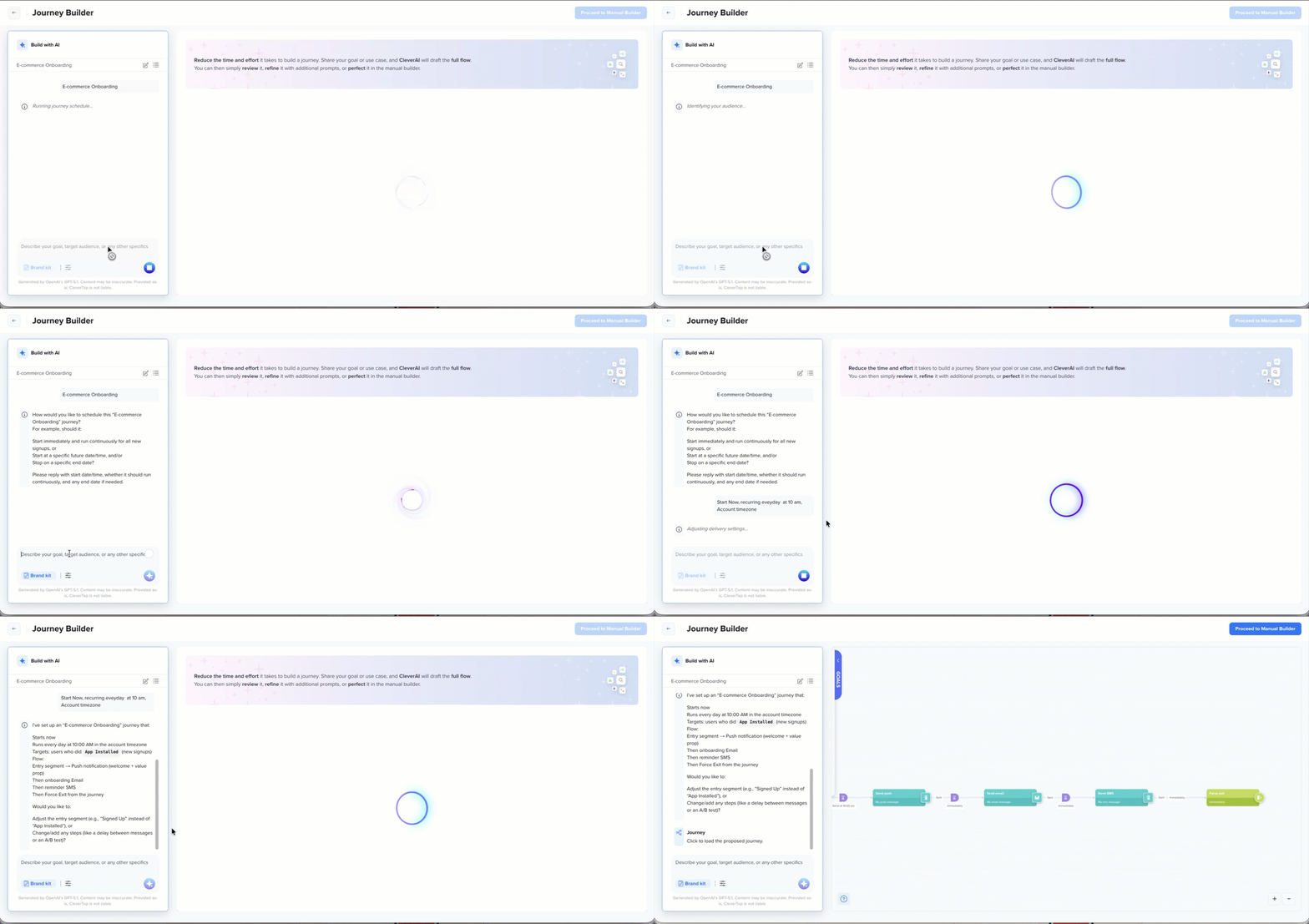
Build Sample ECommerce Journey Using Prompr
-
Review the generated journey and refine it using follow-up prompts. For example, you can remove an SMS node and force users who engage with the Email campaign to exit.
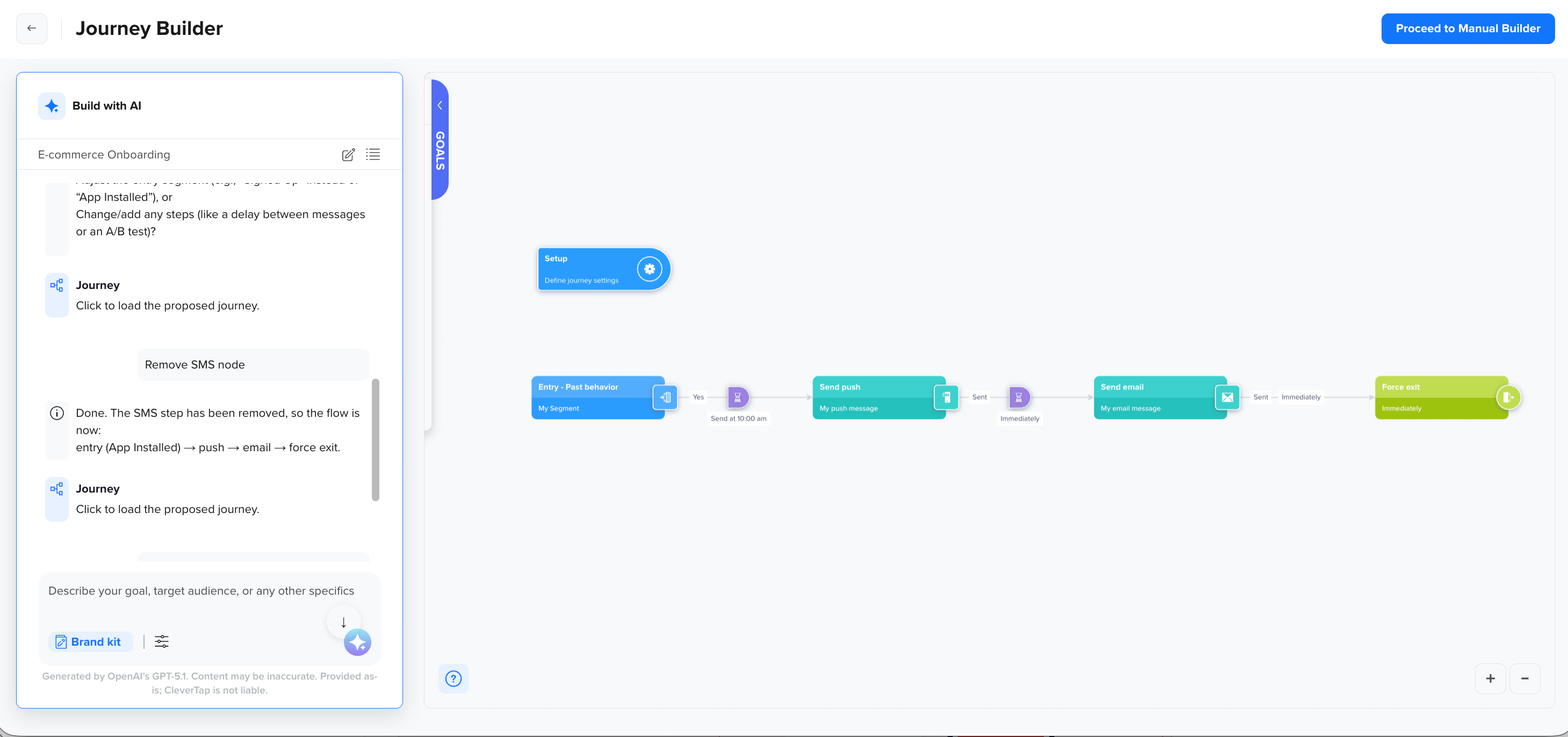
Modify Journey Built Using Agent
-
Click Proceed to Manual Builder, then click Publish once you have reviewed your journey and are ready to activate it.
Best Practices
- Use clear, action-oriented prompts (for example, "Create a win-back journey for users who haven't opened the app in 14 days.").
- Explicitly mention which channels you want to include in the journey (Push, Email, SMS, or WhatsApp).
- Specify wait periods or delays between steps to help the system generate accurate timing in the journey.
- Review the generated workflow before launch to verify conditions.
- Save commonly used journeys for future use.
- Test with a smaller audience before full rollout.
Add Visuals and Brand Consistency
Journey Agent supports integration with CleverTap's creative tools to help you maintain consistent branding across all messages:
-
Brand Kits: Apply pre-defined visual assets, color palettes, and typography to maintain brand consistency across campaign messages. For more information, refer to Brand Kits.
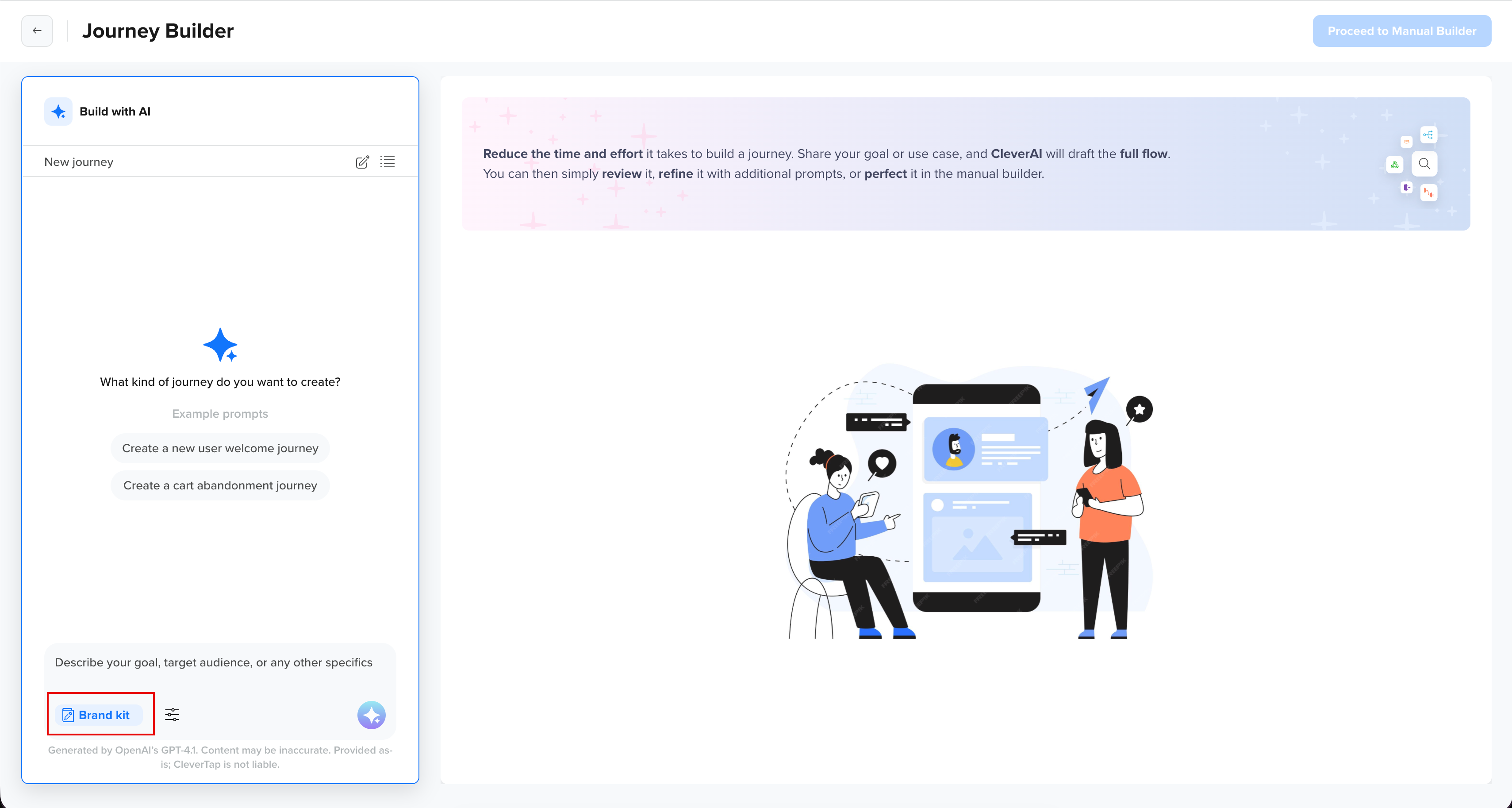
Applying Brand Kit to Journeys for Brand Consistency
-
Image Creator Agent: Automatically generate or optimize creative assets using AI suggestions based on your campaign type. For more information, refer to Image Creator.
Manage Generated Journeys
Journeys created with Journey Agent land on the same Journey canvas used for manually built journeys. There is no separate list for AI-generated output.
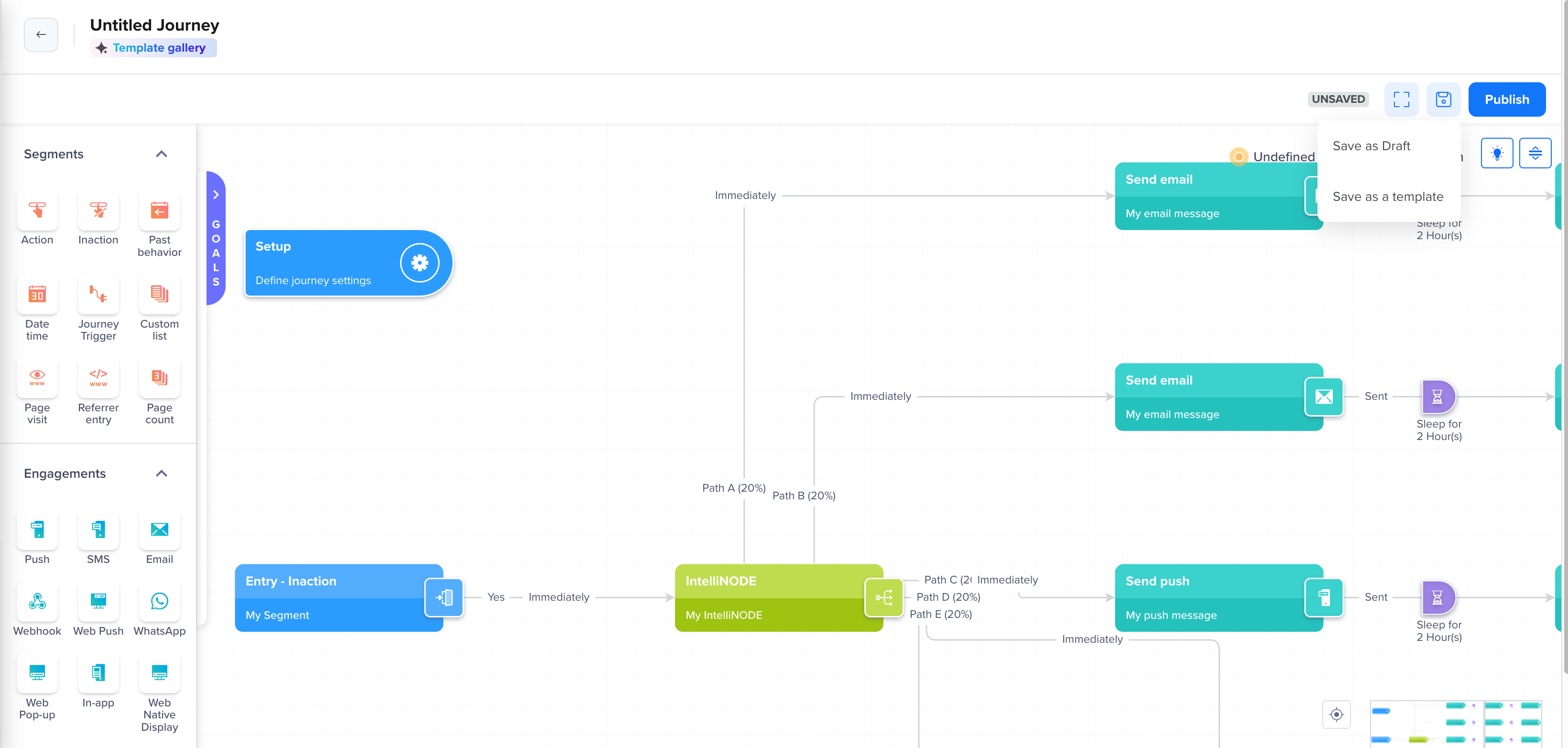
Save Journey
-
Save as Draft: The journey appears in the standard Journey List alongside manually created journeys.
-
Save as a Template: The journey appears under the Saved Templates tab on the Journey List page, and under a Saved Templates group in the template gallery when creating a new journey.
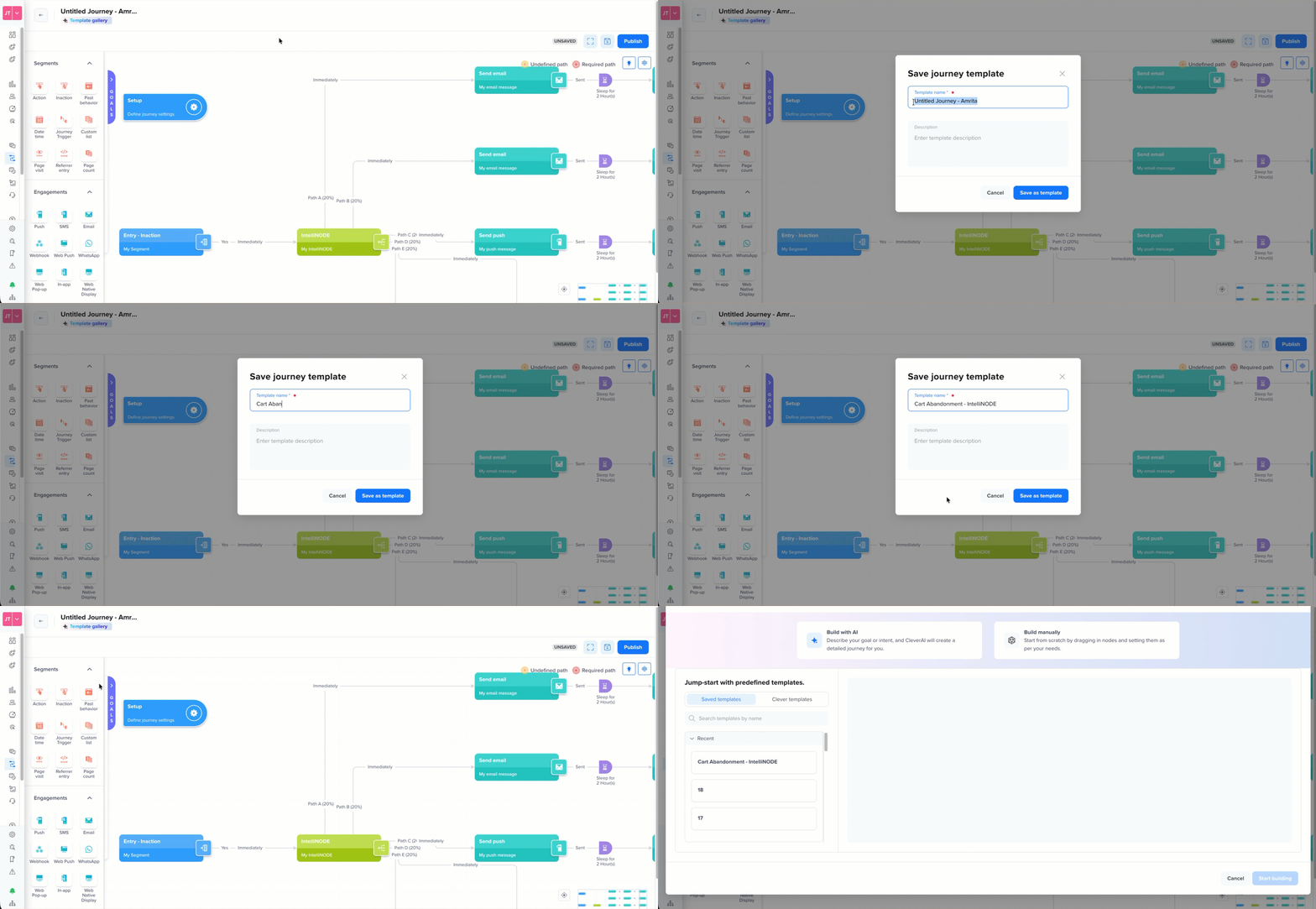
Save Journey as Template
You can access the Template gallery in two ways:
- From the Journey canvas, click the Template gallery option at the top.
- From the Journey setup popup.
Threads
Every Journey Builder agent session is saved as a thread under the  panel. A thread captures your prompts, refinements, and the resulting conversation, so you can return to a session and continue building from where you left off.
Click  to start a fresh session, or click to see previous sessions, listed by Thread Name, Created On, and Last Updated. Click Load Thread to reopen a session and continue the conversation.
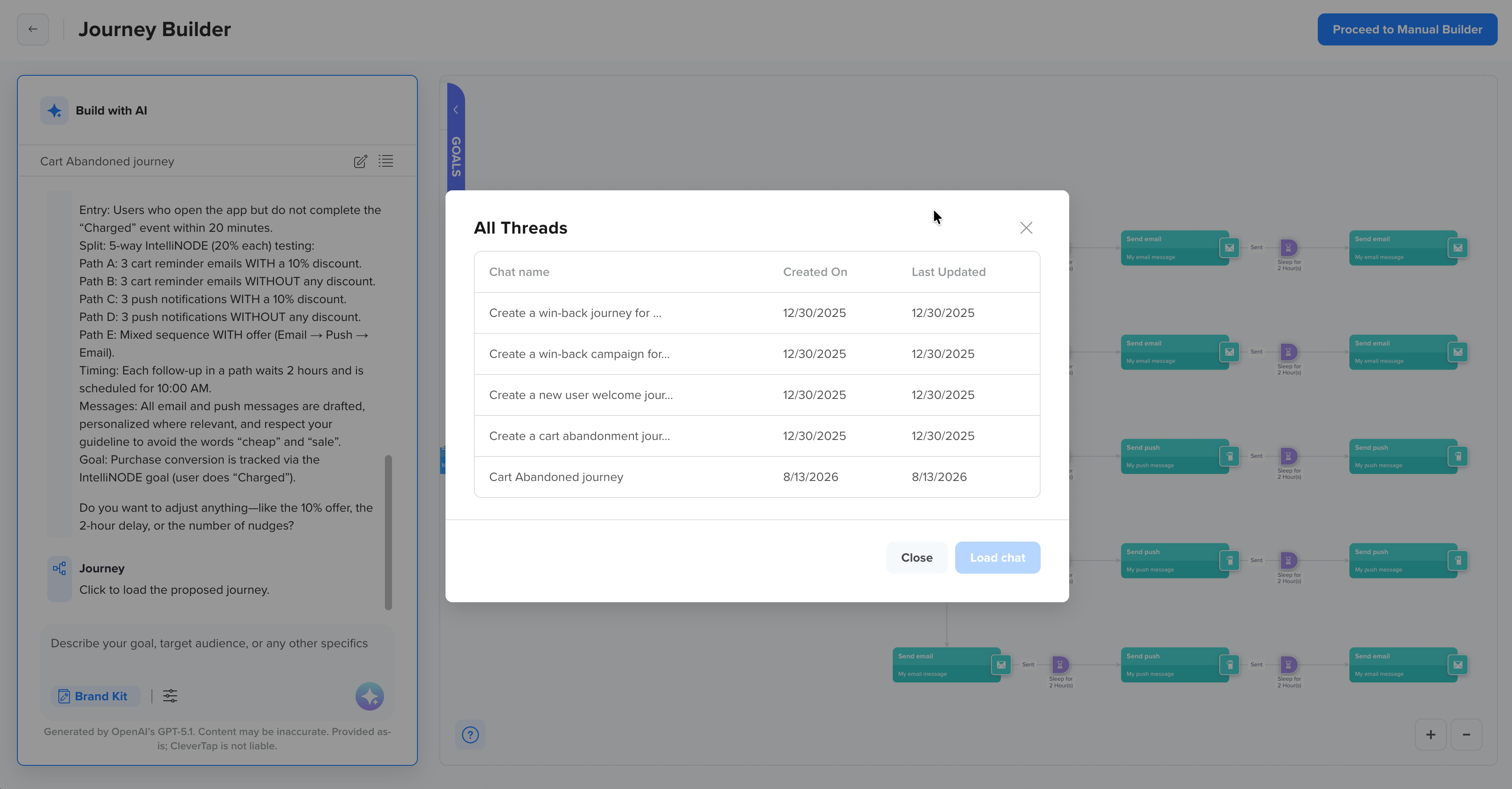
Access All Threads
How Threads Work
Threads are stored locally in your browser and are not synced across devices or team members. Reopening the Journey Builder agent in a different browser or on a different device will not display threads created earlier. Save any journey you want to keep as a draft or template before switching devices.
Manage Threads
From the All Threads view, you can:
- Reopen an older thread to continue generating or editing journeys using the same context.
- Review and compare multiple journeys created during that session.
- Reuse previously saved journeys or templates instead of regenerating them.
For subsequent edits, you need not restart a session. Select the thread and type your next instruction directly in the chat. For example: "Add an SMS node after the Email node with a delay of 1 day." The AI updates the existing journey while preserving your prior nodes and settings.
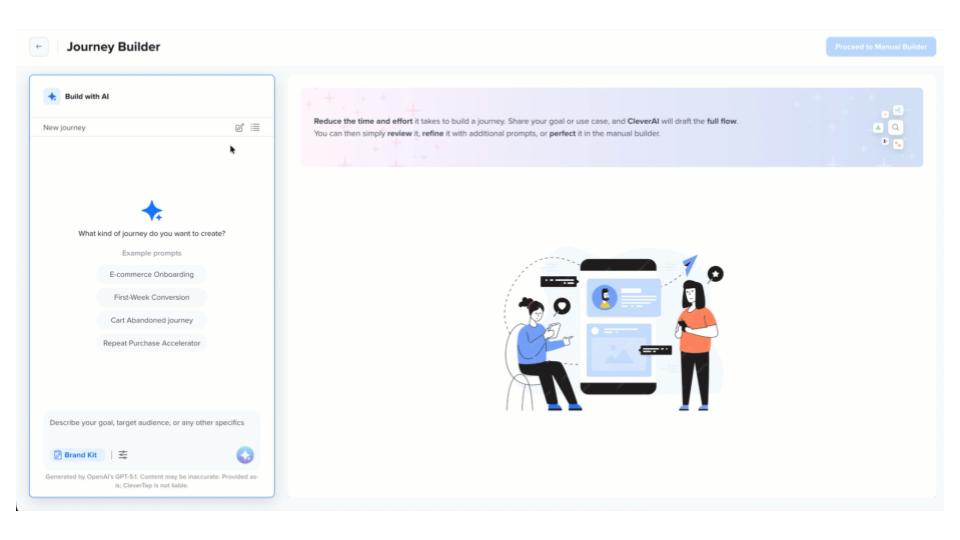
Edit Journey From Existing Thread
FAQs
How is my data used and sent to OpenAI?
Your data is never used to train OpenAI models, and is deleted by OpenAI within 30 days. To generate AI output using CleverTap AI features that leverage OpenAI, CleverTap sends your prompt along with event names, event properties, user properties, segment names or IDs, and any other relevant inputs to OpenAI. The input sent does not identify you or your users unless you choose to include identifiable information in your prompt. CleverTap provides no warranties regarding the AI-generated content, including the output. For more information, refer to OpenAI's Enterprise Privacy Policy.
Is there a limit to the thread history?
There is no limit to the thread history. Threads are stored locally at the browser level.
Updated about 1 month ago