
Personalize Engagements Using Recommendations
Learn how to personalize user engagements with dynamic recommendation content.
Overview
Recommendations let you deliver a personalized set of items to each user within a campaign, without requiring manual targeting. Instead of showing the same content to everyone, CleverTap selects and ranks items for each recipient at send time based on their individual behavior, preferences, and engagement history.
When you add a recommendation block to a campaign, users receiving the same message may see entirely different items, each set chosen specifically for them.
How Personalization Works at Send Time of CampaignRecommendations are not resolved when you build the campaign. At the moment CleverTap sends to each recipient, it runs the selected strategy against that user's profile and returns a ranked list of items drawn from your catalog. Two users in the same campaign receive the same message template but different items.
For personalized strategies (such as Based on What You Viewed), each user sees a different ranked list. For aggregate strategies (such as Popular or Trending), all users see the same ranked list.
Use Cases
Re-engage Lapsed Users with Content They Will Actually Open
Target users who have been inactive for a defined period. Combine a re-engagement message with items drawn from their individual history, for example, recently browsed categories, past purchases, or content they engaged with before going quiet. Each user receives items matched to their own profile, not a generic list.
| Domain | Use Cases |
|---|---|
| OTT | Target users inactive for 14 days with a "New for you" push featuring recently added titles in their most-watched genre. |
| ECommerce | Reach lapsed shoppers with a "Based on what you loved" email surfacing products from their last purchase category. |
| Travel | Reach users who browsed but never booked with a "Still dreaming?" email featuring destinations they previously searched, now with updated availability or pricing. |
| Food Delivery | Win back churned users with a "Your favorites are waiting" push featuring restaurants from their most-ordered cuisines. |
Recover Abandoned Sessions with Relevant Alternatives
Trigger a campaign when a user drops off mid-session without completing an action. Reinforce the original item and surface alternatives that match the same intent, giving users a reason to return without requiring them to search again.
| Domain | Use Cases |
|---|---|
| OTT | Trigger a push when a user stops watching mid-season, pairing it with a re-engagement hook and other titles from the same genre or director. |
| ECommerce | Send a cart abandonment email that shows the left-behind item alongside similar alternatives at the same price point. |
| Travel | Trigger an email when a user drops off mid-booking, showing the same itinerary alongside comparable options at similar or lower fares. |
| Food Delivery | Send a recovery push when a user abandons an order, featuring the same restaurant alongside highly-rated alternatives serving the same cuisine. |
Run Promotions while Keeping Individual Relevance
Broadcast a campaign to a large segment, for example, a seasonal sale, a weekly digest, or a content spotlight, while the featured items are pulled dynamically from the catalog based on each recipient's profile. The campaign scales; the item selection stays personal.
| Domain | Use Cases |
|---|---|
| OTT | Promote a new content library to your entire base while personalizing the titles shown to each user based on their viewing history and genre preferences. |
| ECommerce | Run an end-of-season sale campaign where featured products are drawn from each user's most-browsed category rather than a single editorial pick. |
| Travel | Promote a flash sale on flights and hotels, with featured destinations drawn from each user's past searches and saved itineraries. |
| Food Delivery | Run a weekend cashback campaign where the featured restaurants shown to each user are drawn from their preferred cuisines and ordering patterns. |
Surface Trending or Popular Content at Scale
When you want all users to see the same high-signal items, for example, bestsellers, trending titles, or top-rated products, use an aggregate strategy. Personalization is not required for every use case.
| Domain | Use Cases |
|---|---|
| OTT | Send a weekly "Trending this week" digest featuring the platform's most-watched titles across all users. |
| ECommerce | Highlight the week's bestselling products in a Friday promotional push sent to your full active base. |
| Travel | Promote the most-booked destinations for the upcoming long weekend in a time-sensitive push to all opted-in users. |
| Food Delivery | Feature the highest-rated new restaurant additions in a "New and trending near you" notification sent to users in the relevant city. |
Prerequisites
Before adding a recommendation block to a campaign, confirm the following are in place:
- At least one active recommendation strategy.
- Relevant user events are being tracked. Behavioral strategies, such as Based on What You Viewed, require that the view or interaction events be instrumented.
Add Recommendations to Campaign
Open your campaign and go to the Content Editor. Click Personalize, select the Recommendations tab and perform the following steps:
- Select Recommendation Strategy
- (Optional) Apply Include and/or Exclude Rules
- Configure Items.
- Reference Recommendation in Campaign Message.
Select Recommendation Strategy
Choose a primary strategy from the dropdown. This strategy determines how recommendations are generated for each user. For example, an OTT platform wants to recommend a list of shows based on each user's viewing history, and each user receives a different list of titles.
Optionally, add one or more fallback strategies. Fallbacks activate when the primary strategy cannot generate results for a given user, for example, a new user who has not yet watched anything. For such users, you can add Trending as a fallback strategy
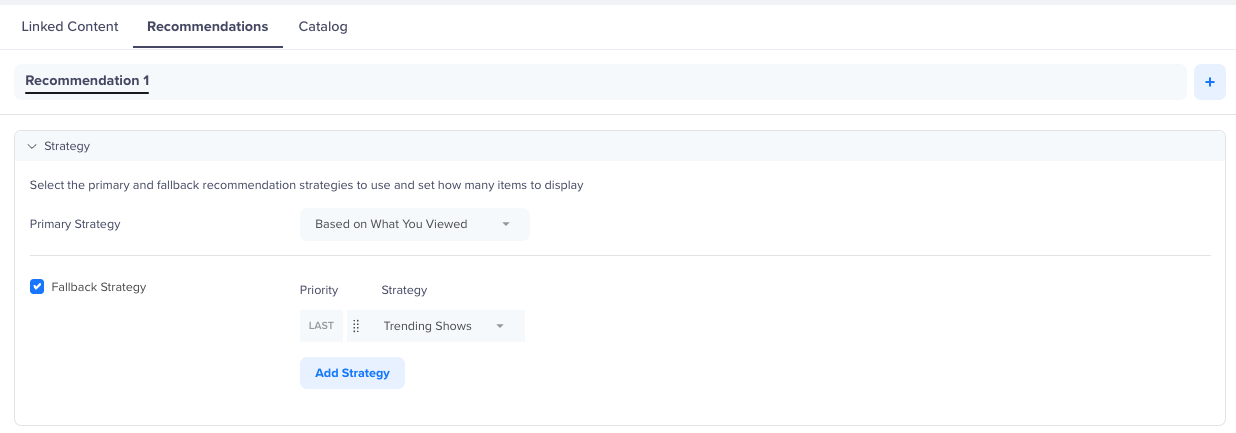
Select Strategy
Fallbacks execute in the order you configure them: the first fallback that returns results is used. If no fallback strategies are configured and the primary strategy returns no results, the default values will be returned.
Apply Include and/or Exclude Rules
Refine which items are eligible to appear using catalog or event-based rules. Rules are evaluated at send time.
Inclusion Criteria
For example, the OTT platform adds a catalog rule: Language = English. This ensures only English shows appear in the recommendation block, keeping the output consistent with the campaign's intent.
Exclusion Criteria
For example, the OTT platform adds a catalog rule: Genre = Action/Thriller. This ensures Action/Thriller shows do not appear in the recommendations block.
Together, these rules mean each user receives up to 10 shows, excluding Action/Thriller shows, filtered to English-language content, ranked by each user's individual viewing behavior or by platform-wide trending if they are new.
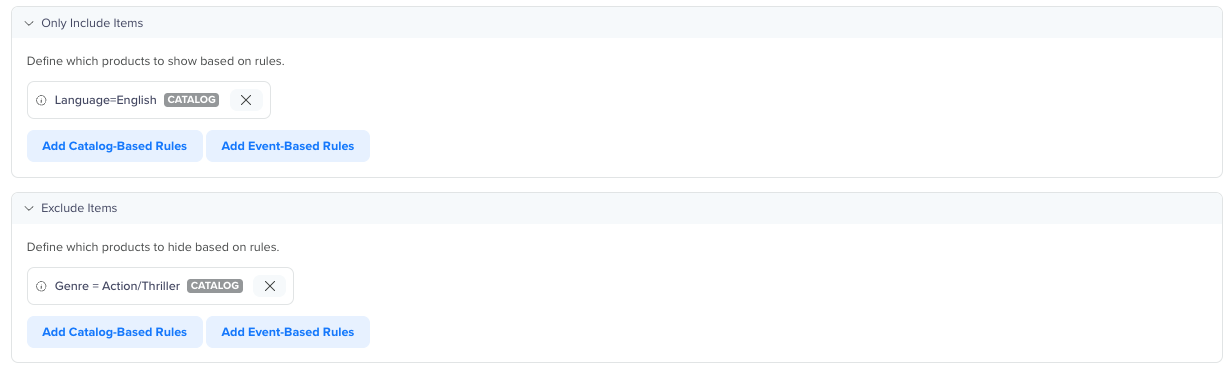
Include and Exclude Items
These rules help control relevance and prevent undesired items from appearing.
For more information about rule configuration, refer to Catalog-Based Rules and Event-Based Rules.
Final Outcome
Items to Recommend
Set the number of items to display per user. For example, if the Item count is set to 10. Each user receives a personalized list of 10 shows.
Item Attributes to Recommend
Select the catalog attributes to surface for each recommended item. Any attribute mapped in your catalog is available. For example, the OTT platform selects Title, Thumbnail, Genre, and Content URL. These attributes will be available as variables in the message template, so each recommendation card can display the show name, poster image, genre label, and a link that opens directly to the show in the app.
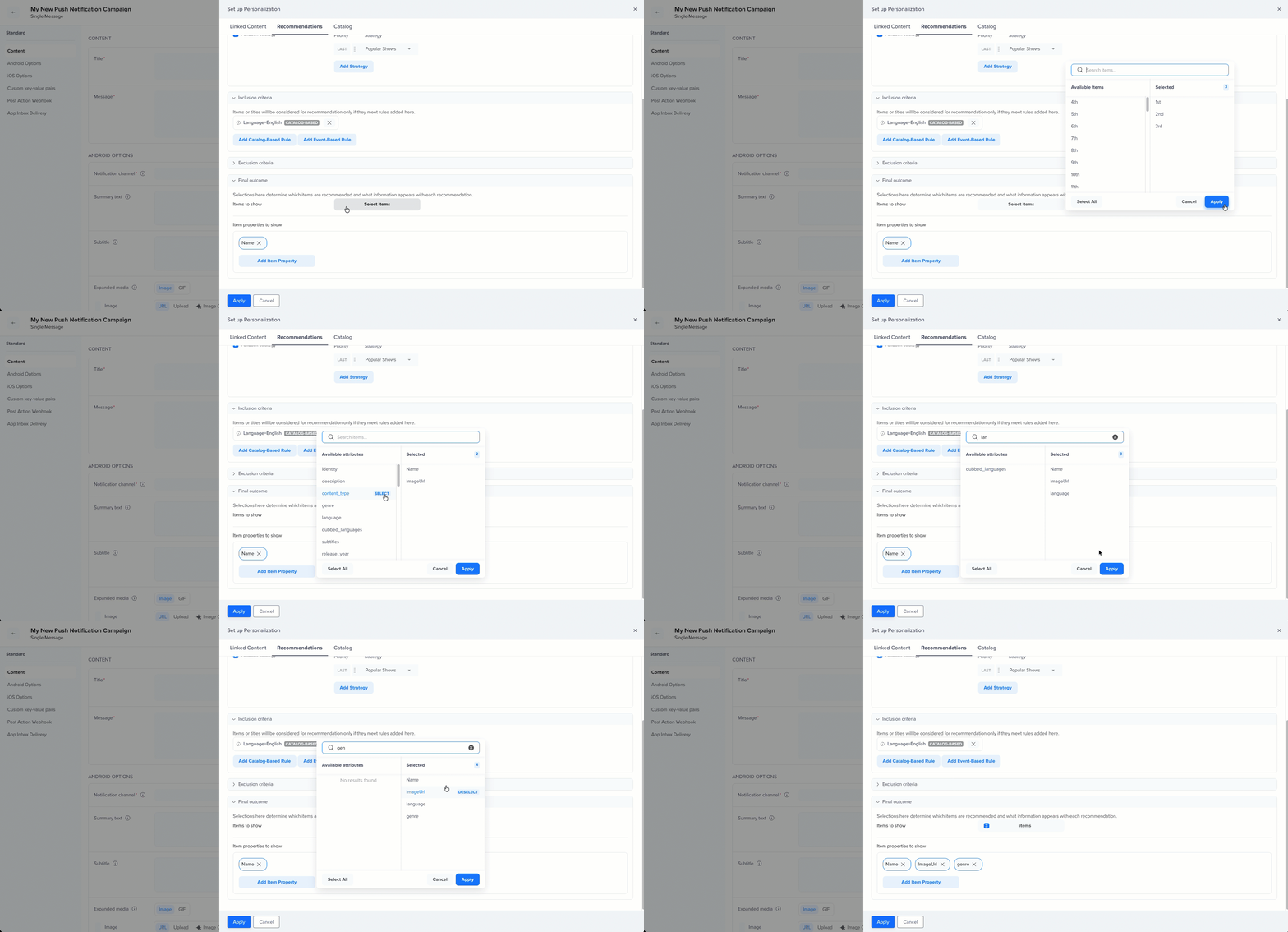
Configure Items
Once the recommendation personalization is set, Liquid Script is used to reference the recommendation output in your Title and Message fields.
Reference Recommendation in Campaign Message
Once the recommendation is applied, use Liquid Tags in your Title and Message fields to pull item data into the template.
The following image shows the filled Title and Message fields with Recommendations:
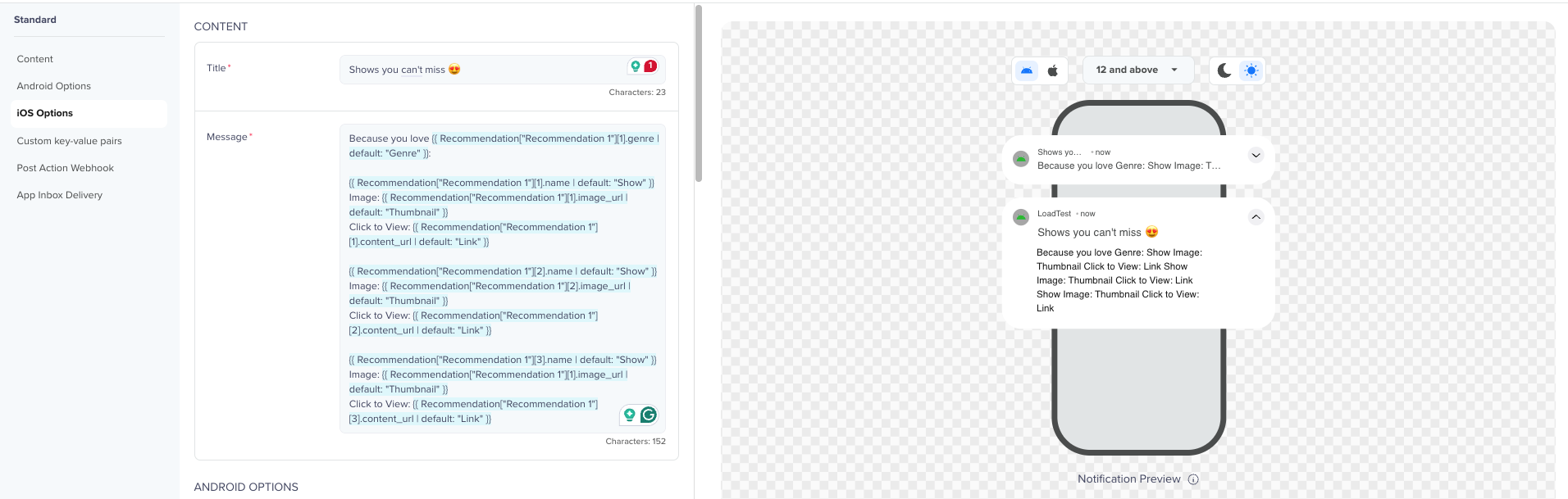
Reference Recommendations in Campaign
How It Resolves at Send Time
Returning user (primary strategy: Based on What You Viewed)
User has watched The Office, Brooklyn Nine-Nine, and Schitt's Creek. Strategy identifies Comedy as its dominant genre and ranks accordingly.
| Field | Resolved value |
|---|---|
| Title | Ted Lasso |
| Message | Because you love Comedy |
| Image | Ted Lasso thumbnail |
| Click to View | Deep links directly to Ted Lasso |
For New User (Fallback Strategy: Trending)
User has no viewing history. Strategy falls back to platform-wide trending content.
| Field | Resolved value |
|---|---|
| Title | Squid Game |
| Message | Because you love Drama |
| Image | Squid Game thumbnail |
| Click to View | Deep link directly to Squid Game |
The genre label in the message body is pulled from Genre attribute of the top recommended item, that is, Recommendation["Recommendation 1"][1].genre | default: "Genre" }}.
For the returning user, this resolves to Comedy because the top-ranked recommendation is a comedy. The Based on What You Viewed strategy surfaces shows similar to what the user has previously watched. In this case, the user's viewing history (The Office, Brooklyn Nine-Nine, Schitt's Creek) has led the strategy to rank comedy titles highest.
For the new user on the Trending fallback, the top-ranked show is a drama, so the genre resolves to Drama. The template is identical for both users; only the resolved values differ based on which strategy fired and what it returned.
NoteYou can configure up to five fallback strategies. Only Popular and Trending
strategies can be used as fallbacks; they do not depend on user interaction
history or a reference item, so they always resolve. The fallback must also use
the same catalog as the primary strategy.
Publish
Use Preview to verify the message template structure and confirm that item layout and attribute placeholders are correctly positioned in your content.
Once the template is validated, publish or schedule the campaign. At send time, CleverTap generates personalized recommendations for each recipient. Each user receives items selected and ranked specifically for them based on their individual profile, behavior, and the configured strategy.
Updated about 1 month ago