
Heltar
WhatsApp Provider
Overview
Heltar is a WhatsApp Business API (WABA) solution provider that helps businesses automate, personalize, and scale customer communication on WhatsApp. By integrating Heltar with CleverTap, businesses can trigger WhatsApp campaigns and transactional messages using CleverTap’s customer data, segmentation, and journey orchestration, while Heltar manages WhatsApp message delivery and compliance.
With this integration, businesses can:
- Send WhatsApp messages using Meta-approved templates provisioned through Heltar.
- Trigger event-based and segment-driven WhatsApp campaigns from CleverTap.
- Track message delivery and user engagement using CleverTap analytics and callbacks.
Support for IntegrationHeltar manages and continuously improves this integration. The CleverTap and Heltar integration has undergone stringent testing to ensure seamless functionality. For any questions or issues, contact [email protected] for support and resolution.
Prerequisites for Integration
Check that you have the following:
- The WhatsApp Campaigns feature is enabled on your CleverTap account.
- An active Heltar account with WhatsApp Business API (WABA) access.
- A WhatsApp Business number is provisioned and active through Heltar.
- WhatsApp message templates required for approval are available in the Heltar dashboard.
Integrate Heltar with CleverTap
This integration involves the following three key steps:
Set Up Heltar Account
Heltar typically manages WhatsApp Business onboarding, API provisioning, and configuration during setup. During onboarding, the Heltar team shares the required endpoint details and authentication headers needed to configure CleverTap.
For assistance, contact Heltar Support.
Configure CleverTap Dashboard
To configure Heltar as your WhatsApp provider in CleverTap, perform the following steps:
- Go to Settings > Channels > WhatsApp > WhatsApp Connect in the CleverTap dashboard.
- Click + Add Provider and select Generic (Other) from the Provider list.
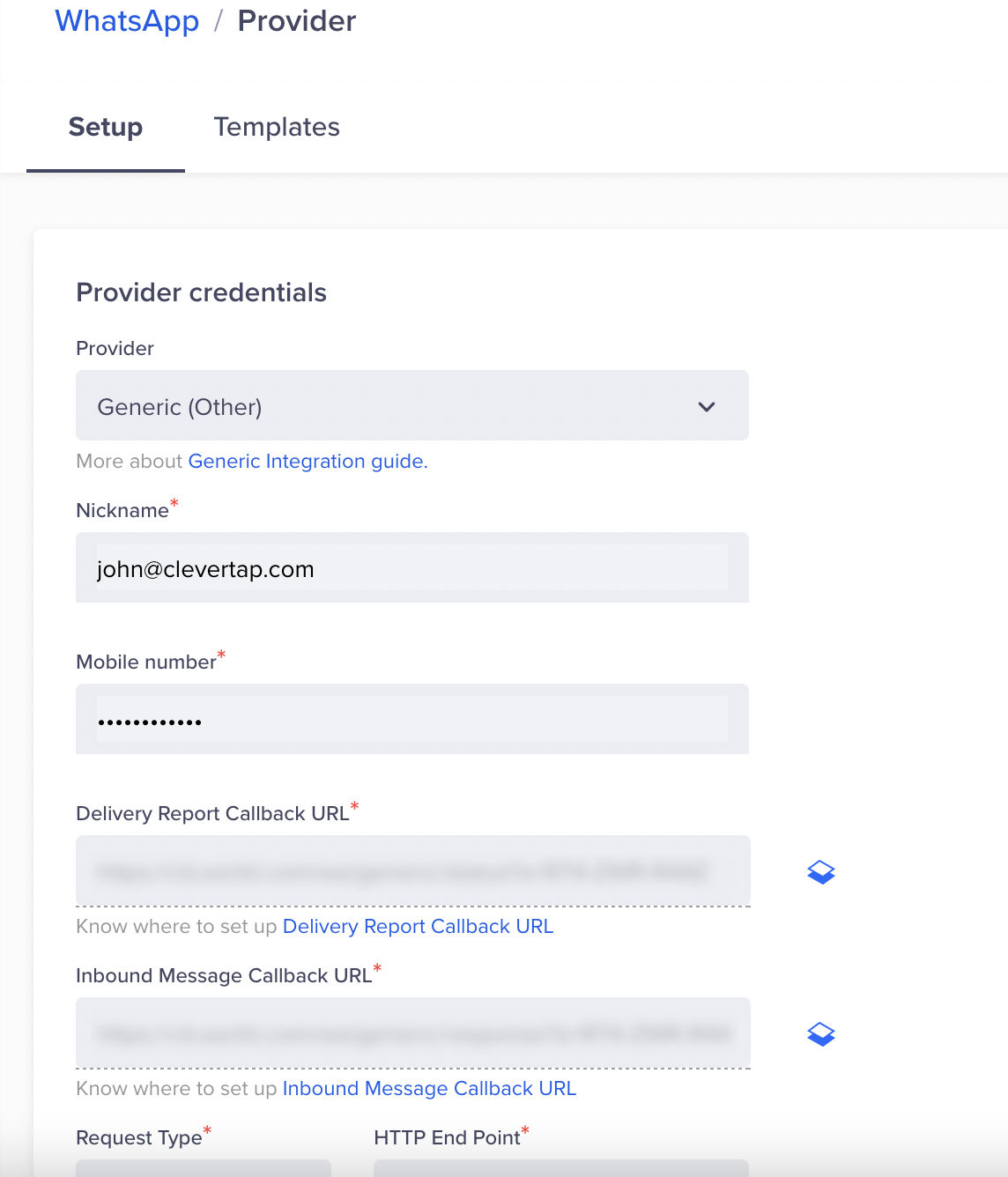
WhatsApp Provider Setup
- Enter the following details:
| Field | Details |
|---|---|
| Nickname | Enter the name for your provider configuration, for example, Heltar_WA. |
| Mobile Number | Enter your WhatsApp Business number with the country code. (for example, +918889500122) |
| Request Type | Select POST. |
| HTTP Endpoint | Paste the WhatsApp endpoint provided by Heltar during onboarding. Check that the URL is in HTTPS format, that is, your URL must begin with https://. |
| Delivery Report Callback URL | This URL is generated automatically in the CleverTap dashboard. For more information, refer to Set Up Callbacks in Heltar. |
| Inbound Message Callback URL | This URL is generated automatically in the CleverTap dashboard. For more information, refer to Set Up Callbacks in Heltar. |
- Under Headers, add the following:
| Key | Value |
|---|---|
Authorization | Basic <Heltar API Key> |
Content-Type | application/json |
- (Optional) Select Mark this as default to make this service provider the default provider to send a WhatsApp message via Heltar.
- (Optional) Select Set auto-reply for users not tracked on CleverTap to automatically reply to users who message on WhatsApp but are not tracked on the CleverTap dashboard.
- (Optional) Set the Maximum Concurrent API requests between 30 and 1000. Consider your requirements and the provider's limitations when defining this value.
- Send a Test WhatsApp notification (refer to the following image).
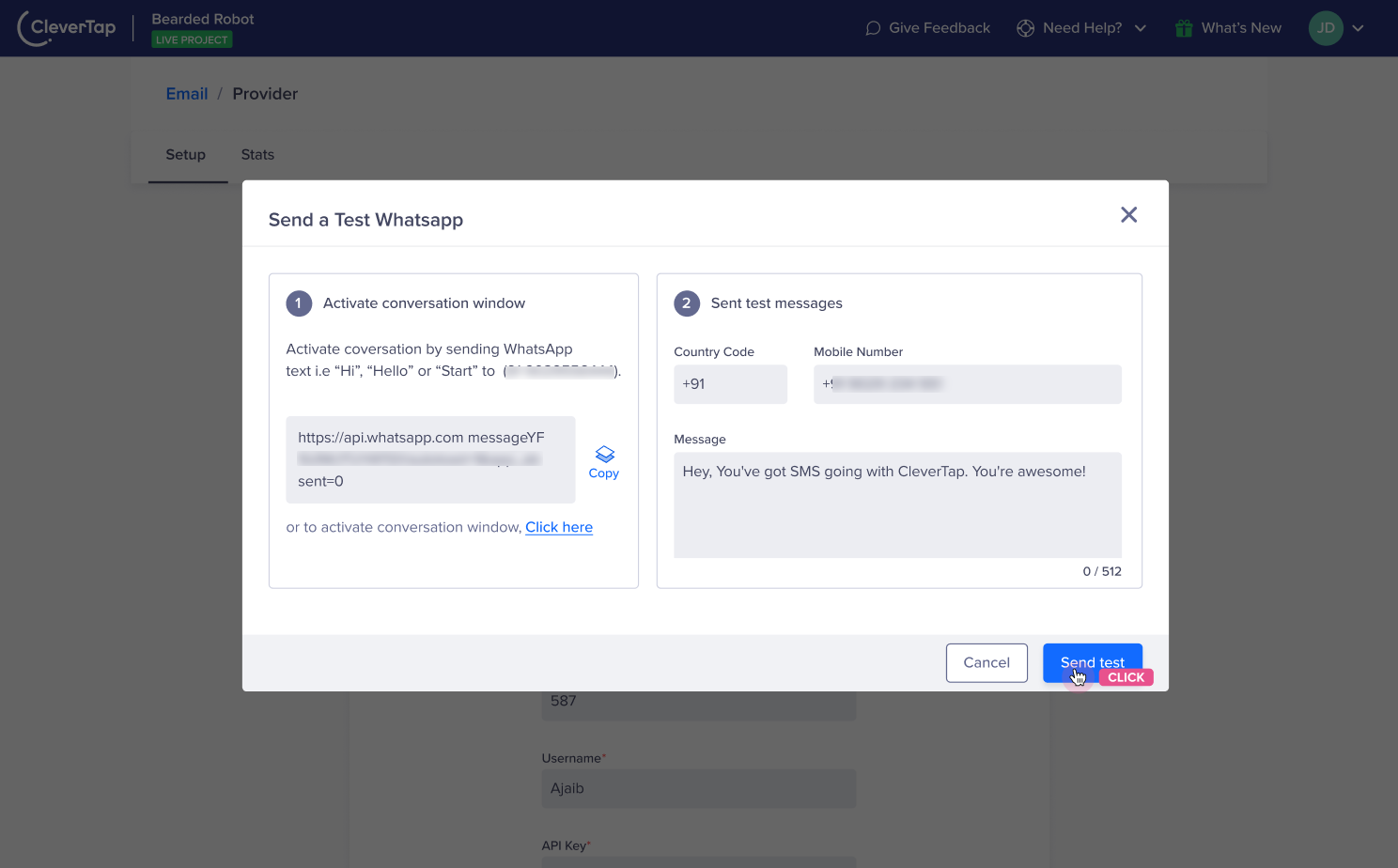
Send a Test Message on WhatsApp
Set Up Callbacks in Heltar
Callbacks ensure that message delivery reports and inbound WhatsApp messages are synced correctly between CleverTap and Heltar.
To set up callbacks, perform the following steps:
-
Go to Settings > Channels > WhatsApp > WhatsApp Connect > Provider Nickname from the CleverTap dashboard.
-
Copy the following URLs:
- Delivery Report Callback URL
- Inbound Message Callback URL
-
Share these callback URLs with the Heltar support team or configure them in the Heltar dashboard as instructed during onboarding.
-
Save the configuration.
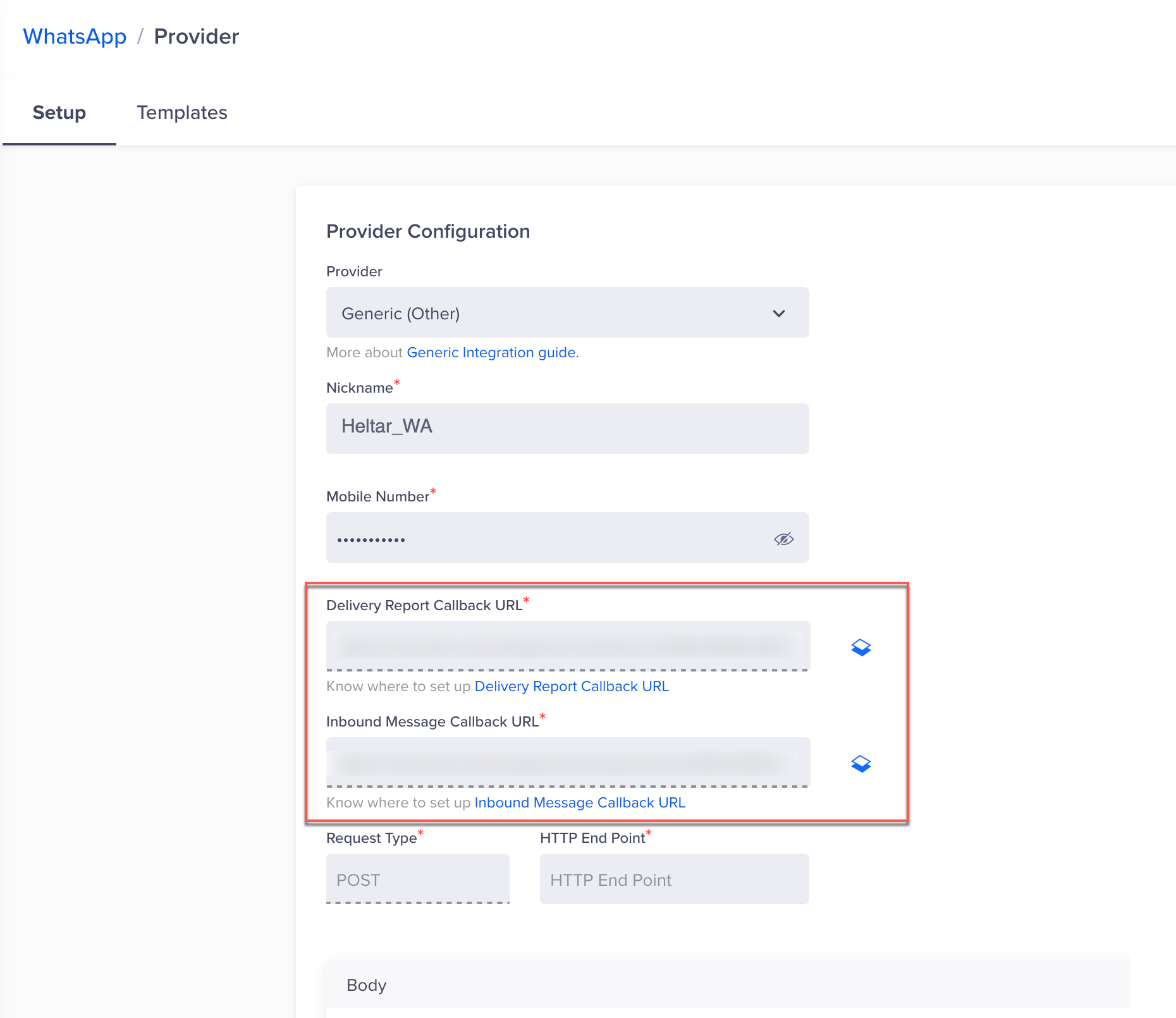
CleverTap Callback URLs
Once configured, Heltar will forward delivery updates and inbound messages to CleverTap. You can now broadcast WhatsApp messages directly from the CleverTap dashboard using Heltar.
Add WhatsApp Message Templates
WhatsApp message templates are reusable, pre-approved messages you can send to users at scale, such as alerts, reminders, or promotional campaigns. For detailed instructions on creating and testing WhatsApp message templates, refer to WhatsApp Message Templates.
Create Campaign
For detailed instructions on creating a WhatsApp campaign using Heltar as the provider, refer to Create WhatsApp Campaign.
Create Journey
For detailed instructions on creating a WhatsApp journey using Heltar as the provider, refer to Create WhatsApp Journey.
Updated 3 months ago