
Schedule Import
Learn how to schedule your Import to ensure your data stays consistently updated.
Overview
Schedule enables you to control how often CleverTap retrieves and processes files from your connected storage bucket. This document covers the following three scheduling options and how to configure each, along with their ideal use cases and best practices:
-
Repeat Intervals: Configure automated recurring imports at defined intervals (for example, every N minutes, hours, or days) to ensure continuous data synchronization.
-
Custom Schedule: Schedule imports on specific days of the week or specific dates of the month to align with weekly or monthly cycles.
-
Manually Trigger: Run imports on demand when needed.
Import States
An import moves through the following states.
| State | Description |
|---|---|
| Draft | Configuration saved but not yet scheduled or triggered. |
| Ready | A manual-trigger import that has been configured (and optionally run) and can be re-run on demand. |
| Scheduled | A recurring or future-dated schedule is set, waiting for the next run. |
| Running | A run is in progress. |
| Paused | A recurring schedule is temporarily halted; it can be resumed. |
| Stopped | The schedule is halted with no further runs unless reconfigured. |
Repeat Intervals
Select this option to configure automatic imports at fixed intervals, helping maintain regular data synchronization without manual intervention. This approach is ideal for frequently updated data, such as user attributes or events captured in files every few minutes, hourly, or daily.
Once scheduled, the first import runs immediately, retrieving all matching files available in the storage bucket. Each subsequent run executes at the defined interval and picks up only files generated since the previous run based on file timestamps. For example, if the import is set to run every 6 hours, the first run happens immediately. Then every 6 hours, CleverTap picks up files with timestamps between the runs.
Minimum Repeat IntervalThe minimum repeat interval allowed is 15 minutes. This limit ensures performance and avoids overloading the system. If you require more frequent imports than 15 minutes, contact CleverTap support to discuss options.
Configure Repeat Intervals
To configure the import to run at repeat intervals, perform the following steps:
-
Select Repeat Intervals as the schedule type under Frequency Setting.
-
Enter a number and choose the time unit, Minutes, Hours, Days, or Weeks from the dropdown to define how often the import should run. For example, enter
6and select Hours for an import every 6 hours. -
Click Import. CleverTap immediately runs the first import and then continues to execute subsequent runs at the specified interval.
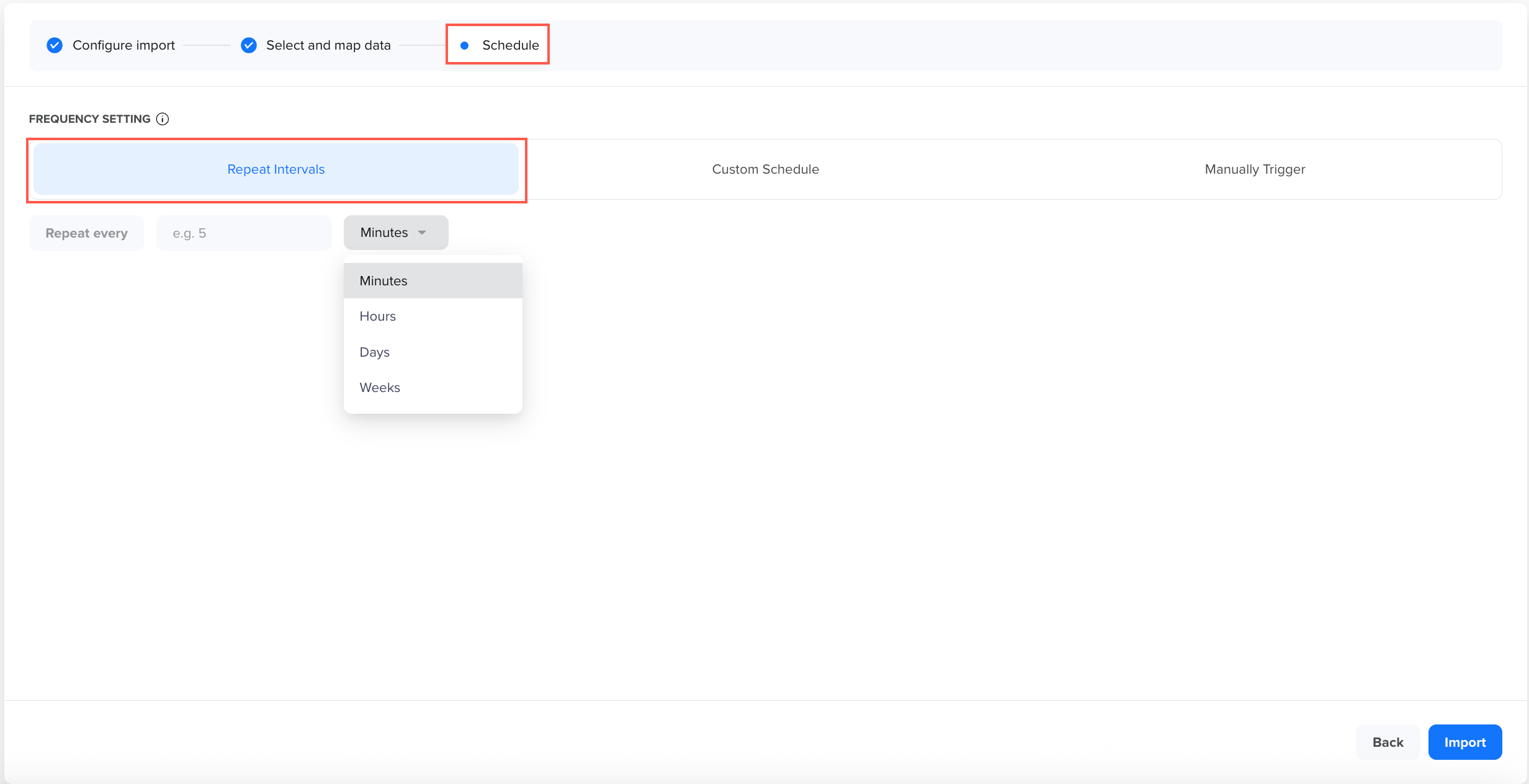
Repeat Intervals
This option is ideal when you want hands-free, regular updates. A best practice is to align the interval with your file generation frequency. For instance, if your pipeline generates new files every 4 hours, a 5-hour import interval is sufficient and avoids unnecessary runs.
Custom Schedule
Use Custom Schedule to set up recurring imports on specific weekdays or specific dates of the month. This option gives you finer control over scheduling, which is useful if your files are generated or your business processes run on particular days (for example, weekly exports on Mondays, or a monthly data refresh on the 1st of each month).
Custom Schedule has the following two modes:
-
Day of week: Schedule imports on specific weekdays at set times. For example, you can configure the import to run every Monday at 10:00 AM to prepare data for a Monday morning report.
-
Day of month: Schedule imports on specific dates of the month. For example, you might schedule an import on the 1st of every month at 9:00 AM to capture monthly data.
Configure Custom Schedule
To configure an import at a custom schedule, perform the following steps:
-
Select Custom Schedule under Frequency Setting.
-
Select either Day of week or Day of month.
- Day of week: Select the days you want the import to run by toggling the day buttons (M, T, W, T, F, S, S). Set the time using the time picker. Click Add Schedule to add additional schedules at different times if needed.
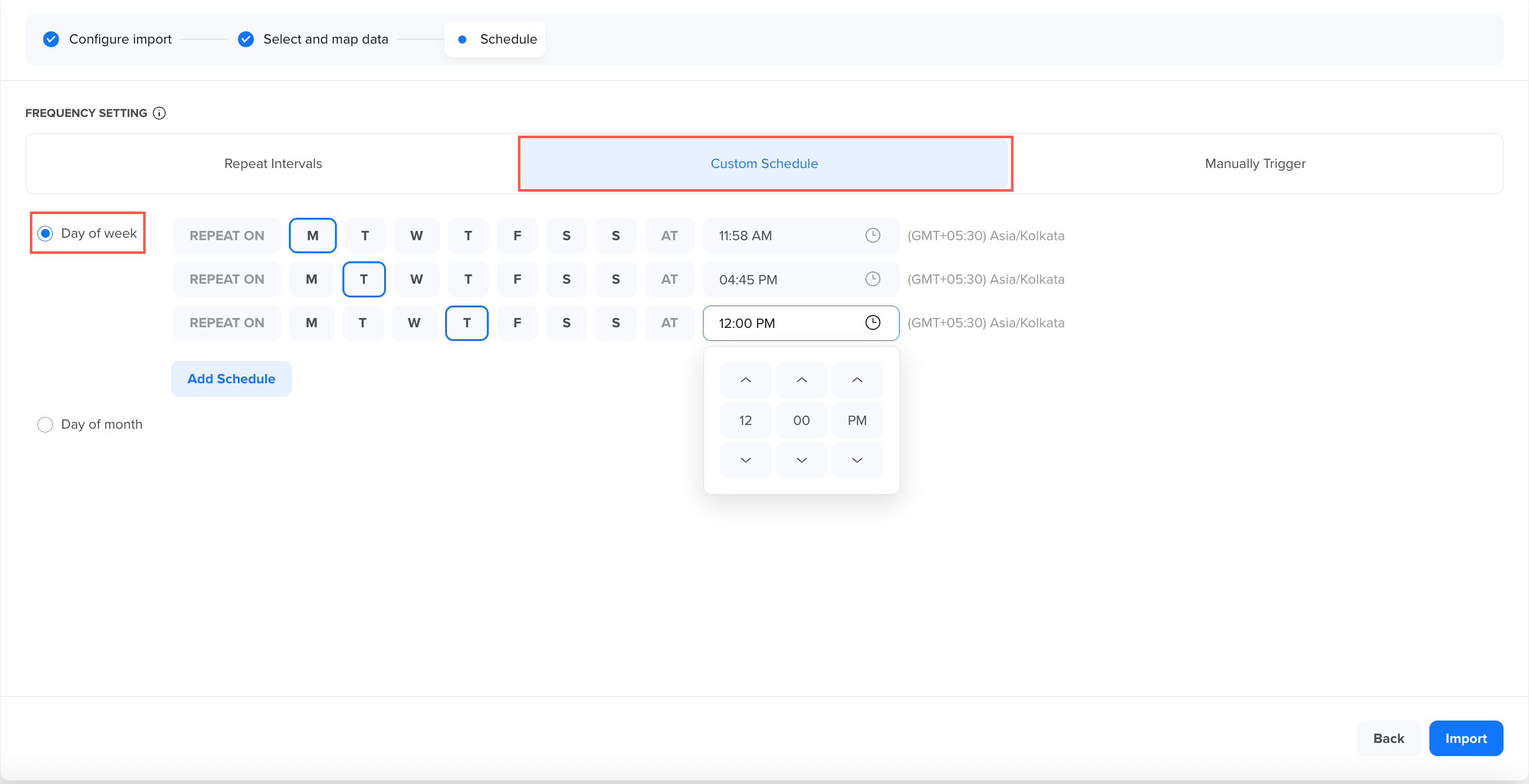
Custom Schedule - Day of Week
- Day of month: Select one or more calendar dates on which the import should run (for example, 1, 15, 28). Set the time using the time picker.
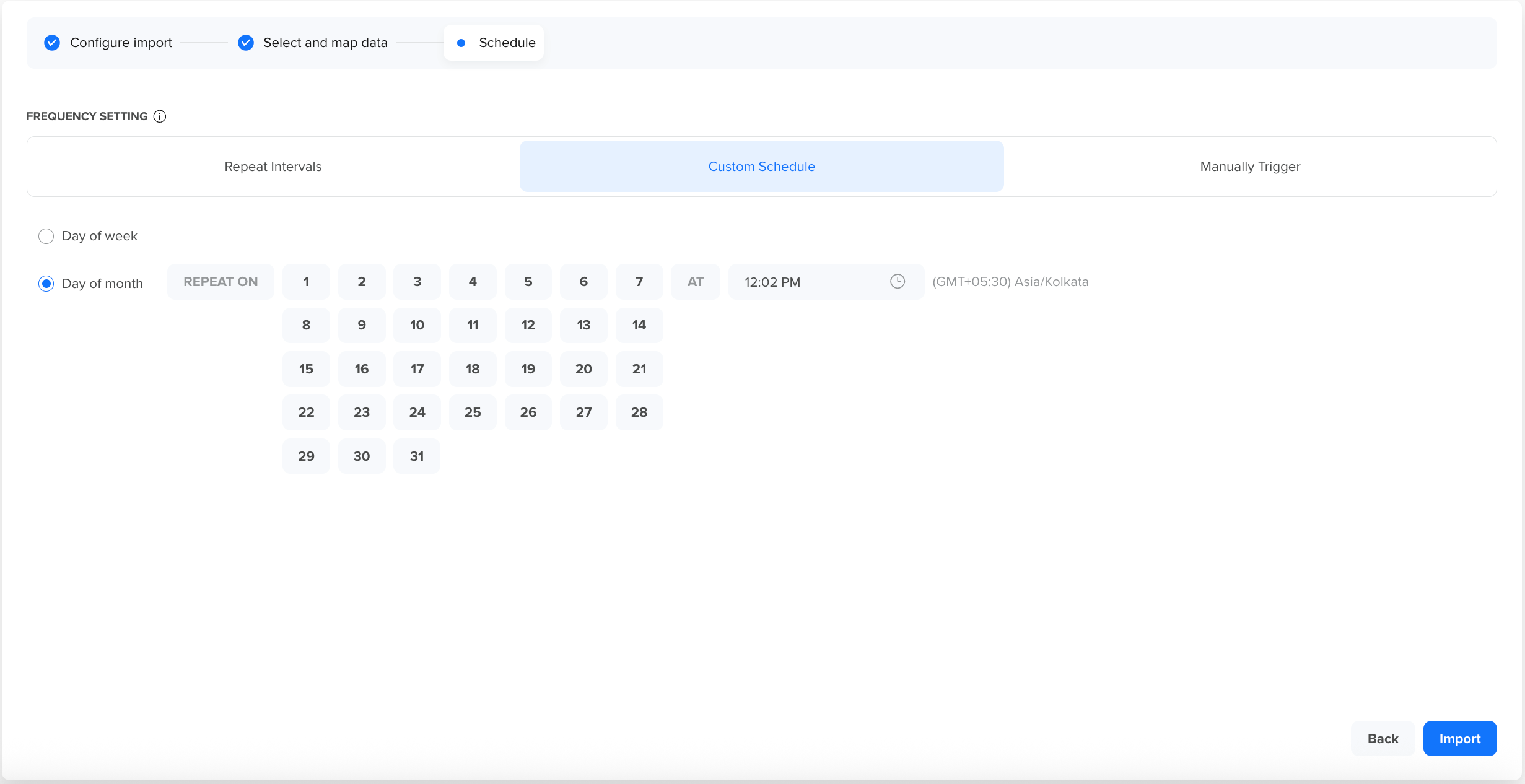
Custom Schedule - Day of Month
-
Click Import. The import runs at the specified time on the next occurrence of each selected day or date.
Manually Trigger
The Manually Trigger option gives you complete control over when your import runs, without setting up a recurring schedule. Use this option whenever you need an import, such as an urgent data import or one-time backfilling of the historical data.
Unlike Repeat Intervals or Custom Schedule, manual imports do not recur automatically. You can choose from the following three options while setting up the import and come back to run it manually whenever you need:
Run Immediately
Choose Run immediately to start the import process as soon as you finish configuring the import. This is helpful for one-time or urgent imports where you want to process available files without delay. When you select this option and click Import, CleverTap immediately queues and executes the import job.
After the import runs, the job is listed in the Import Center as Ready. This indicates that the import configuration is saved, and you can manually trigger the import again at any time from the listing page.
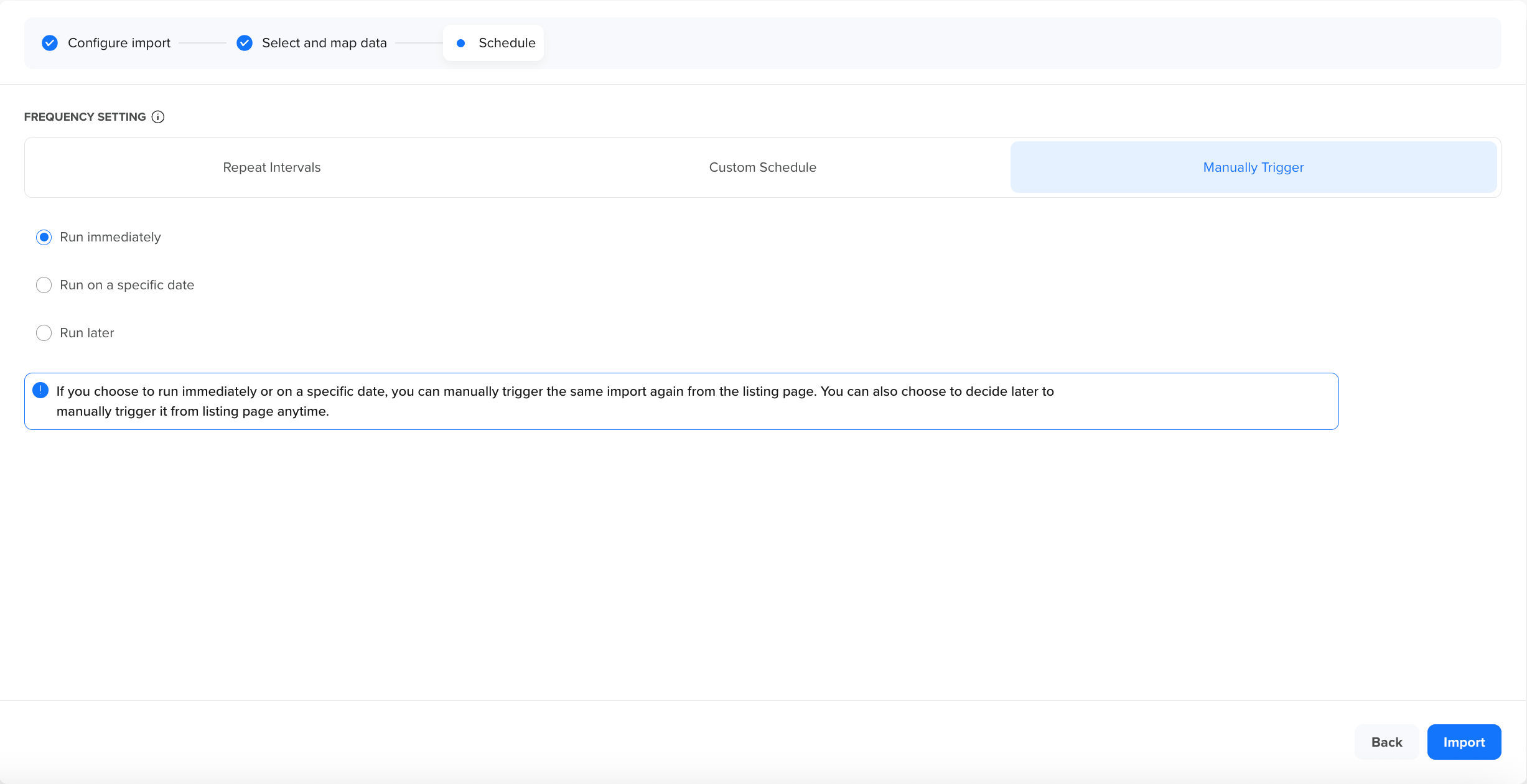
Manually Trigger - Run Immediately
Run on Specific Date
Choose Run on a specific date to schedule a one-time import at a future date and time. Use this option to set up an import in advance and schedule the first run for a future date.
Select the exact date and time for the import and click Import. The import remains scheduled until the specified time and executes once. After the run completes, the import appears in the Import Center in a Ready state. From there, you can manually trigger future runs as needed.
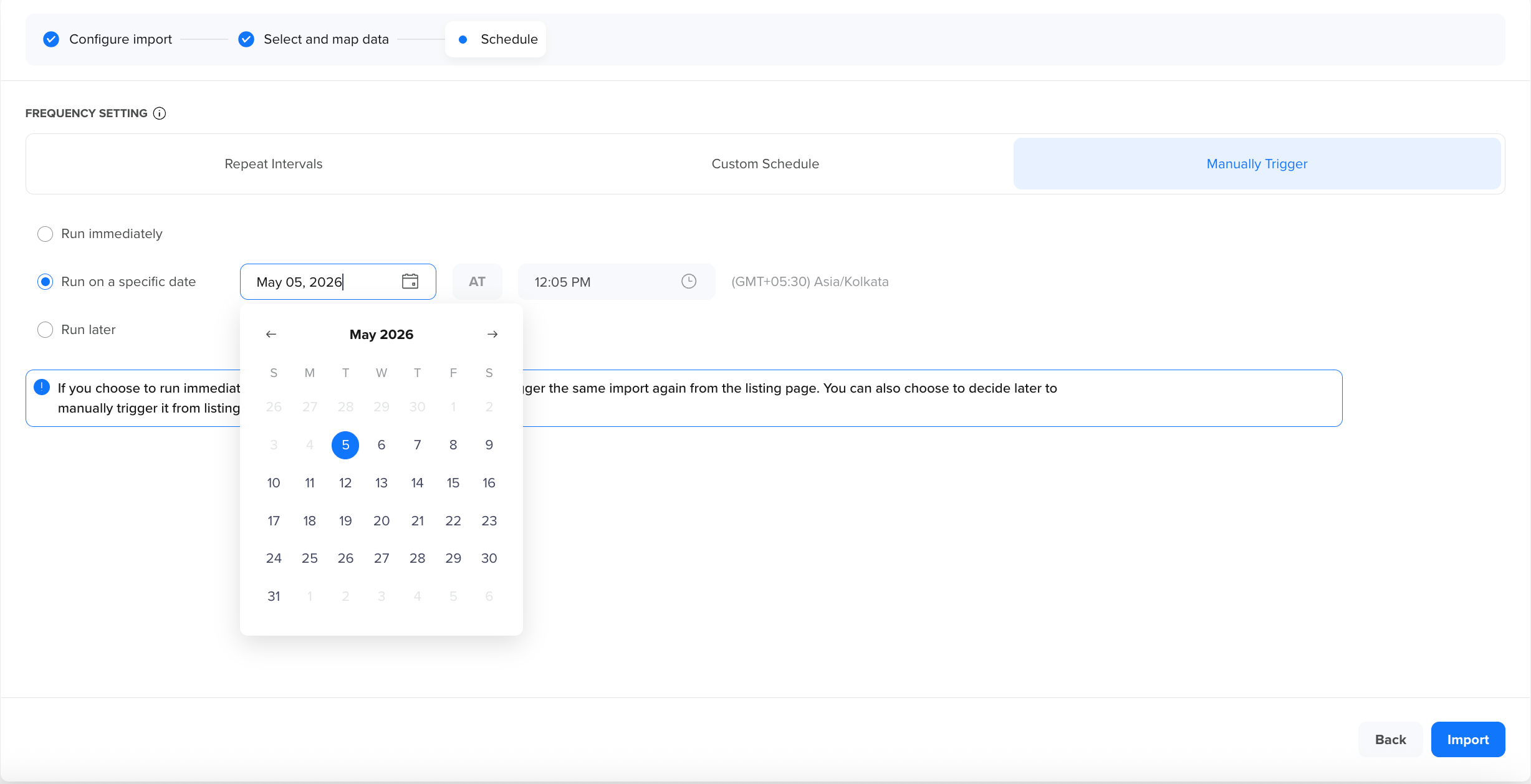
Manually Trigger - Run on a specific Date
Run Later
Choose Run later to configure the import now without executing it. When you select this option and click Import, the import configuration is saved and listed in the Import Center as a Ready state. You can manually run the import at any time by clicking Run from the listing page.
This option is ideal when you want the import setup ready but are unsure when the files will be available or when you want to execute it. For example, you might set up an import ahead of a planned data migration and only run it after the migration files are in the bucket.
Until the first manual run occurs, the import remains in the Ready state with no data ingested.
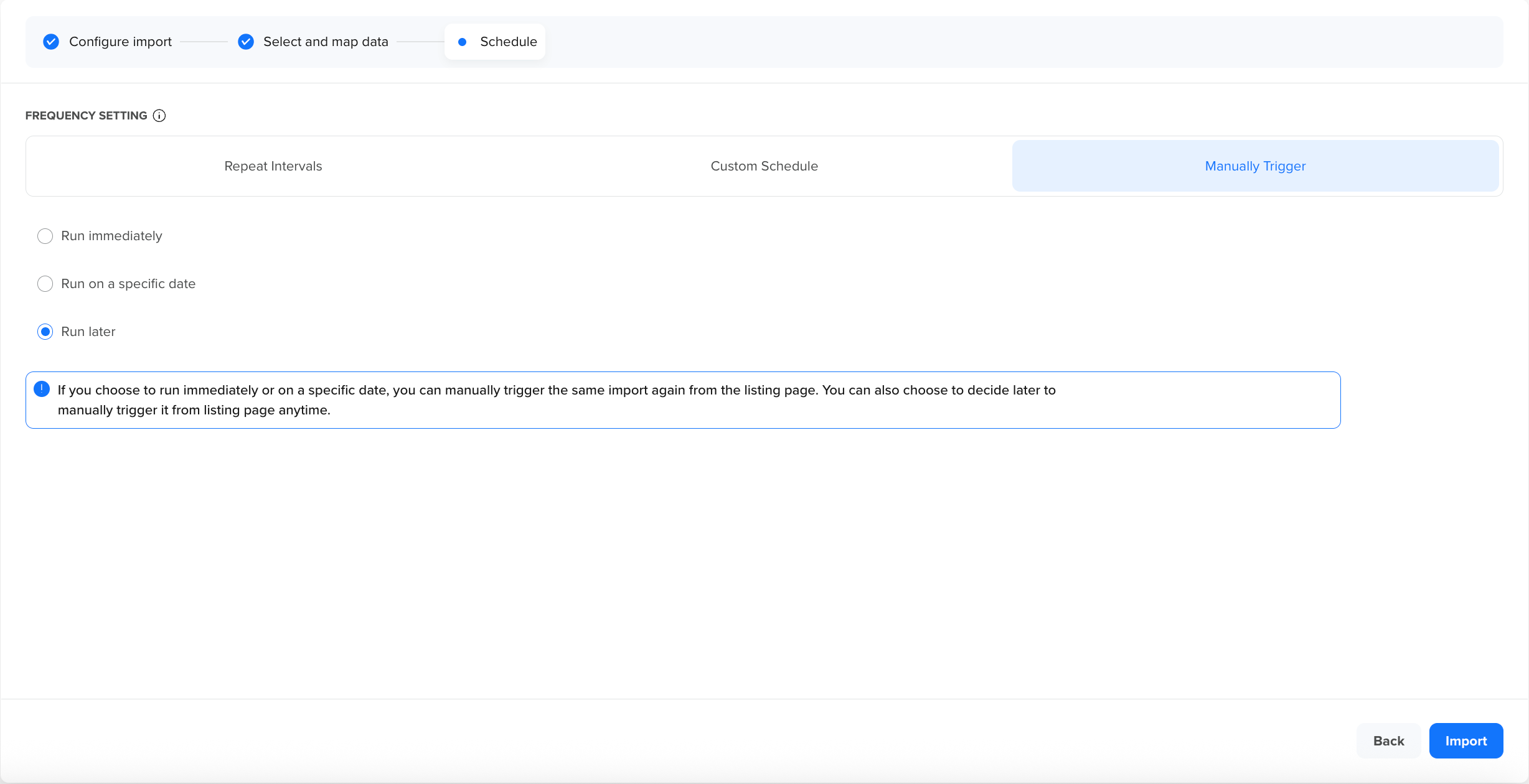
Manually Trigger - Run Later
Manual Imports: Behavior and ReusabilityAll manual trigger options result in imports that remain in a Ready state after execution, allowing them to be re-run when needed. You can return to the Import Center at any time and click Run to execute the import again. These imports do not run on a recurring schedule.
The initial run processes all matching files available in the bucket. Subsequent runs pick up only files generated since the previous execution.
Configure Manually Trigger
To configure a manual trigger, perform the following steps:
-
Select Manually Trigger under Frequency Setting.
-
Select one of the following options:
-
Run immediately
-
Run on a specific date
-
Run later
-
-
Click Import.
Manage Existing Import
From Settings > Partners > Import Center, select an import to manage it:
- Run: Trigger a Ready/Schedule import on demand.
- Pause / Resume: Temporarily halt or resume an import sync.
- Stop: End a schedule with no further runs.
- Edit: Allows you to modify import configurations.
Available Actions by State
The actions available for an import depend on its current state:
| State | Run | Pause | Resume | Stop | Edit |
|---|---|---|---|---|---|
| Ready | Yes | No | No | No | Yes |
| Scheduled | Yes | Yes | No | Yes | Yes |
| Running | No | No | No | No | No |
| Paused | Yes | No | Yes | Yes | Yes |
| Stopped | No | No | No | No | Yes |
Best Practices for Scheduling
When configuring your import schedules in CleverTap, keep the following best practices in mind:
-
Align with File Generation: Schedule imports shortly after your pipeline generates new files. For example, if your system exports files at 2:00 AM, schedule the import at 3:00 AM to ensure the files are fully written and available in the bucket before CleverTap picks them up.
-
Choose the Right Frequency: Use Repeat Intervals only as frequently as your files are generated. Running imports every 15 minutes when files are generated daily results in unnecessary runs. Align the interval with how often new files are added to your bucket.
-
Ensure Consistent File Naming: Ensure your pipeline consistently names files using the exact file name and timestamp format configured in the import job. Any deviation will cause files to be skipped. For more information, refer to Configure Import.
-
Leverage Manual Triggers for Flexibility: If your file delivery schedule does not fit a recurring pattern, use manual triggers. You can go to the Import Center and click Run for an on-demand sync whenever new files are ready to be picked and processed.
-
Review and Adjust: Periodically review your import schedules. If your file generation frequency changes, update the import schedule to match. If an import job is no longer needed, stop the schedule to reduce unnecessary processing.
After saving your schedule, you can monitor import run history and review processing outcomes from the Import Center. For more information, refer to Import Listing and Stats.
Updated about 1 hour ago