
Mailmodo
Learn how to integrate Mailmodo with CleverTap to send interactive emails and track engagement.
Overview
Mailmodo is a no-code email marketing platform that enables you to send interactive emails with app-like experiences directly inside the inbox. It supports AMP-powered widgets such as forms, calendars, and surveys to improve engagement and conversions.
The Mailmodo integration enables you to:
- Trigger Mailmodo campaigns directly from CleverTap using Webhooks.
- Sync campaign activity data back into CleverTap as custom events.
- Build segments, flows, or dashboards in CleverTap using Mailmodo engagement data.
- Personalize and automate follow-up campaigns across multiple channels.
For example, you can trigger a Mailmodo survey campaign from CleverTap and then use responses or non-engagement (such as unopened emails) to create and publish push notifications, SMS, or other follow-up campaigns from the CleverTap dashboard.
Prerequisites for Integration
Ensure the following requirements are met before setting up the integration:
- An active Mailmodo account.
- A CleverTap account with a valid Project ID and Passcode.
- Access to Webhook configuration in CleverTap.
Integrate Mailmodo with CleverTap
The integration involves the following three major steps:
Once the integration is enabled, Mailmodo sends the following engagement data back to CleverTap as custom events for every campaign triggered from CleverTap:
| Event Name | Description |
|---|---|
| MM Email Opened | Triggered when a recipient opens the email. |
| MM Email Link Clicked | Triggered when a recipient clicks a link in the email. |
| MM Email Form Submitted | Triggered when a recipient submits an AMP form or widget within the email. |
MM <Template Name> Form Submitted | Triggered when a form or widget in a Mailmodo template is submitted. The event name dynamically includes the template name and contains detailed form responses. |
| MM Email Bounced | Triggered when the email cannot be delivered to the recipient. |
| MM Email Unsubscribed | Triggered when a recipient unsubscribes from the email. |
| MM Email Marked as Spam | Triggered when the email is marked as spam by the recipient. |
Each event also includes additional properties (campaign name, subject line, campaign type, email type, and so on) to help filter and analyze campaign performance inside CleverTap.
ImportantMailmodo requires the CleverTap user ID of the recipient to push activity data back to CleverTap. Ensure that the
clevertap_idproperty is included in the JSON payload when configuring the trigger campaign in CleverTap.
Configure Mailmodo with CleverTap
Configure your Mailmodo account using CleverTap credentials. To do so, perform the following steps:
-
In your Mailmodo dashboard, go to Integrations.
-
Under Available for Connection, find CleverTap and click Click to authenticate.
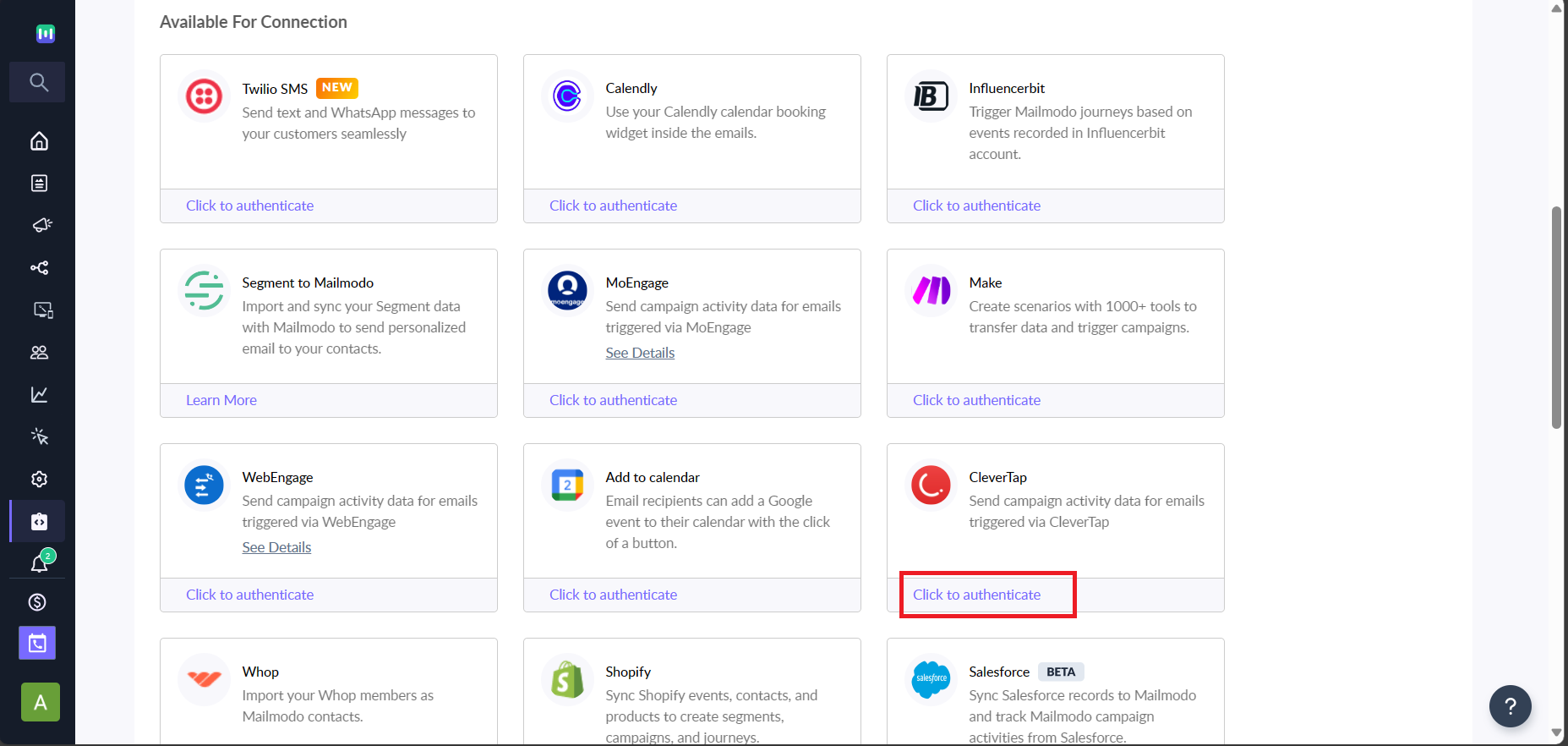
Authenticating CleverTap Integration
- Select your Rest API Host from the dropdown.
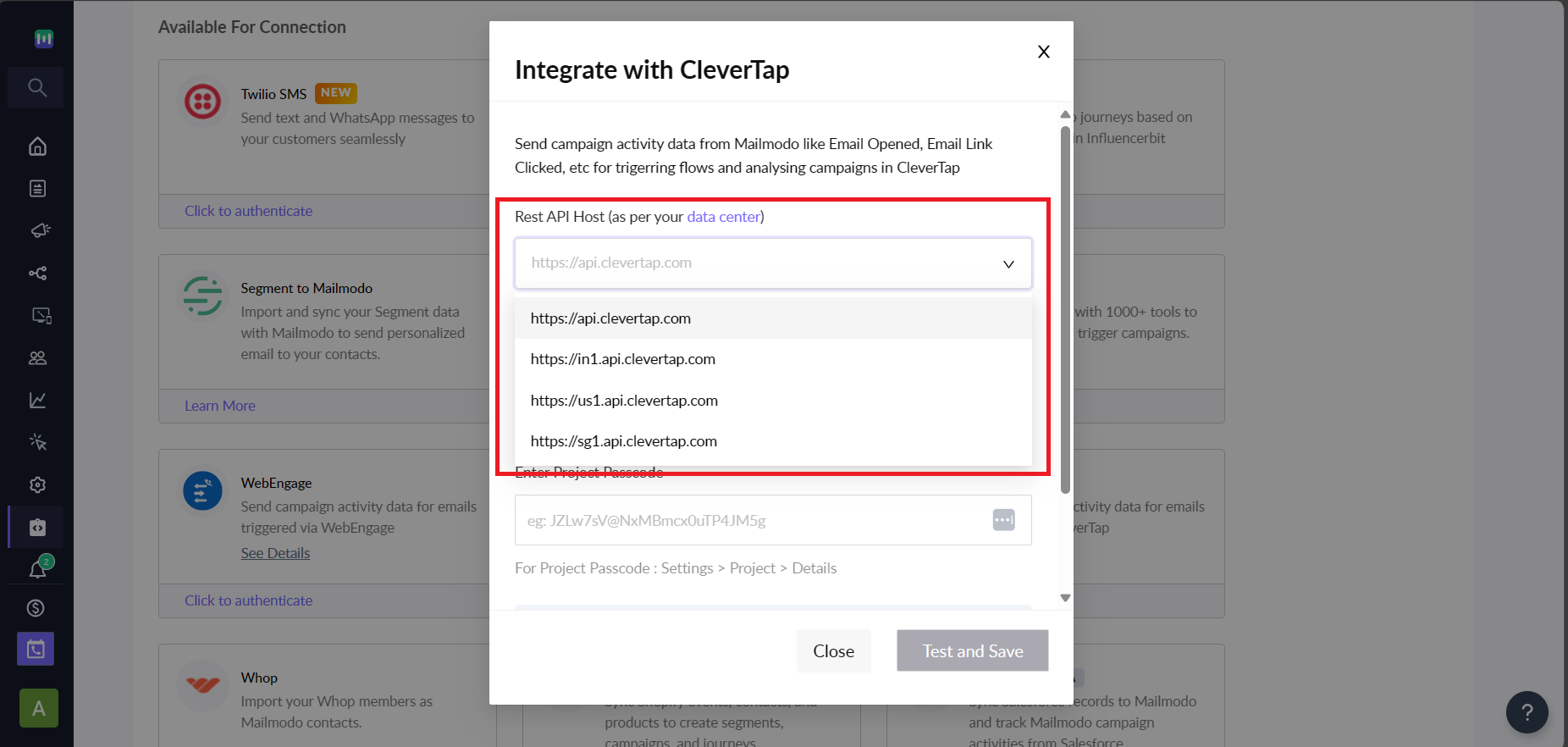
Select Rest API Host
- Enter your Project ID and Passcode (available in your CleverTap Settings page).
- Click Test and Save. A Setup successful message confirms the integration. And, Mailmodo sends a sample MM Email Opened event with
user_id = [email protected]to CleverTap. You can verify this event in your CleverTap dashboard.
Set Up Trigger Campaigns in Mailmodo
Once your accounts are connected, you can create and publish campaigns in Mailmodo that CleverTap will trigger:
- In Mailmodo, create or select a Template for your campaign.
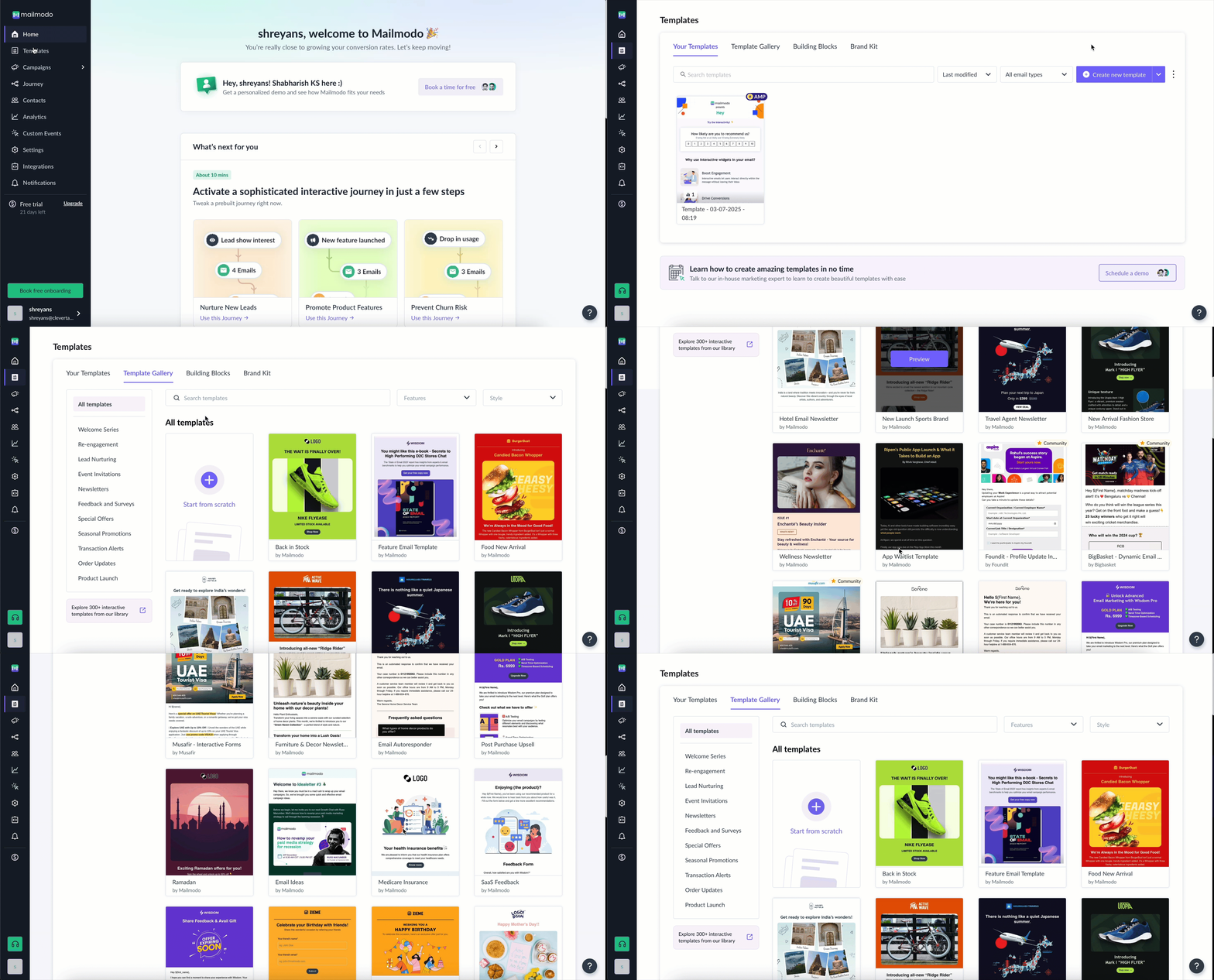
Create or Select Template
- Go to Campaigns > Triggers > + Create Trigger Campaign.
- Select your template, configure campaign details, and proceed to the next step.
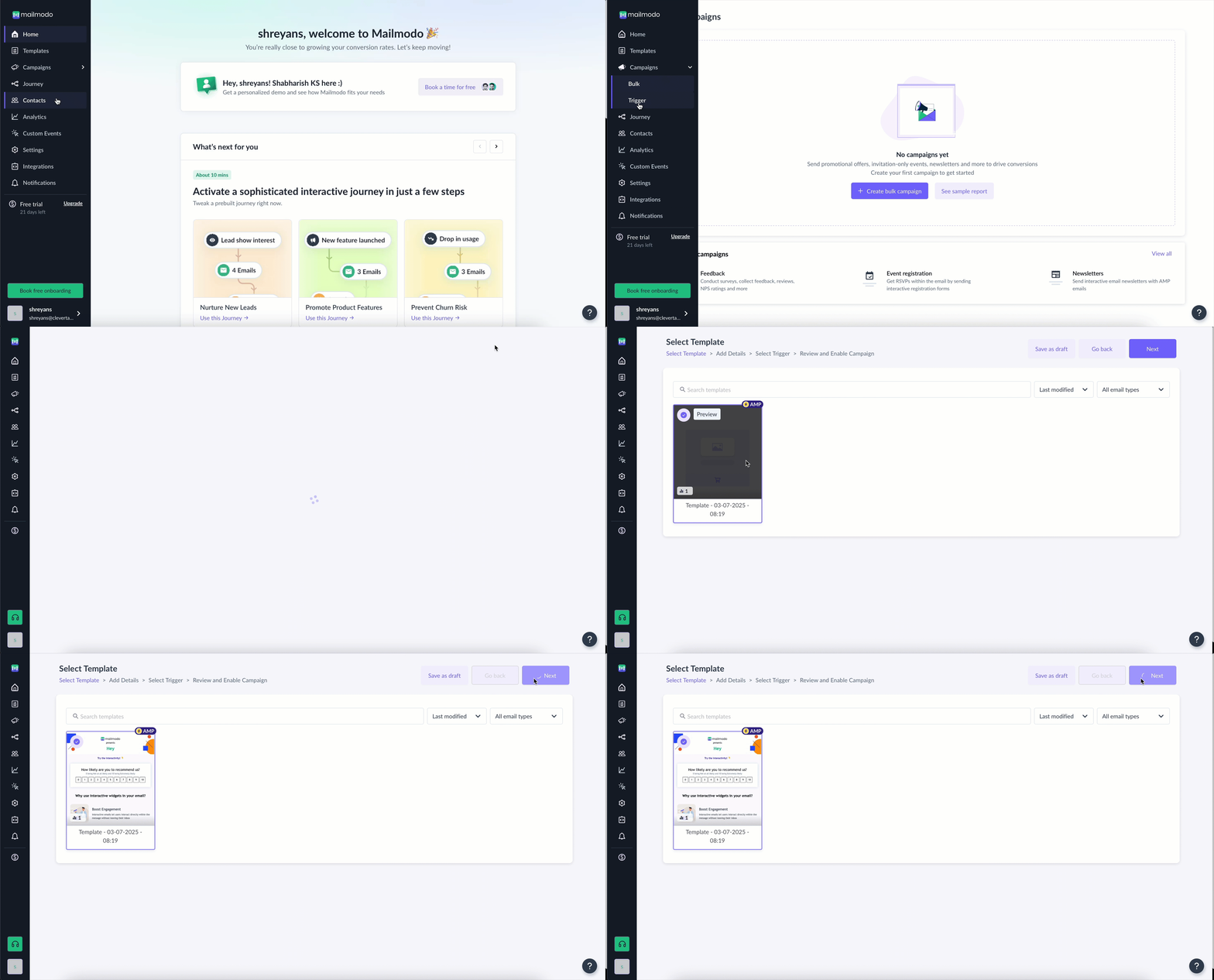
Create Trigger Campaign
- Under Trigger App, select CleverTap.
- Review the configuration and click Enable Campaign.
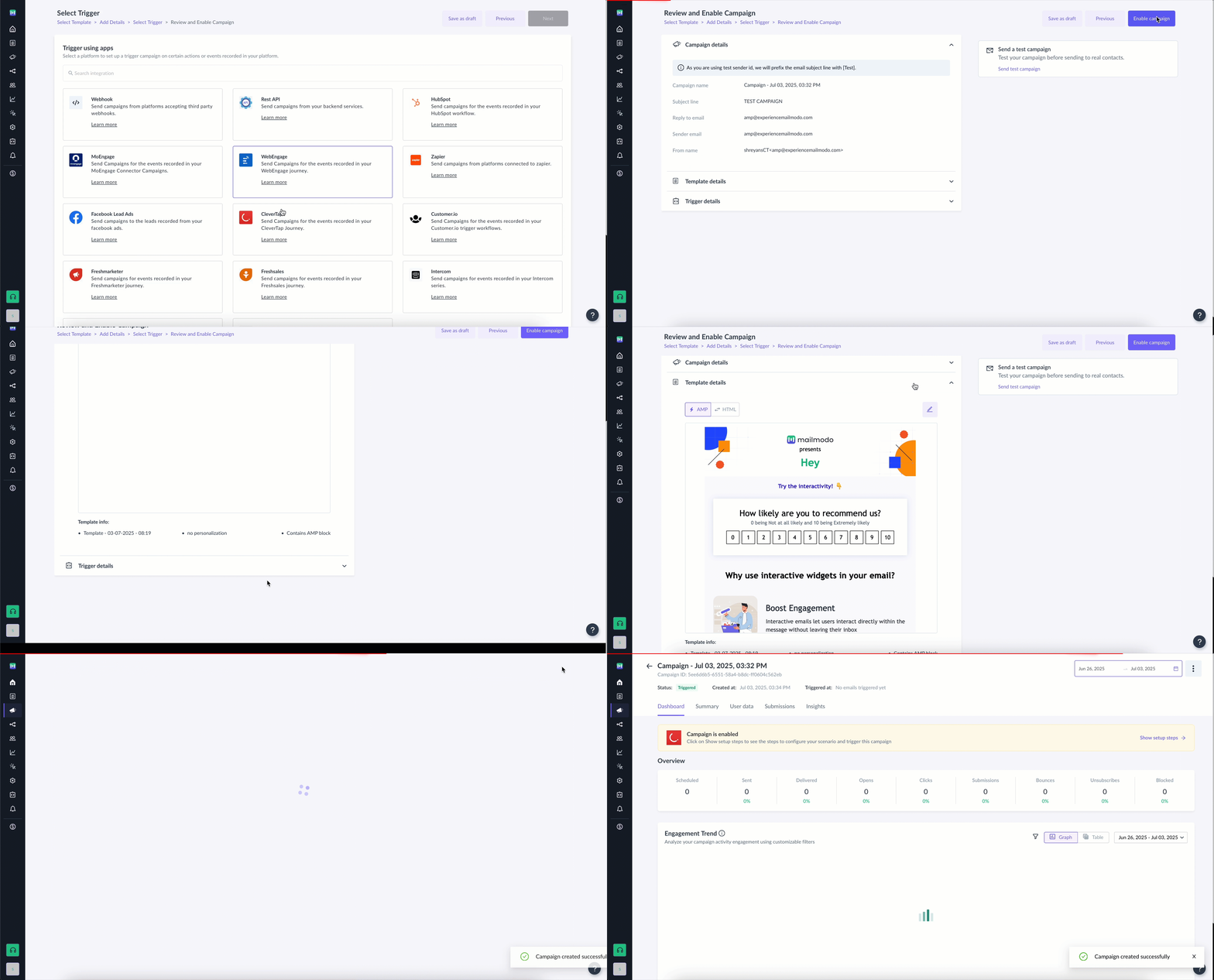
Configuring Trigger Campaign with CleverTap
- Once enabled, click Show Setup Steps to view the Webhook URL and JSON Body. You must copy both, as you will need them to configure the webhook in CleverTap.
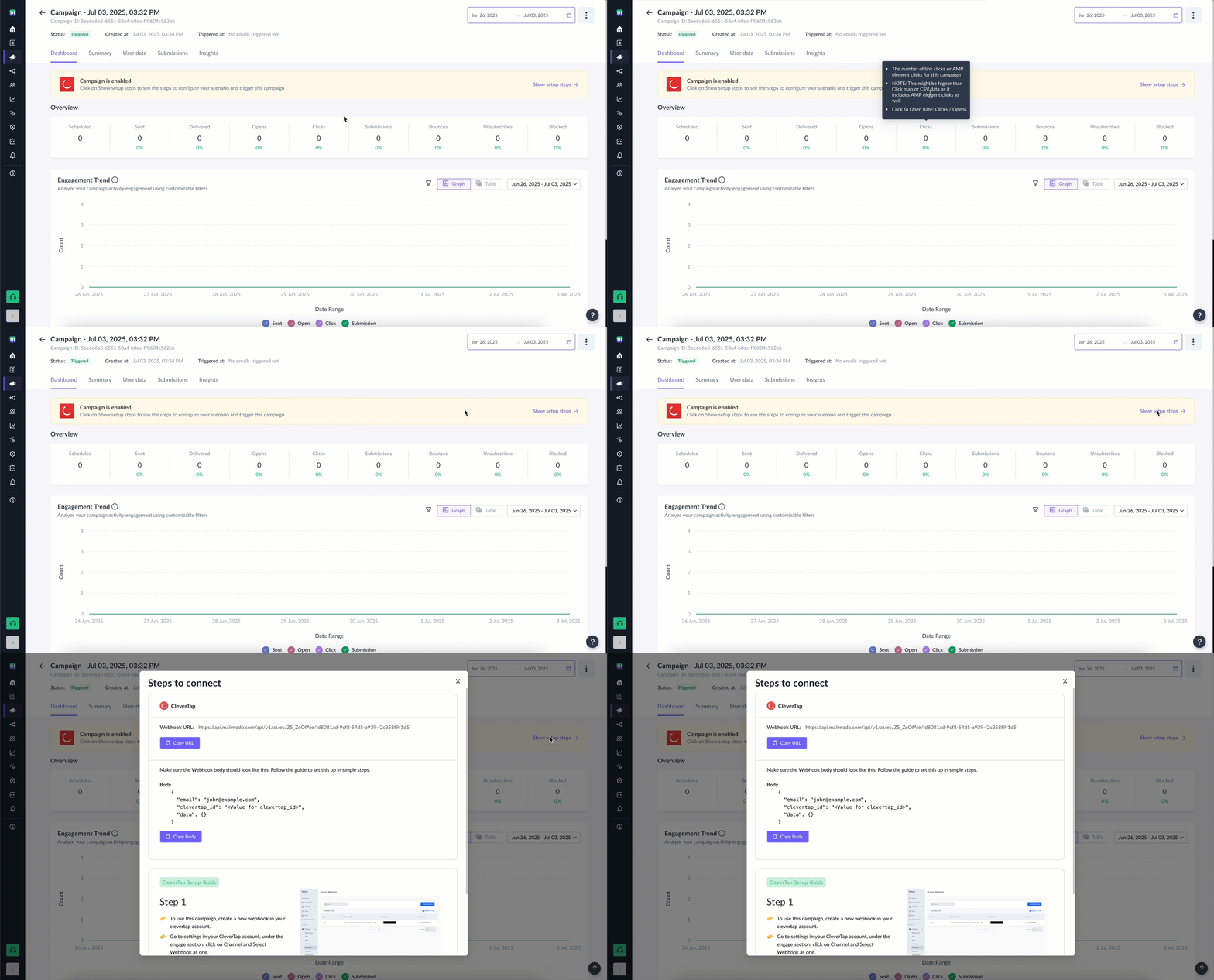
Webhook URL and Body
Set Up Webhooks in CleverTap
To ensure CleverTap can trigger Mailmodo campaigns, you need to configure a Webhook in CleverTap.
Configure Webhook
Set up a Webhook in CleverTap using the URL and body obtained in Step 6 of Set Up Trigger Campaigns in Mailmodo. This allows CleverTap to call Mailmodo whenever a campaign is triggered. To do so, perform the following steps:
- In your CleverTap dashboard, go to Settings > Channels > Webhook > + Webhook.
- Provide a descriptive name for the Webhook (for example, Mailmodo Trigger).
- Set the HTTP method to POST.
- Paste the Webhook URL copied from step 6 of Set Up Trigger Campaigns in Mailmodo.
- Click Save.
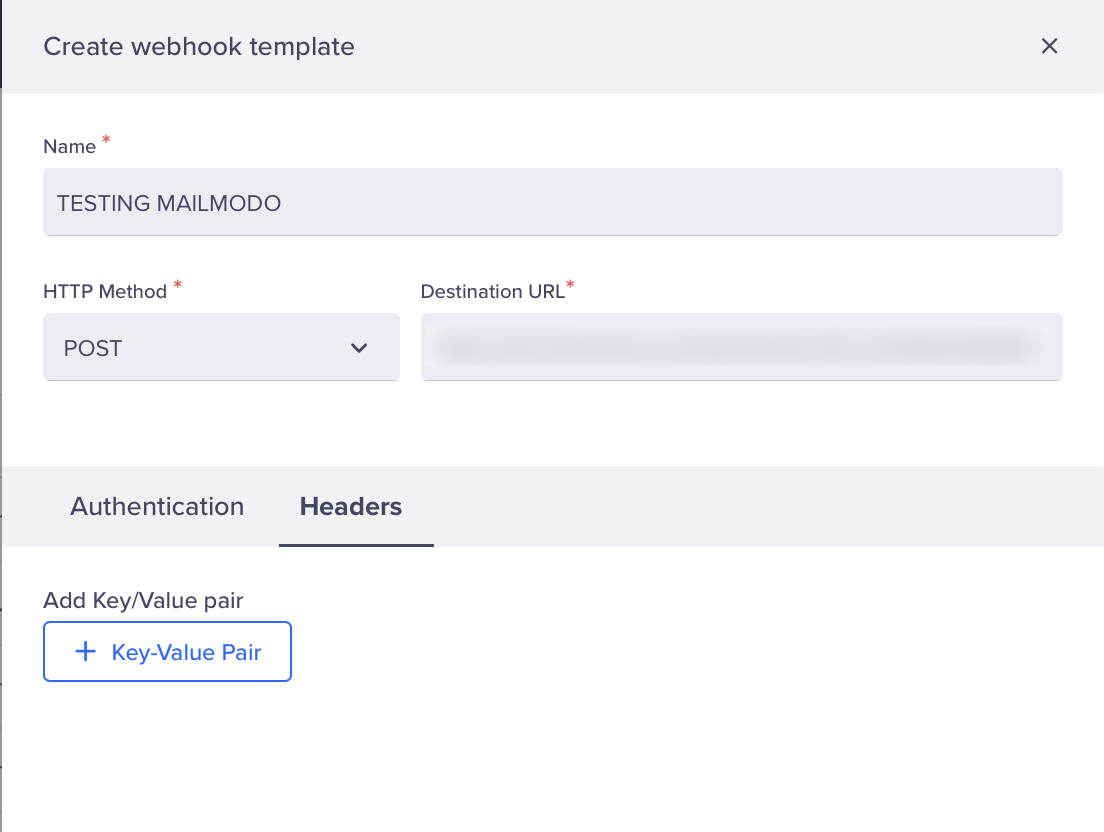
Webhook Setup in CleverTap
Create a Webhook Campaign in CleverTap
Once the Webhook is configured, create a campaign that uses it. This ensures CleverTap can send campaign data (including clevertap_id) to Mailmodo in real time. To do so, perform the following steps:
- In CleverTap, go to Campaigns > + Campaign > Webhook.
- Enter campaign details.
- In the What section, select Custom Body.
- Paste the JSON Body copied from step 6 of Set Up Trigger Campaigns in Mailmodo.
Replace static values with dynamic values using Liquid tags to personalize the email. For example:
{
  "email": "$USER_EMAIL",
  "data": {
    "first_name": "${first_name}",
    "subscription_plan": "${plan_type}"
  }
}$USER_EMAILis replaced dynamically with each recipient’s email address.- Additional properties (such as
first_name,plan_type) can be added insidedatafor more personalization.
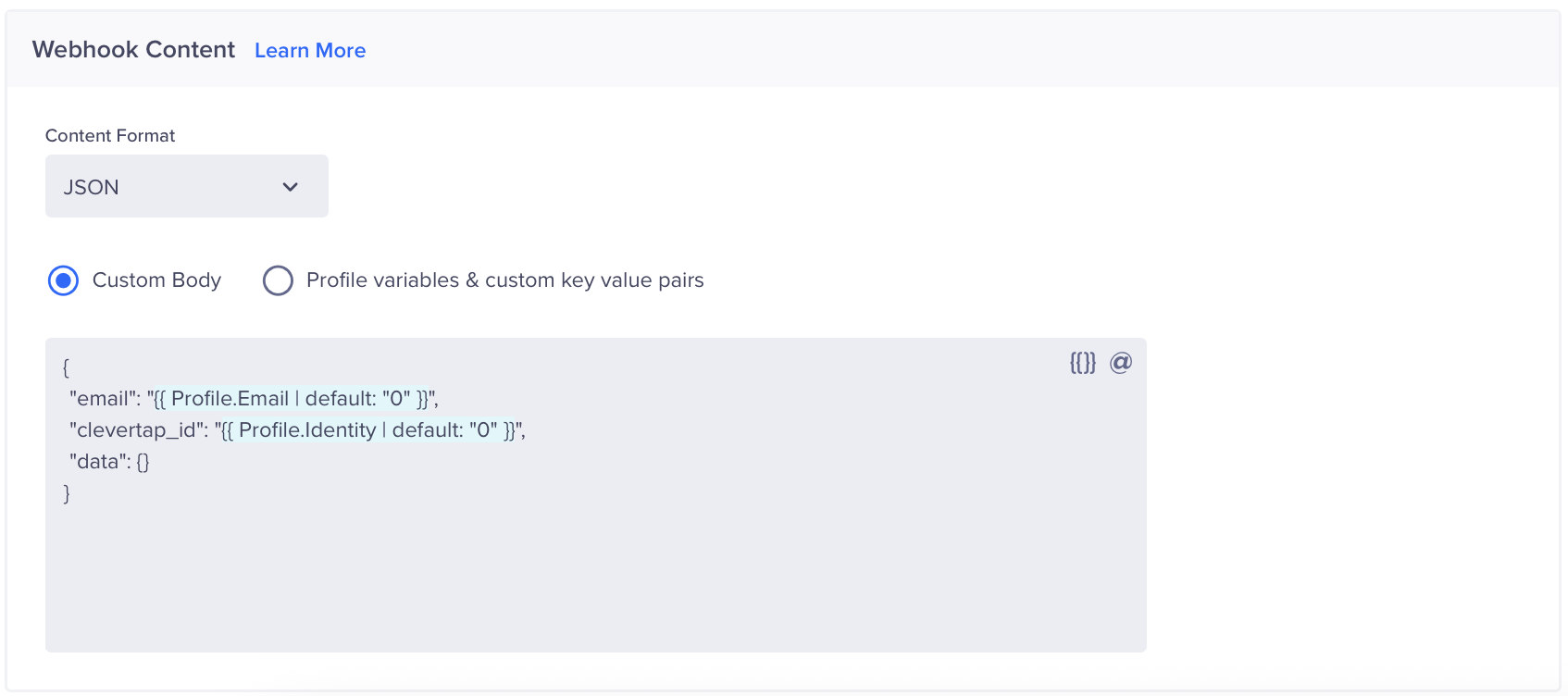
Liquid Tags in Webhook Body
Publish Campaign
Publishing the campaign activates the connection. Once live, Mailmodo sends engagement data (opens, clicks, unsubscribes, form submissions) back to CleverTap as custom events tied to the user profile.
- CleverTap sends campaign data (email ID,
clevertap_id) to Mailmodo. - Mailmodo triggers the configured email to the recipient.
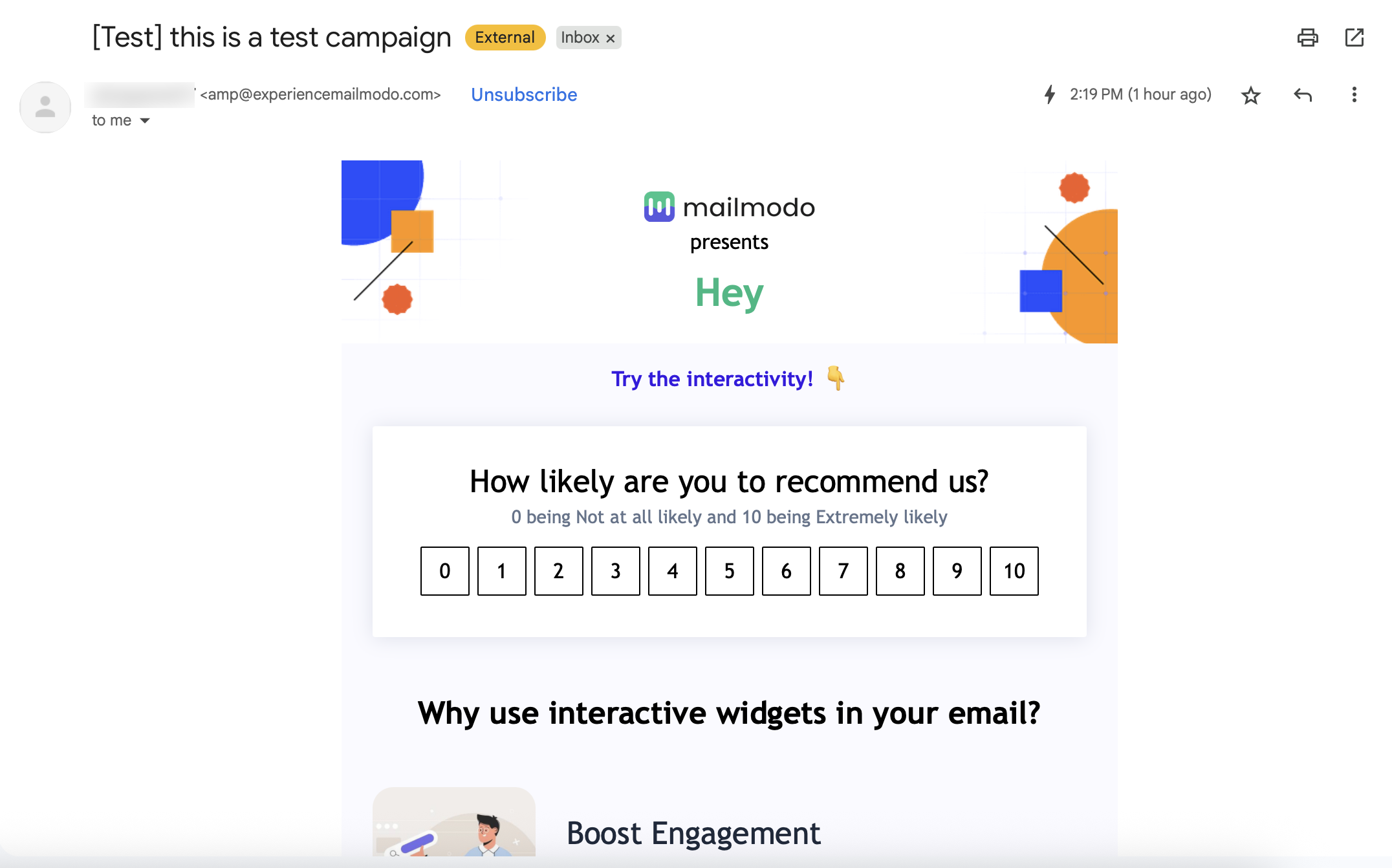
Email Response
- Mailmodo sends campaign engagement events (opens, clicks, unsubscribes, form submissions) back into CleverTap as custom events tied to the recipient’s profile.
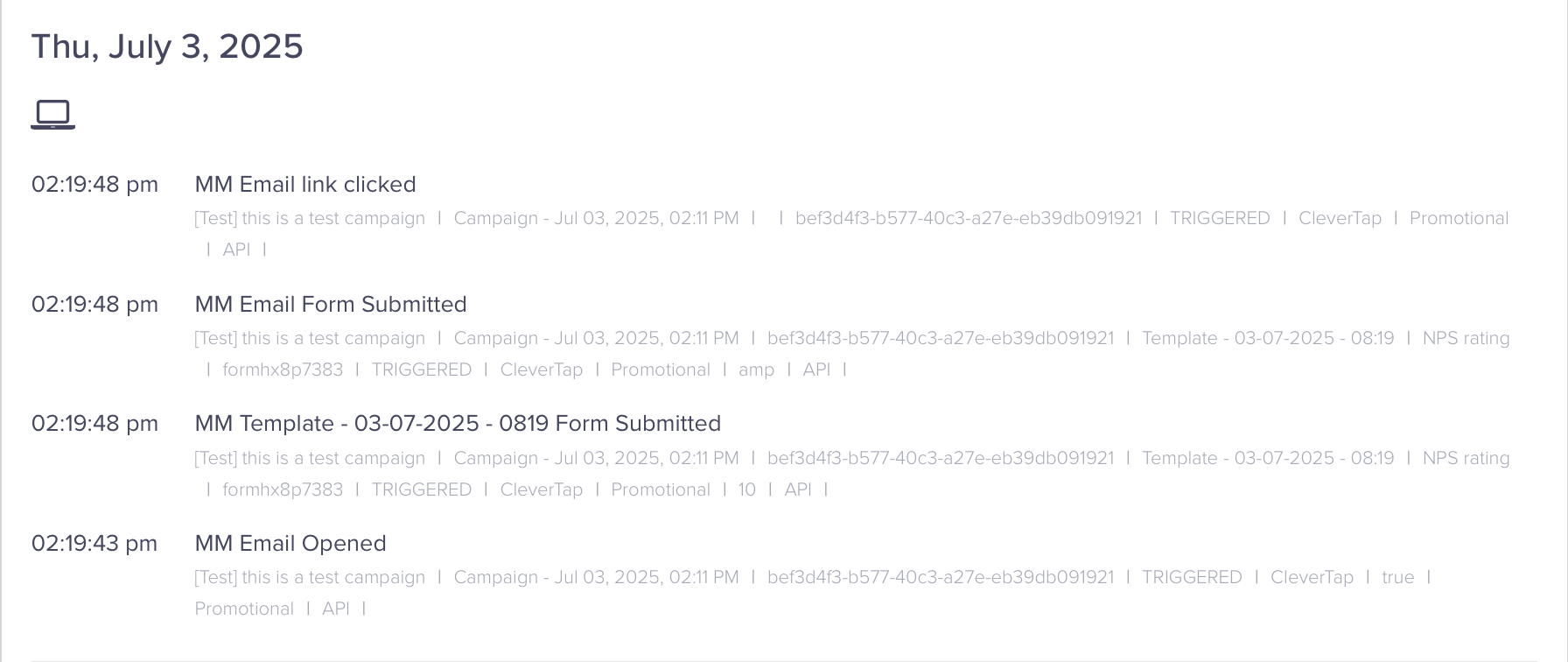
CleverTap dashboard showing tracked custom events
FAQs
How do CleverTap and Mailmodo work together?
This example shows the end-to-end flow of the integration:
- A CleverTap Webhook campaign triggers a Mailmodo interactive survey email.
- The recipient opens and submits the survey.
- Mailmodo sends MM Email Opened and MM Email Form Submitted events to CleverTap.
- CleverTap logs these events under the user’s profile, enabling segmentation and automated follow-ups (for example, sending an SMS to non-responders).
Updated 6 months ago