
WhatsApp Template Creator: Generate with AI
Use CleverTap's Template Builder Agent to generate WhatsApp template content with AI
Overview
The Template Builder Agent helps you create WhatsApp templates faster using generative AI. Instead of starting from a blank Template Form, you describe your intent in natural language and let AI generate a template that you can further refine.
Use this feature to:
- Generate template, body, copy, and structure quickly.
- Experiment with tone, offers, or calls to action.
- Accelerate template creation without writing content from scratch.
This experience is designed to reduce time-to-live while keeping you in full control of the final template.
AvailabilityWhatsApp Template Creator agent is available in Pro and Ultimate plans. To access this feature, contact your Customer Success Manager.
This document covers the following:
- Create a WhatsApp Template Using the Template Builder Agent
- Configure Content Settings
- Customize Templates for Brand Consistency
- Manage Generated Templates
Create a WhatsApp Template
Consider an example where you want to create a limited-time offer template announcing a Diwali sale to existing customers. To create the template, perform the following steps:
-
Navigate to Content Manager > Templates > WhatsApp.
-
Select the required WABA account, then click Create Template.
-
Select a Layout category or a Pre-built template, as you would for any WhatsApp template.
-
In the AskAI panel, enter a prompt that explains what you want to create. For example:
Create a limited-time offer template for a Diwali sale offering 20% off for existing customers. Use a festive, friendly tone. Include an offer expiration timer and a clear call-to-action to shop the sale. -
Review the generated fields in the Template Form, and refine using follow-up prompts. For example, "Make the offer title shorter" or "Make the tone more festive."
-
(Optional) Customize the template in the Template Form after it is generated. For example:
- Edit any field directly in the Template Form.
- Add or remove buttons or media.
- Replace AI-generated copy with custom messaging where needed.
-
Review the message in the Preview panel, then click Send for Approval.
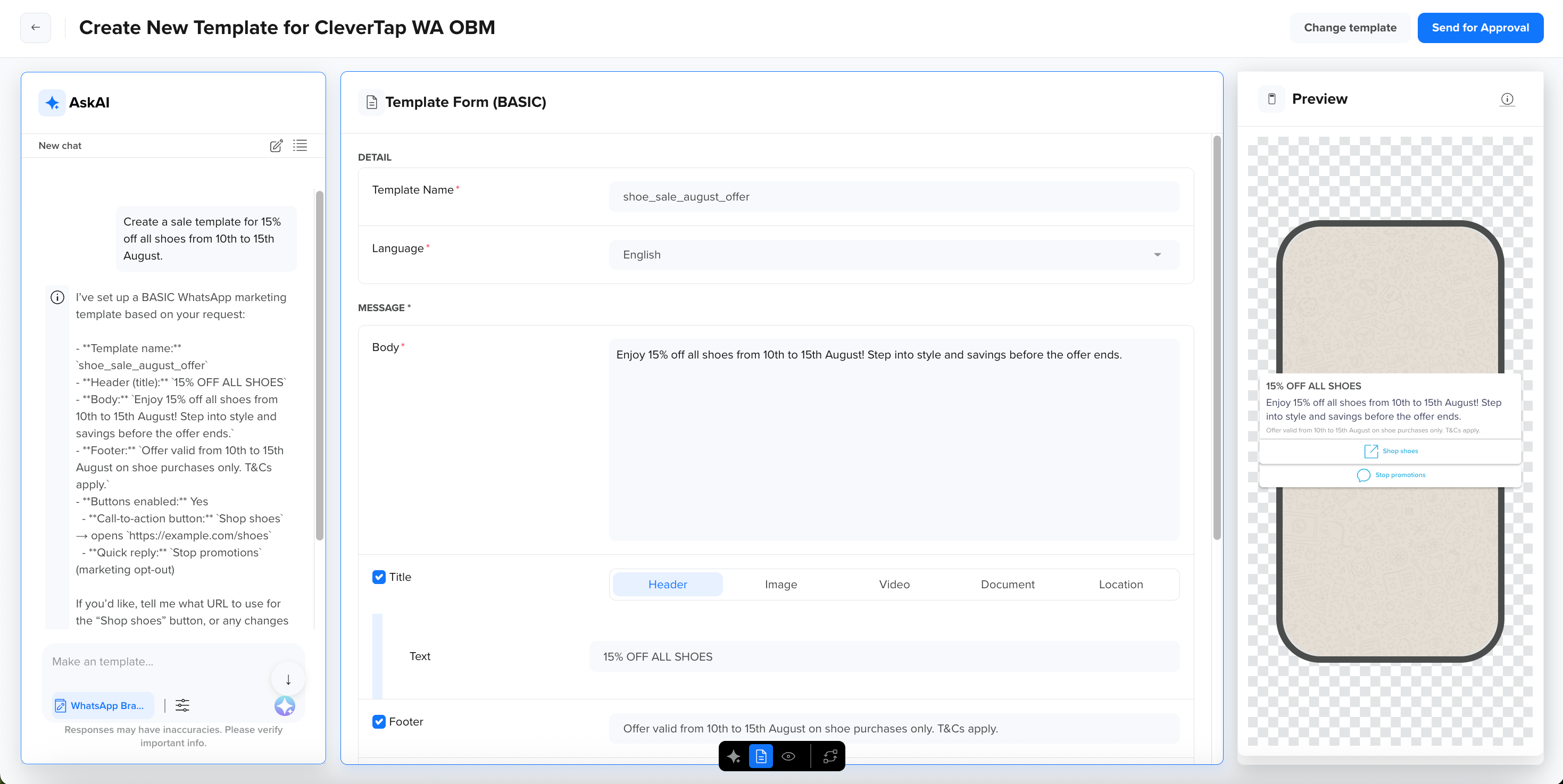
Create Template with AI
Availability
- The Template Builder Agent is available only for WhatsApp Direct
- The Template Builder Agent is not available for Authentication templates.
Configure Content Settings
Content Settings let you control how the Template Builder Agent generates your template content before you prompt it.
Customize Templates for Brand Consistency
The Template Builder Agent integrates with Brand Kit, so generated templates follow your predefined brand colors, tone, and guidelines. You can select a Brand Kit from the AskAI panel before you prompt. For availability, access, and setup, refer to Brand Context.
Manage Generated Templates
WhatsApp templates generated with AI persist only when you submit them, and you can restore earlier versions within a generation session.
You can retrieve any previous version generated during a session by clicking Click to restore this version.
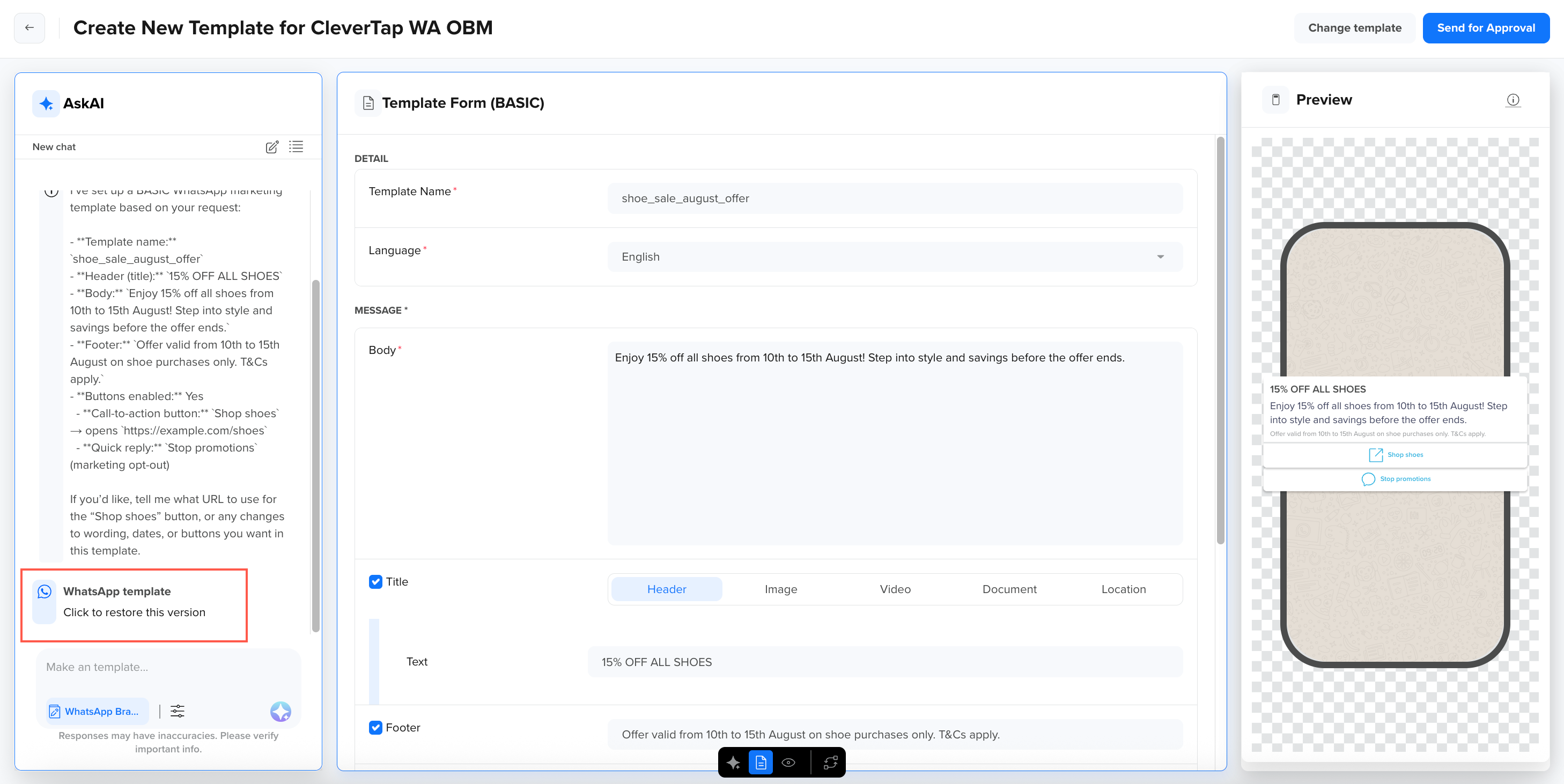
Restore Version
Unsubmitted Content Is Not SavedAI-generated content is not saved as a reusable draft. A template is saved only when you click Send for Approval. After Meta approves it, the template is reusable across campaigns like any other approved template. If you close the editor without submitting, reopen your generation session from Threads to continue where you left off.
Threads
Once you start generating Templates, it automatically saves your sessions under the  panel. Each session is stored as a thread, which captures your prompts, refinements, and generated outputs, helping you resume from where you left off without losing context. If you clear your browser storage or use a different browser or device, your threads will not be available.
Thread Behavior
Threads are scoped to your Account, Agent, and User, ensuring that your history remains relevant. All threads for your account appear in the All Threads popup. A thread becomes the context for your next generation, allowing Clever.AI to remember your prior style, brand preferences, or edits. Threads are not tied to specific templates; they persist across multiple templates for seamless continuity.
If multiple users from the same account use AI tools, each user sees only their own threads and the latest template generation session in which they have participated.
Manage Threads
The All Threads popup lists each thread with its Thread Name, Created On, and Last Updated dates. From this view, you can:
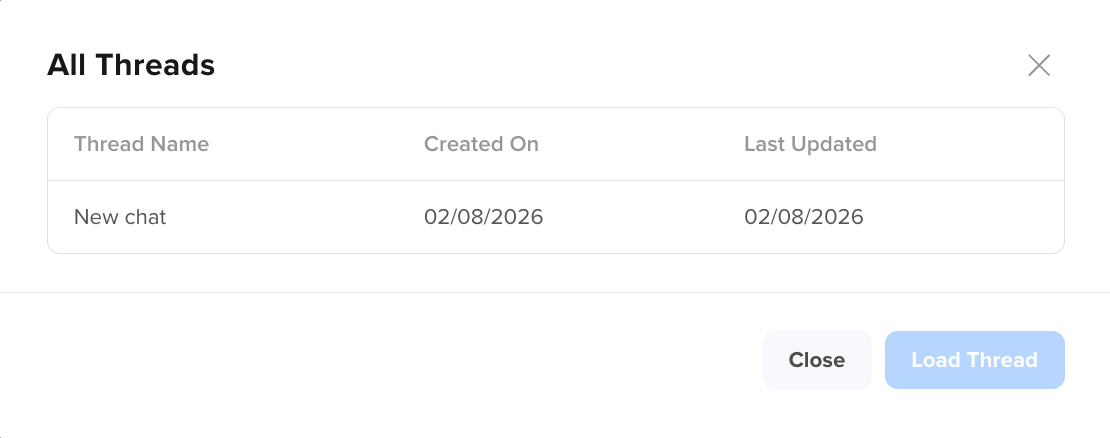
All Threads
- Select a thread and click Load Thread to continue generating or editing templates using the same context.
- Review and compare multiple template versions created during that session.
- Restore or reuse previously generated templates without regenerating them.
TipThis behavior works because the AskAI conversation thread stays open in your browser session, keeping your message history and template state in memory. As long as you are in the same thread, you need not restart a session. You can type your next instruction directly in the chat. For example: "Shorten the offer title and make the tone more festive." The AI applies the edit using the accumulated context from your earlier prompts, including brand styling and tone. If you close the tab, clear browser storage, or open a new session, this continuity breaks and you will need to start fresh.
Additional Resources
Updated about 1 month ago