
Scribe
Learn how to generate message copies across all campaigns with AI.
Overview
Scribe helps you instantly create, edit, or refine message copy for your campaigns directly within CleverTap, using these brand-specific details as its foundation. It goes beyond standard AI copy generation by using your Brand Context, where you save your brand's voice, tone, and preferences, with insights from your past high-performing campaigns. This ensures that every message aligns with your brand voice and is inspired by what has already driven results for your audience.
AvailabilityScribe is available on Pro and Ultimate plans. To access this feature, contact your Customer Success Manager.
Scribe reduces manual effort, speeds up campaign creation, and helps you produce consistent, on-brand copy that is aligned with your engagement goals. With Scribe, you can do the following:
- Save time creating campaigns by generating copy directly in the campaign builder, without switching tools or re-entering context.
- Maintain brand consistency at scale by automatically applying your Brand Context across all messages.
- Create effective copy by learning from your past high-performing campaigns, rather than relying on generic AI suggestions.
- Generate multiple message variations quickly to test and optimize performance.
- Improve team speed and consistency by reducing manual rewrites and reviews.
Learn How Scribe Works
Scribe is embedded within the campaign's Message Editor and generates copy using three inputs:
- Campaign Intent: The prompt you provide describes what you are trying to achieve in this campaign. For example, Re-engage users who abandoned their cart with items still available or Bring back dormant users who haven’t opened the app in 14 days.
- Brand Kit and Brand Context: Scribe draws from your Brand Kit and Brand Context, which acts as the foundational system prompt for all AI features and captures your brand name, industry, and voice at the account level.
- Past Campaign Look-back: Set in Brand Kit, this determines how far back Scribe looks when identifying relevant past campaigns to use as inspiration for the current prompt.
Supported Channels
Scribe supports the following channels:
- SMS
- Web-Native
- Web-popup
- Native Display
- App Inbox
- InApp
Generate Copy using a Prompt
Use a prompt to quickly generate campaign copy tailored to your goals. Before generating content, set the Brand Context, select the appropriate Brand Kits, and configure Content Settings to guide tone, style, and language.
Steps may vary slightly by channelThe steps below use Push as the example. For channel-specific fields and behavior, refer to Supported Channels.
To generate copy using Scribe, follow the given steps:
- Open your Campaign Editor.
- Click Scribe to generate both Title and Message. The Title is the short, attention-grabbing headline of your message (for example, a push notification's title bar text), while the Message is the main body content that carries the full context or call to action. You can also click the
 icon in the Title or Message fields to generate content specifically for that field.
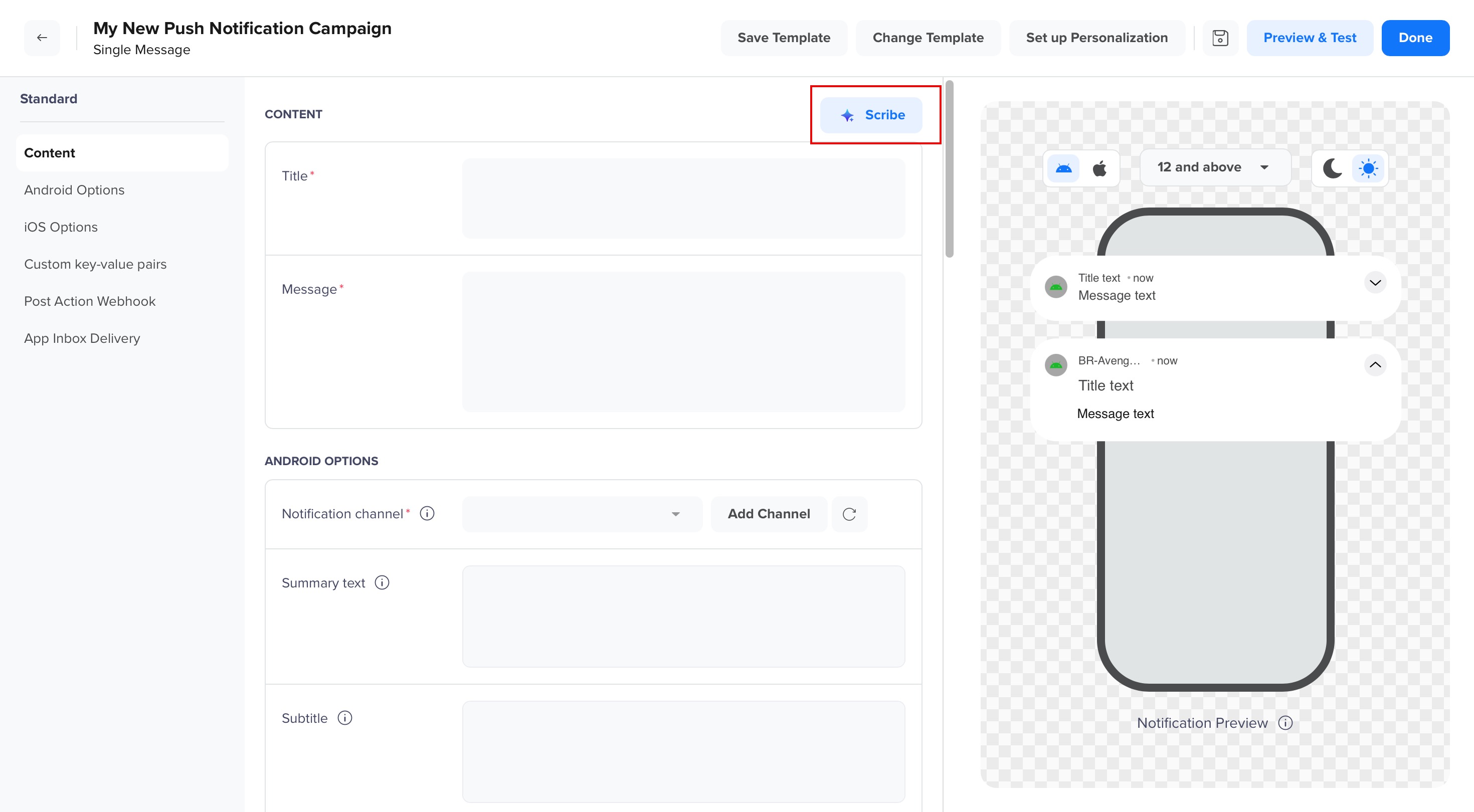
Campaign Editor
- In the new window, describe the intent of the campaign, or what you want the message to achieve. For example, Bring back dormant users who haven’t opened the app in 14 days or Promote the Friday sale for premium plans. The Scribe window also displays some sample prompts to help you get started.
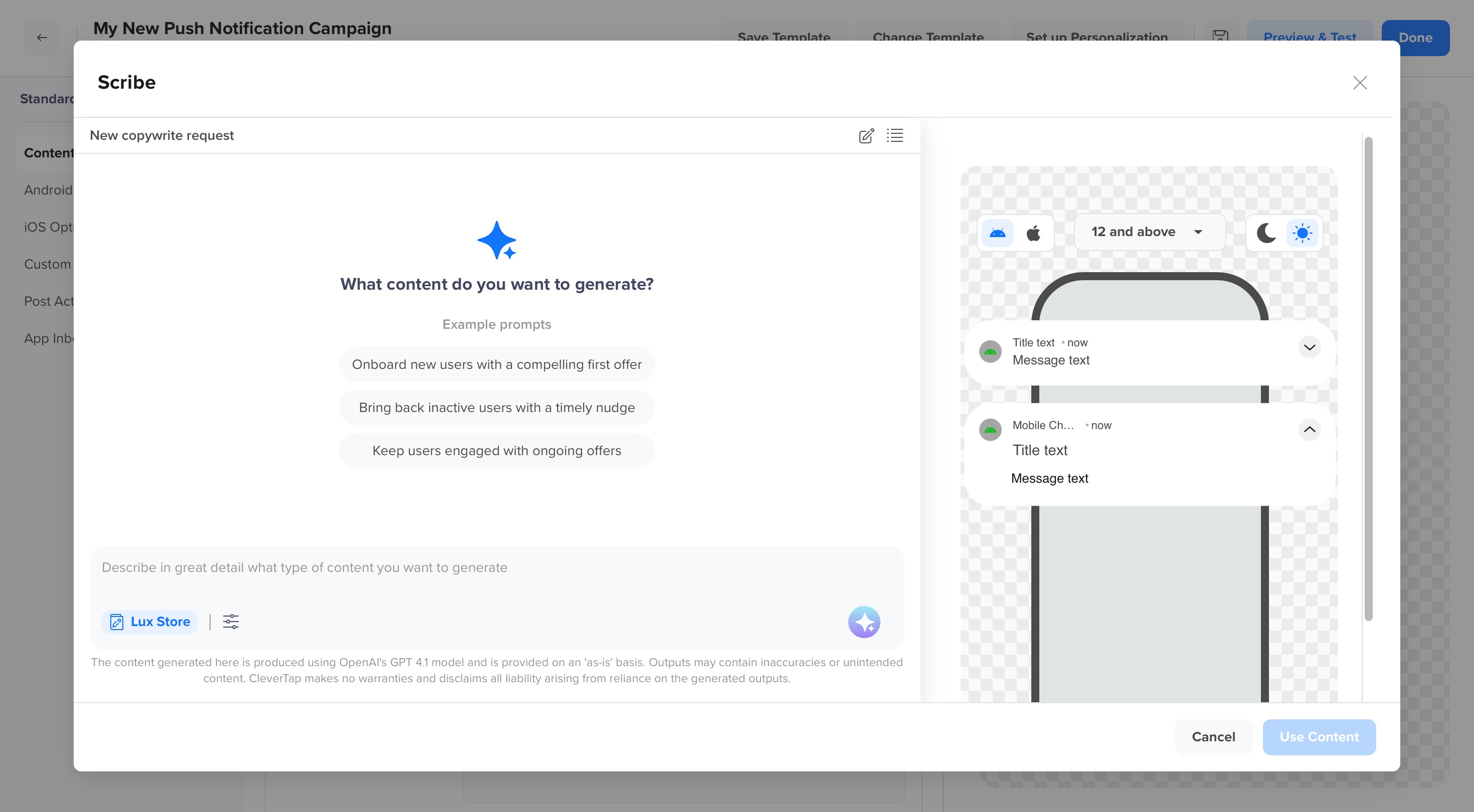
Scribe Prompt Window
- Select the Brand Kit and configure Content Settings (such as tone, emotion, or personalization) based on your campaign needs.
- Click the
 icon to generate the copy. You can preview how the copy looks in real time within the device preview.
 - The Scribe creates multiple variations based on your prompt and settings. It also refers to past campaigns and lists the templates for those campaigns.
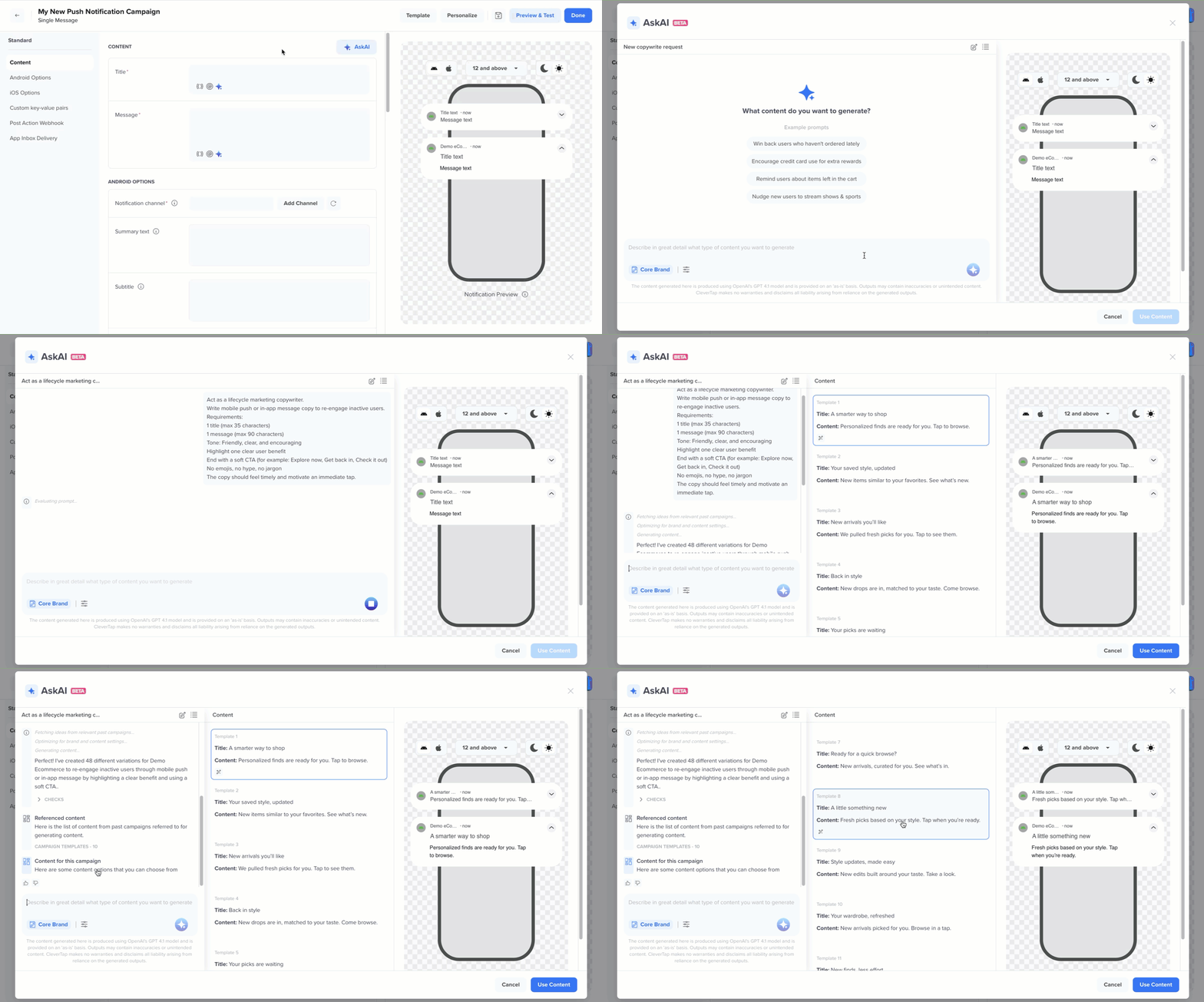
Generate Copy Variations
- To refine the generated copy, select the output you want and click Improve. You are navigated to the prompt pane to rewrite the copy. For example, you can prompt to make the copy shorter, friendlier, sound more urgent, and so on.
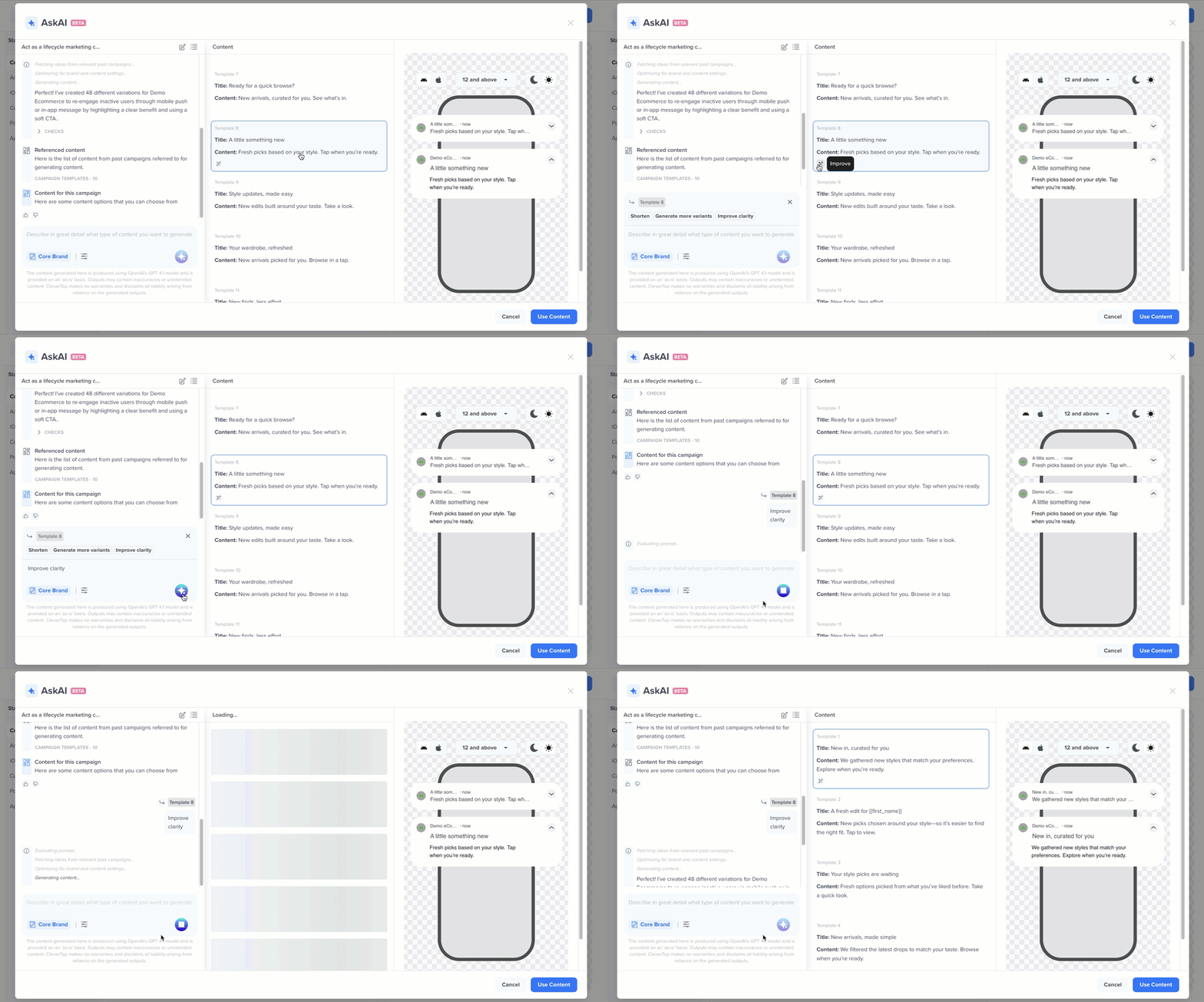
- Click Use Content to insert the selected copy into your campaign.
Optimize Output with Detailed PromptsThe Scribe relies on the clarity of your prompt to generate accurate, high-quality copies. The more specific you are about the goal, audience, tone, and so on, the better the output aligns with your campaign goals.
Brand Kits and Content Settings
The Scribe provides controls to guide the style and tone of the generated copy, using Brand Kit, and Content Settings.
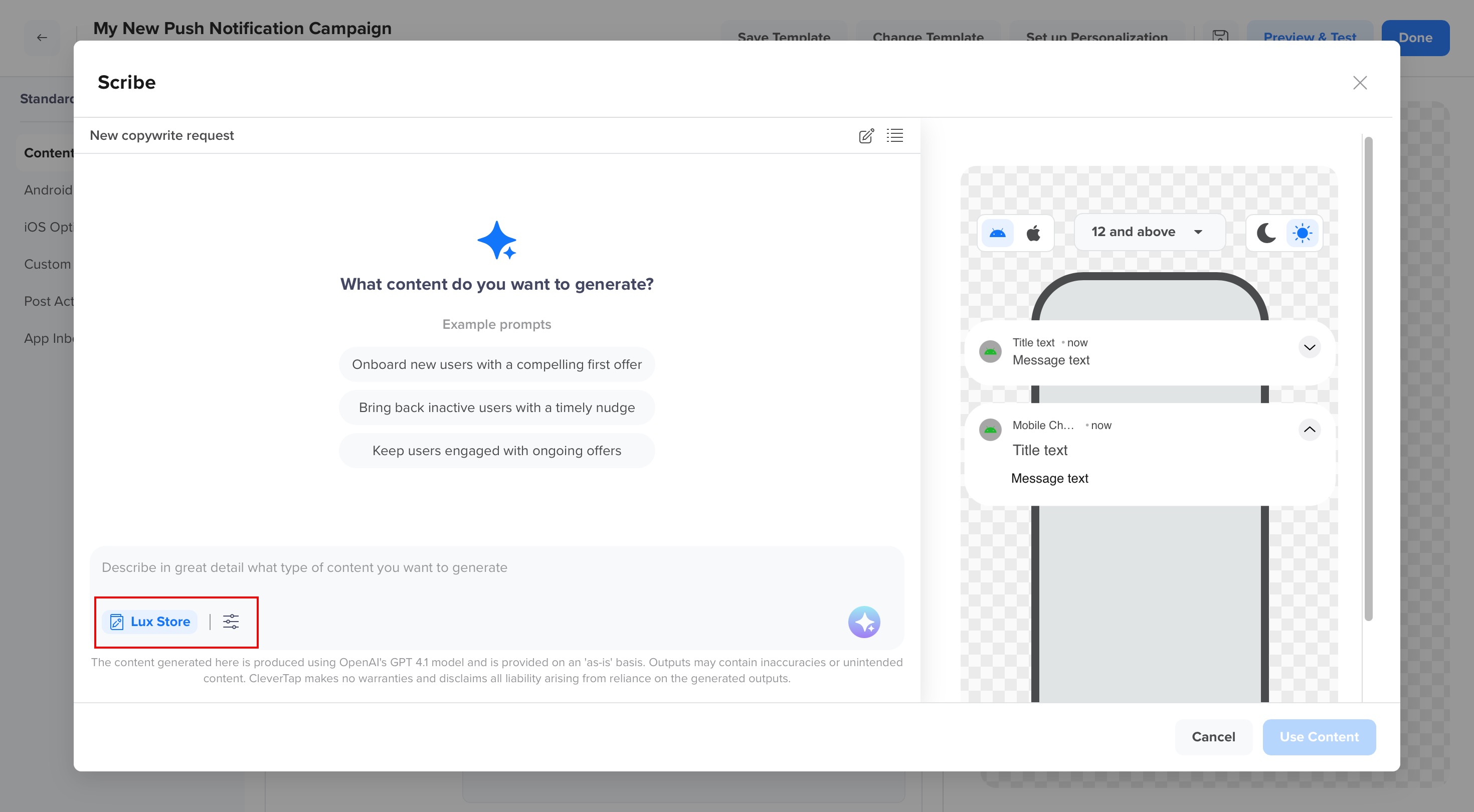
Core Brand and Content Settings
Brand Kits
Click Brand Kits to view your brand’s tone, campaign reference period, creativity, and more for your content. If you have configured multiple brand kits, select the appropriate one before generating content. Click Apply to this Thread.
You can also configure a custom kit for the current thread. This helps align generated copy with your brand’s preferred tone and instructions.
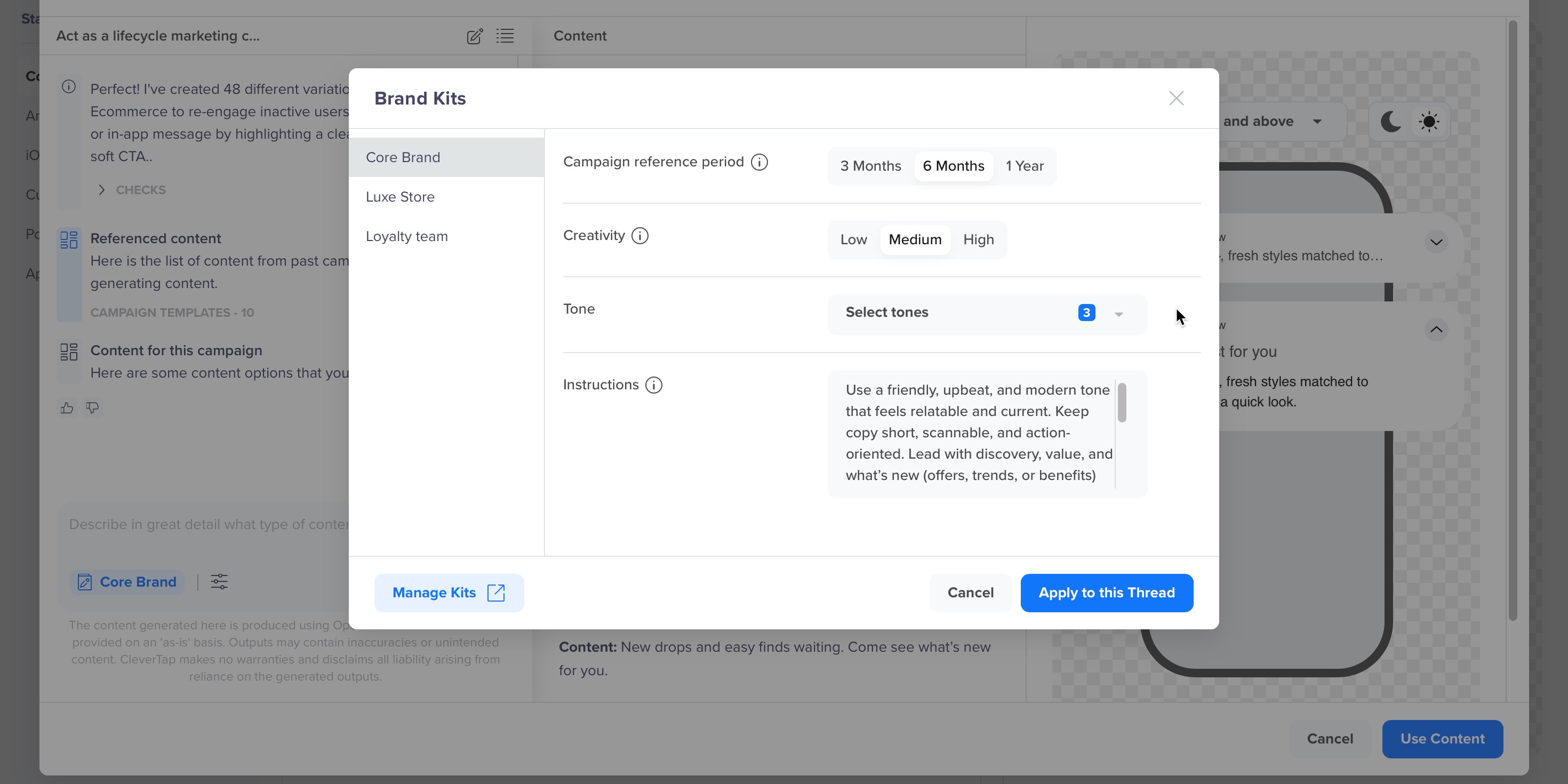
Brand Kits
Scribe also inherits settings from your Brand Context, which defines your brand's core identity and tone at the account level. Brand Context applies across all AI features and works alongside your Brand Kit to shape generated copy.
Note
- Locked Brand Kits cannot be edited in the campaign flow because they are meant to enforce brand consistency across teams. Locking a kit prevents campaign-level users from overriding approved brand styles.
- Any changes made to a Brand Kit from the campaign flow apply only to the current thread. This allows you to experiment with copy variations without permanently changing your account-level Brand Kit.
- If a prompt conflicts with Brand Kit settings, the agent automatically follows the Brand Kit settings to maintain consistency.
For more information on setting up and using brand kits, refer to Brand Kit.
Content Settings
You can customize how content is written using Content Settings. To configure the Content Settings, follow the given steps:
- Click the
 icon in the Scribe window to configure the following options:
- Language: Choose the language for the generated copy.
- Script: Select the writing system used for the selected language (for example, if your selected language is Hindi, choose Devanagari script for
नमस्तेor Latin script forNamaste.) - Emotions: Define the emotional tone, such as Neutral, FOMO, Trust, Joy, Surprise, and Anticipation.
- Content Type: Select the writing style, such as Catchphrase, Punchy, Throwback, and so on.
- Personalization: Enable this option to include personalization placeholders (for example,
NameorCity) wherever relevant. - Emojis: Enable this option to allow emojis when they fit the message tone and channel.
- Click Apply to save your settings before generating content.
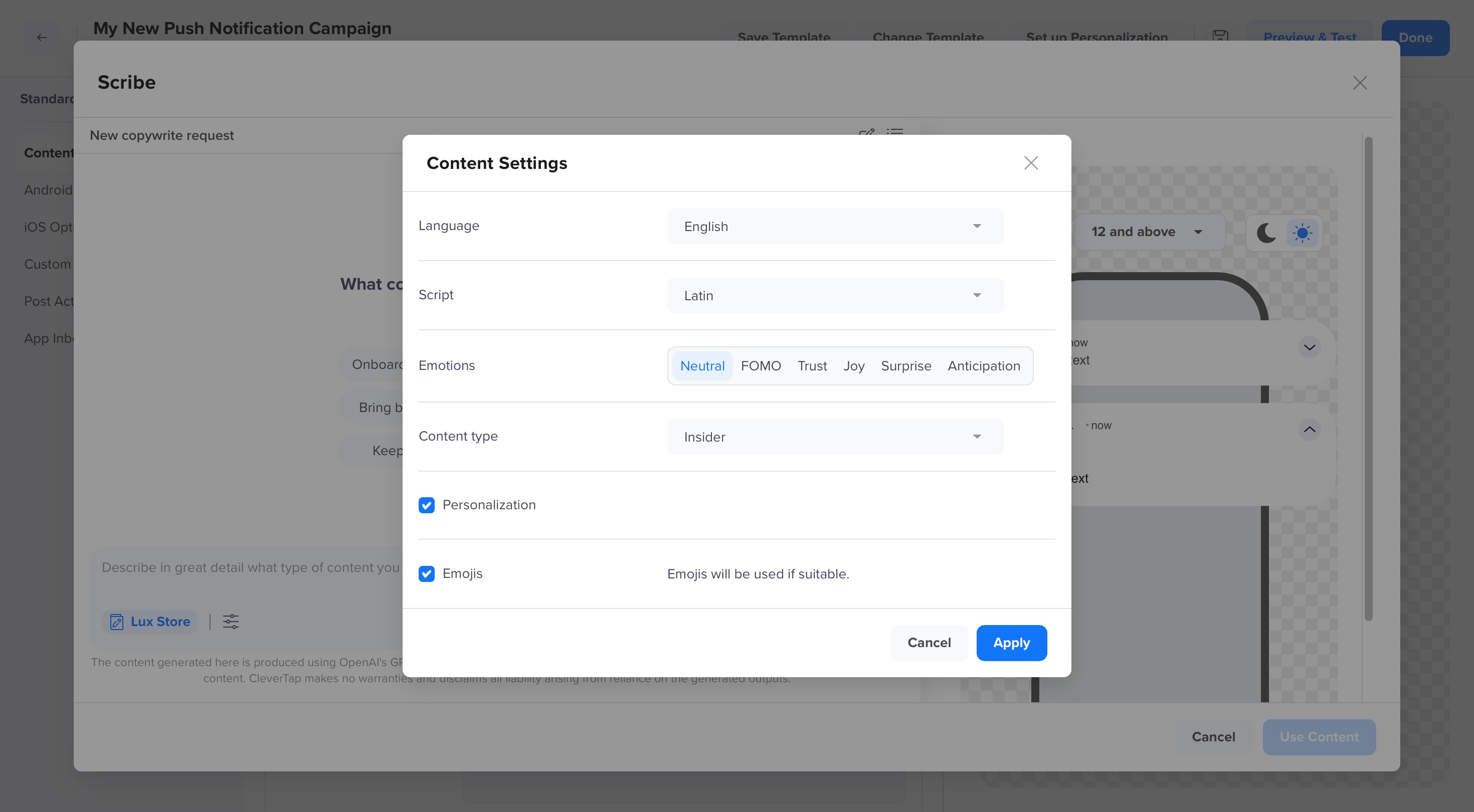
Content Settings for Scribe
Threads
Once you start generating copy, CleverTap automatically saves your sessions under the Threads  tab. Each session is stored as a thread, which preserves your prompts, refinements, and generated outputs, helping you resume from where you left off without losing context.
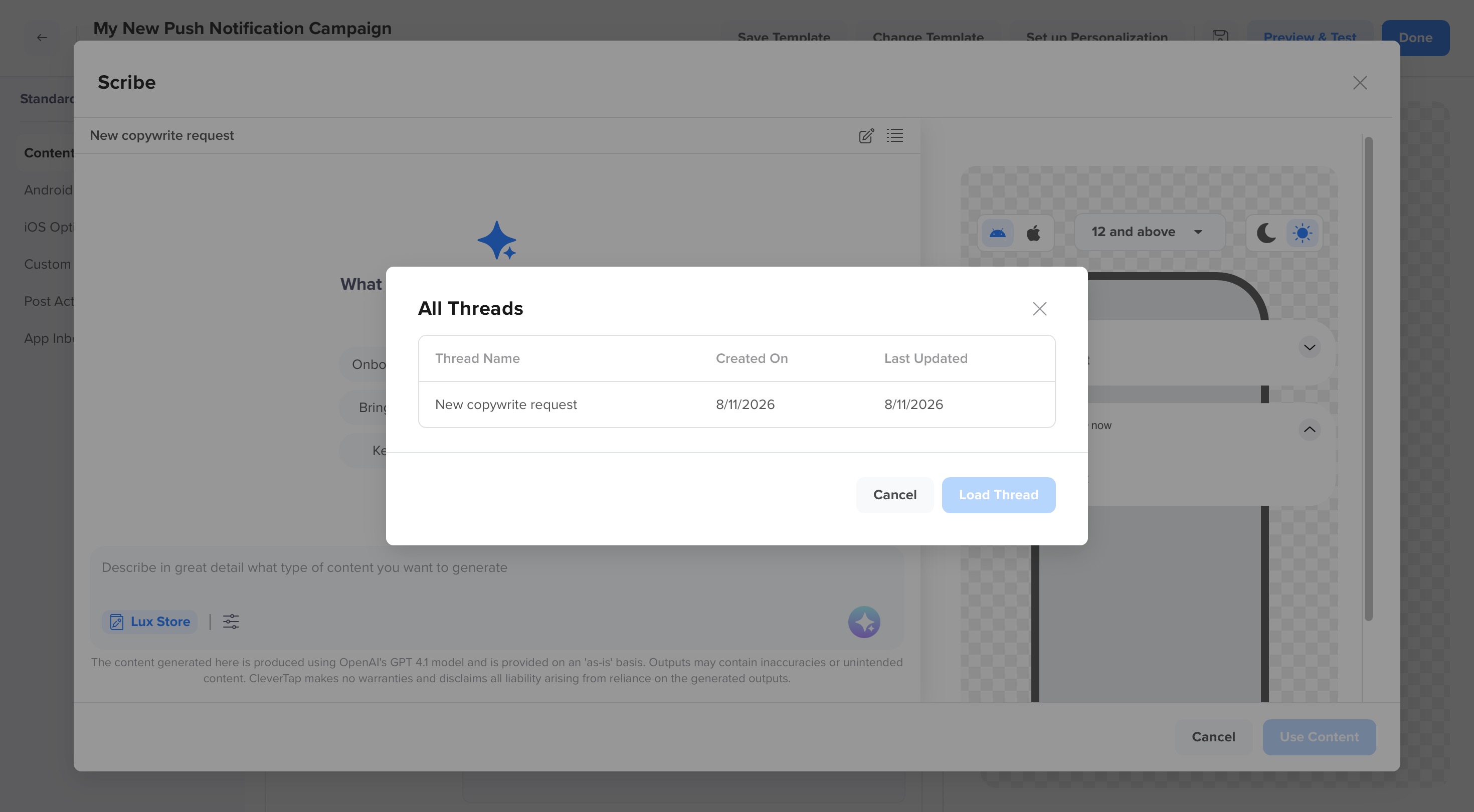
All Threads
Thread Functionality
Threads are scoped to your Account, Agent, and User, ensuring that your history remains personalized and relevant. All threads for your account appear in the All Threads popup. A thread becomes the context for your next generation, allowing Clever.AI to remember your prior brand preferences or edits. They are not tied to specific campaigns; they persist across multiple campaigns for seamless continuity.
If multiple users from the same account use AI tools:
- Each user sees only their own threads and the latest image generation session that they have participated in.
- Threads are separate for Segmentation, Analytics, Image Creator, and Scribe, even under the same account.
Manage Threads
From the All Threads popup, you can do the following:
- Revisit previously generated copy to review or compare variations.
- Continue refining copy within the same context without starting over.
- Reuse effective messages across campaigns with similar goals.
Best Practices for Writing Prompts
The Scribe relies heavily on the clarity of your prompt. Follow these best practices to get better results:
- Clearly state the goal of the message
Example: “Re-engage users who haven’t opened the app in 14 days.” - Mention the audience
Example: “Users who abandoned cart.” - Define the tone or emotion
Example: friendly, urgent, reassuring. - Avoid vague prompts that lack context, such as write a notification or marketing copy.
- All generated copies must be reviewed by your internal brand and legal teams before use in public campaigns.
- Avoid including any personal or confidential information in AI prompts. Keep descriptions focused on creative intent.
You can refine the output by adjusting the prompt, changing Content Settings (emotion, tone, personalization), or regenerating content multiple times. Each variation helps you explore different angles until the copy matches your intent. For more information, refer to Generate High-Impact Copy with Effective Prompts.
Refer to the table below for difference between vague and effective prompts:
| Vague Prompt | Effective Prompt |
|---|---|
| Write a push notification | You are a lifecycle marketing copywriter for a consumer app. Create high-converting copy to re-engage users who haven’t opened the app in 14 days. Deliver:
|
| Create marketing copy | Create high-converting copy to promote the Friday sale to existing users. Add a title with 3 words, and a clear message highlighting the main offer or benefit. Use a sense of urgency, keep the tone modern and trustworthy, and include a gentle CTA. |
| Notify users about an offer | Create high-converting message to notify existing users about a limited-time offer. Deliver a title and a clear message explaining the value of the offer Keep the tone helpful and persuasive, and include a gentle CTA. |
| Notify users about items left in cart | Create high-converting push message to remind cart abandoners about items left behind. Add a clear message nudging users to complete their purchase Keep the tone fun, casual, and action-oriented, and include a gentle CTA. |
| Announce a feature | You are a marketing copywriter for a consumer app. Create high-converting copy to encourage existing users to try a new feature. It should include a clear message highlighting the primary benefit of the feature Keep the tone informative and trustworthy, and include a CTA. |
Additional Resources
For more information, refer to the following resources:
Updated about 1 month ago