
CleverTap MCP Server Integration Guide
Learn how to connect and configure the CleverTap MCP with your preferred AI client to interact with your CleverTap account using natural language.
Overview
CleverTap MCP (Model Context Protocol) connects CleverTap directly to AI clients, including Anthropic Claude, ChatGPT, and Cursor. This guide helps you get the CleverTap MCP up and running in your preferred AI client so you can start interacting with your CleverTap account using natural language. For more information on MCP Tools, refer to CleverTap Tools Reference.
Private BetaThis feature is currently available in Private Beta for selected customers. To enable CleverTap MCP, contact your Customer Success Manager or raise a support ticket.
Supported AI Clients
The CleverTap MCP server is compatible with the following AI clients:
- Anthropic Claude (web, desktop, and mobile)
- ChatGPT
- Cursor
Access LimitationsMCP access requires CleverTap SSO login. RBAC authorization applies the same way it does on the CleverTap dashboard.
Integration Steps
The following steps help you to integrate CleverTap MCP in Claude:
Add Custom Connector
To add a custom connector manually in Claude, follow the steps:
- Open Claude.
- From the left toolbar, click Customize, then Connectors.
- Click + to choose Add custom connector.
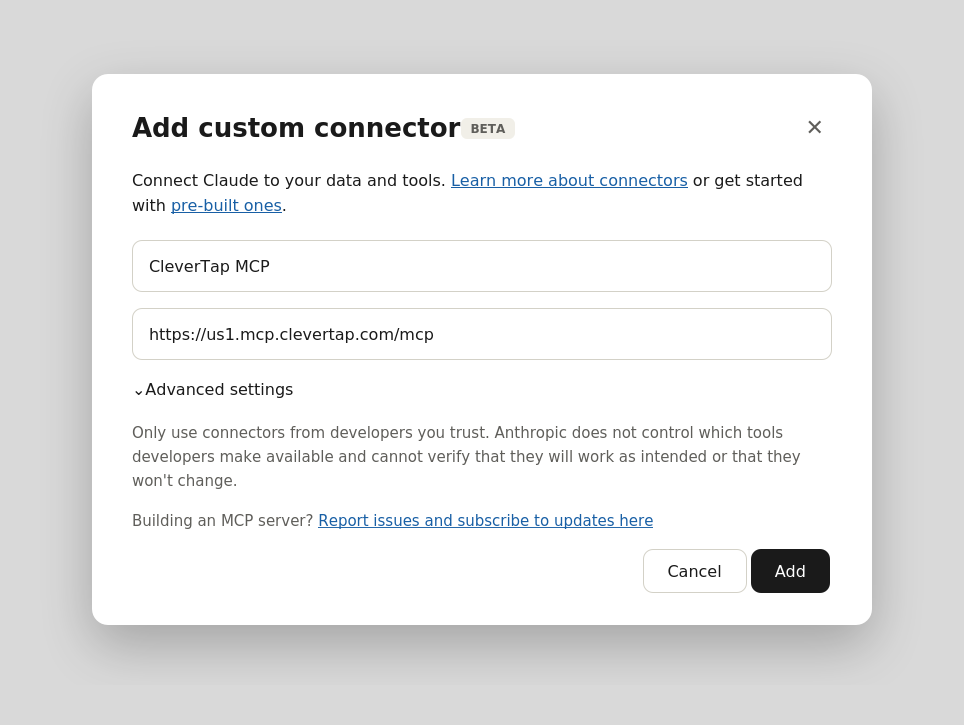
- Enter the connector details:
-
Name:
CleverTap -
URL:
https://<region>.mcp.clevertap.com/mcpFor information on region-wise URLs, refer to Region-wise URLs.
-
- Click Add, then Connect. You will be redirected to the CleverTap dashboard for SSO login.
- Follow the prompts to complete sign-in. Once authenticated, your CleverTap MCP connector is ready to use.
The following image shows the Add custom connector:
Add Custom Connector
Connect the CleverTap MCP
The following steps explain how to connect the CleverTap MCP connector in Claude:
-
Go to Customize > Connectors > Browse Connectors.
-
Click Connect on CleverTap MCP.
-
Click Configure after connecting. This shows the full list of tools and functionality available through the MCP.
The following image shows a sample endpoint connector: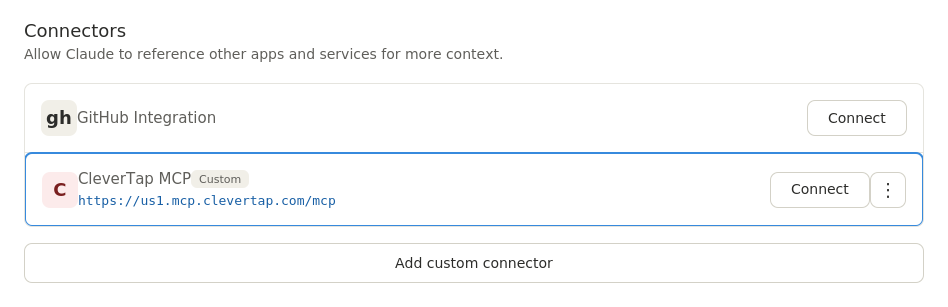
Add Custom Connector
Enable in a Chat
The following steps explain how to enable the CleverTap MCP connector within an active Claude chat session:
- Open a new chat in Claude to start a fresh conversation.
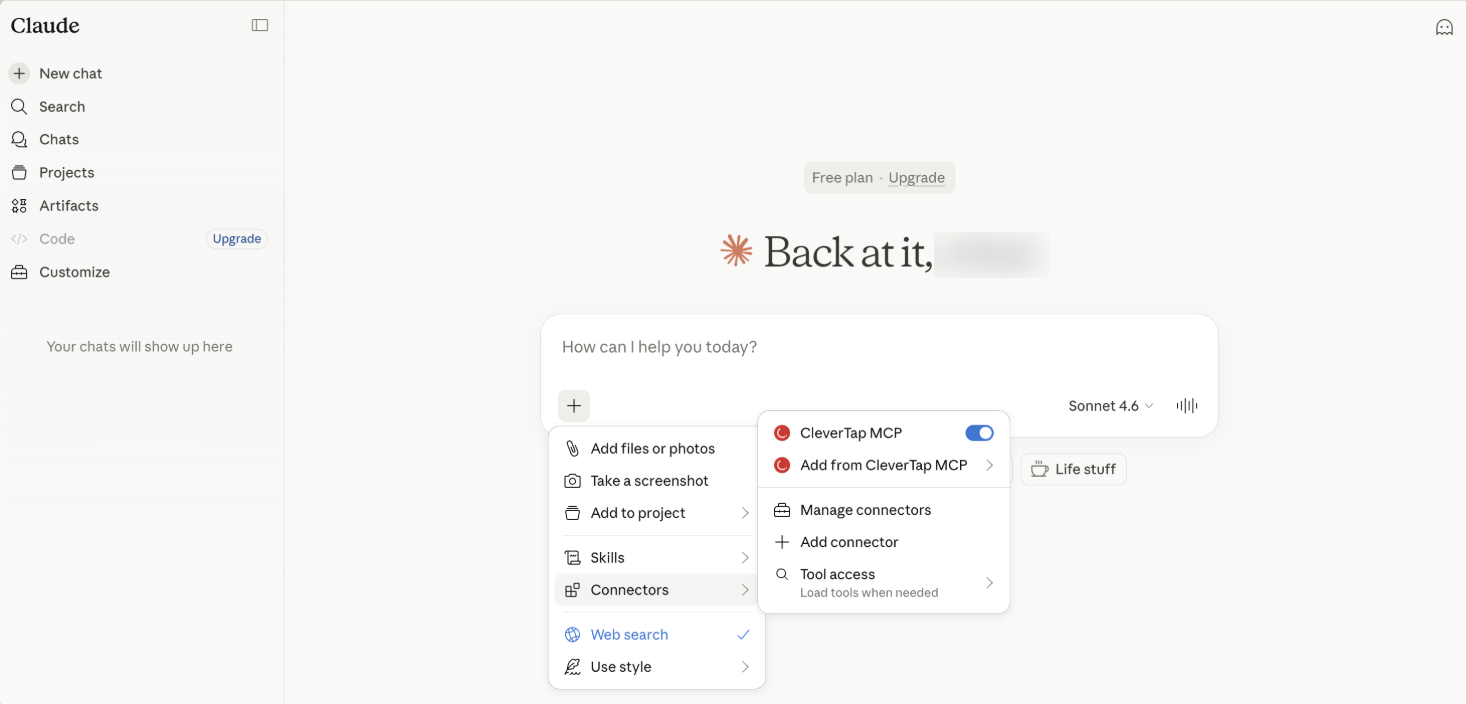
- Click the + icon at the bottom-left of the chat input. This opens the tools/connectors menu.
- Click Connectors. A menu appears.
- In the menu, locate CleverTap MCP and check its toggle:
- If it is already ON, no action needed.
- If it is OFF, click the toggle to turn it ON.
The following image shows the chat screen connector with CleverTap MCP toggle enabled:
Enable Connector
Verify the Connection
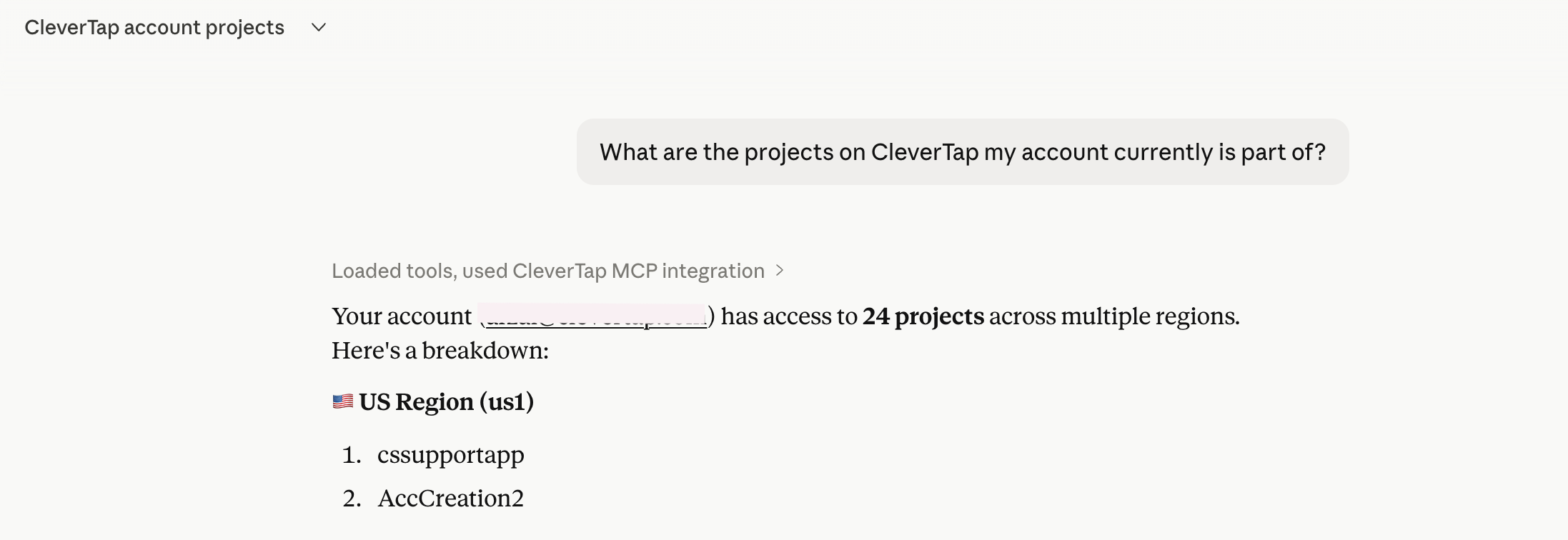
Once the connector is enabled, run the following test query in the chat:
Test Prompt: What projects are included in my account on CleverTap?
Expected Response: Claude replies with your CleverTap account email and a list of projects grouped by region.
The following image shows Claude's response with CleverTap projects listed:
Verify Connection
NoteOnce connected via web or desktop, CleverTap MCP is automatically available on the Claude mobile app. No separate mobile setup is required.
Integration Steps
The following steps help you to integrate CleverTap MCP in ChatGPT:
Add Custom Connector
To add CleverTap as a custom app in ChatGPT, follow the steps:
- Open ChatGPT > Profile icon > Settings > Apps > Advanced Settings.
- Enable Developer Mode.
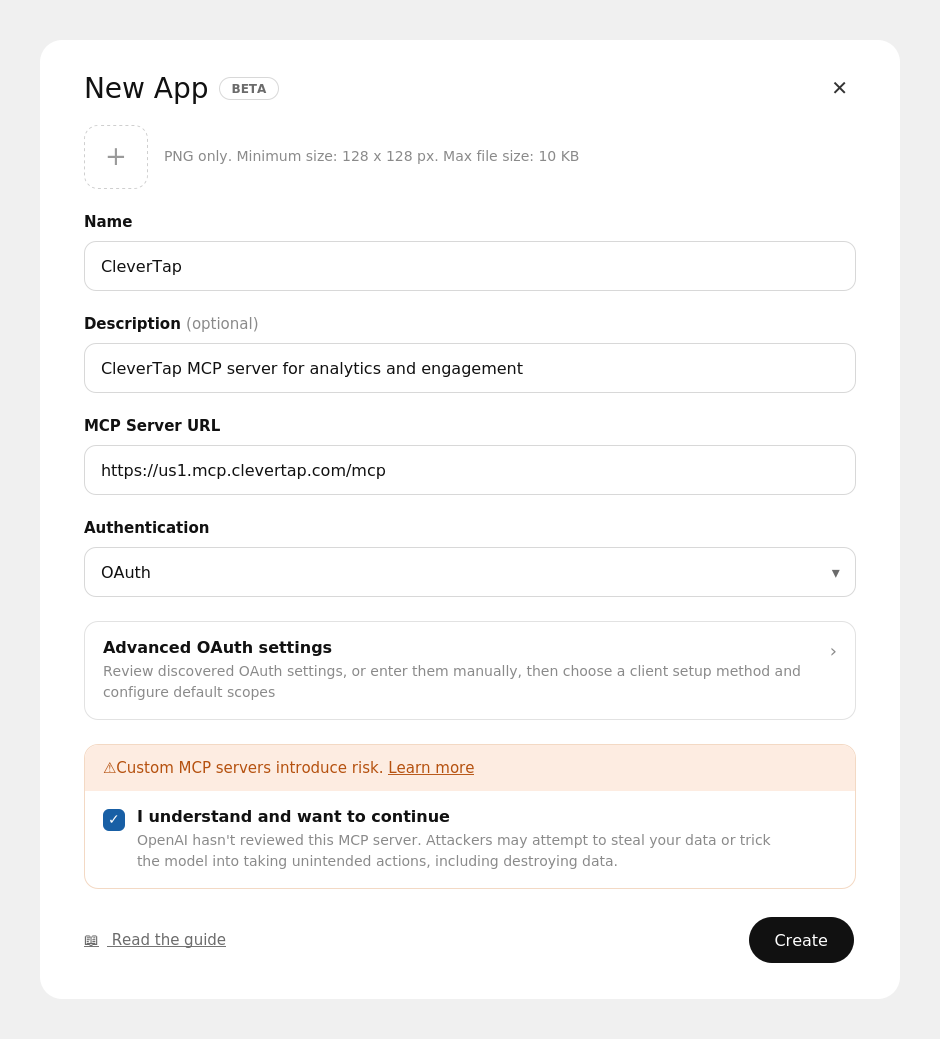
- Return to Apps and click Create app. This displays the custom app creation form.
- Fill in the app details:
-
Name:
CleverTap -
Description:
CleverTap MCP server for analytics and engagement(optional) -
MCP URL:
https://<region>.mcp.clevertap.com/mcpFor information on region-wise URLs, refer to Region-wise URLs.
-
Authentication:
OAuth(default)
-
- Click Save. You will be redirected to the CleverTap dashboard for SSO login.
- Follow the prompts to complete sign-in. Once authenticated, your CleverTap MCP connector is ready to use.
The following image shows the ChatGPT settings:
Add Custom Connector
Enable in a Chat
The following steps explain how to enable the CleverTap MCP connector within an active ChatGPT chat session:
- Open a new chat in ChatGPT to start a fresh conversation.
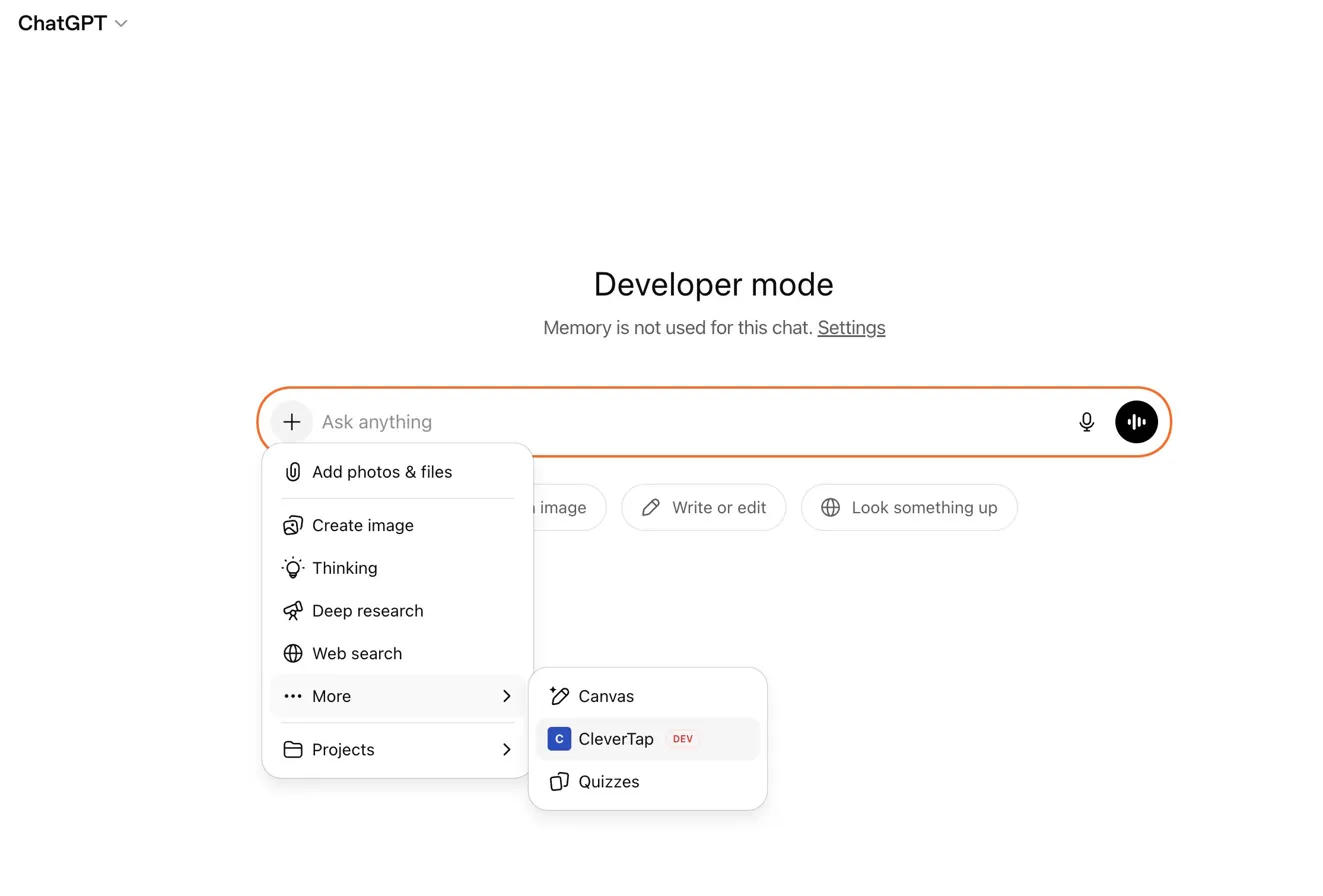
- Click the + icon at the bottom-left of the chat input. This opens the tools/connectors menu.
- Click More.
- Select CleverTap from the submenu. CleverTap appears as a listed connector.
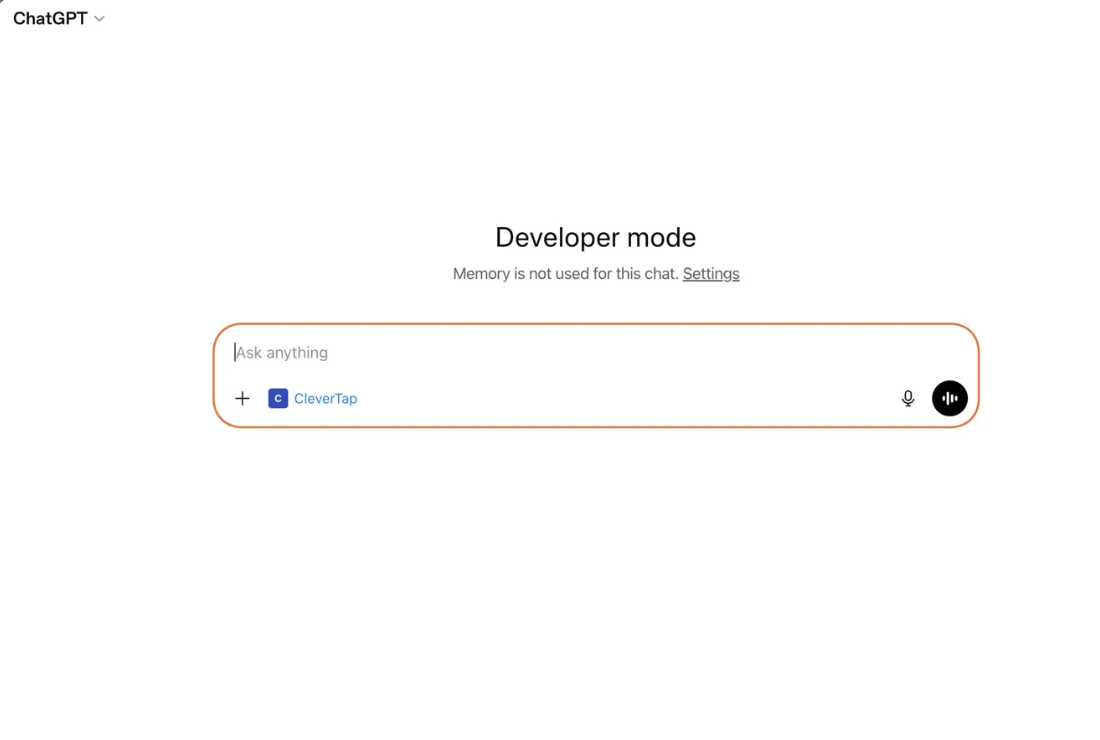
- Click CleverTap to enable it. The CleverTap icon appears in the chat input bar alongside the + icon.
The following image shows after enabling the CleverTap connector:
Select Connector
Once enabled, you can see the CleverTap icon appear in the chat input bar alongside the + icon.
Connector Enabled
Verify the Connection
Once CleverTap is active in the chat, run the following test query:
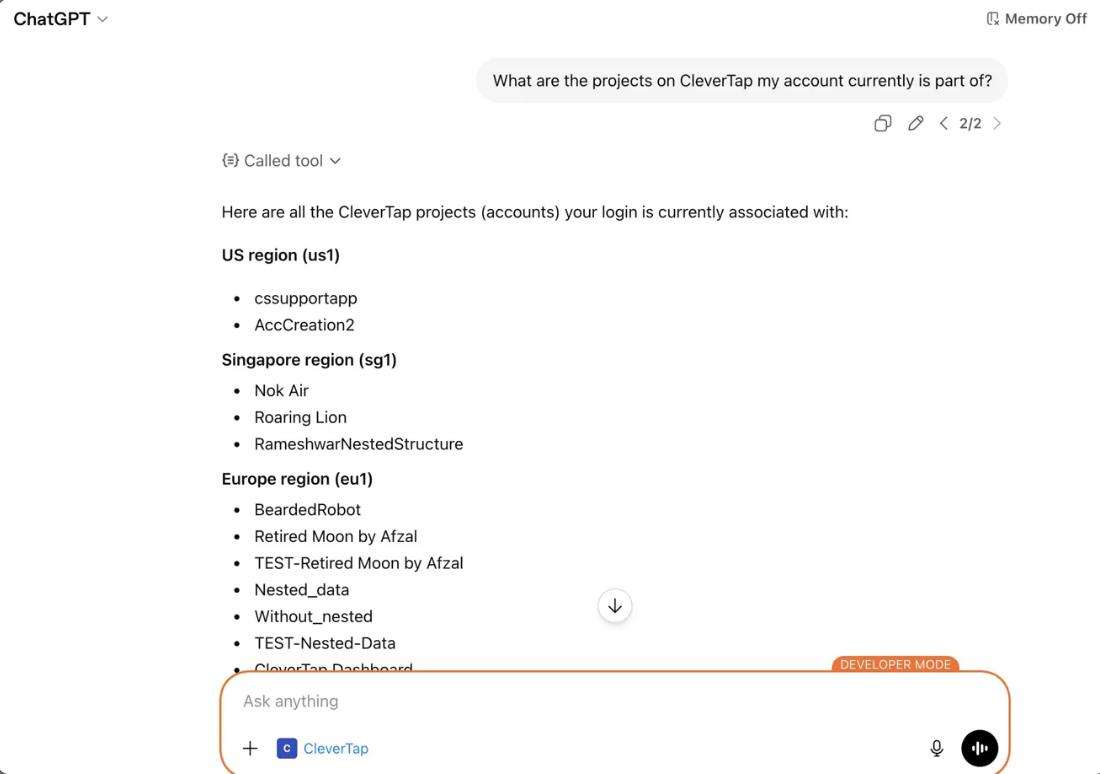
Test Prompt: What are the projects on CleverTap that my account is currently part of?
Expected Response: ChatGPT displays a "Called tool" indicator and replies with your CleverTap projects grouped by region (US, Singapore, Europe, and so on).
The following image shows ChatGPT's response with CleverTap accounts listed:
Verify Connection
Integration Steps
The following steps help you to integrate CleverTap MCP in Cursor:
- Add the CleverTap MCP Server
- Connect and Authenticate
- Confirm the Tools Availability
- Run a Test Query
Add the CleverTap MCP Server
To add the CleverTap MCP server manually in Cursor, follow the steps:
- Open Cursor > Cursor Settings > Tools & MCPs.
- Under Installed MCP Servers, click Add Custom MCP. This opens
mcp.json. - Add the following entry to
mcp.json.
The following is a sample entry:
{
  "mcpServers": {
    "CleverTap": {
      "url": "https://<region>.mcp.clevertap.com/mcp"
    }
  }
}
For information on region-wise URLs, refer to Region-wise URLs.
- Save the file and switch back to the Cursor Settings tab.
Connect and Authenticate
The following steps explain how to connect and authenticate the CleverTap MCP server in Cursor:
- In Tools & MCPs, locate CleverTap under Installed MCP Servers. It shows a "Needs authentication" status.
- Click Connect.
- Complete the CleverTap login and authorization in the browser window that opens.
Once connected, CleverTap shows as active, with a Logout option, a green toggle, and a live tool count, for example, 24 tools, 2 prompts, 3 resources enabled.
Confirm the Tools Availability
Click the tool count dropdown, or Show more, next to CleverTap to expand and view the full list of available tools.
The following image shows the expanded list of CleverTap MCP tools available in Cursor:
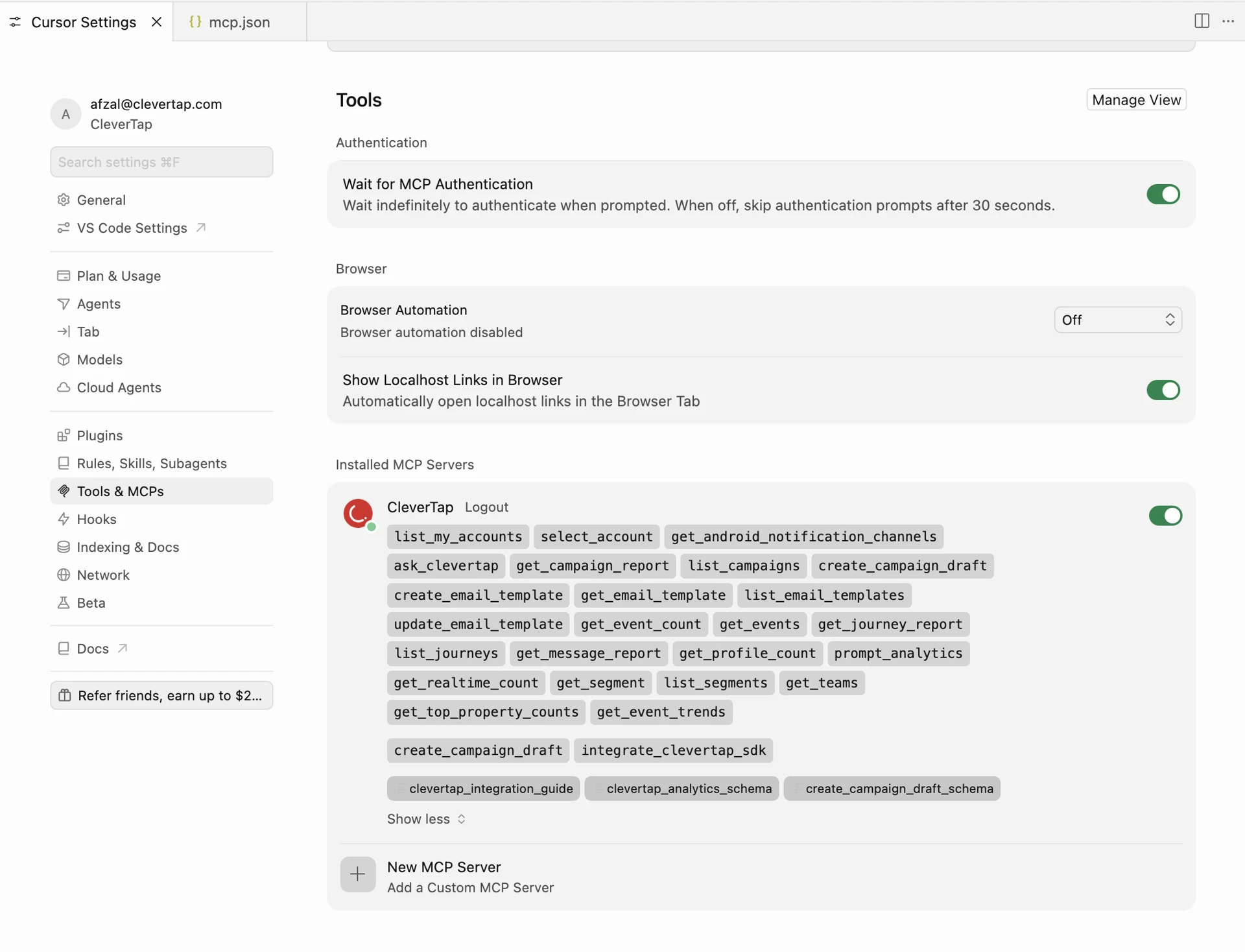
Available CleverTap MCP tools
Run a Test Query
In a Cursor chat or agent session, run the following test query:
Test Prompt: What are the projects on CleverTap that my account is currently part of?
Expected Response: Cursor calls the CleverTap tool and replies with your CleverTap account email and a list of projects grouped by region.
Region-wise URLs
Refer to the following table to identify the MCP server URL for your account's region:
| Region | MCP URL |
|---|---|
| Europe | https://eu1.mcp.clevertap.com/mcp |
| India | https://in1.mcp.clevertap.com/mcp |
| United States | https://us1.mcp.clevertap.com/mcp |
| Singapore | https://sg1.mcp.clevertap.com/mcp |
| Indonesia | https://aps3.mcp.clevertap.com/mcp |
| Middle East (UAE) | https://mec1.mcp.clevertap.com/mcp |
FAQs
What is MCP?
MCP (Model Context Protocol) is an open standard that enables AI assistants, such as Claude, to connect directly to external tools and data sources. Instead of copying and pasting data into a chat, MCP lets Claude securely fetch live data from a platform such as CleverTap and act on it in real time, all within the same conversation.
Does enabling the connector in Settings automatically activate it in every chat?
No. You need to turn it on per chat. Click the + icon in the chat input, open Connectors, and toggle CleverTap ON for each new session.
Is it possible to work with multiple CleverTap projects in one chat session?
Yes. Claude can list all projects linked to your account and switch context between them within the same session when you specify the project or region by name.
Updated 5 days ago