
Preview and Send In-App
Learn how to send and test personalized In-App campaigns from the CleverTap dashboard.
Overview
Marketing teams can test In-App campaigns with personalized values before publishing them. This helps them verify the app experience before sending it to the user.
For example, marketers can send a personalized In-App message that highlights a user’s recently viewed product or shows a tailored offer based on their behavior, and first test it with an internal audience. The results of this test help verify that the personalized elements in the campaign are displayed correctly in the In-App experience before sending it to customers.
Once you are all done setting up the content of your campaign in the What section, you have the option to send an In-App notification to any CleverTap user profile that you have marked as a Test profile.
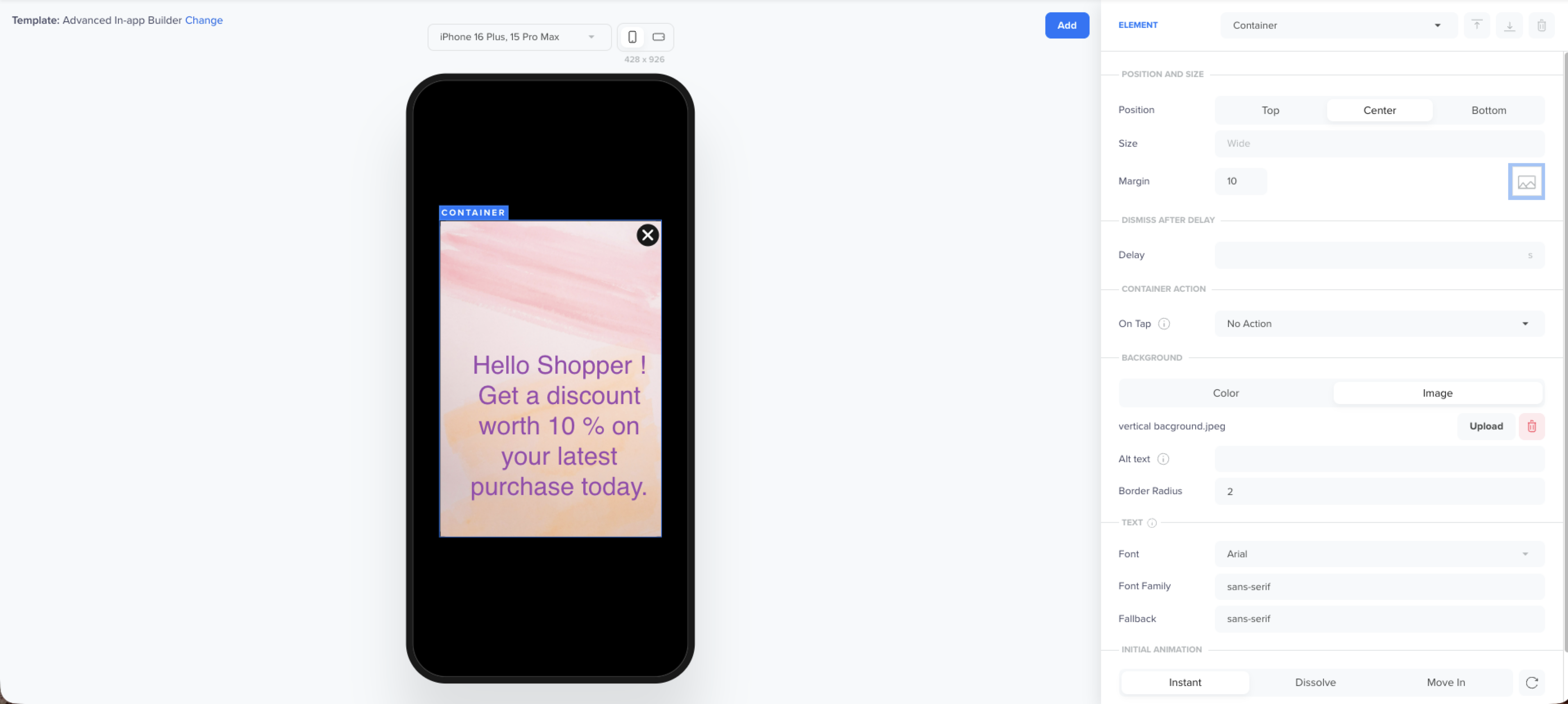
Preview and Test Popup
NoteThe Preview & Test feature for sending tests on a real device requires minimum SDK versions (Android SDK v7.7.0 and CleverTap iOS SDK v7.4.0 or later). For lower SDK versions, send the campaign exclusively to a specific user for testing, then recreate and send it to your full audience.
Test by Users and Devices
Select the Notification channel to send your test message. You can test your message by device or by user profiles. You can combine event personalization with other In-App personalization options such as user profile properties, inline @ personalization, recommendations, linked content, and Liquid tags to fully tailor the In-App experience. For more information, refer to In-App Personalization.
By Devices
With this option, you can focus your test on specific devices. In the Send test on section, click Device tokens. The Android and iOS device token sections are displayed. This is useful when a user has multiple devices, and you want to validate the In-App experience on specific form factors (for example, phone vs. tablet) or operating systems.
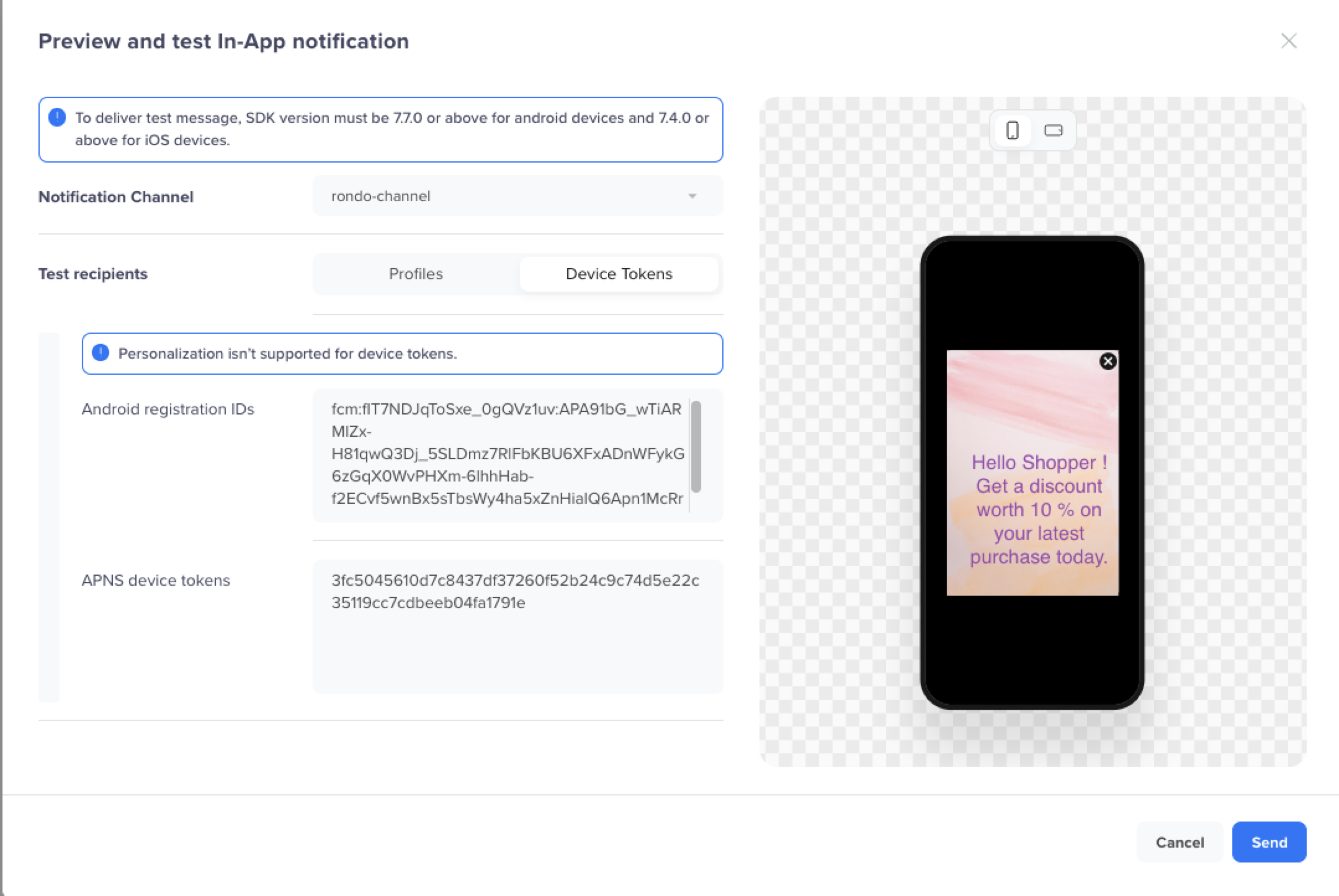
Test by Device Tokens
By User
CleverTap provides the following options to select the users to send a personalized test In-App message:
- From Test Profiles
- From Any Profile
From Test Profiles
You can select multiple profiles that are marked as test profiles and send a test In-App message to them. Test profiles are ideally your internal users.
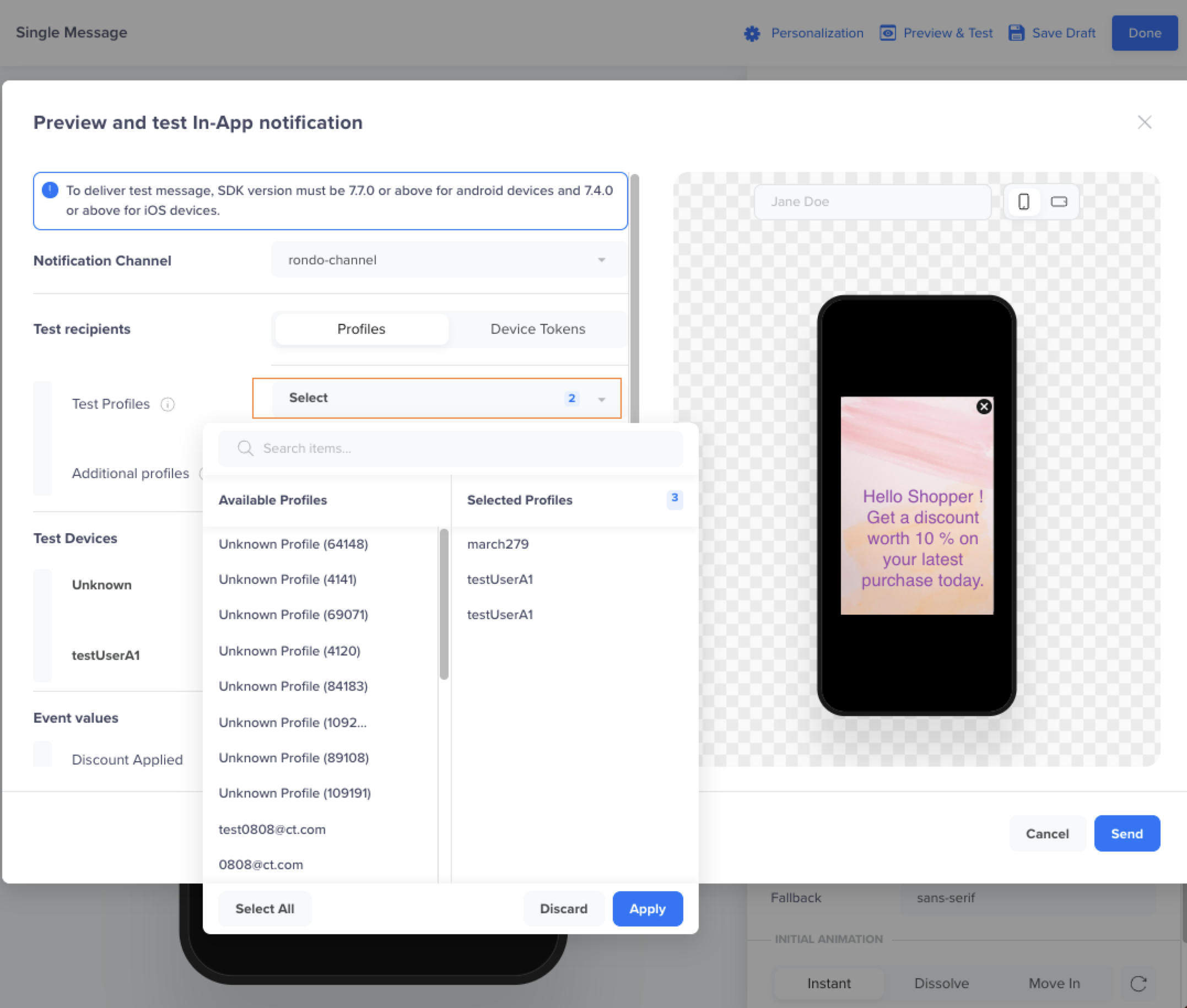
Select Test Profiles
From Any Profile
Search for a user profile from Select from Profiles. In this case, you can search for any recipient profile that is already present on your dashboard and send them a test In-App message by email address, CleverTap ID, or identity.
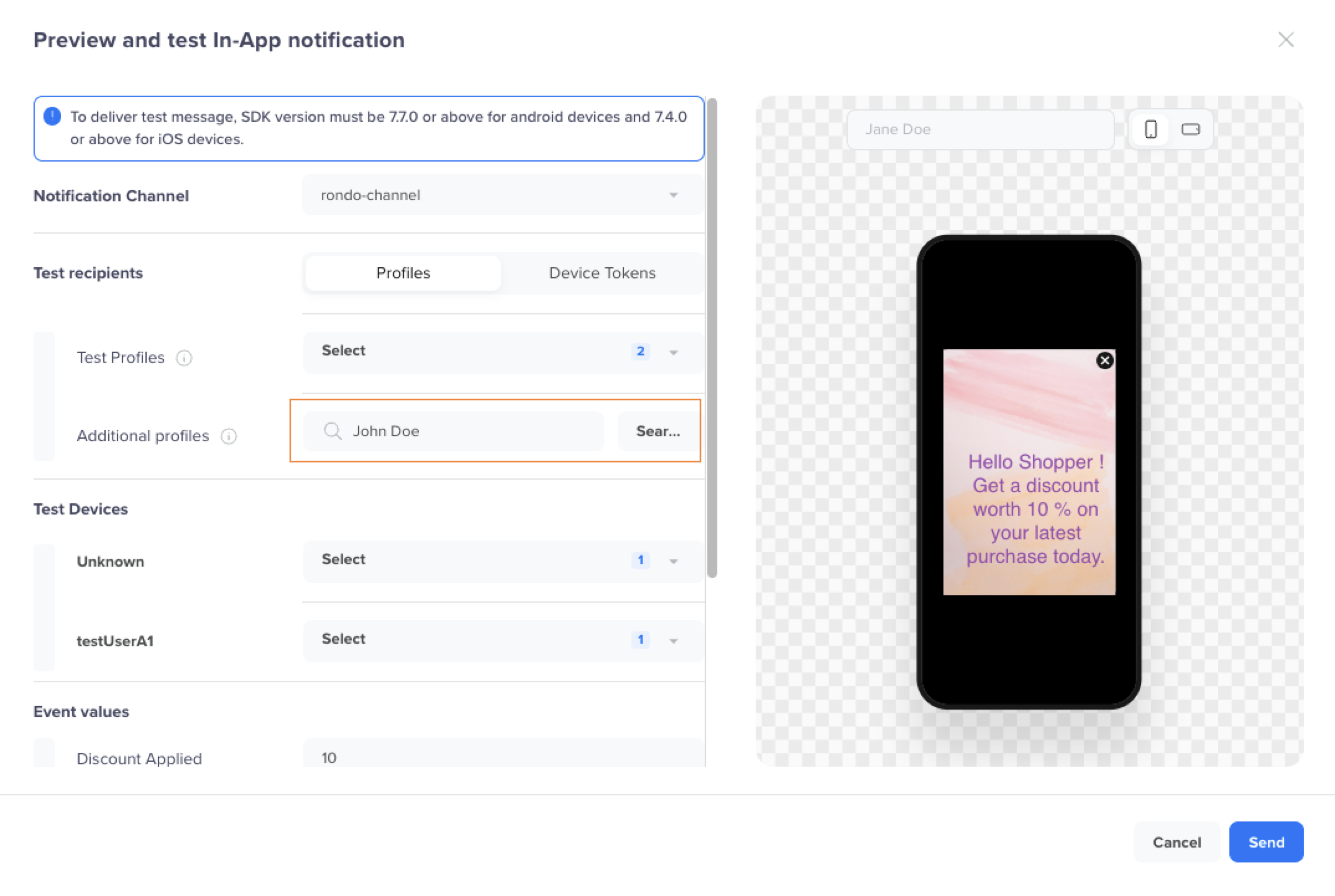
Search Additional Users for Testing
Test Devices
You can further filter the messaging by devices for each selected user and send them a test message. The Test Devices section lists only devices on which your app is installed. So you test only on devices that can actually render the In-App message.
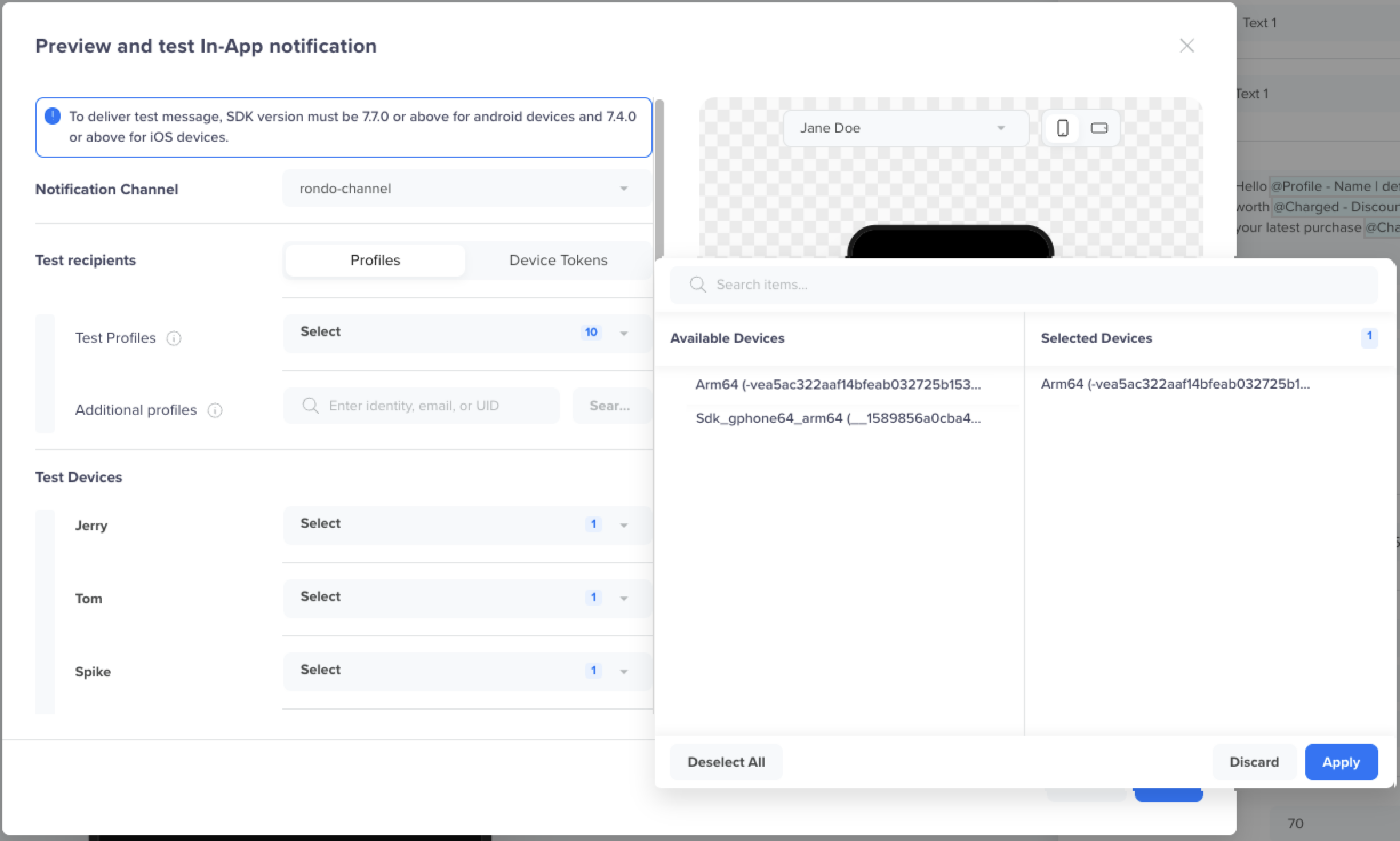
Select Test Devices for Test Profiles
After configuring all the required fields, you can preview the In-App campaign with personalized values for the selected user profile before sending the message. If you select multiple profiles, you can select the user from the list under the Preview section on the right to test the rendering for each profile.
Consider a scenario where your In-App message includes profile personalization, meaning you want to send an In-App message to each user based on their native language. You can test the rendering of this message for each language based on the selected user in the list. This also allows you to detect issues early; for example, the message may exceed the character limit in German, but it displays correctly in other languages.
Test Event Personalization
The events selected in your message will be displayed here. You can change the values to preview the message with the updated values. For example, change the discount value and preview it.
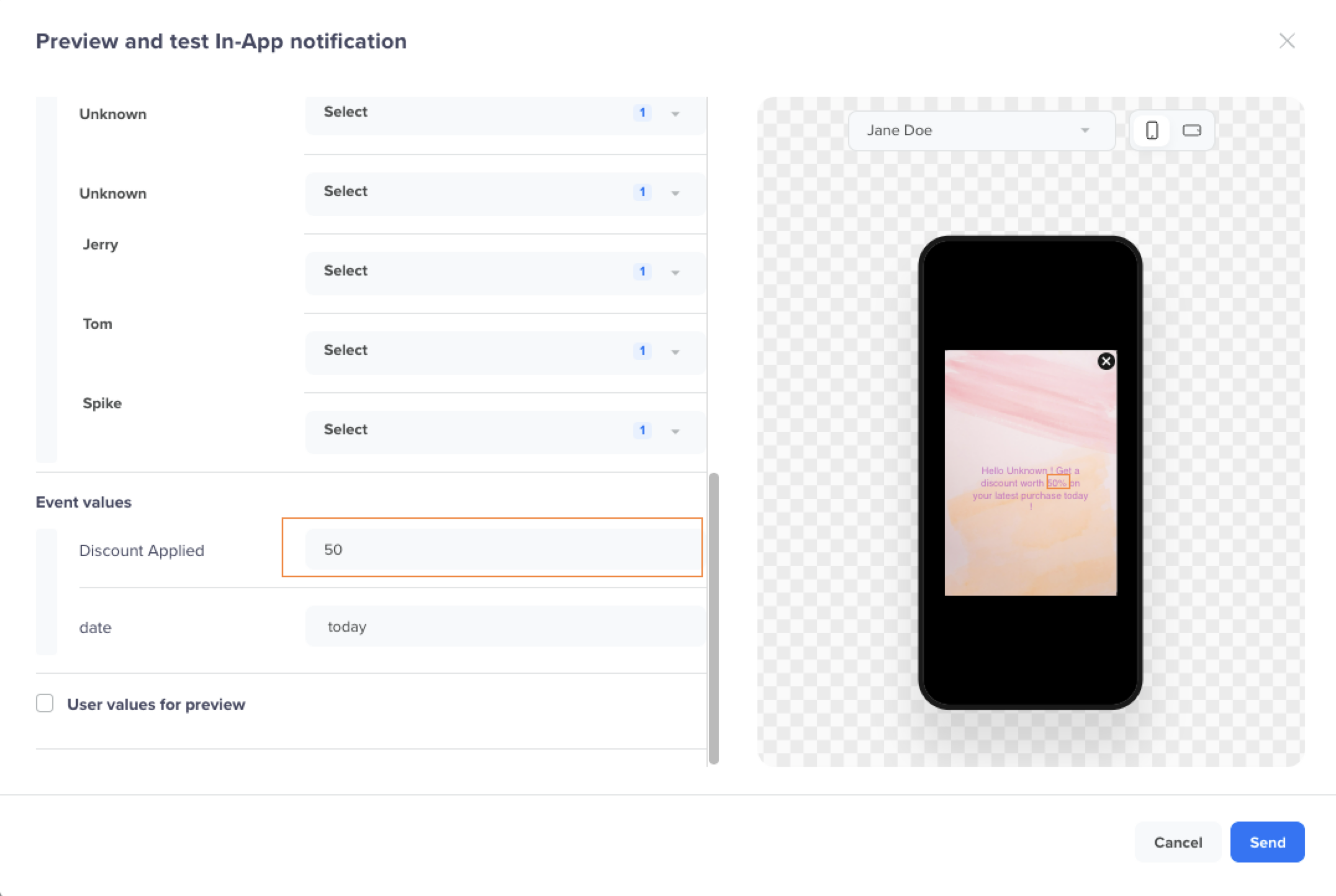
Change and Preview Event Values
Test Custom User Personalization
If the user you want to test is not listed in the preview section, or if you are unsure who matches your criteria, enter the email address, CleverTap ID, or identity of a profile for which you have the details. This will give you an instant preview of your message with the applied personalization.
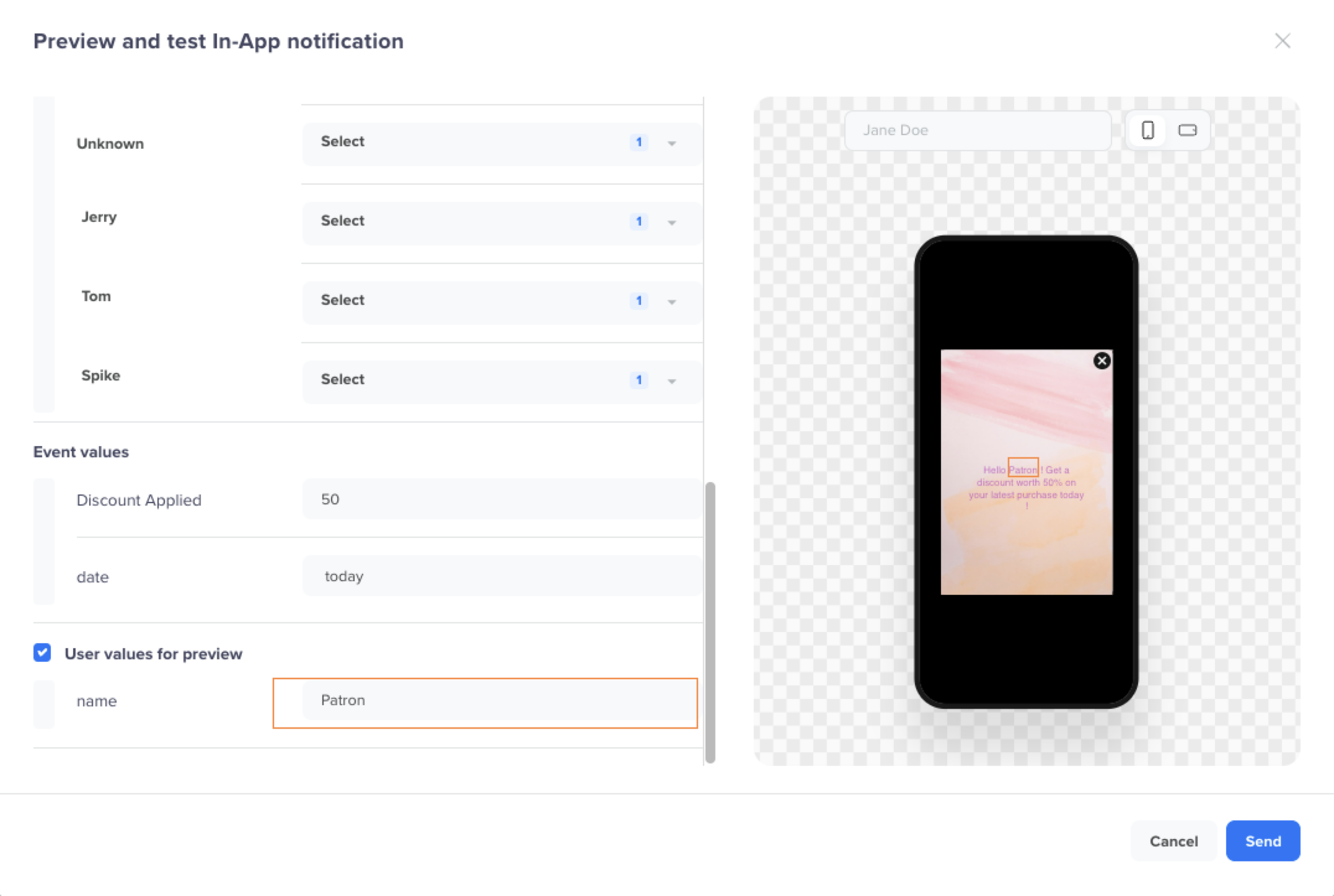
Change and Preview User Profile Values
Updated 9 months ago