
Journey Context
Understand how Journey Context lets you persist event properties captured earlier in a Journey and reuse them later for personalization and for goal or exit evaluation.
Overview
A Journey can personalize messages and decide when to stop, using details from an event, in one of two ways: event personalization across nodes or Journey Context.
With event personalization across nodes, you can only use details from the event for 24 hours after it happens. This works when your next message goes out the same day. But say a customer places an order, and a day later you want to send them a push about that same order, then a few days after that, a follow-up email that also mentions it. By then, those details are gone, and you cannot personalize the message using the same product attributes.
Journey Context fixes this. It saves the details you choose, for example, the item name, and lets you use them later in the same Journey, no matter how much time has passed, for as long as your Journey conversion window allows (6 months, by default).
This feature helps with the following:
- Personalize messages sent well after the event. Mention details from an event, even if your message goes out days or weeks later.
- Use details from more than one event in the same message. For example, mention something from an earlier event and something from a later one, in the same message.
- Keep using saved details, even with other steps in between. Adding a wait, a branch, or another step between saving the details and using them does not cause you to lose them.
- End a Journey for the right customer, and the right reason. Instead of ending a Journey for anyone who does something similar, end it only for the customer who does that one specific thing, for example, completing that exact order.
Private BetaJourney Context is currently released in Private Beta. To access the feature, contact your Customer Success Manager.
Use Cases
Personalize Message with Details from Earlier Event
A customer places an order. A day later, you want to send them a push about that same order, and a few days after that, a follow-up email that mentions it again. Journey Context saves the order's details when the order is placed, so you can still use them in later messages, even though normal personalization would have already expired by then.
Combine Details from Different Events in Single Message
A message does not have to be limited to just one saved event. For example, a win-back email could mention the item a customer added to their cart on one line and a discount code from a separate promotion they viewed on another, in the same message, by referencing both saved contexts at once.
Exit Journey Based on Specific Transaction, Not Any Matching Event
The Journey should stop for a customer only if this specific order is canceled or this specific shipment is returned, not if the customer cancels or returns something unrelated. A Goal matched against the captured order and shipment context keeps the exit scoped to the same transaction that started the Journey.
NoteJourney Context does not replace event personalization across nodes. Use event personalization acroos nodes for same-day or next-day touchpoints. Use Journey Context when a node needs data from more than 24 hours earlier, or when an exit or goal condition needs to stay tied to a specific order, cart, or transaction.
For more information on the existing mechanism, refer to Personalization in Journeys.
Create Journey with Context
Consider an online retailer that wants to remind customers who add an item to their cart but don't complete the purchase.
- A day later, they get a push reminding them about that item.
- If the push is delivered, two more days pass, and they receive a follow-up email mentioning the same item, using the same saved details as the push.
Without Journey Context, the Product Purchased event cannot reliably reference the original product that was added to the cart.
Following is the Journey flow:
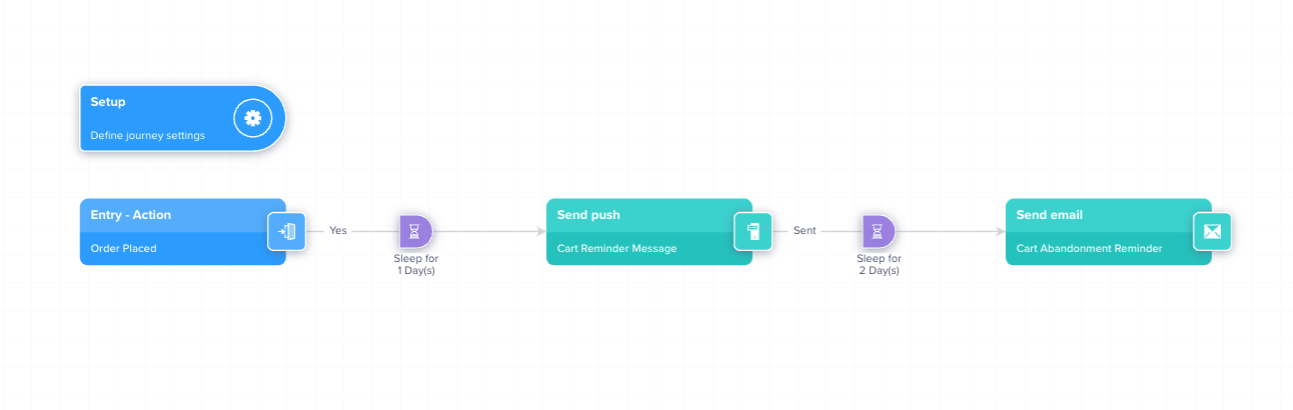
Journey with Context
Setting up a journey with context involves the following three steps:
- Set Up Context and Save Item Details.
- Personalize Messages with Captured Context
- Map Exit or Goal Condition to Captured Contexts
LimitsA Journey can capture context on up to 5 Segment nodes, with up to 10 properties captured per context node.
Set Up Context and Save Item Details
Repeat this on every Action node that needs to contribute a context.
To capture context from a triggering event, perform the following steps:
- Open the Journey Setup and select the event that triggers the journey, for example, Added to Cart.
- Click Add Context and give it a name, for example
Added to Cart. - Select up to 10 properties to persist from the event, for example
Product Name, andPrice. - Click Save & Close to save the setup.
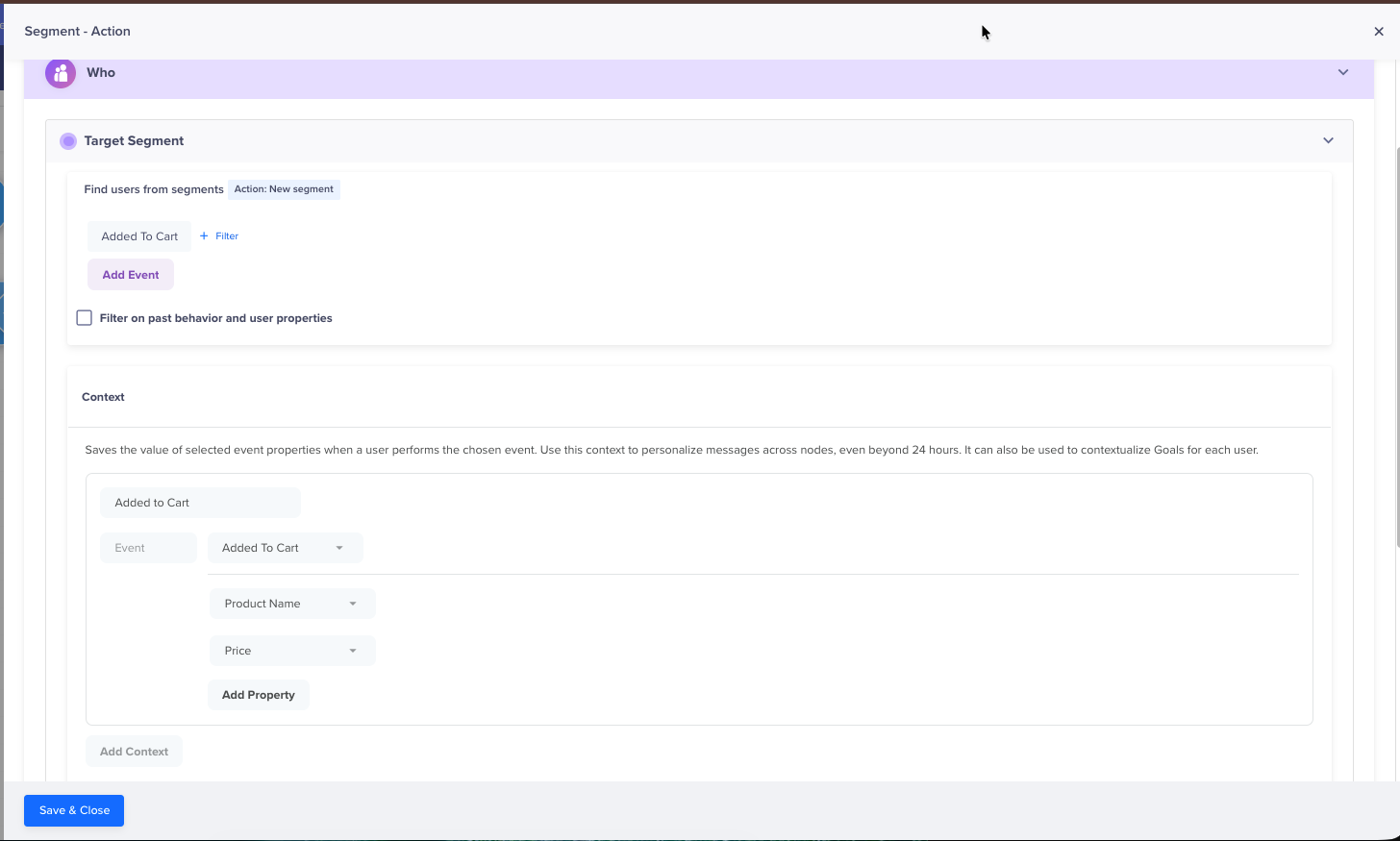
Set Up Journey and Add Context
Personalize Messages with Captured Context
Both messages go out more than 24 hours after Added to Cart, so both need Journey Context.
To reference captured context in a message, perform the following steps:
-
Open the engagement node that sends the personalized message, for example, Push Notification for confirming the order.
-
Personalize your message in the editor using Liquid tags, as shown in the example below. Insert the context token for each property you need, for example
JourneyContexts["Added to Cart"]["Product Name"].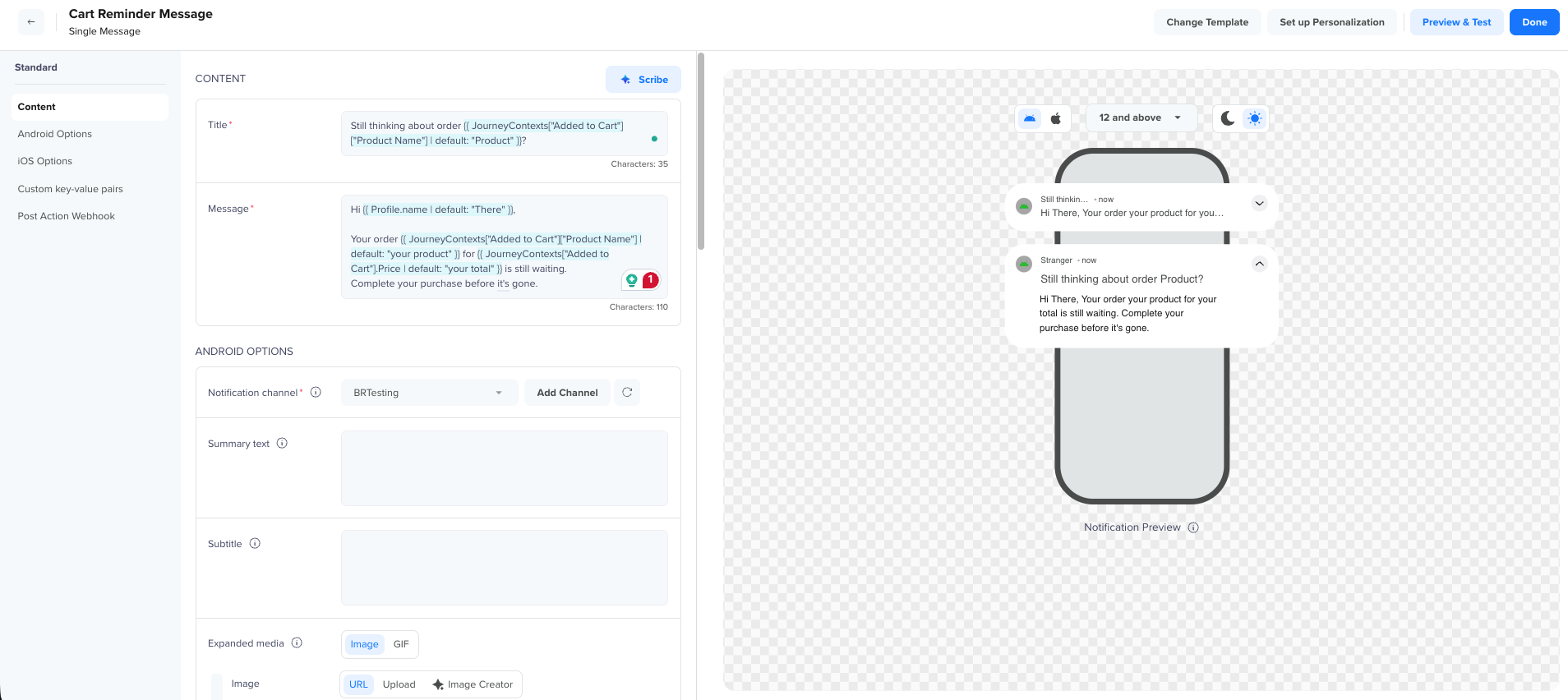
Personalizing Push Notification for Cart Reminder
-
Save and click Done.
Repeat this for every engagement node that needs context, referencing whichever context (or contexts) each one needs:
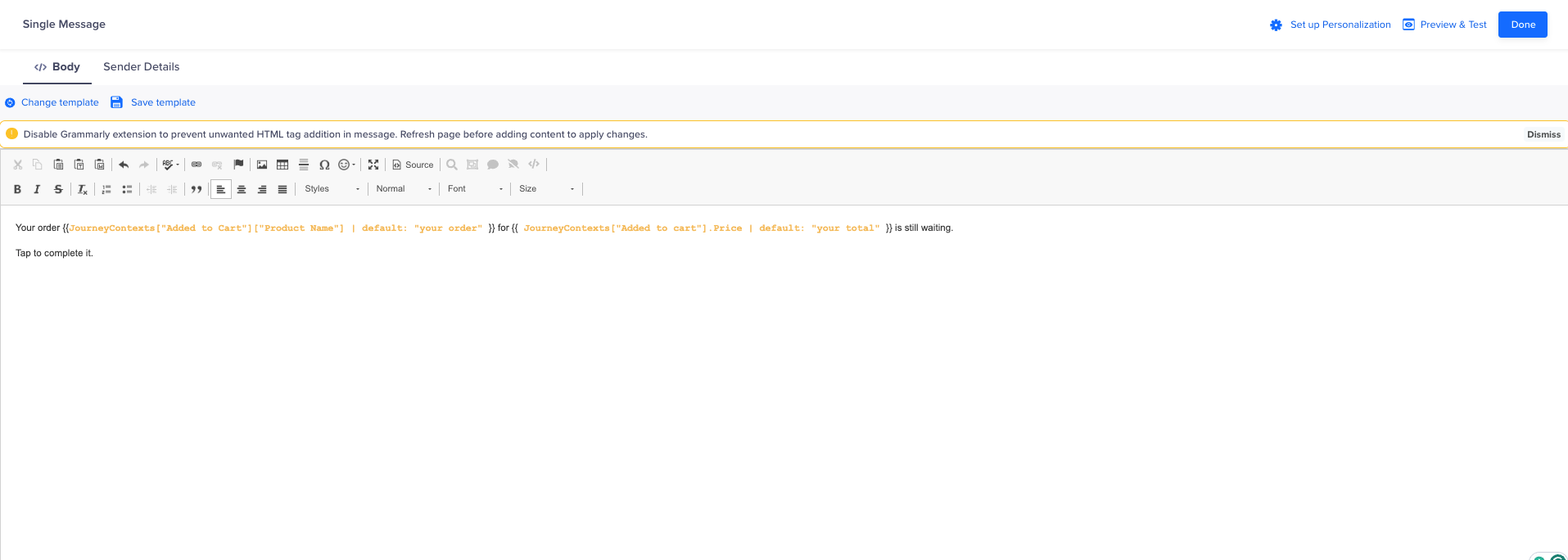
Personalizing Email Campaign for Second Reminder
Both messages and the exit goal remain tied to the specific product added to the cart throughout, well beyond the standard 24-hour personalization window.
Warning
Details saved with Journey Context are only available for as long as your Journey Timeout Window lasts (6 months, by default, unless you change it). After that window passes, the saved details are gone. In a message, this means any Journey Context token falls back to its default text instead of the real value. In a Goal or exit condition, there is nothing left to match against, so that condition can no longer be met.For example, the Journey Timeout Window is 30 days, and you save details on Day 1. Any message that tries to use those details after Day 30 sends its fallback text instead, and any Goal or exit condition depending on them stops working. Set your Timeout Window to cover the full length of your Journey.
Map Exit or Goal Condition to Captured Contexts
To make an exit or goal condition depend on the same order or shipment you captured earlier, perform the following steps:
-
Open the exit or goal node for the Journey.
-
Switch the exit condition from a Non-contextual condition to a Contextual one.
-
Add a condition mapping the
Product Nameon a Product Purchased event to the previously captured property,JourneyContexts["Added to Cart"]["Product Name"].Repeat this if you have more than one condition to map; the user exits the Journey as soon as any one of them is met.
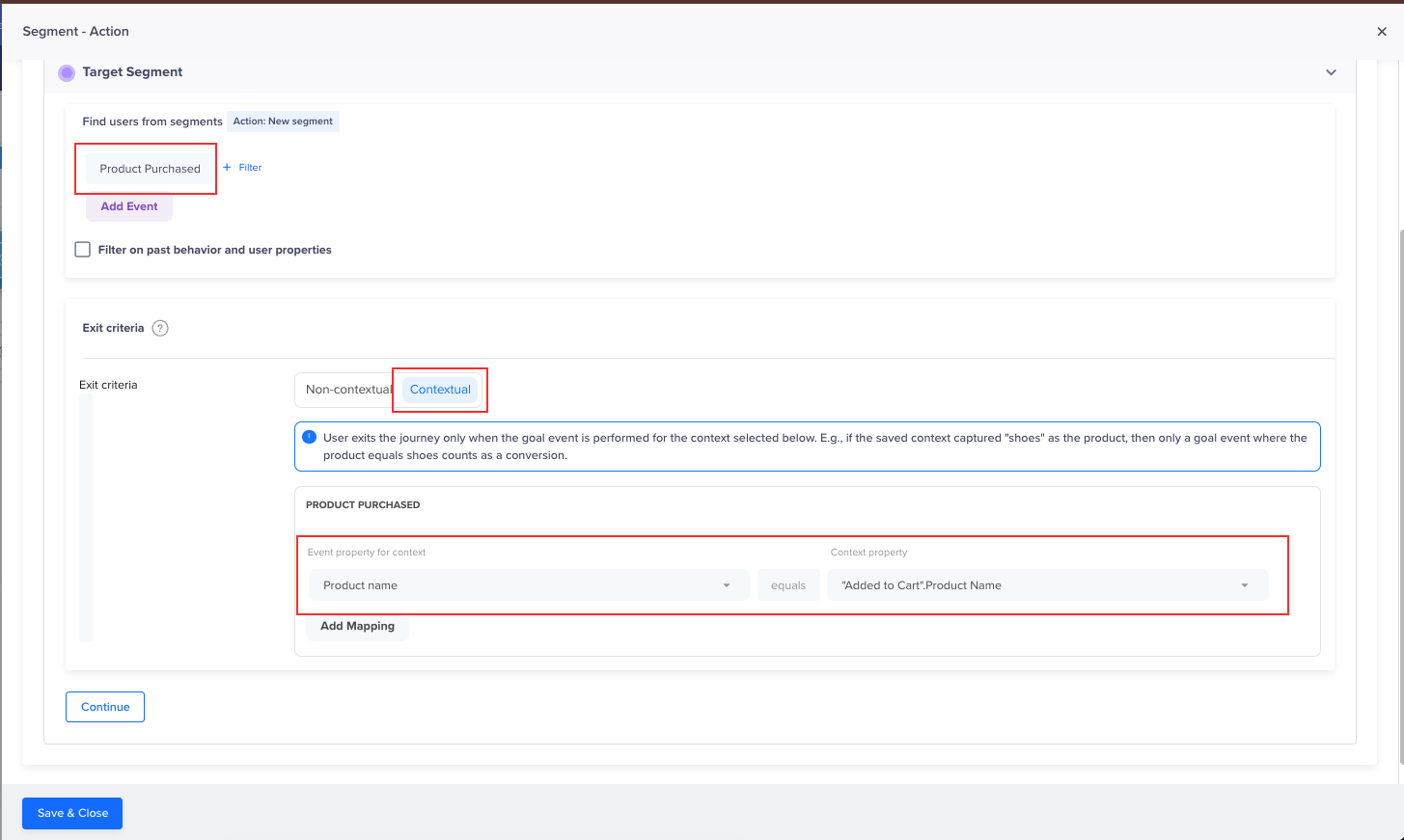
Goal Setup - Product Purchased
-
Click Save & Close to save the mapping.
The Journey now exits only when the customer buys this specific product.
Choosing Right Personalization Approach
The choice comes down to timing and scope:
- Use standard event personalization across nodes when the node that needs the data fires within 24 hours of its own triggering event, and does not need details from any other event. In the running example, the order confirmation itself needs nothing beyond what Order Placed already provides, so it does not need Journey Context.
- Use Journey Context when a node needs data from an event that occurred more than 24 hours earlier, when a single message needs to combine details from multiple events, or when a Goal needs to remain tied to the exact order or transaction rather than to any similar event. In the running example, the shipping update needs Journey Context on all three counts: it fires days after Order Placed, it references both events, and its Goals must match this specific order.
The two mechanisms are not mutually exclusive within a single Journey. As this walkthrough shows, the same Journey can rely on standard personalization for an immediate node and switch to Journey Context only where the 24-hour window or the single-event limit would otherwise get in the way.
Updated about 1 month ago