
Rule-Based Filters
Learn how to use different filter rule types to refine recommendation results.
Overview
Filters control which items from your catalog are eligible to appear in personalized messages, whether through catalog personalization or recommendation personalization.
Filters work alongside the personalization strategy. The strategy determines which catalog items are most relevant for each user. Filters then run on that output, removing any items that don't meet the eligibility conditions. Only items that pass through the filter are shown.
Filters are especially useful when your catalog contains attributes that change frequently, such as availability, inventory status, or price. By applying filters at delivery time, you can ensure that users do not see items that are out of stock, unavailable in their region, expired, or otherwise unsuitable for the message.
They are configured in the campaign editor when setting up a catalog personalization or recommendation personalization block.
Inclusion and Exclusion Rules
Every filter condition is applied as either an include rule or an exclude rule. This applies to both catalog-based and event-based filter types.
- Inclusion rules restrict the eligible item pool to only the items that match the condition. Items that do not match are removed from consideration.
- Exclude rules remove items that match the condition from the eligible pool. All other items remain eligible.
Inclusion and exclusion rules can be combined. When both are active, include rules narrow the eligible pool first; exclude rules, then remove specific items from within that pool.
| Inclusion Rule | Exclusion Rule | Result |
|---|---|---|
| Category is Skincare | Availability is Out of Stock | Only in-stock skincare items are eligible |
| Price is less than 2,000 | Brand is BrandX | Items under 2,000 from all brands except BrandX are eligible |
| (none) | Items the user has already purchased | All catalog items except previously purchased ones are eligible |
| Category is Electronics | Items the user has viewed in the last 7 days | Electronics items that the user has not recently viewed are eligible |
NoteWhen both inclusion and exclusion rules are active, inclusion rules are always evaluated before exclude rules.
Rule-Based Filter Types
Use rule-based filter types to narrow down the eligible item pool by applying conditions based on catalog attributes or user behavior.
Catalog-Based Rules
Catalog-based rules let you filter the recommendation pool by attributes from your product catalog. These rules apply to item properties and do not require any user activity data.
- Category: Restrict the eligible pool to items within one or more specific categories. Useful when recommendations should remain contextually relevant to the page or message. For example, include only items where Category is Running Shoes.
- Brand: Filter items from specific brands. Use include rules to surface a particular brand, or exclude rules to suppress it. For example, exclude items where Brand is BrandX.
- Price Range: Filter items by price. Commonly used to keep recommendations within a budget range or to separate premium from standard product tiers. For example, include items priced under ₹2,000.
- Availability: Filter by stock or availability status to prevent out-of-stock or discontinued items from appearing. For example, exclude items with Availability set to Out of stock.
- Tags and Custom Attributes: Any custom attribute defined in your catalog can be used as a filter condition, including tags, labels, content ratings, language, region, or any other property relevant to your catalog structure. For example, include items where the Language is English, or where the Tag contains New Arrival.
For more information, refer to Catalog-Based Rules.
Event-Based Rules
Event-based rules filter recommendations based on a user's past actions. These rules are evaluated per recipient at delivery time, meaning each user's recommendation output is individually adjusted based on their past activity.
- Inclusion: Restrict the eligible pool to items a user has previously interacted with. Useful when the goal is to re-engage a user with items they have already shown interest in. For example, include only items a user has added to their wishlist (for example, wishlist reminder campaign).
- Exclusion: Remove items a user has already acted on, as they are no longer relevant. For example, exclude items a user has already purchased, so recommendations always surface new items.
NoteWhether you include or exclude a specific user action depends on your campaign goal. A wishlist reminder campaign should include wishlisted items to re-surface them. A "discover something new" campaign should exclude wishlisted items to avoid repetition. Both configurations are valid; the right choice depends on the campaign objective.
Set Up Rules-Based Filters in Campaign
Filter rules are created and managed in Recommendations, under the Catalog-Based Rules and Event-Based Rules tabs. Once created, rules are available to apply when setting up a catalog personalization or recommendation personalization block in the campaign editor.
For example, you want to recommend items a user has recently browsed, but exclude any Hindi-language content. To add an include/exclude rule:
- Expand the Inclusion criteria or Exclusion criteria section.
- Select Add Catalog-Based Rule to filter by item attributes, or Add Event-Based Rule to filter by user behavior.
- Select your condition and click Apply.
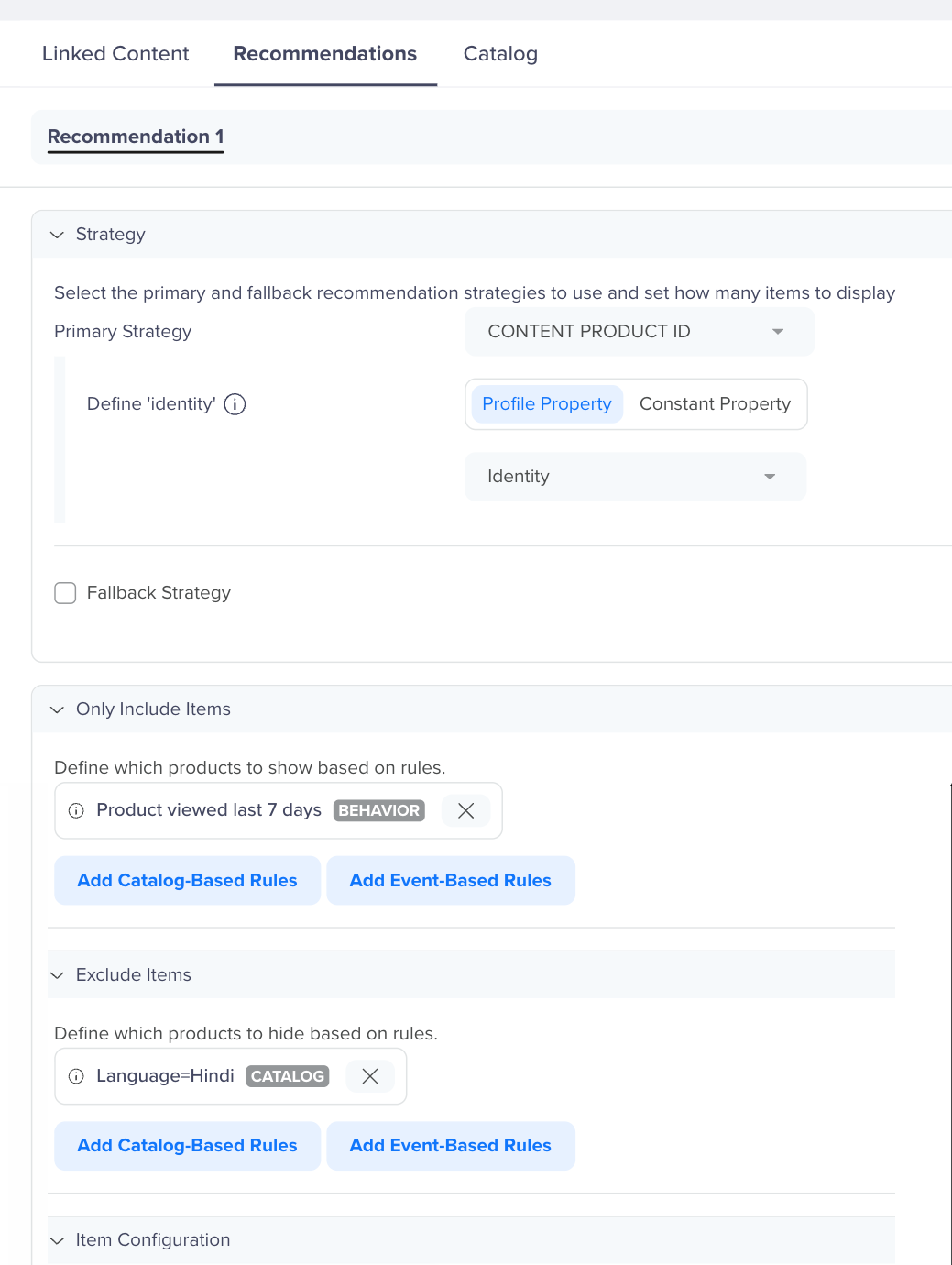
Configure Filter Rules
Rule-Based Filter Evaluation
Both catalog-based and event-based filters are resolved at delivery time, when the personalization block is served to a specific user, not when the campaign is scheduled.
- Catalog-based rules are applied uniformly: the same attribute conditions are evaluated for every user receiving the message.
- Event-based rules are applied individually: each user's activity history is evaluated separately, so two users who receive the same campaign may see different eligible item pools.
When both rule types are configured together, catalog-based rules are evaluated first, followed by event-based rules.
Impact on Recommendation Output
Filters reduce the pool of items the strategy can choose from. As the eligible pool shrinks, the strategy has fewer options, which can affect both the quality and quantity of recommendations served.
Avoid over-filtering. If too many conditions are stacked, the eligible pool may become too small to surface meaningful recommendations. If no items pass through the filters, no items will be served in the personalization block.
To reduce the risk of over-filtering:
- Preview your filter configuration before publishing to verify the expected pool size.
- Avoid combining multiple narrow include rules unless the intent is deliberately restrictive.
- Prefer exclusion rules to remove clearly ineligible items rather than using include rules to constrain the pool to a narrow slice of the catalog.
Updated about 1 month ago