
Email Template Creator: Generate with AI
Learn how to create email templates faster by describing your intent and letting the Email Template Creator agent generate editable template.
Overview
An AI-powered email template creator agent helps marketers create email templates and campaigns faster using generative AI. Instead of starting from a blank canvas, you can describe your intent in natural language and let AI generate an email template that you can further customize using the visual editor.
Use this feature to:
- Generate email copy and layout ideas quickly.
- Experiment with tone, messaging, or CTAs.
- Accelerate campaign creation without writing content from scratch.
This experience is designed to reduce time-to-live while keeping marketers in full control of the final email.
Private BetaEmail Template Creator agent is currently released in Private Beta and is available on Pro and Ultimate plans. To access this feature, contact your Customer Success Manager.
Create Campaign Using Email Template Creator Agent
This section walks through creating an email template with an example to help you understand how the agent fits into your workflow.
Consider an example where you want to create a promotional email announcing a new feature to existing users. To create an email template, perform the following steps:
-
Go to the Campaigns page from the CleverTap dashboard.
-
Select Email from the list of Messaging Channels.
-
Go to the What section and click Go to Editor.
-
Select Drag and Drop editor.
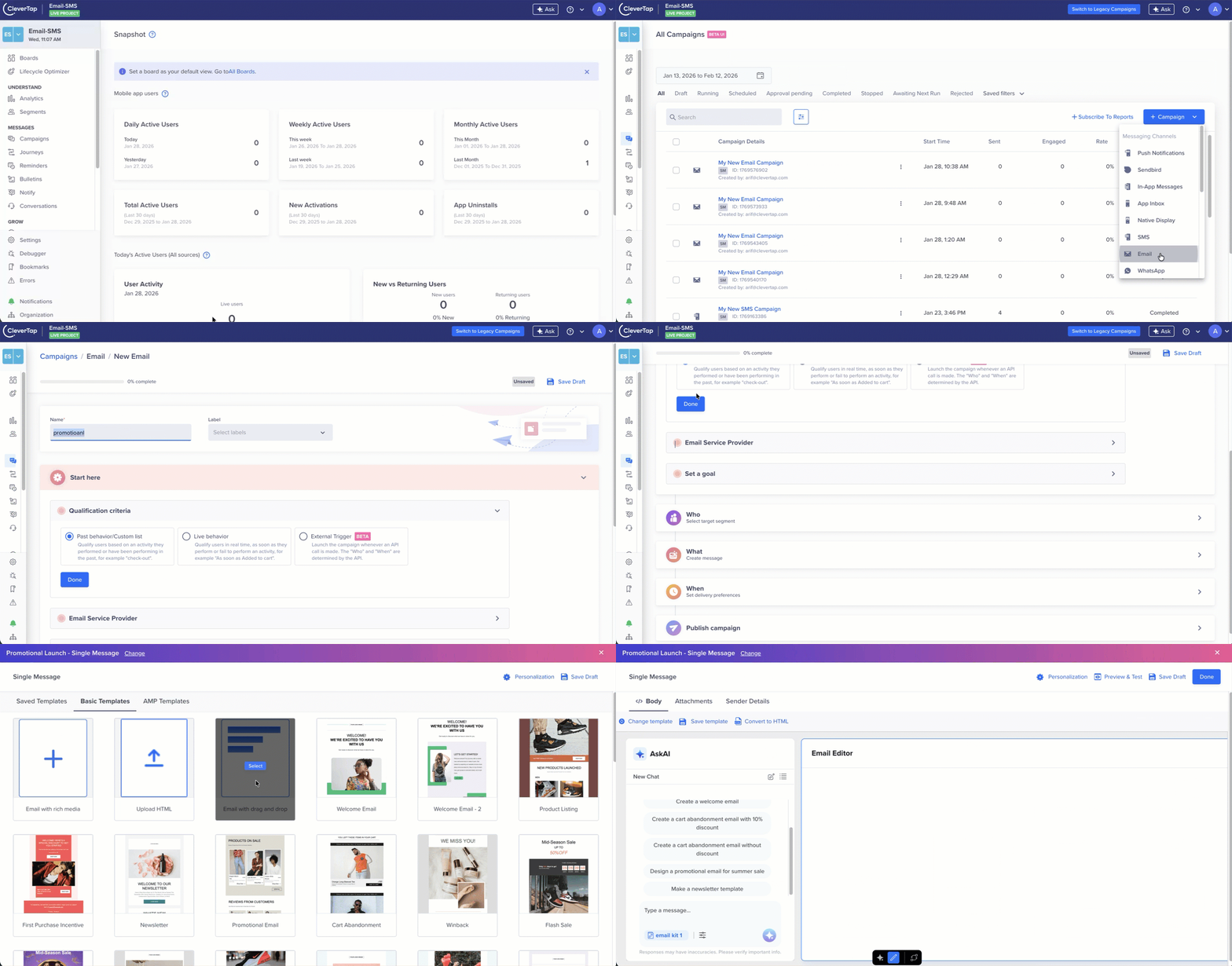
Access Email Template Creator Agent
-
In the AskAI section, enter a prompt that explains what you want to create. For example,
Create a promotional email for a social media platform announcing a new analytics feature for existing customers. Use a friendly but professional tone. Highlight one key benefit and include a clear call-to-action to explore the feature.
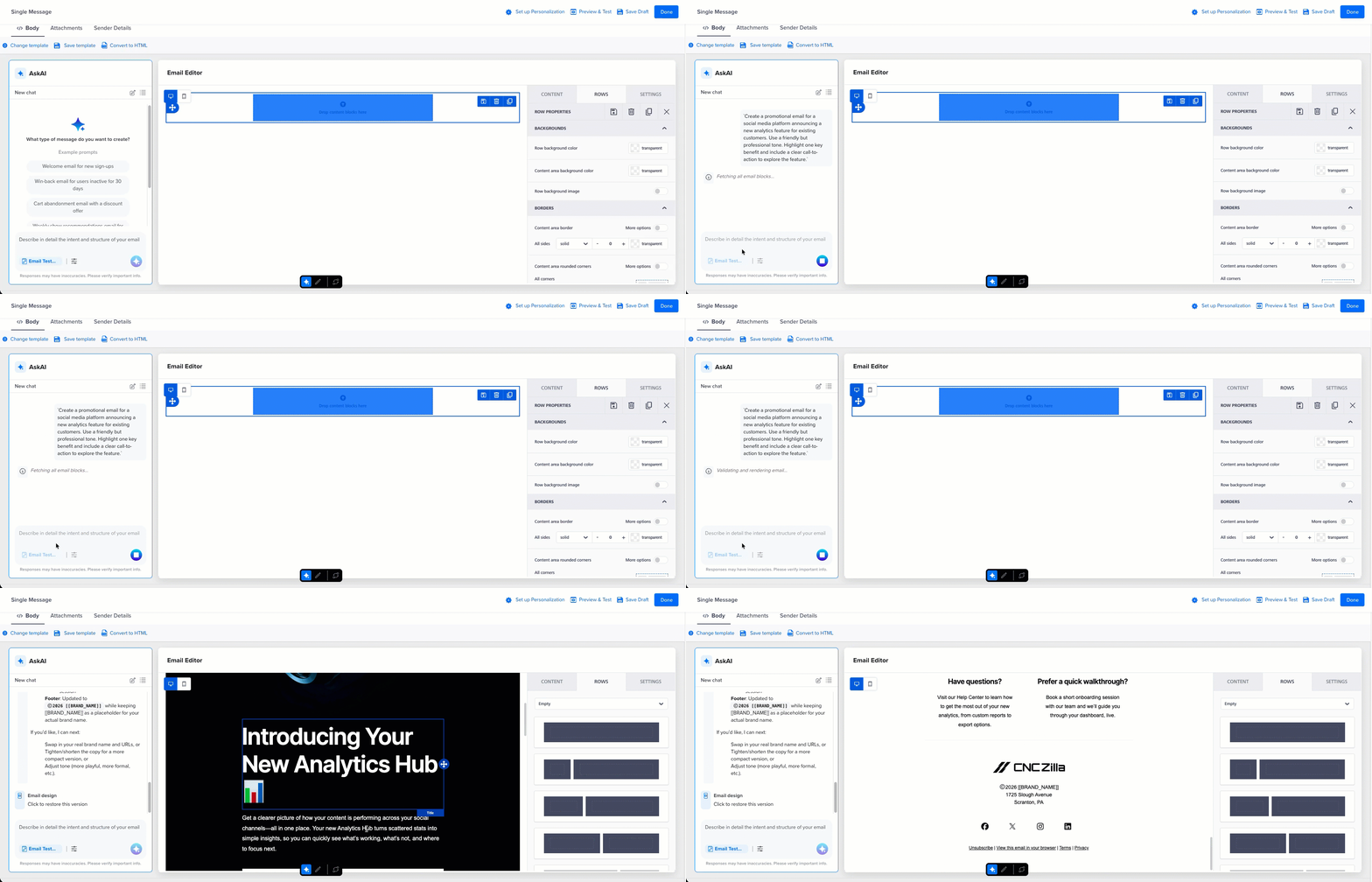
Generate Template Using Email Template Creator Agent
Template Images in Email CampaignImages generated as part of email campaigns count towards monthly image generation limit of 100.
-
Review the generated template and refine the template using follow-up prompts. For example, "Make the tone friendly", "Change the CTA to focus on urgency", and so on.
-
(Optional) Customize the layout in the Email Editor after the template is generated. For example:
- Edit text directly in the visual editor.
- Add or remove sections, images, or buttons.
- Replace AI-generated copy with custom messaging where needed.
Save the generated template to reuse individual sections or the entire template in future campaigns. You can also retrieve any previous version by clicking Click to restore this version.
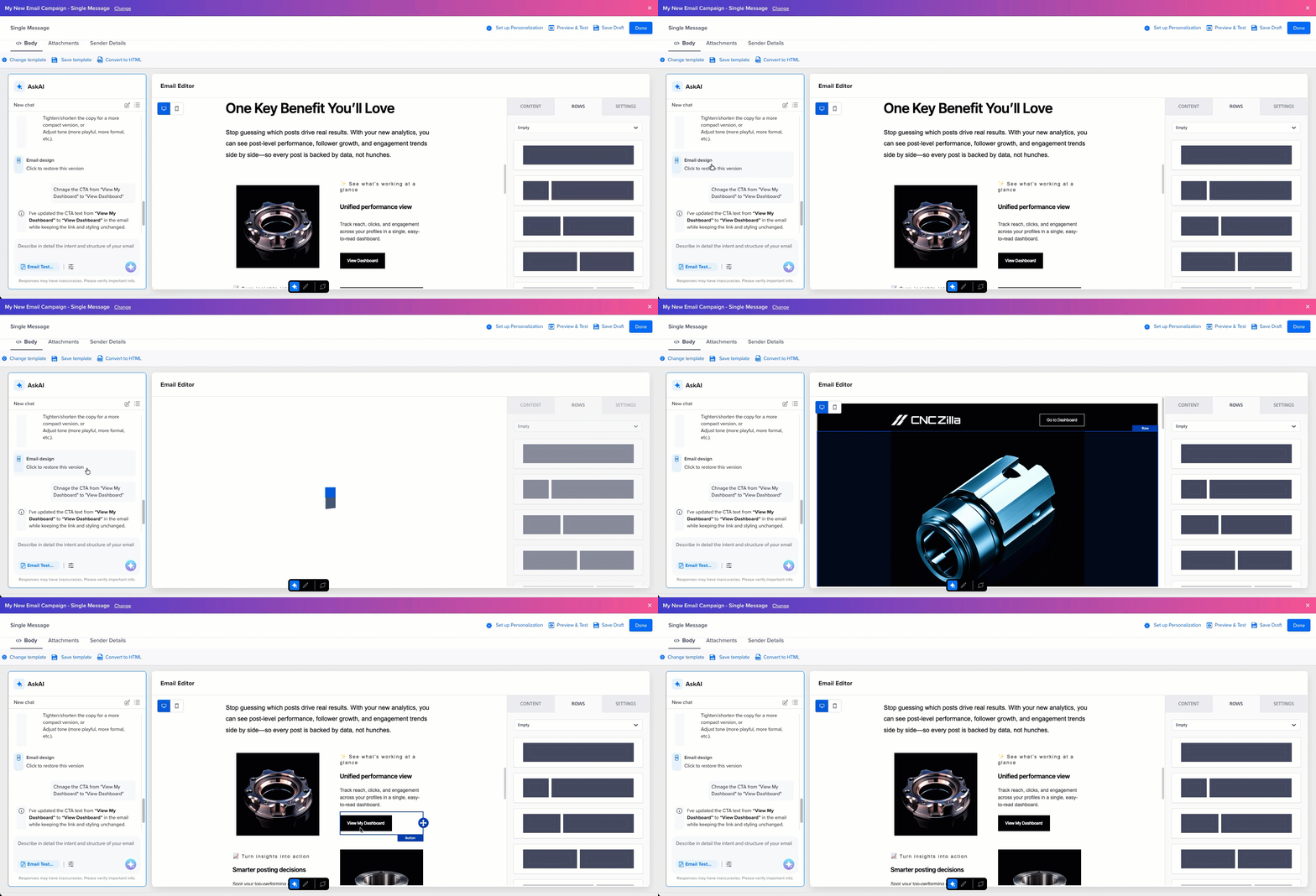
Click to Restore Version
Customize Template for Brand Consistency
Email Template Creator agent supports integration with Brand Kit to help you maintain consistent branding across all messages. Using this feature, you can apply pre-defined visual assets, color palettes, and typography to maintain brand consistency across campaign messages.
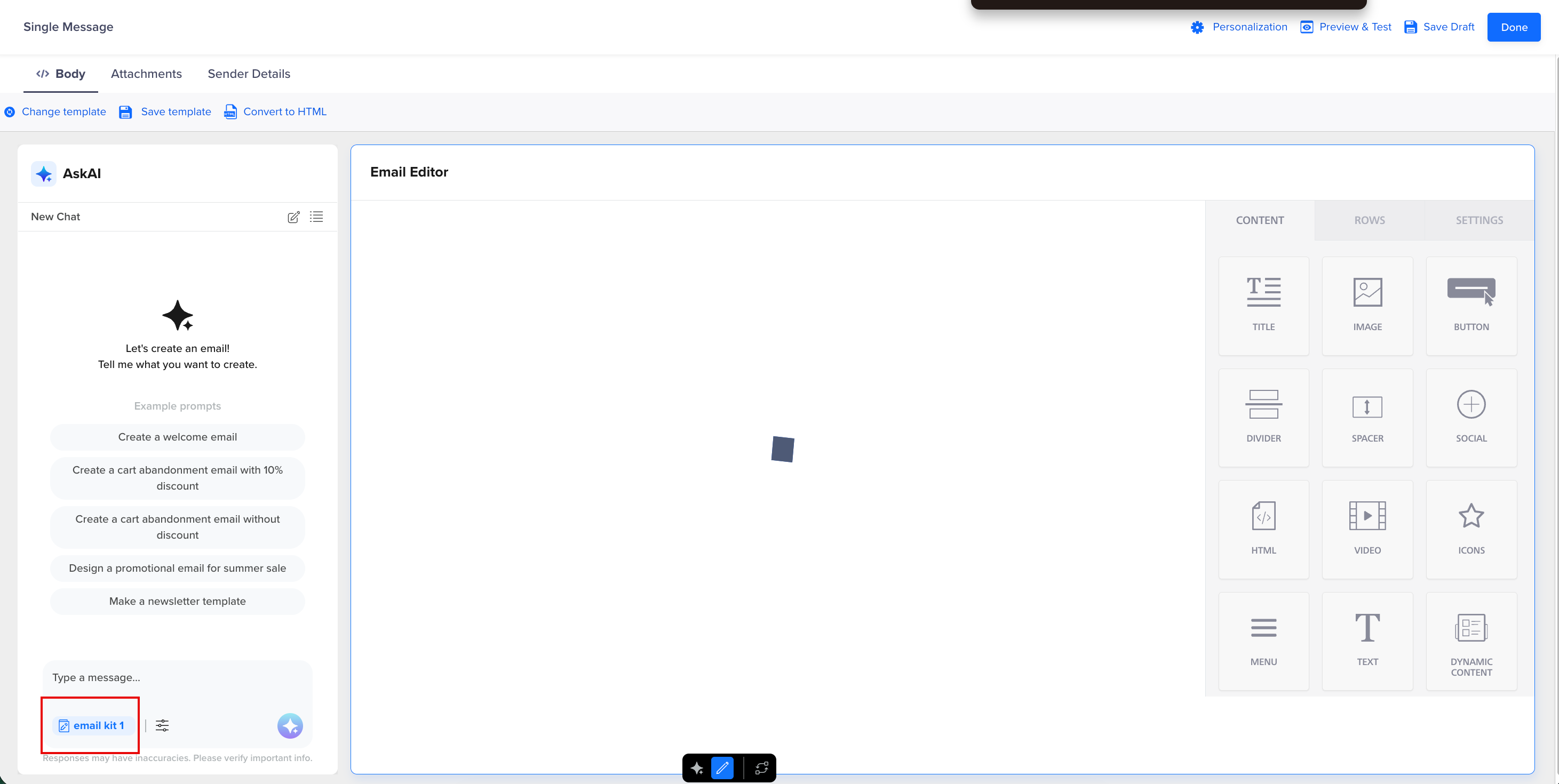
Customize Template Using Brand Kit for Brand Consistency
Manage Generated Templates
All AI-generated templates will be saved under the Saved Templates section of the email editor, and images generated as a part of this process can be accessed via AI Generated Images Folder.
Threads
Once you start generating Templates, it automatically saves your sessions under the  panel. Each session is stored as a thread, which captures your prompts, refinements, and generated outputs, helping you resume from where you left off without losing context.
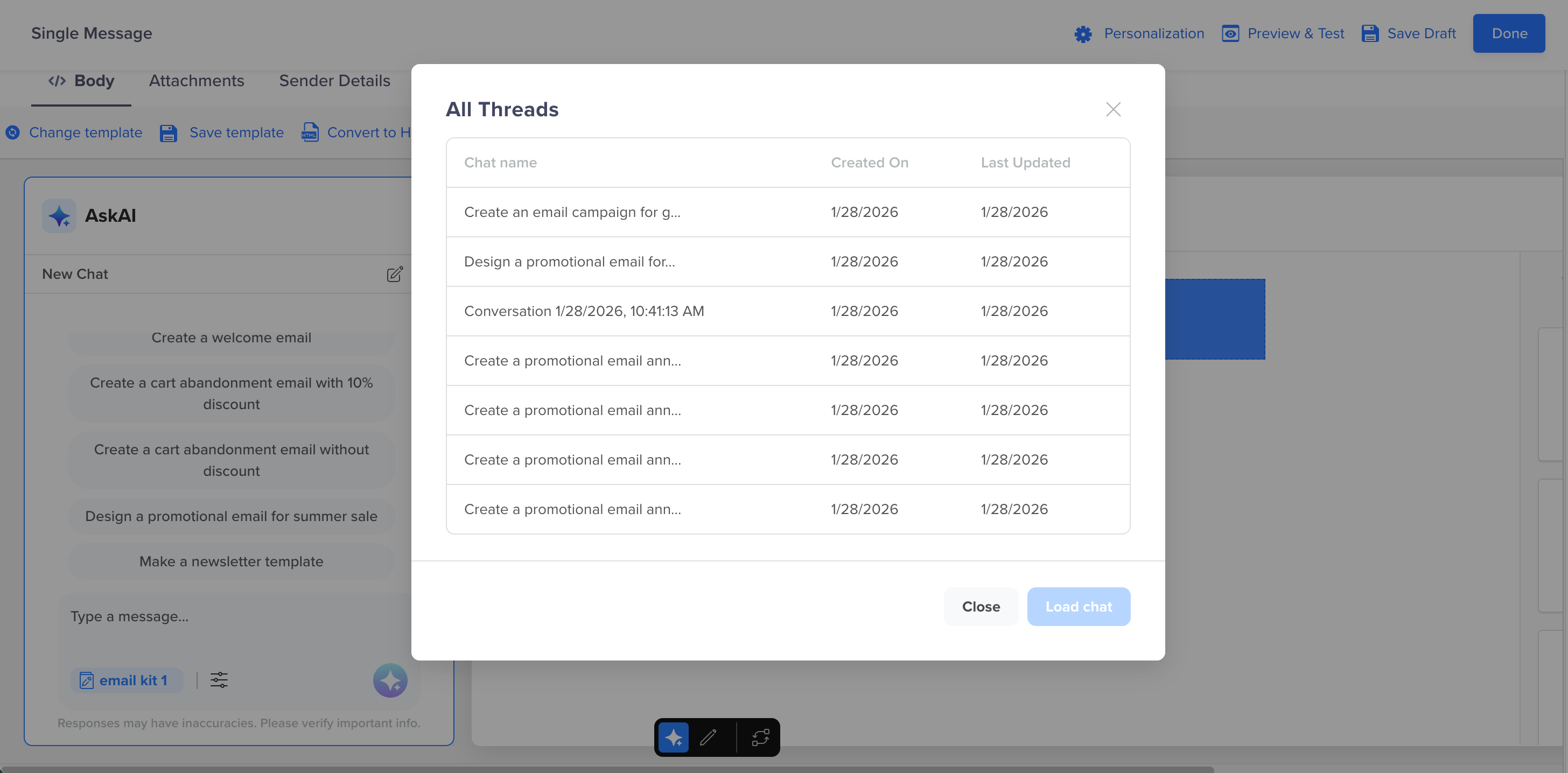
All Threads
How Threads Work
Threads are scoped to your Account, Agent, and User, ensuring that your history remains personalized and relevant. All threads for your account appear in the All Threads popup. A thread becomes the context for your next generation, allowing CleverAI TM to remember your prior visual style, brand preferences, or edits. They are not tied to specific campaigns; they persist across multiple campaigns for seamless continuity.
If multiple users from the same account use AI tools, each user sees only their own threads and the latest template generation session that they have participated in.
Manage Threads
From the All Threads view, you can:
- Reopen an older thread to continue generating or editing templates using the same context.
- Review and compare multiple template versions created during that session.
- Restore or reuse previously generated templates without regenerating them.
TipFor subsequent edits, you need not restart a session. You can type your next instruction directly in the chat. For example: “Make the background blue and add a 50% OFF badge in the corner.” The AI will update the existing template while maintaining your brand styling and earlier visual tone.
Additional Resources
Updated about 1 month ago