
Edit Segments
Learn how to edit Segments in CleverTap to quickly update and apply the changes across Campaigns and Journeys.
Overview
The Edit Segments feature allows users to modify existing Past Behaviour Segments (PBS) directly within the CleverTap dashboard. This capability enhances operational efficiency by allowing edits to be made once and reflected across all associated entities, such as Campaigns, Journeys, and Product experiences, without the need to recreate or clone segments.
Private BetaCurrently, this feature is released in Private Beta. To gain access, contact your Customer Success Manager.
This feature introduces support for segment modification, simplifying segment management across multiple use cases.
Segment Edits aims for the following:
- Reduce operational overhead for marketing teams.
- Ensure consistency across campaigns and journeys using shared PBS segments.
- Minimize errors caused by cloning or duplicating segment definitions.
Suppose a marketer uses a Past Behavior Segment called High-Value App Users in multiple Campaigns and Journeys. After new engagement rules are introduced, the marketer edits the segment to include users who have completed three or more transactions to target repeat purchasers better.
As a result, all Campaigns and Journeys that use this segment automatically apply the updated rules in the next segment-computation cycle.
Note
Editing is currently supported only for Past Behaviour Segments (PBS).
Edit a Segment
Editing a segment allows you to refine existing audience definitions without starting from scratch. You can use this option to adjust targeting rules, update filters, or align segment criteria with new campaign goals, while preserving linked dependencies and historical context.
The following are the steps to edit a segment:
- Navigate to the Segments page of the CleverTap dashboard.
- Locate your desired Past Behaviour Segment in the list view or open its Details page.
- Click the three-dot menu beside the segment name.
- Select Edit from the list
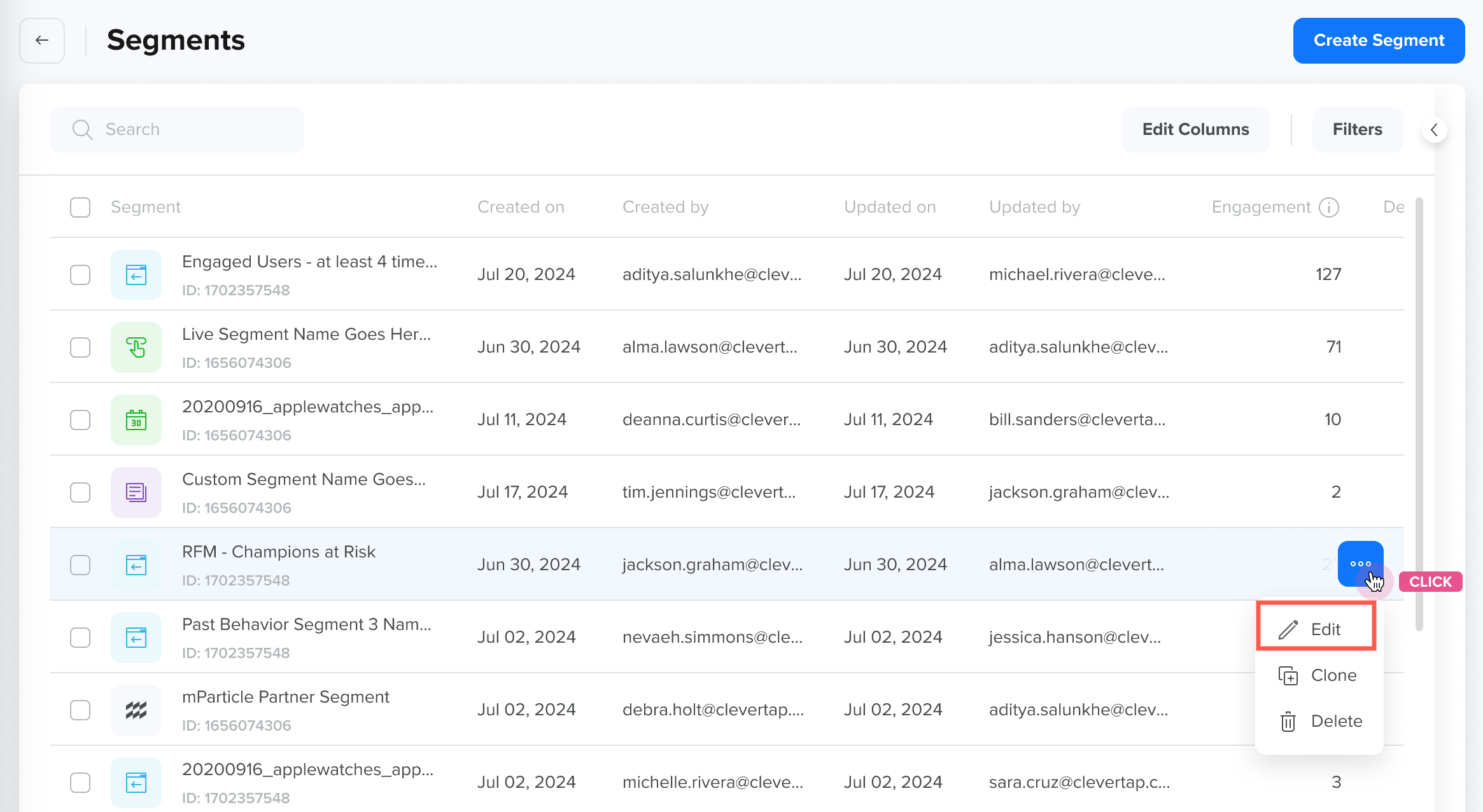
Edit a Segment
When you click Edit, CleverTap confirms that all the Campaigns, Journeys, and Product experiences that reference the segment are updated. This confirmation ensures users understand how editing a Segment impacts its dependent entities.
Edit a Segment with Dependent Engagements
The following are the steps to edit a segment with dependent engagements:
-
Review the dependency list shown in the confirmation modal. Each dependent campaign or journey is listed.
-
Select one of the following actions:
- Edit Segment: Continue with editing the segment definition.
- Clone Segment: Create a new version to avoid affecting existing dependencies.
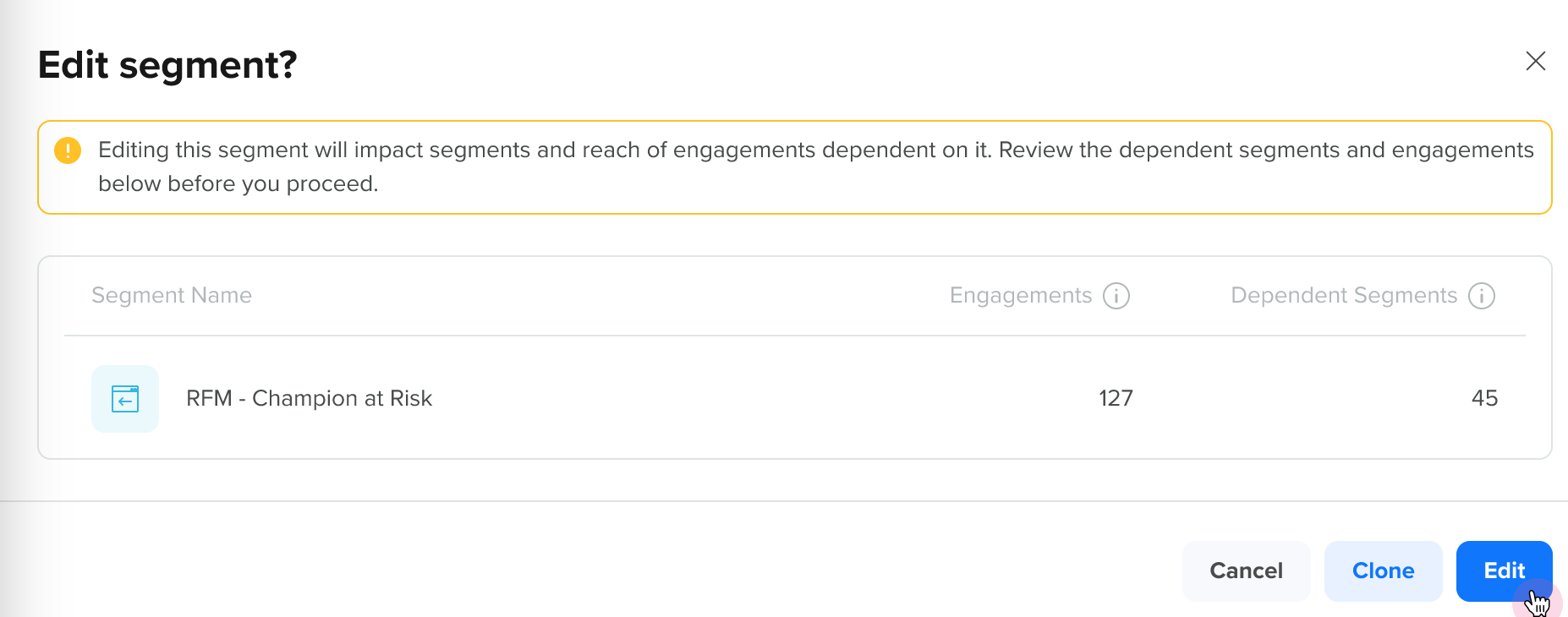
Edit Segment Confirmation
- Modify any of the following:
- Include/Exclude conditions
- Events
- User properties
- Click Save Edits.
- Review your changes in the confirmation window. Click Confirm and Save.
Segment Trend and Insights
The following are the segment trends and insights for edited segments:
- Trend cards display historical data until the next computation cycle updates the values.
- The updated counts and analytics appear in the next scheduled run.
- Insights columns are updated in real-time according to the new definition.
Important
To ensure your edits take effect, verify that the segments used in Campaigns or Journeys are referenced segments.
Only segment owners from the specified team can edit that segment. This ensures that segment edits respect existing access control policies.
FAQs
The following are the common FAQs:
Can I edit Live or other segment types?
No. Editing is currently limited to Past Behaviour Segments (PBS).
Will my Campaign metrics change immediately after editing a segment?
No. The updated segment definition is visible immediately, but data recalculations occur in the next computation cycle.
What happens if I clone a segment instead of editing it?
The clone creates a separate segment. Campaigns referencing the old segment remain unaffected.
Updated 8 months ago