
SFTP Exports
Learn how to configure an SFTP connection for Profile and Event exports from CleverTap.
Overview
The SSH File Transfer Protocol (SFTP) integration connects CleverTap to a file server that you control, so you can export profile and event data to it. With the integration, you can export data to your server for analysis in Business Intelligence (BI) tools or storage in a data warehouse.
SFTP export is useful when you want to deliver files directly to a server you already run, such as an on-premises data warehouse, an internal file share, or a partner's own server. For example, a retailer with an on-premises data warehouse that already watches a folder for incoming files can run a nightly SFTP export of purchase events straight into that folder. The data lands in the pipeline the retailer already has, so the warehouse team does not have to build a new ingestion path, and nobody has to grant CleverTap access to a cloud account just to receive the files. The server needs a public-facing address for CleverTap to reach it; see Prerequisites.
| Destination | Auth Model |
|---|---|
| Amazon S3 | IAM policy or access keys |
| Google Cloud Platform | Service account key |
| Microsoft Azure | SAS token |
| SFTP | SSH key pair |
This document covers the following:
- Prerequisites
- Create SFTP Connection
- Configure Server Details
- Configure User Credentials
- Test and Save Connection
- Select SFTP as Export Destination
- Encrypt Export Files
- FAQs
- Next Steps
Prerequisites
Configuring an SFTP export destination requires access to your own SFTP server and the ability to install a public key on it.
- A publicly resolvable hostname or public Internet Protocol (IP) address for your SFTP server.
- A fixed set of per-region egress IP addresses from CleverTap, allowlisted on your server or firewall.
- A directory on that server where CleverTap can write export files, and a user account with write and rename permission on it.
- The ability to add a public key to that account's
authorized_keysfile.
Create SFTP Connection
To create an SFTP connection, perform the following step:
- Go to Settings > Partners and click Connect to SFTP for Export.
Configure Server Details
Server Details captures where your SFTP server is and where CleverTap should write files on it.
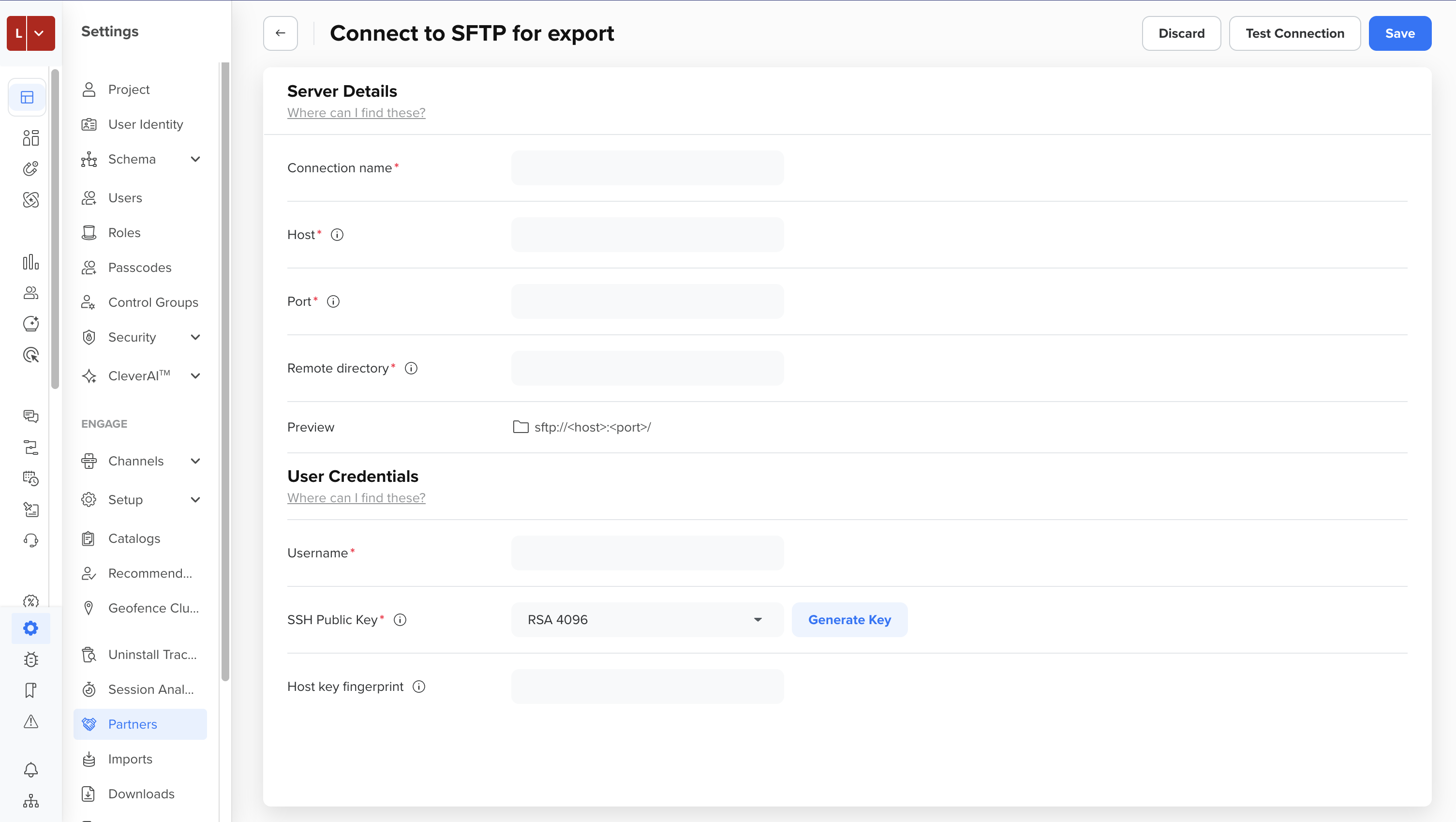
Configure Server Details
Under Server Details, add the following details:
| Field | Description |
|---|---|
| Connection Name | A unique name to identify this connection among your other export destinations. |
| Host | Your SFTP server's public hostname or IP address. Do not include a scheme prefix such as sftp://. If your hostname is not in public DNS, use a public IP address instead. |
| Port | The port on which your SFTP server listens, from 1 to 65535. The default SFTP port is 22. |
| Remote Directory | The directory on your server where CleverTap writes export files. Required: enter / to write to the connection's home directory, or a sub-directory path such as uploads or exports/daily. The directory must exist, and the SFTP user needs write and rename permission on it; CleverTap creates missing sub-directories automatically, but only where the SFTP user is permitted to create them. |
The Preview field shows the resulting path as you fill in these fields: sftp://<host>:<port>/<remote-directory>.
Remote Directory Details
- On managed SFTP, such as AWS Transfer Family or Azure Blob SFTP, any directory you enter typically works without extra setup.
- On a self-managed server, make sure the directory already exists and is writable by the SFTP user; chrooted accounts especially may need a writable sub-directory rather than the account root, since the root is often non-writable by design. If the directory is not writable, Test Connection fails up front with a clear message.
- On older servers that do not support atomic rename, replacing a file on a retry also needs delete permission on the remote directory; grant it there if you are on such a server, and consider a
*.partlifecycle rule to sweep temporary files. A first-time write never needs delete.
Configure User Credentials
Under User Credentials, add the following details:
| Field | Description |
|---|---|
| Username | The account CleverTap uses to authenticate to your server. |
| SSH Public Key | The key type CleverTap generates for this connection. Select RSA 2048, RSA 3072, RSA 4096, Ed25519, ECDSA nistp256, or ECDSA nistp384 from the dropdown, and click Generate Key. If you change the key type on an existing connection without regenerating the key pair, CleverTap rejects the mismatch. |
| Host Key Fingerprint | An optional value that lets CleverTap verify it is connecting to the correct server instead of trusting it on first connect. Accepts a SHA256:-prefixed fingerprint, which is recommended, or a SHA1:- or MD5:-prefixed or bare colon-separated hex value, which CleverTap normalizes and stores as the canonical SHA-256 form. Leave this field blank to trust the server's key on first connection, after which it is pinned. |
Key Ownership and Host Trust
- CleverTap generates the key pair and gives you only the public key, in OpenSSH
authorized_keysformat, to install yourself. The private key never leaves CleverTap.- Leaving Host Key Fingerprint blank does not skip verification: CleverTap trusts the server's key the first time you connect, then pins it. From that point on, every export, not just Test Connection, checks the pinned key and fails closed on a mismatch or on a connection with no pin at all; re-pin from the connection settings if your server's key legitimately changes.
If your server has RSA authentication disabled, choose Ed25519 or ECDSA instead. To get your server's fingerprint, run ssh-keygen -lf against the relevant host key file, for example ssh-keygen -lf /etc/ssh/ssh_host_ed25519_key.pub.
Test and Save Connection
To confirm CleverTap can reach your server before you rely on it for exports, perform the following steps:
- Click Test Connection.
- Click Save.
Both steps run the same checks: connect, verify the host key, authenticate, and write a small test file to confirm permissions.
Connection Test FileTest Connection, and the pre-flight check CleverTap runs before every scheduled export, write a small file of about 27 bytes to your remote directory to confirm write and rename access. CleverTap uploads it under a random temporary name ending in
.part, then renames it onto a fixed marker file nameddummy-auth-ct, left in place and overwritten on each run. You may notice this file in your remote directory; it is harmless, safe to leave or delete, and is recreated on the next test or export.
Common setup errors and what they mean:
| Problem | Message |
|---|---|
| Wrong username, password, or key | An authentication error naming the user, with a prompt to check the credentials or confirm the public key is installed. |
| Remote directory not writable | A write-test failure naming the directory and user; if the target is the home directory, the message suggests using a writable sub-directory instead. |
| Host key mismatch | A host-key verification error that includes the fingerprint the server actually presented. |
| Host or IP address unreachable | A connection-check failure; details include whether the hostname could not be resolved or the address was rejected as private or internal. |
| Connection refused or timed out | A prompt to check the host, port, and that CleverTap's egress IP addresses are allowlisted. |
Select SFTP as Export Destination
Once saved, an SFTP connection appears as a Partner option wherever you create an export, alongside your cloud storage and analytics partners.
- Go to Settings > Partners > Export Center.
- Click Create Export.
- Under Data Type, choose Profiles or Events, and click Next.
- Under Partner, select your saved SFTP connection.
- Click Start, then configure Storage & File Details, User Identifiers, Data Fields & Event, Edit Properties & Order, and Schedule the same way you would for a cloud storage export.
Under Sub-Folder Structure, choose how CleverTap organizes files on your server: Server Base Path (the connection name as a folder prefix, for example Conn2/), Split by Data Type, Split by Export Run Date, Split by Export Unique ID, Split by Event Name, or Custom. The Folder Structure Preview shows the resulting path as you choose. Under File Format, choose CSV, JSON, Parquet, or XML; Parquet has its own Gzip After Parquet toggle, off by default, that the other formats do not offer.
Export File Behavior
- CleverTap writes a separate file per event name rather than combining all events into one file; SFTP event exports use
eventTimeas the event-timestamp column.- Each file uploads under a temporary
.partname and is renamed once complete, so a process watching the remote directory should ignore.partfiles; a retried run overwrites the same file name rather than leaving a stale partial file behind.
Encrypt Export Files
You can PGP-encrypt your export files before CleverTap writes them to your SFTP server, so they are never stored in plaintext at the destination. This is optional, and you configure it per export rather than on the connection itself. If you do not enable it, export files are written in plaintext; choose deliberately if that matters to your security team.
Choose one encryption method per export:
| Method | Description | Requirements |
|---|---|---|
| PGP public key | Paste your ASCII-armored public key. CleverTap encrypts to it, and you decrypt with your matching private key, which never leaves your side. | Requires the PGP-encryption add-on. |
| Password | Supply a passphrase of at least 12 characters. CleverTap symmetrically encrypts the file, and you decrypt with the same passphrase. | No add-on required. |
We recommend the public-key method where you can use it, since CleverTap never holds a secret that could decrypt your data; password mode is the option if you do not have the add-on.
CleverTap validates your public key when you save it, not when the export runs: a private key, an expired or revoked key, or a key with no encryption capability is rejected immediately with a specific error. If encryption is configured but something prevents CleverTap from encrypting at run time, the export fails rather than falling back to uploading the file in plaintext.
FAQs
These are common questions about setting up and using SFTP exports.
What file formats does SFTP export support?
SFTP export supports CSV, JSON, Parquet, and XML. Parquet files can optionally be gzip-compressed.
Can I rotate or revoke the SSH key later?
Changing the key type or username on an existing connection clears the current public key, and you must click Generate Key again to generate a new one; CleverTap rejects a key-type change until you do. The docs team has not confirmed yet what happens to exports already scheduled when you do this.
Can I connect more than one SFTP server?
Profile Exports currently caps recurring exports to one per account for other destinations. The docs team has not confirmed yet whether the same limit applies to SFTP.
What happens if the connection fails mid-export?
Transient network errors, such as a refused, reset, or timed-out connection, are retried and may succeed on a later attempt. Host key mismatches, authentication failures, and permission failures are not retried; the run fails with an error that includes the underlying SFTP status code. The docs team has not confirmed yet how many times a transient failure retries, or where that status surfaces in the Export Center. Status Alerts for Exports currently lists only Amazon S3, Microsoft Azure, and Google Cloud Platform as supported partners, not SFTP; confirm whether that page will cover SFTP before this one publishes.
Next Steps
After you create your first SFTP export, you can put it to work like any other export destination.
Updated about 12 hours ago