
Messages
Learn how to messages for each step in the Lifecycle Agent.
Overview
The Messages step is where you build the content pool for each engagement step of your Lifecycle Agent. The agent picks from this pool at runtime, choosing which message to send to each user.
The following image shows the Messages step for an agent with three steps (Welcome, Educate, Offer) and two messages configured in the Welcome step.
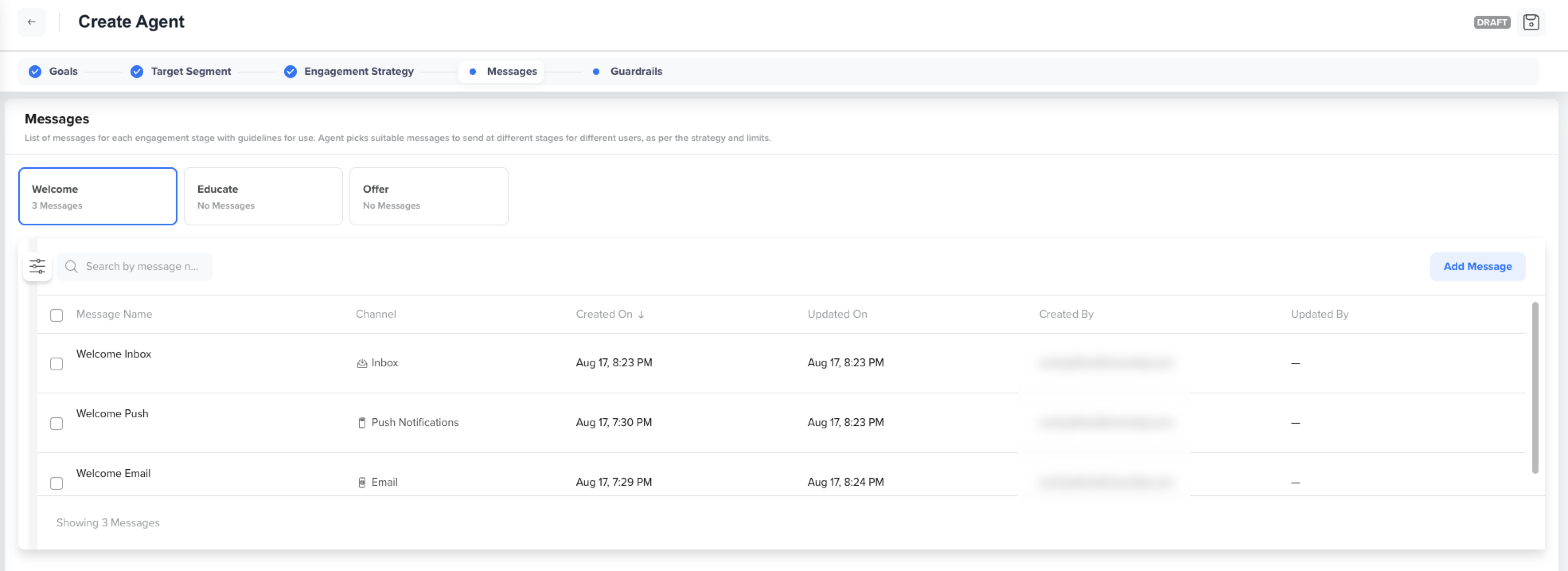
Lifecycle Agent Messages Example
Every step you defined in the Engagement Strategy step appears here as a step card showing the step name and current message count. Select a card to view or manage its messages.
Each message is mapped to a specific step of a specific agent and is not reusable elsewhere, though you can reference an existing CleverTap template as a starting point. Add as many messages per step as required; a larger content pool gives the agent more variants to test and optimize.
NoteThe channels available when you add a message are limited to the channels enabled for that step in the Engagement Strategy step. If a channel does not appear in the list, return to the Engagement Strategy step and add it to the step's allowed channels.
Add a Message
Perform the following steps to add a message to a step.
- Select the step to which you want to add the message. The message list for the selected step displays below.
- Click Add Message.
- Enter a name for the message in the Message Name field.
- Select a channel from the following supported options:
- Push Notifications
- SMS
- Web Push
- Inbox
- Select an existing CleverTap template to base the message on, and adjust it as needed.
- Click Save.
Manage Messages
Hover over a message row in the list to reveal the row actions: edit, clone, and delete. To act on multiple messages at once, use the row checkboxes and the selection bar that appears above the list.
Edit
Select the edit action to open the message and edit the content.
Clone
Select the clone action to create a copy of the message in the same step. Rename the copy and adjust any fields as needed.
Delete
Perform the following steps to delete one or more messages from a step:
- Select the step card that contains the messages you want to delete.
- Select the checkbox next to each message you want to delete. To delete every message in the step, select the checkbox in the table header. A selection bar displays the number of selected messages along with the delete icon, Deselect all, and Clear selection actions.
- Click the delete icon in the selection bar.
- Confirm the deletion in the prompt.
NoteTo delete a single message, hover over its row and select the delete action. Deleted messages cannot be recovered. If a deleted message was the only one in its step, the agent has no content to send for that step until you add a replacement.
Find a Message
Use the search field to filter the list by message name, or select the filter icon to filter by channel. Select any column header with a sort indicator to sort the list.
Updated about 4 hours ago