
Goals
Learn how to set the goals in Lifecycle Agent.
Set Goals
The Goals tab defines the success for this agent. You set the conversion goal, the time period beyond which a user exits the agent, and the behavioral signals for reinforcement learning.
To complete the Goals tab:
-
From the CleverTap dashboard, go to Decisioning, and then click Create New Agent. The Create New Agent section appears.
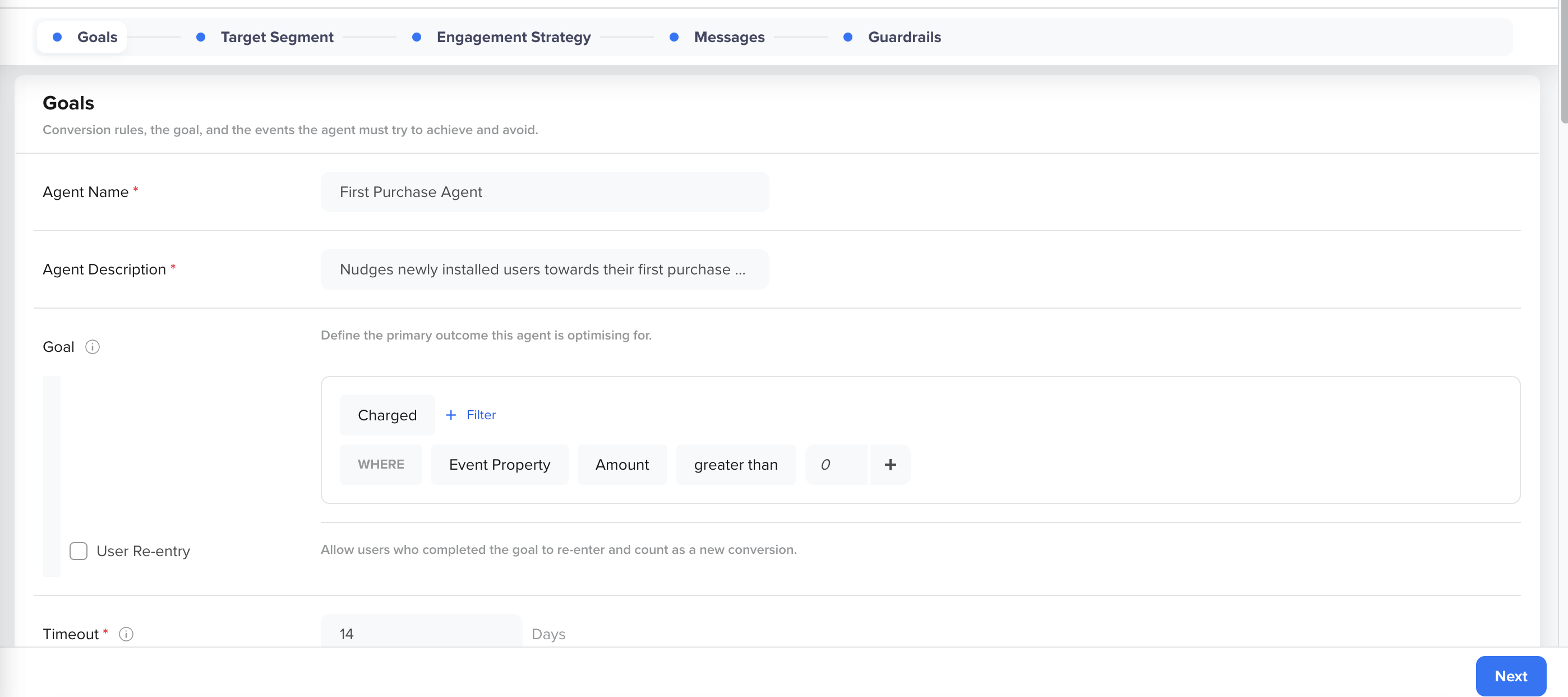
Define Goal
-
Enter a descriptive name in the Agent Name field.
-
Enter a short summary for the agent in the Agent Description field.
-
Under Goal, select the conversion event the agent must drive users toward (for example,
Charged). This is the primary outcome the agent optimizes for. To narrow the goal definition, click + Filter next to the event. For example, you can restrict the goal to purchases of a certain product category. For example, an e-commerce store creates an agent that optimizes conversion for a particular product category, such as electronics. -
(Optional) Select the User Re-entry option to allow users who have already completed the goal, or whose timeout window has expired, to re-enter the agent as a new episode. Enable this when users can achieve the goal more than once. For example, if your goal is Repeat Purchase, a user who completes a purchase must re-enter the agent so the agent can nudge them toward a second purchase. If your goal is First Purchase, re-entry is typically not required.
-
Set the Timeout (in days). This is the maximum duration the agent keeps trying to convert each user. When a user's timeout window expires without completing a goal, the user exits the agent.
-
Under Guiding Events, configure the user behavioral signals the agent uses for reinforcement learning. The agent's decisions are rewarded or penalized based on the favorable or unfavorable events, respectively.
a. Click Add Event under Favorable Events to add events that show a positive user intent (for example,Product Viewed,Add to Cart). Each favorable event sends a positive signal to the agent.
b. Click Add Unfavorable Event under Unfavorable Events to add events that show negative user intent (for example,Channel Unsubscribed,App Uninstalled).
- Under Guiding Events Priority, review and set the priority order for your guiding events. The agent treats higher-priority favorable events as stronger positive signals and vice versa. Drag and drop events in the table to reorder them.
- Click Next to proceed to the Target Segment tab.
Updated about 4 hours ago