
Engagement Strategy
Learn how to create a strategy tailored to your use case.
The Engagement Strategy tab defines how the agent decides to engage each user. You create an engagement strategy allowing you to define your own step names and entry and exit conditions. You can then choose whether the agent fully controls pacing or follows manually defined step rules.
- Enter a name in the Name field to identify this engagement strategy.
- Under Engagement Mode, select one of the following modes:
- Guided — Define each engagement step, its channels, and the conditions that move users out of that step. Use this mode when message content depends on step progression, for example, when a user must first learn about a product before receiving a promotional offer.
- Autonomous — Add channels and messages, and let the agent send them in the order it chooses. Use this mode when messages are self-contained and don't depend on each other, for example, when running variations of the same offer.
Guided
If you selected Guided, the Engagement steps section appears. Use it to set up each step of the user journey. A step is a phase of an engagement strategy. Users are guided through the steps you define to achieve goal events, and the agent selects suitable messages, channels, and timing based on the definitions set for each step.
Every user enters Step 1 upon entering the agent and exits to the next step when the step's exit rules are met. Users move to any of the subsequent steps when they perform the event defined by the step's entry rules.
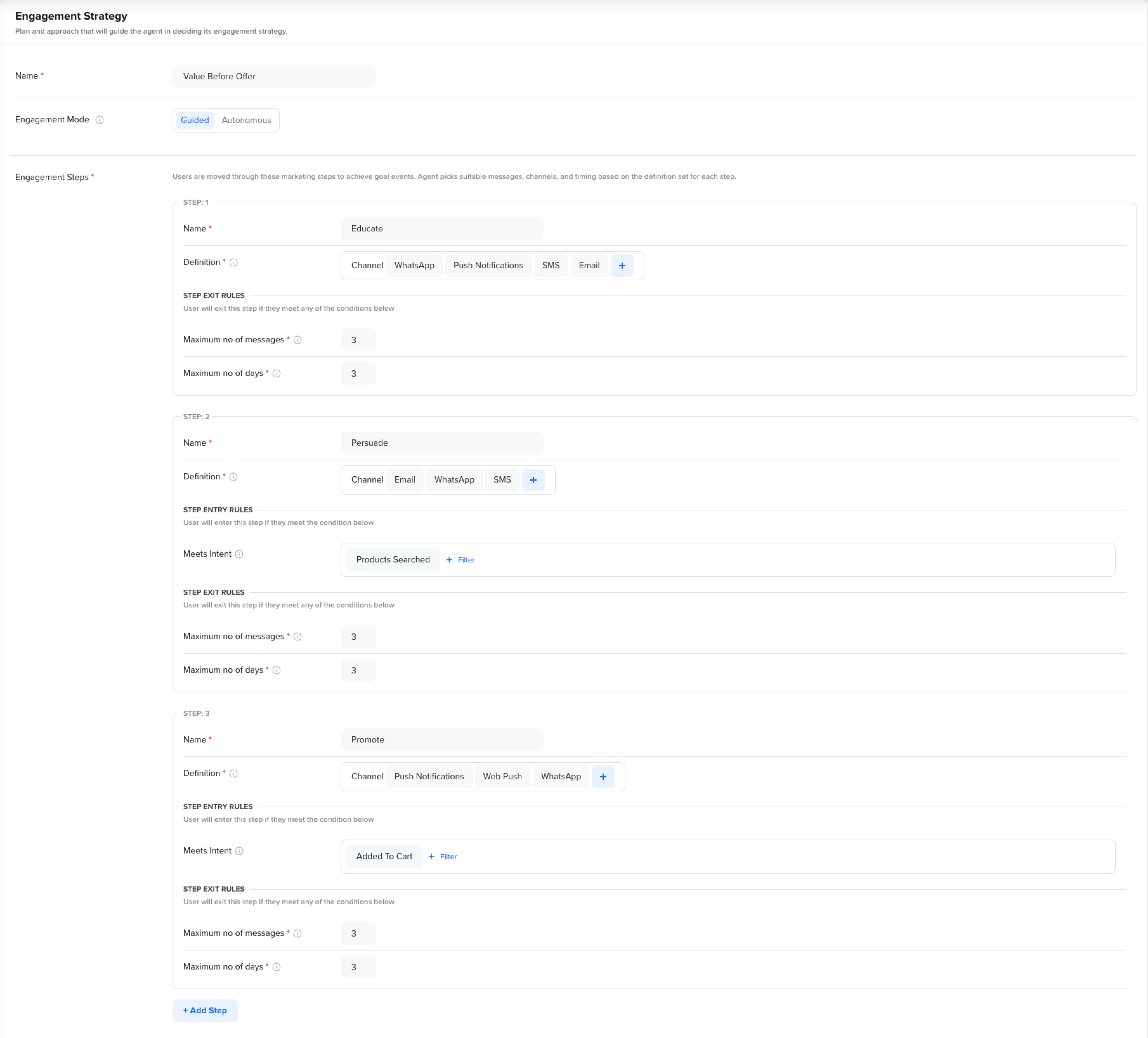
The following image shows the Engagement Strategy tab with steps:
Engagement Strategy
To configure each engagement step:
- Under Engagement steps, locate the step and enter a name in the Name field.
- Under Definition, click Channel + to add the channels this step can use. The supported channels are Push Notifications, Email, SMS, WhatsApp, Web Push, and Inbox.
- For Step 2 and onwards, under Step Entry Rules, set Meets Intent to the event that a user must perform to enter this step. Click + Filter to narrow the event definition.
- Under Step Exit Rules, configure the conditions that cause a user to exit this step. When any of these conditions are met, the agent moves the user to the next step or stops sending messages if this is the last step.
a. Set Maximum no of messages — the maximum number of messages the agent sends to one user in this step before moving them forward.
b. Set Maximum no of days — the maximum number of days a user stays in this step before the agent moves them forward. - Click + Add Step to add another step, and repeat these steps.
Autonomous
If you selected Autonomous, add the channels and messages. The agent sends messages without following a predefined order.
To configure agent-controlled mode:
- Under Definition, click Channel + to add the channels the agent can use. The supported channels are Push Notifications, Email, SMS, WhatsApp, and Inbox.
- Click Next to proceed to the Messages tab.
Updated about 4 hours ago