
BigQuery Configuration
Overview
Configuring Google BigQuery with CleverTap enables seamless data import, ensuring synchronization and access to relevant information for analysis, personalized engagement, and data-driven growth.
NoteBigQuery is a private beta release. Contact your Customer Success Manager for access.
Quick Start Guide for Existing Users
Expand for quick setup if your BigQuery environment is already configured.
This section is intended for users who already have a configured BigQuery project, dataset, and service account with the required permissions.
Prerequisites
Before you begin, ensure you already have the following details:
- Project ID
- Dataset ID
- Google Service Account JSON Key (file or JSON text)
Once you have these values, you can now proceed to add them in CleverTap (see Set Up CleverTap Dashboard for Integration).
Prerequisites for Integration
If you are setting up BigQuery for the first time, ensure you have the following before proceeding with the CleverTap configuration:
-
CleverTap Access to configure BigQuery integrations.
-
Google Cloud Project with BigQuery enabled.
-
Required Dataset Details:
- Project ID
- Dataset ID
-
Service Account and Permissions used by CleverTap:
-
Recommended: a dedicated service account
-
Required roles:
- BigQuery Job User
- BigQuery Data Editor
-
Set Up BigQuery for Integration
You can set up BigQuery using one of the following options:
-
For new users who need to provision resources from scratch:
-
For users who already have resources configured in Google Cloud: Use Existing BigQuery Resources
Create New BigQuery Setup
If you do not already have a dataset, service account, or JSON key configured in Google Cloud, you must create them before connecting to CleverTap.
To create each resource, perform the following steps:
- Create a Service Account
- Assign BigQuery Permissions
- Create a Dataset
- Create a Service Account JSON Key
Create Service Account
To allow CleverTap to access your BigQuery environment, first create a dedicated service account:
-
In the Google Cloud Console, click on
 navigate to IAM & Admin > Service Accounts.
 -
Click Create Service Account.
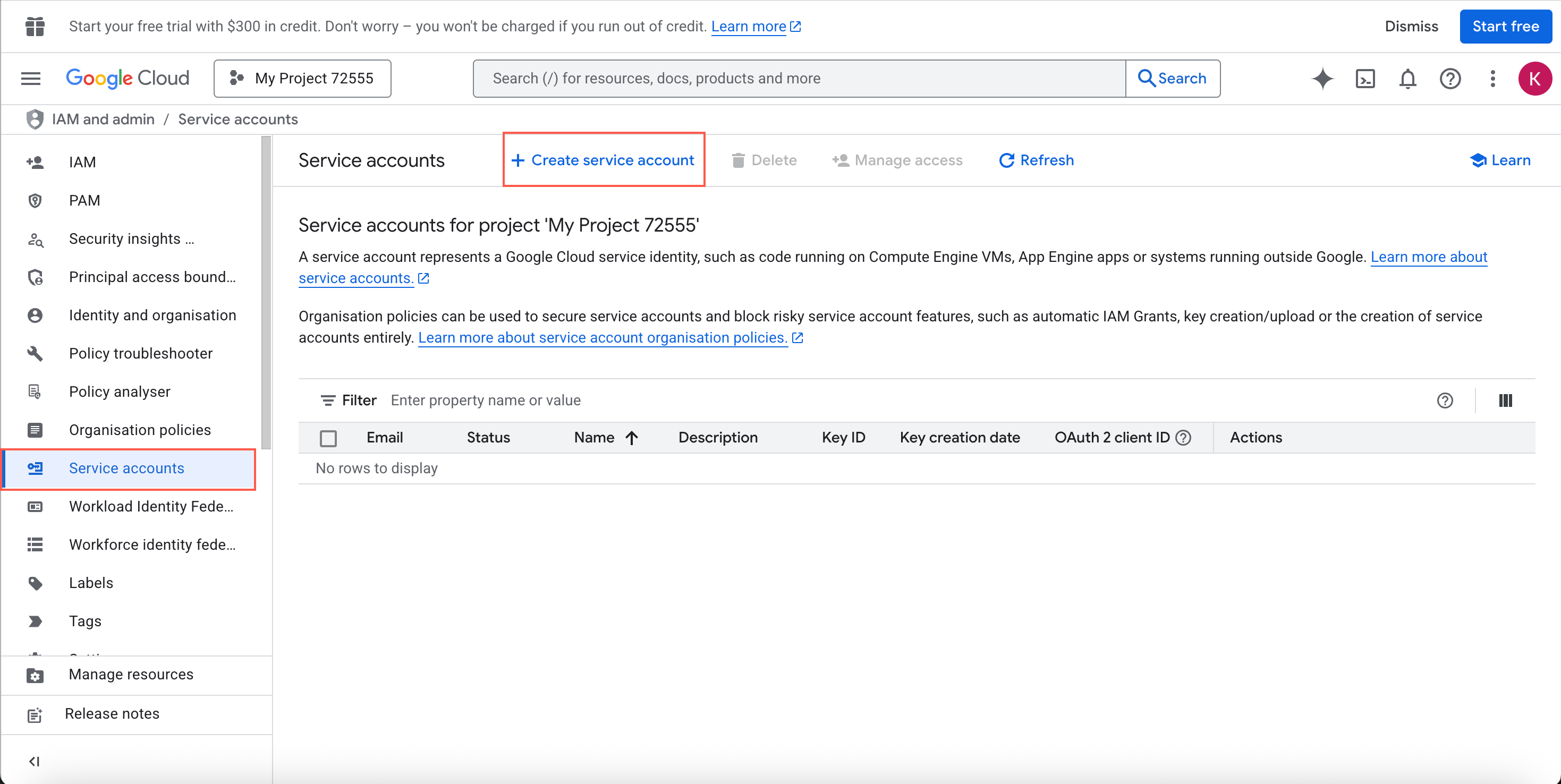
Create Service Account
-
Enter a Service account name (for example,
clevertap-bq-sa). -
Click Create and continue, then Done.
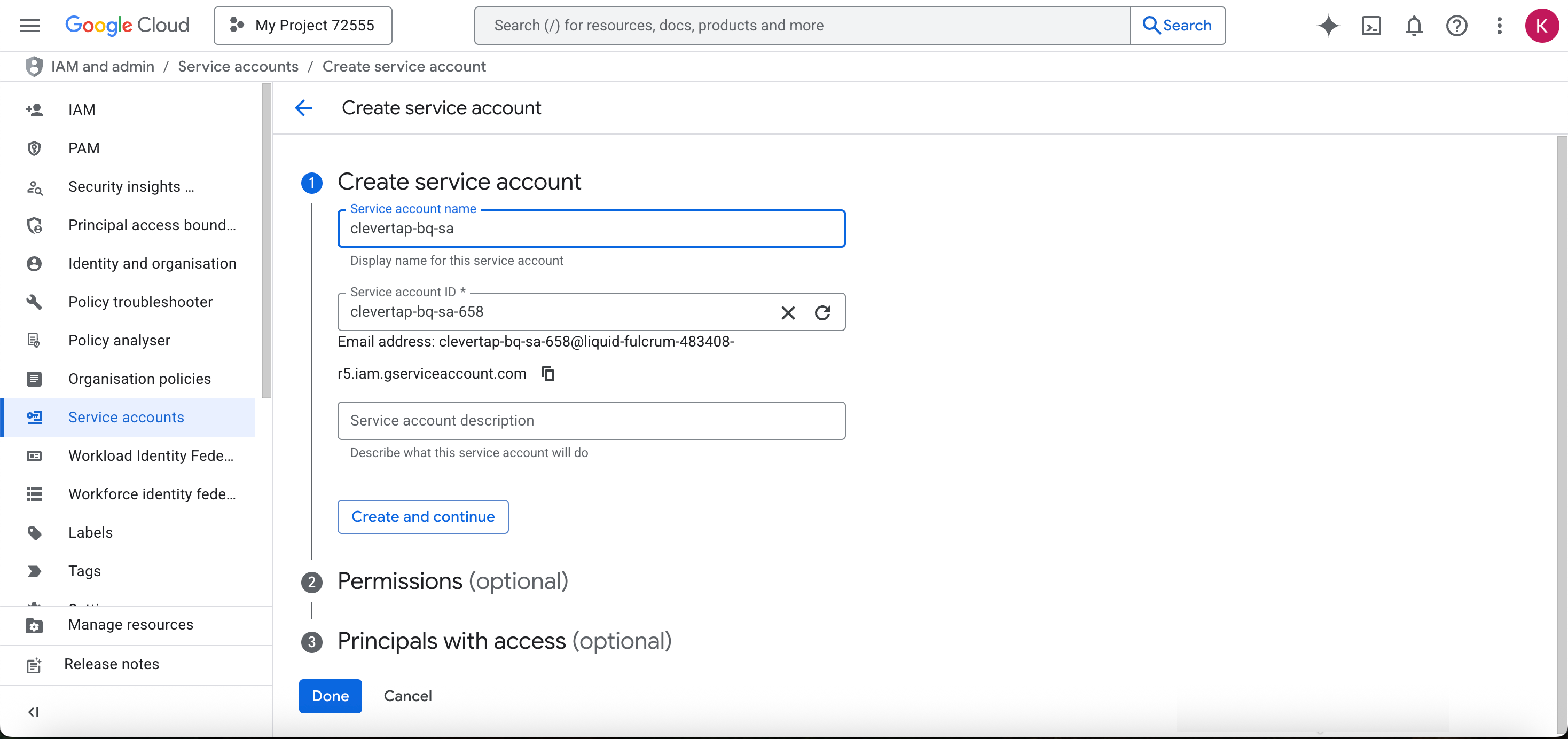
Service Account Name
Assign BigQuery Permissions
Assign the required roles to the service account:
-
In the Google Cloud Console, click on
navigate to IAM & Admin > Service Accounts. -
Locate the service account and click Manage Permissions.
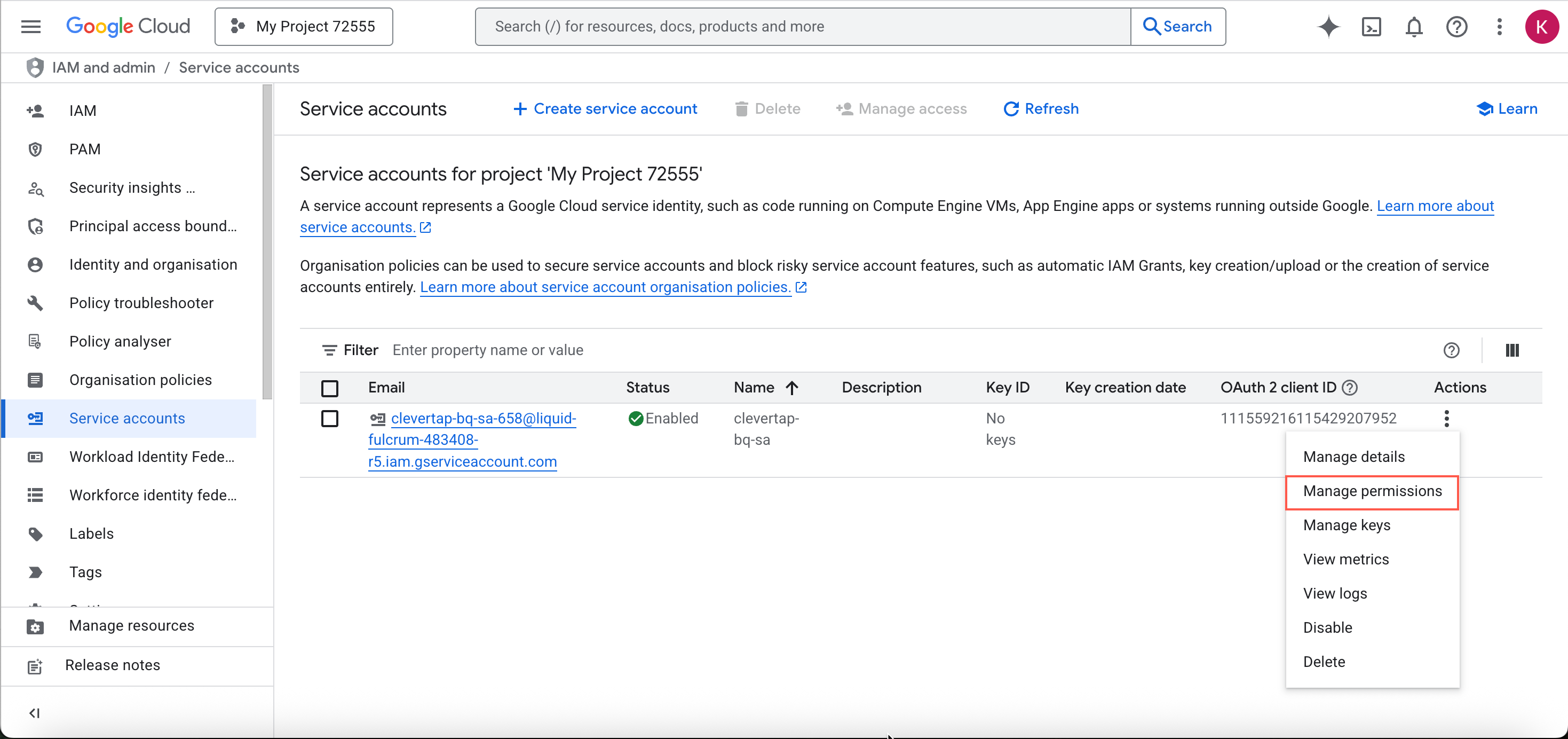
Manage Permissions
-
Click on Manage Access.
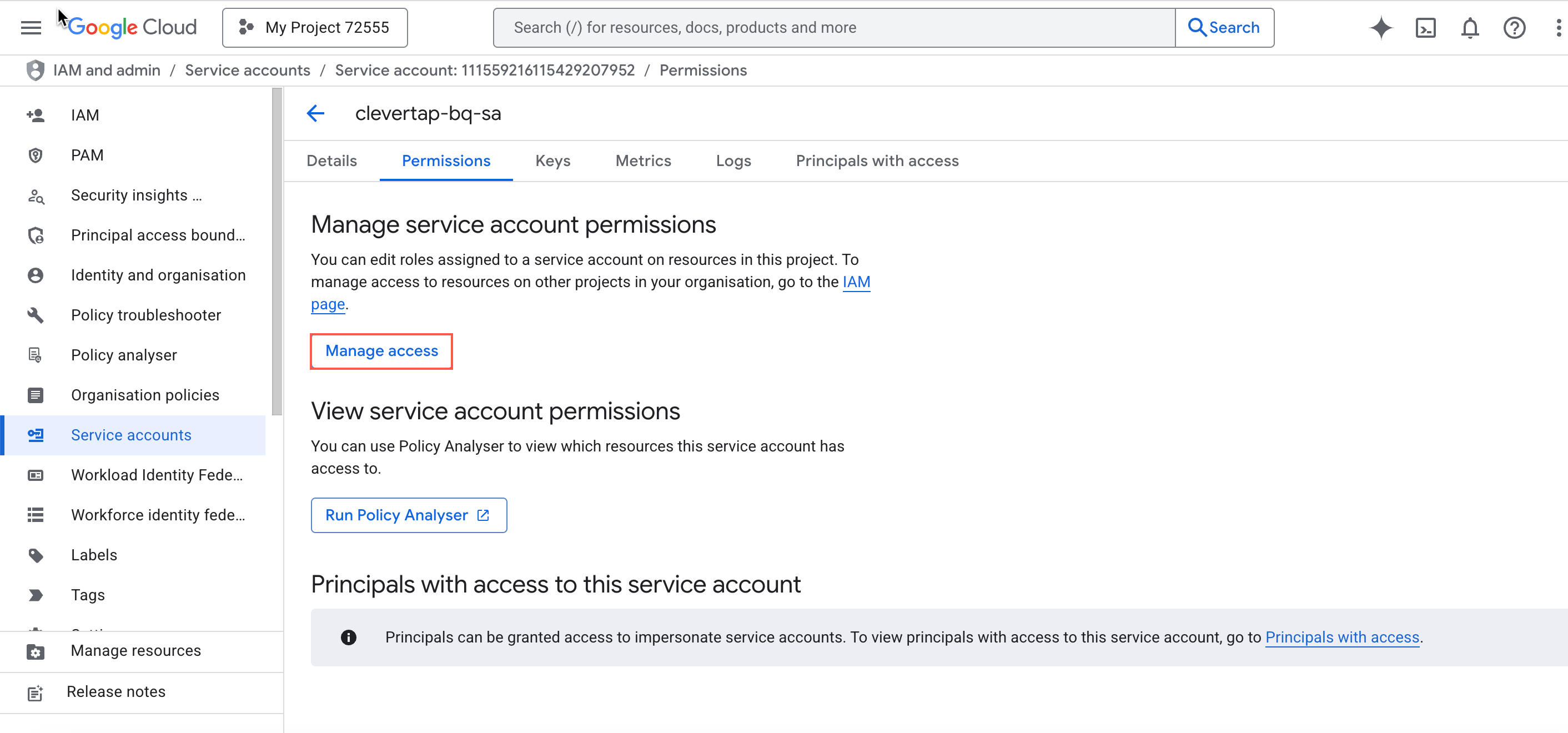
Manage Access
-
Add the following roles:
-
BigQuery Job User
-
BigQuery Data Editor
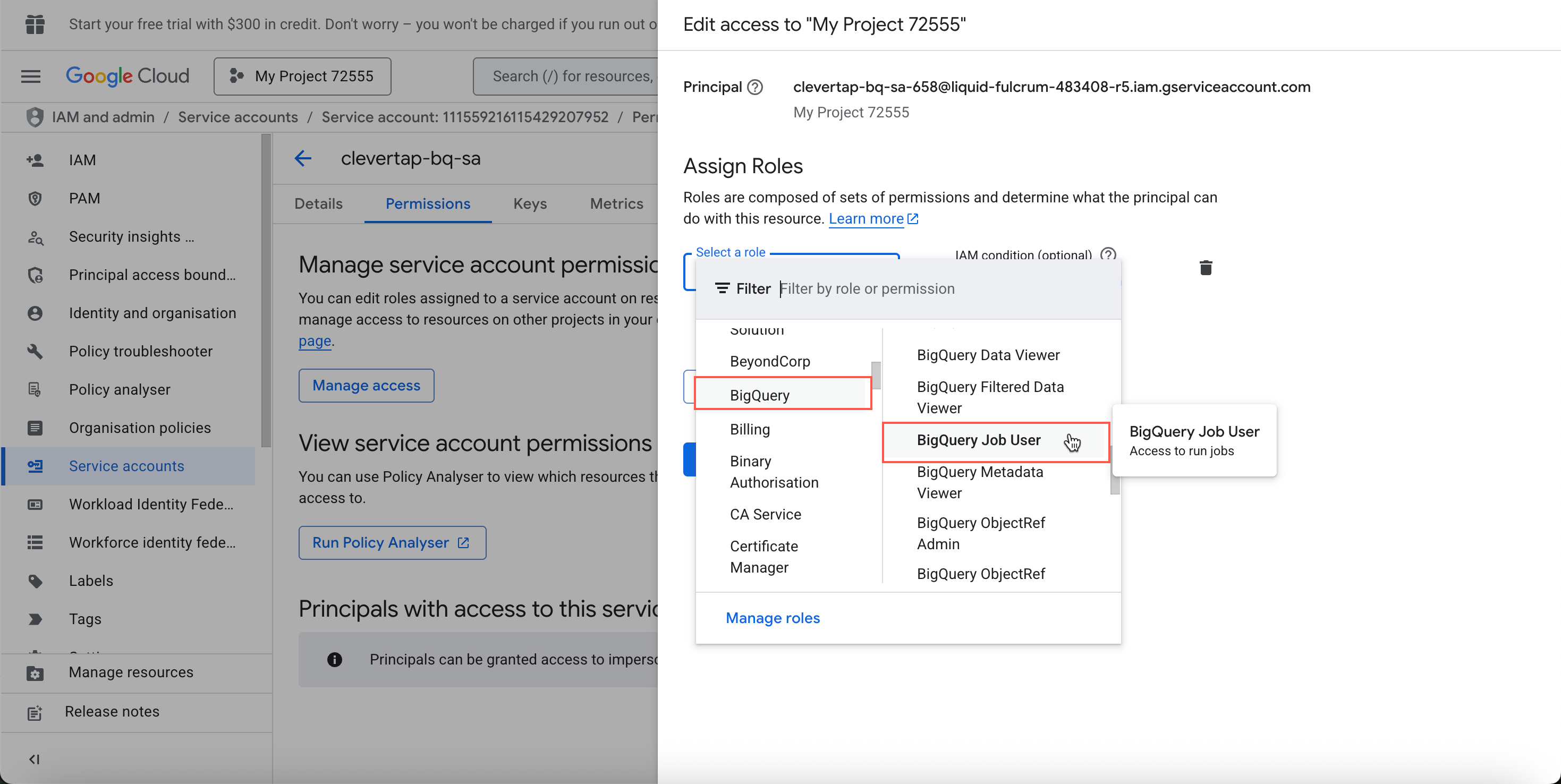
Add Roles
-
-
Click Save.
Create Service Account JSON Key
Generate a JSON key that CleverTap will use for authentication:
-
In the Google Cloud Console, click on
navigate to IAM & Admin > Service Accounts. -
Open the Keys tab.
-
Click Add key > Create new key.
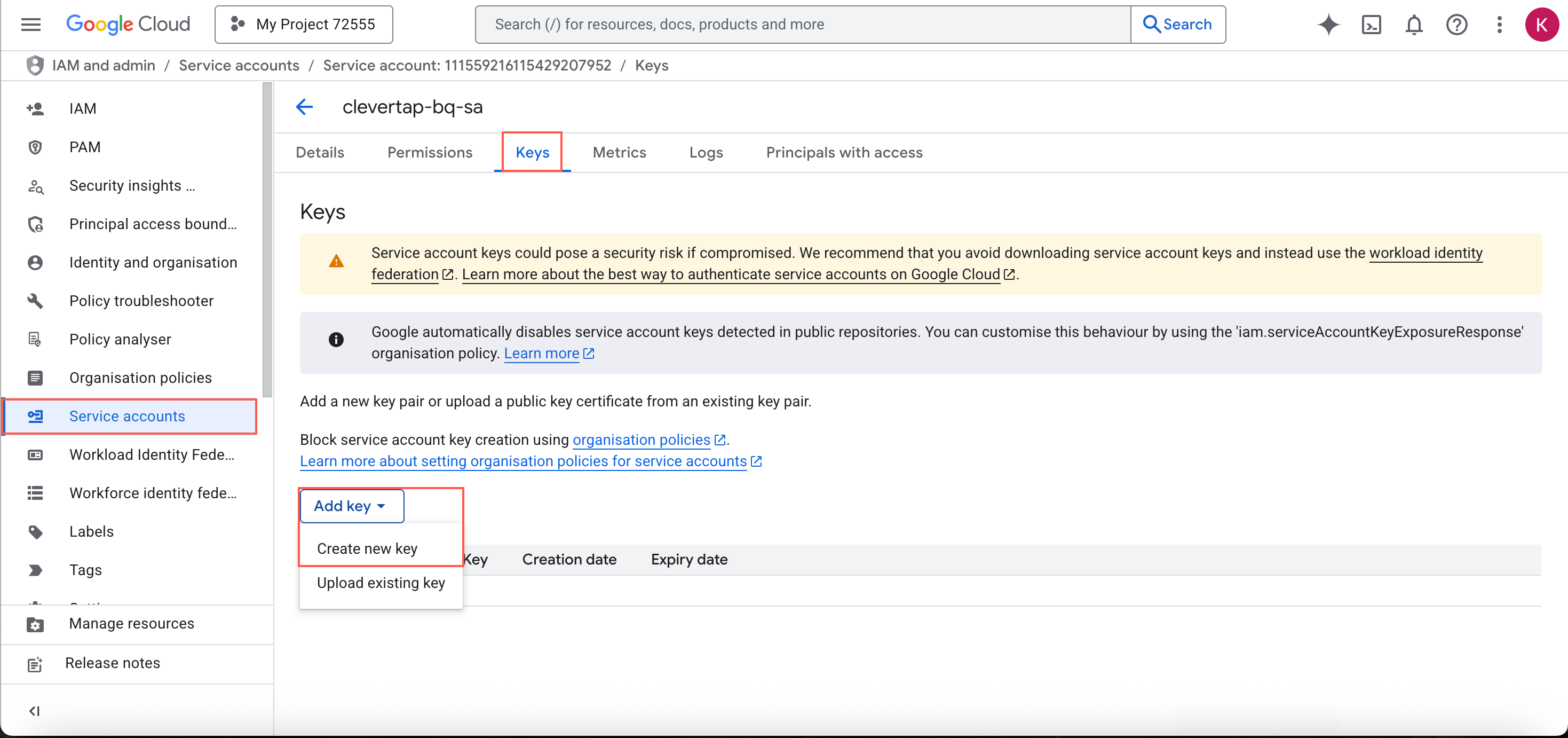
Create new key
-
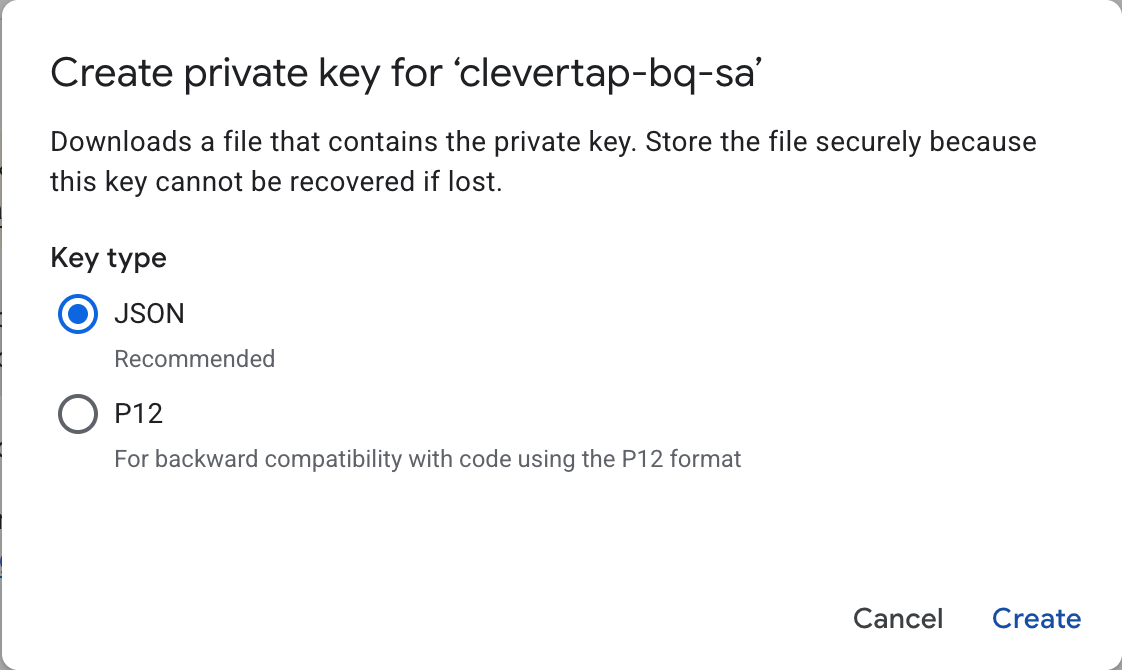
Select JSON and click Create.
-
Download and securely store the JSON file.
Create Dataset
Create a dataset for CleverTap to store and query data:
-
Go to BigQuery in the Google Cloud Console.
-
Select your project and click Create dataset.
-
Enter:
- Dataset ID (for example,
clevertap_dataset) - Location (choose the required region)
- Dataset ID (for example,
-
Click Create dataset.
Or use SQL:
CREATE SCHEMA IF NOT EXISTS `[ProjectID].[DatasetID]`;Use Existing BigQuery Resources
If your project already has datasets and service accounts configured, follow the steps below to retrieve required values.
Find Your Project ID
- Open Project Picker next to the Google Cloud logo.
- Copy the Project ID of the target project.
Find Existing Dataset ID
- Go to BigQuery.
- Expand your project to view datasets.
- Select the dataset you intend to use with CleverTap.
Or use SQL:
SELECT schema_name FROM `projectID`.INFORMATION_SCHEMA.SCHEMATA;Find a Service Account
- Navigate to IAM & Admin > Service Accounts.
- Select an existing service account with sufficient permissions, or create a new one.
Download or Create a Service Account JSON Key
- Select the service account.
- Go to the Keys tab.
- Create a new JSON key if needed.
Set Up CleverTap Dashboard for Integration
After preparing your BigQuery project, dataset, and service account, connect BigQuery to CleverTap using the collected values.
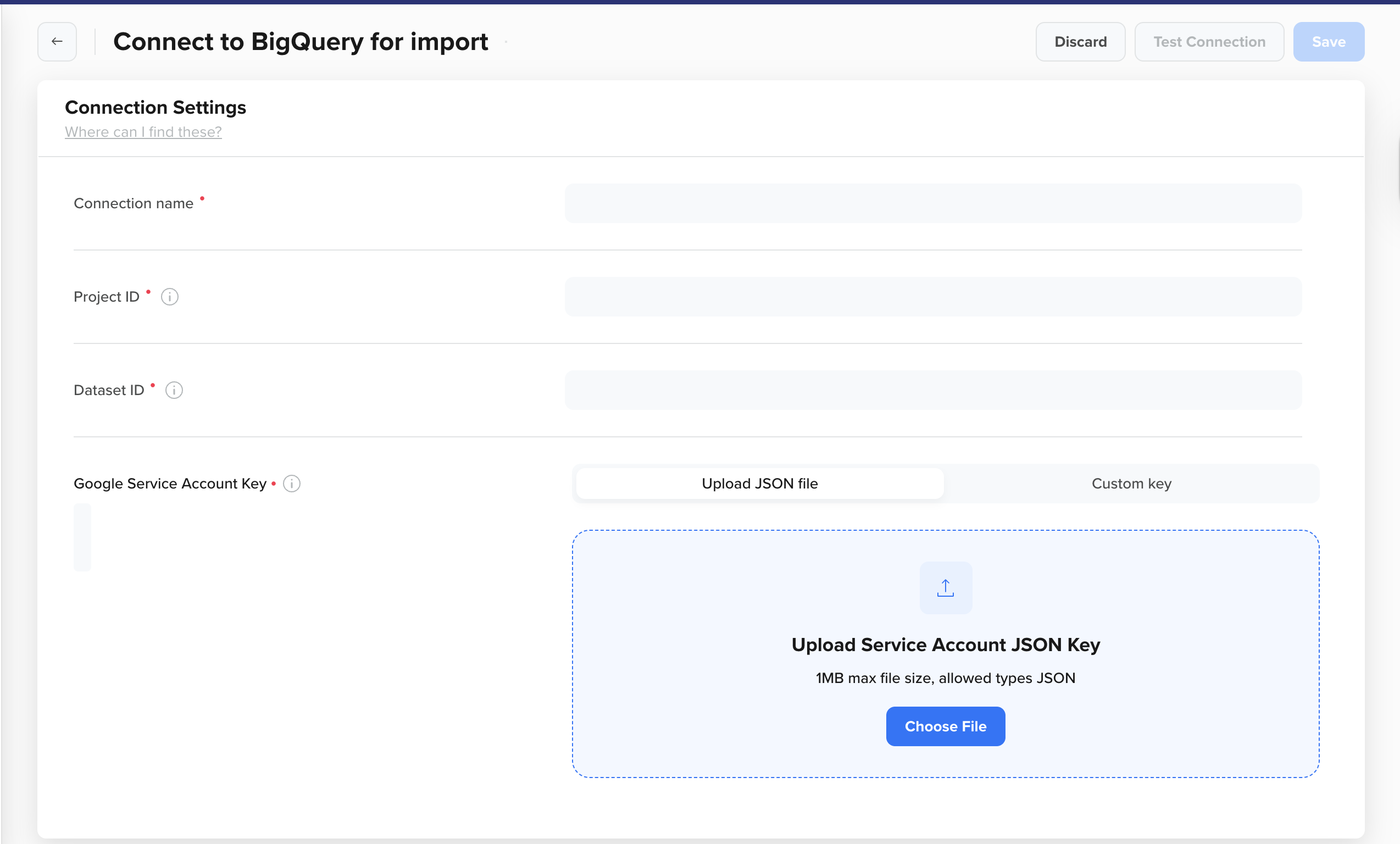 Integrate BigQuery with CleverTap
- Go to Settings > Partners > BigQuery and select Add Database.
- Enter the following details:
| Field | Description |
|---|---|
| Connection name | A unique name for this BigQuery connection. |
| Project ID | The Google Cloud project ID. |
| Dataset ID | The dataset where CleverTap will read and write data. |
| Google Service Account Key | In the Upload JSON file tab, upload the JSON key generated during Create Service Account JSON Key. Alternatively, use the Custom key tab to paste the JSON content directly. |
-
Click Test Connection or Save:
- Test Connection: Verifies project access, dataset validity, and service account permissions.
- Save: Stores the connection for use with imports.
-
After saving the connection, navigate to Create Import in the Import Connections dashboard.
FAQs
How can I delete a connection that has running imports?
Go to Import Connections, select the connection, click Delete, review the running imports, and confirm deletion. This stops all active imports associated with the connection.
How can I filter import connections?
Use the filters on Import Connections to refine the list:
- Connected On: Filter by creation date.
- Connected By: Filter by the user who created the connection.
How can I whitelist IPs for CleverTap integration?
Whitelist the required IP ranges to allow CleverTap to access your Google Cloud project. Refer to CleverTap IP Ranges for the latest list.
Updated 10 days ago