
Schedule Snowflake Import
Learn how to export user and event data from CleverTap to Snowflake for seamless integration and advanced analysis.
Overview
Schedule an Import enables you to control how often data is imported from your Snowflake database into CleverTap. By configuring a schedule, you ensure your CleverTap data stays up-to-date with the warehouse, aligning with your operational and analytical needs. This document covers the following three scheduling options and how to configure each, along with their ideal use cases and best practices:e
- Repeat Intervals: Configure automated recurring imports at defined intervals (for example, every N minutes, hours, or days) to ensure continuous and consistent data synchronization.
- Custom Schedule: Schedule imports on specific days of the week or specific dates of the month to align with weekly or monthly cycles.
- Manually Trigger: Run imports on demand, either immediately, at a specified future date, or without a schedule for manual triggering when needed.
Regardless of the selected schedule, the initial import retrieves all available records. Subsequent imports fetch only the new or updated records since the previous run.
Repeat Intervals
Select this option to configure automatic imports at fixed intervals, helping maintain regular data synchronization without manual intervention. This approach is ideal for frequently updated data, such as user attributes or events that may change hourly or daily. You can specify the import frequency in minutes, hours, days, or weeks to align with your data refresh schedule.
Once scheduled, the first import runs immediately, ingesting all records from the Snowflake database into CleverTap. After this initial import, each subsequent run executes at the defined interval and pulls only the new or updated information since the last run (also called incremental sync). For example, if the import is set to run every 6 hours, the first run happens immediately, and then every 6 hours, the import fetches only the changes made since the previous run.
Minimum Repeat Interval for Higher Frequency ImportsThe minimum repeat interval allowed is 15 minutes. This limit ensures performance and avoids overloading the system. If you require more frequent imports than 15 minutes, contact CleverTap support to discuss options.
Configure Repeat Intervals
To configure the import to run at repeat intervals, perform the following steps:
- Select Repeat Intervals as the schedule type under Frequency Settings.
- Enter the repeat frequency: Enter a number and choose the time unit (Minutes, Hours, Days, or Weeks) from the dropdown to define how often the import should run. For example, you might enter “6” and select “Hours” for an import every 6 hours.
- Click Import to save the schedule. CleverTap immediately runs the first import and then continues to execute the subsequent runs at the specified interval.
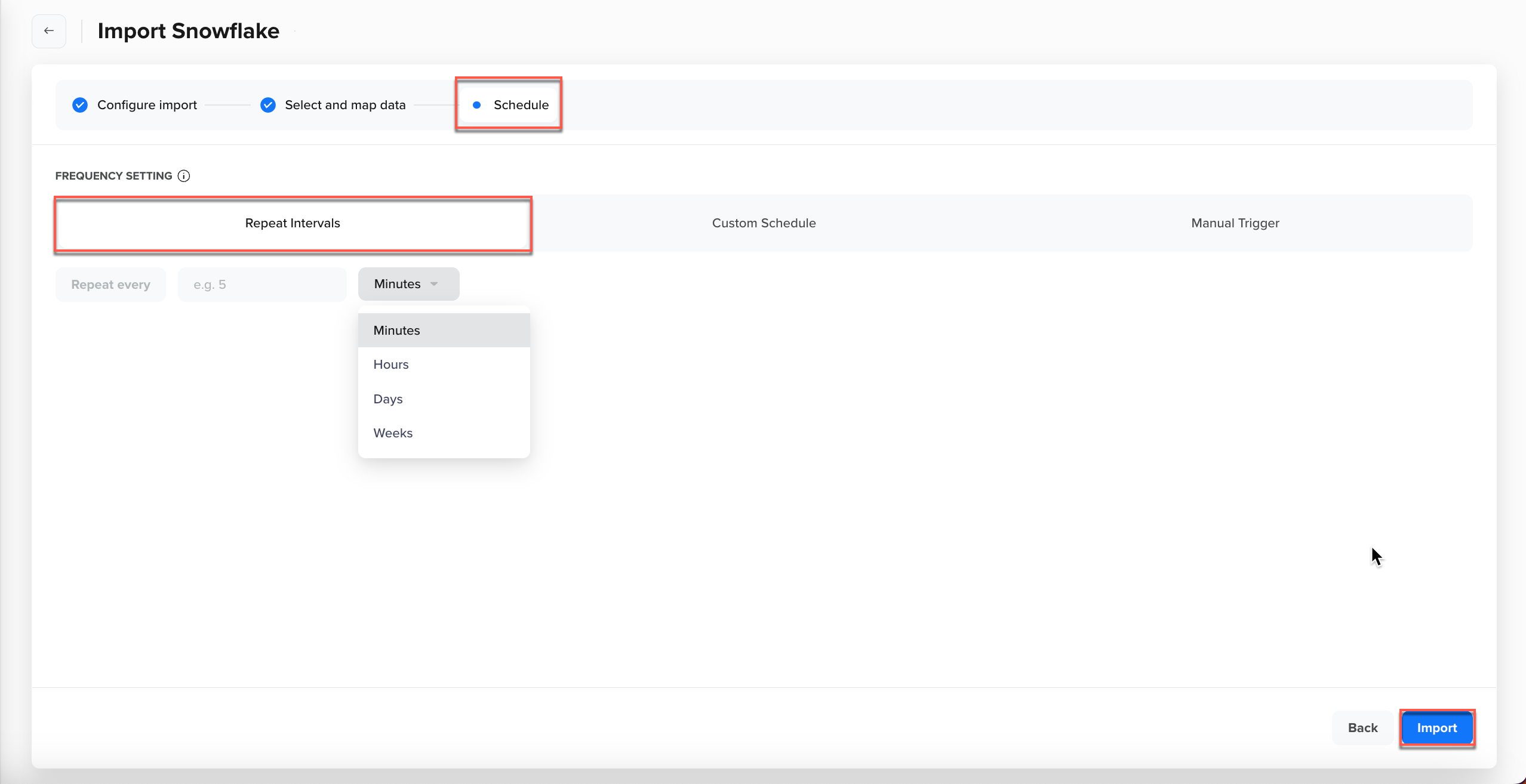
Repeat Intervals
This option is ideal when you want hands-free, regular updates. It ensures your CleverTap data is periodically refreshed. A best practice is to align the interval with your data update frequency. For instance, if your Snowflake data is updated once a day, a daily import interval (or slightly after the update time) is sufficient and avoids unnecessary runs.
Custom Schedule
Use Custom Schedule to set up recurring imports on specific days of the week or specific dates of the month. This option gives you finer control over scheduling, which is useful if your data updates or business processes happen on particular days (for example, weekly reports on Mondays, or a monthly refresh on the 1st of each month). By customizing the schedule, you can align data imports with your reporting cycles or other events in your organization calendar.
In Custom Schedule, you have the following two modes:
- Day of the Week: Schedule imports on specific weekdays at designated times. For example, you want the import to run every Monday and Thursday at 10:00 AM to coincide with weekly analysis or prepare data for a Monday morning report and a mid-week check-in. This ensures data is synced at the beginning and mid-point of the week.
- Day of the Month: Schedule monthly imports for regular reporting or billing updates. For example, you might schedule an import on the 1st of every month at 9:00 AM to capture mid-month and end-of-month data updates.
Configure Custom Schedule
To schedule an import for the day of the week, perform the following steps:
- Select Custom Schedule and select either Day of Week or Day of Month.
- For Day of Week, toggle the desired weekdays (for example, Monday, Thursday). For Day of Month, select the calendar date(s) (for example, 1st, 15th, last day of the month).
- Set the time for each selected day or date. Add multiple schedules if needed.
- Click Import to save the monthly schedule. The import runs at the specified time on the next occurrence of each selected date every month.
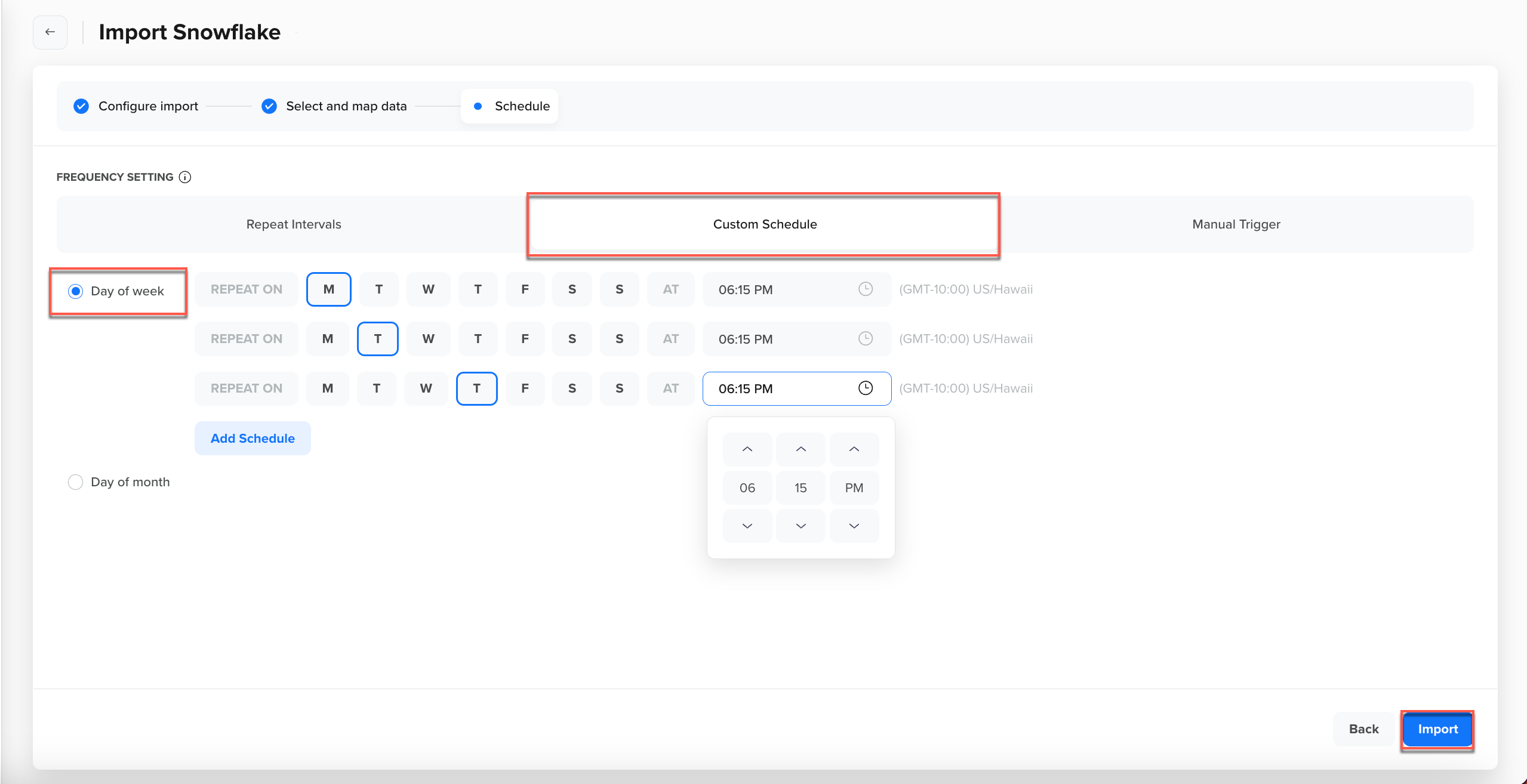
Custom Schedule - Day of Week
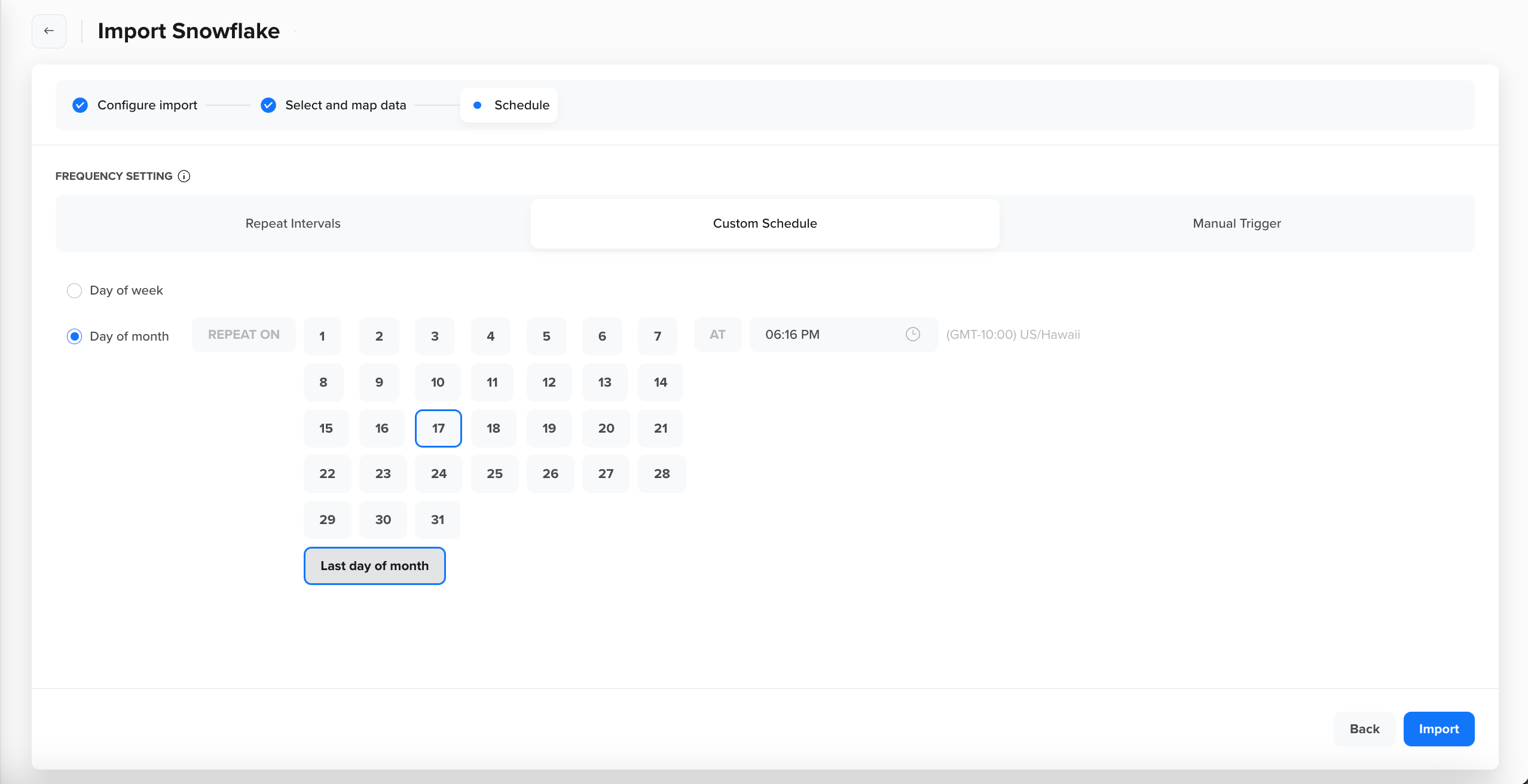
Custom Schedule - Day of Month
Manually Trigger
The Manually Trigger option gives you complete control over when your data import runs, without setting up a recurring schedule. Use this option when you need a one-time import, such as an urgent data backfill, a sync scheduled for a specific future time, or an import that you want to trigger manually as part of an external workflow.
Unlike Repeat or Custom schedules, manual imports do not recur automatically. Instead, you can choose from the following three manual trigger modes:
- Run Immediately
- Run on a Specific Date
- Run Later
Run Immediately
Choose Run Immediately to start the import process immediately after you finish configuring the import. This is helpful for one-time or urgent imports where you want to ingest the data without delay. For example, after setting up a new import, you want to bring in the initial dataset now rather than wait. When you select this option and click Import, CleverTap immediately queues and executes the import job.
After the import runs, the job is listed under the Import Listing page in a Ready state. This indicates that the import configuration is saved, and you can manually trigger the import again at any time. The first run imports all available records, while any subsequent runs fetch only records updated since the last execution, following the standard incremental update behavior.
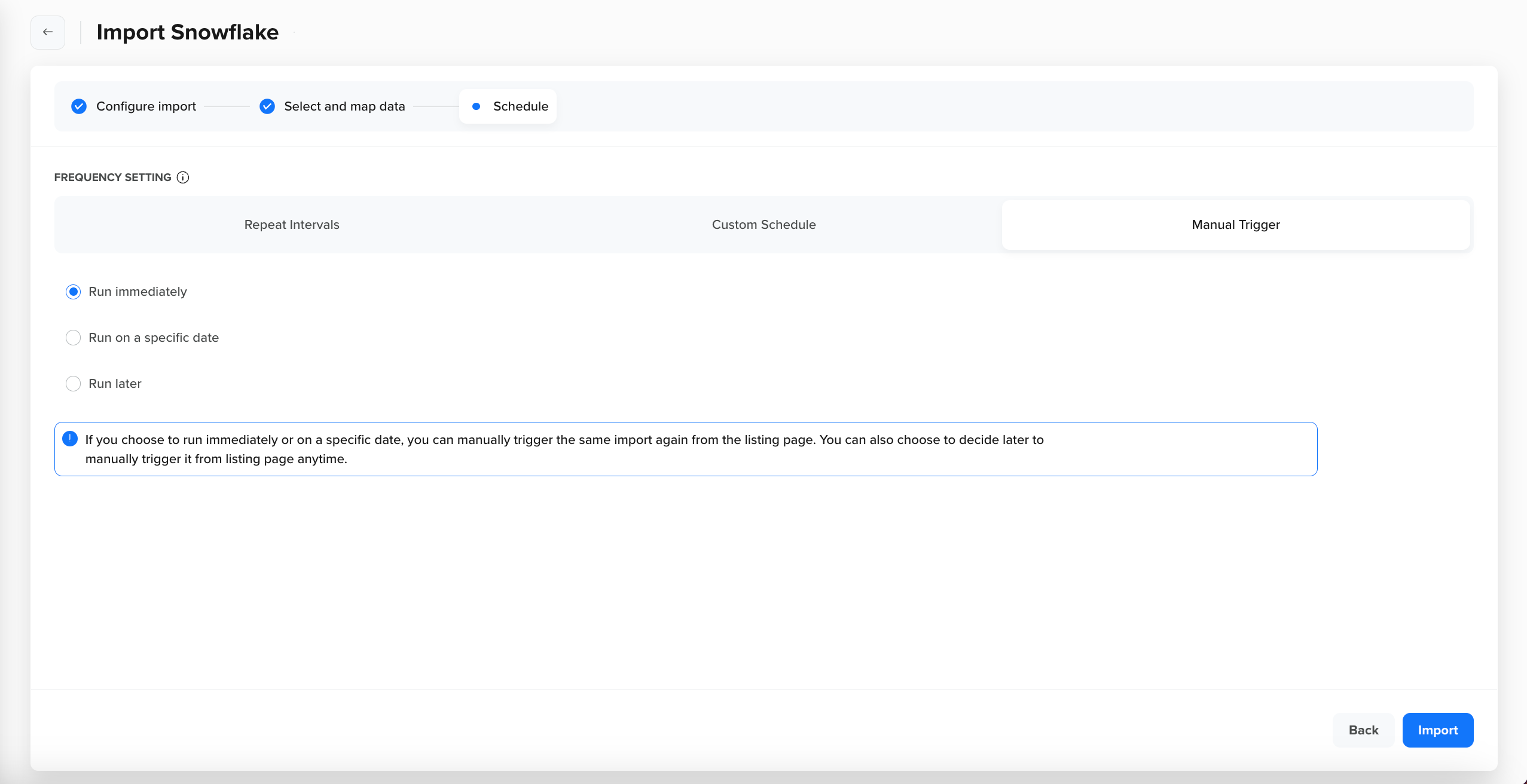
Manual Trigger - Run Immediately
Run on a Specific Date
Choose Run on a Specific Date to schedule a one-time import at a future date and time. Use this option when you need fresh data at a specific moment, for example, syncing a new batch of data before a major campaign launch. You can also use it to set up an import in advance if you plan to start regular imports later; configure everything now and schedule the first run for a future date, switching to a recurring schedule afterward if needed.
When configuring this option, select the exact date and time for the import. The import remains in a scheduled state until the specified time and execute once. After the run completes, the import appears on the Import Listing page in a Ready state, similar to the Run Immediately behavior. From there, you can manually trigger future runs as needed, but the import does not automatically recur unless reconfigured.
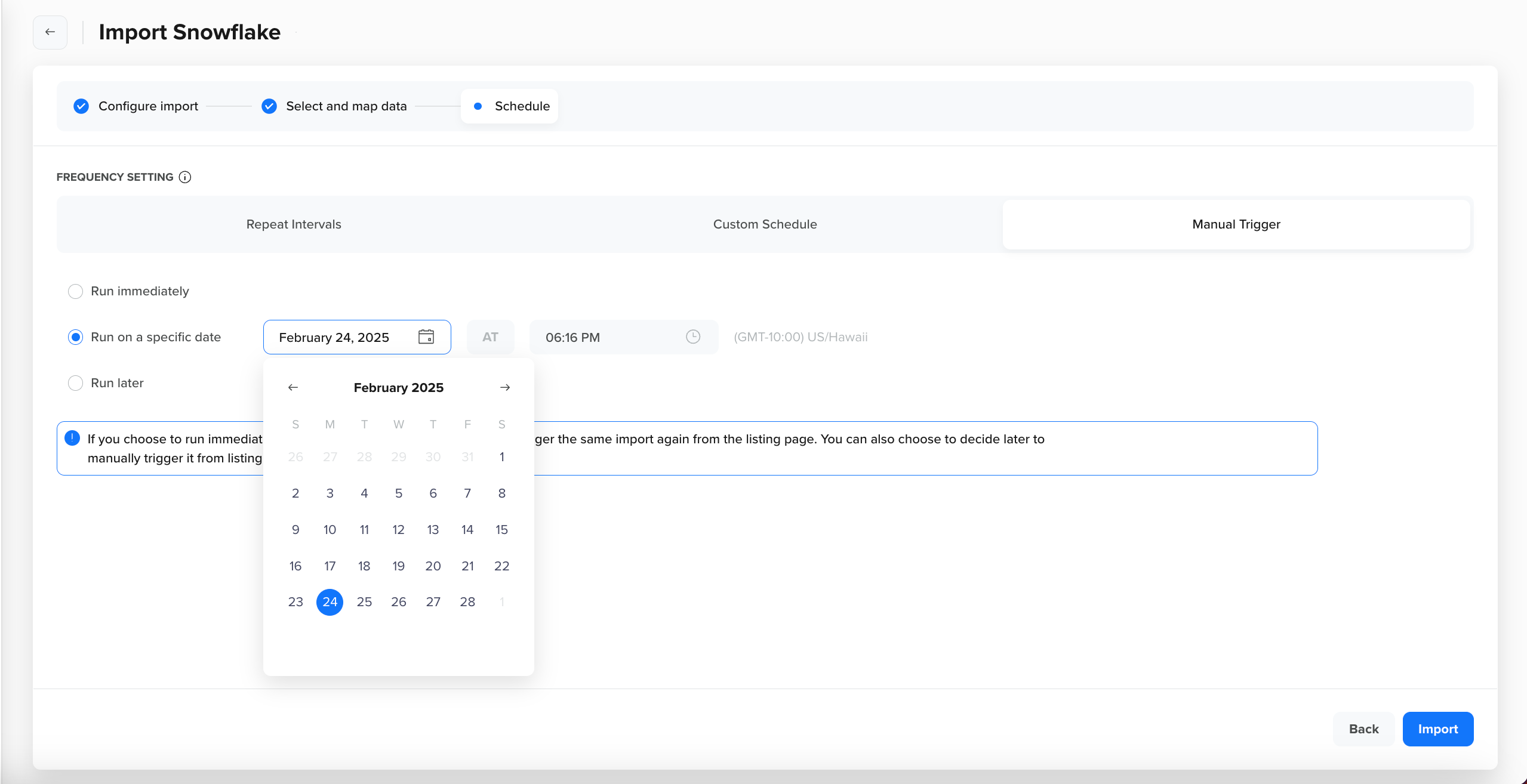
Manual Trigger - Run on a specific date
Run Later
Choose Run Later to configure the import now without immediately executing it. When you select this option and click Import, the import configuration is created and listed in a Ready state on the Import Listing page, but no import is triggered automatically. You can manually run the import at any time by clicking Run.
This option is ideal when you want the import setup ready but are unsure when the data will be available or when you want to execute it. For example, you might prepare an import for an upcoming data migration and only run it after the migration is complete.
Until the first manual run occurs, the import remains in the Ready state with no data ingested. Once triggered, the initial run imports all available records (full import). Subsequent manual runs continue to fetch only new or updated records since the previous execution.
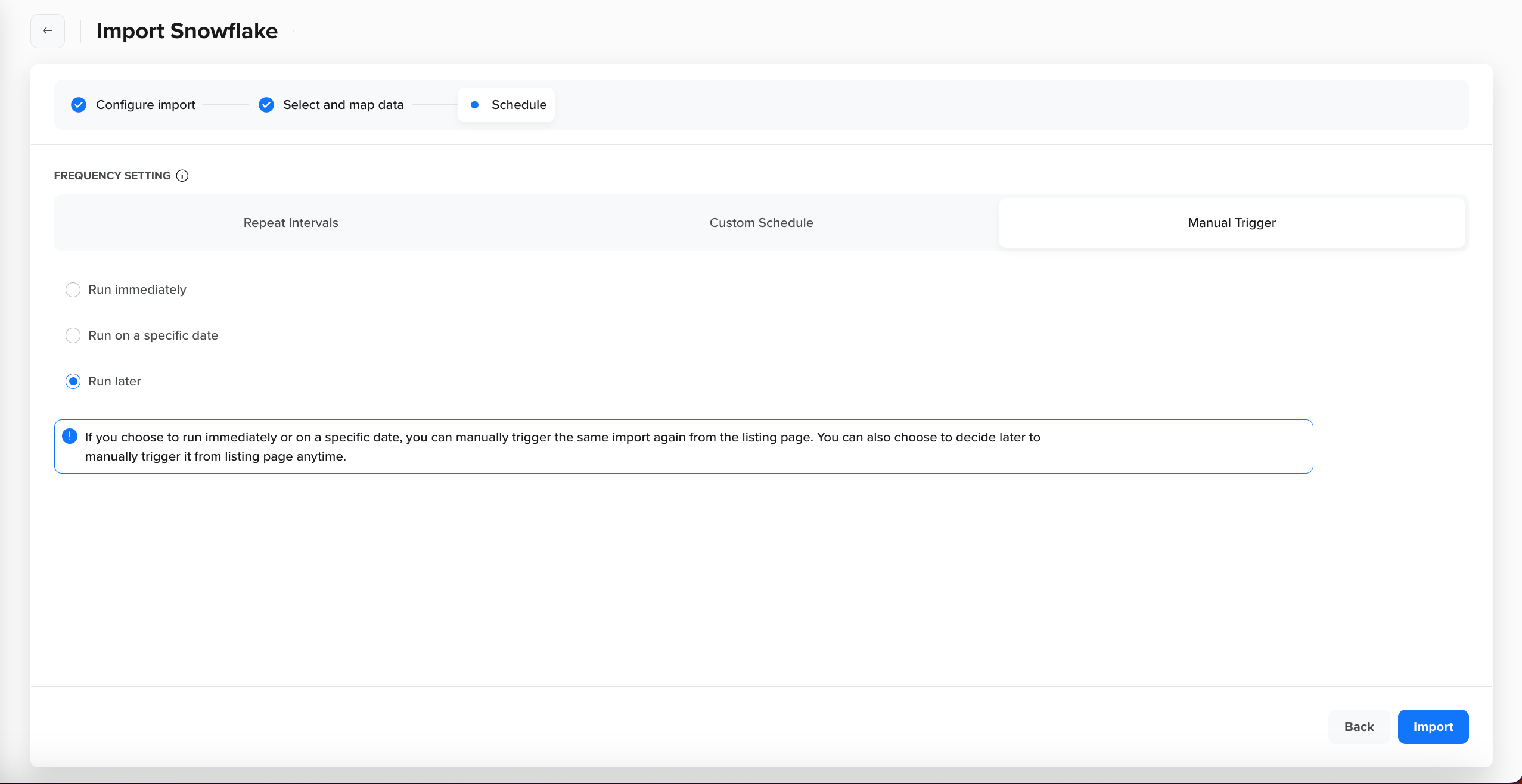
Manual Trigger - Run Later
Manual Imports: Behavior and ReusabilityAll manual trigger options initiate imports that remain in a Ready state after execution, allowing them to be re-run when needed. You can return to the import list at any time and select Run to execute the import again. These imports do not run on a recurring schedule unless explicitly configured.
As with scheduled imports, the initial run will import all available data. Subsequent runs will only import new or modified records to prevent duplication.
Configure Manual Trigger
To configure a manual trigger, perform the following steps:
- Select Manual Trigger and select from the following options:
- Run Immediately: Select this to execute the import right away. Click Import to begin.
- Run on a specific date: Pick a date and time, then click Import. The job will execute automatically at the specified time.
- Run later: Save the configuration without scheduling a run. You can manually trigger the import from the Import Listing page by clicking Run.
- Click Import to save the configuration.
Best Practices for Scheduling
When configuring Snowflake import schedules in CleverTap, keep the following best practices and tips in mind to make the most of these features:
- Align with Data Updates: Schedule imports shortly after your source data is refreshed. For example, if your data warehouse loads new data at 2 AM, schedule the import at 3 AM to capture the latest records. Avoid scheduling too early, as importing stale data can result in redundant or empty syncs.
- Choose the Right Frequency: Use the Repeat Intervals option only as frequently as necessary. While CleverTap allows intervals in minutes, hours, days, or weeks, running very frequent imports (for example, every 15 minutes) might not be needed if your data does not change that often. Remember, 15 minutes is the minimum interval allowed. Many platforms set this limit to balance freshness with performance overhead. If you truly need quicker updates (near real-time), consider using CleverTap APIs or contact support to discuss solutions rather than scheduling an unrealistic import frequency.
- Monitor Import Duration: Track how long each import run takes, especially for large data sets. If your import takes nearly as long as the interval itself, you might end up with overlapping or continuous-running jobs. CleverTap will queue the next run, but it is wise to ensure the interval gives enough buffer. If you notice overlapping, you might increase the interval or switch to a different schedule strategy (or investigate whether you can reduce the data volume per import).
- Use Incremental Data Columns: CleverTap automatically pulls incremental data after the first run. To facilitate this, ensure your Snowflake table has a reliable way to identify new or updated records (for example, an updated_at timestamp). Having such a column and keeping it updated whenever a row changes is crucial. Do not reuse or reset this timestamp to older values – always move it forward (monotonically increasing). This practice ensures no updates are missed and prevents race conditions where a record might not be picked up because its update time fell outside the expected window.
- Avoid Mid-Run Data Changes: Try not to update or insert a large batch of new data during an ongoing import run. If data is being altered while an import query is running, some records might get skipped or partially updated due to timing (this is a general caution for any data integration process). If you need to perform a big update in your warehouse, it might be wise to pause the schedule (or use a manual trigger) and then run an import after the update is complete.
- Leverage Manual Triggers for Flexibility: If your data sync needs do not neatly fit a recurring schedule, use the manual options. For example, you might normally run weekly but occasionally need an extra mid-week import. You can go to the import listing and click Run for an on-demand sync. This will not affect the regular schedule (if one is set) and allows you to get data when needed.
- Review and Adjust: Periodically review your import schedules. Business needs can change – maybe you set a daily import but later realize weekly is enough (or vice versa). It is easy to edit the schedule of an existing import or create a new one with a different frequency. Also, if an import job is no longer needed (for example, if you stopped using a particular dataset), it is best practice to stop that import schedule to reduce unnecessary load.
By applying these options and best practices, you can optimize Snowflake data imports into CleverTap to fit your operational needs. Choose a repeat interval for ongoing updates, customize schedules for more flexibility, or use manual triggers for complete control. Aligning your import strategy with your data availability and business processes ensures you always have the latest information in CleverTap, with minimal manual effort.
Updated 19 days ago