
Databricks Configuration
Learn how configuring Databricks with CleverTap enables data sync for personalized engagement and growth.
Overview
Configuring Databricks with CleverTap enables seamless data import, ensuring synchronization and access to relevant information for analysis, personalized engagement, and data-driven growth.
Private BetaDatabricks is a private beta release. Contact your Customer Success Manager for access.
Quick Start Guide for Existing Users
Expand for quick setup if your Databricks workspace is already configured.
This section is intended for users who already have a configured Databricks workspace and are familiar with the CleverTap dashboard.
Prerequisites
Before you begin, ensure you have the following details:
- Host
- HTTP Path
- Personal Access Token (PAT)
- Catalog
- Schema
- Port
Configure Databricks Credentials in CleverTap
To set up the Databricks credentials in CleverTap, perform the following steps:
- Go to CleverTap Dashboard > Settings > Partners > Databricks.
- Enter the following details: Host, HTTP Path, Personal Access Token (PAT), and Catalog.
- Enter Schema and Port (defaults to
443if not provided). - Click Test Connection and Save.
After setting up the configuration, you can import data between Databricks and CleverTap.
Prerequisites for Integration
If you are setting up Databricks for the first time, ensure you have the following before proceeding with the CleverTap configuration:
-
CleverTap Access to configure Databricks.
-
Databricks Workspace Details:
- Host: Workspace domain (for example,
adb-1234567890123456.17.azuredatabricks.net). - HTTP Path: HTTP path of the target SQL Warehouse (endpoint).
- Personal Access Token (PAT): Token authorized to access the SQL Warehouse.
- Catalog and Schema: Unity Catalog objects where data will be read/written.
- Port: If a port is specified, CleverTap uses it; otherwise, the connection defaults to
443
- Host: Workspace domain (for example,
-
Databricks Identity and Permissions (user or service principal associated with the PAT): (@parth should I remove this section? can be a part of PAT)
- USAGE on the chosen catalog and schema.
- For imports: SELECT on relevant tables (optionally on FUTURE TABLES).
Set Up Databricks for Integration
You can set up Databricks using one of the following ways:
- For new users who need to provision Databricks resources from scratch: Create a new Catalog, Create a SQL Warehouse, Create Personal Access Token, Create a Schema.
- For users who already have configured resources in Databricks: Use existing Databricks Credentials
Create New Databricks Setup
If you do not already have a Catalog, SQL Warehouse, User/Service Principal, and Schema configured in Databricks, you must create them before proceeding. These components are required to ensure CleverTap can securely access, store, and process your data.
To create each resource, perform the following steps:
Create Catalog
To get your Databricks data in CleverTap, you first need to create a Unity Catalog. Follow these steps:
-
Open a SQL editor with Unity Catalog enabled.
-
Run the following SQL command to create a catalog:
-- Create a new catalog for CleverTap data storage
CREATE CATALOG IF NOT EXISTS CLEVERTAP_CATALOG;

-- Verify catalog creation
SHOW CATALOGS;
Expected Output
Create SQL Warehouse
CleverTap executes queries through a Databricks SQL Warehouse. Create a dedicated warehouse for CleverTap to avoid contention with other workloads.
Run the following command in the Databricks SQL UI or via the REST API (settings may vary by account policy):
Note:Enable auto-stop to control costs and ensure the PAT identity can use this warehouse. Record the HTTP Path from the warehouse’s connection details.
Create Personal Access Token
Create or identify the Databricks identity you will use with CleverTap, then generate a Personal Access Token (PAT).
- In Databricks, go to Settings from your profile.
- Under User, select Developer.
- In Access Tokens, click Manage.
- Click Generate New Token, then click Generate.
- Copy the token value and click Done.
- Store the token securely; you will paste it in the Personal Access Token (PAT) field in CleverTap.
Expected Output
A new token value is displayed once. Copy it and store it securely.
Create Schema
After creating the catalog, you must create a schema to organize CleverTap-related objects. To do so, perform the following steps:
-
Ensure you are using the correct catalog context:
-- Switch to the CleverTap catalog USE CATALOG CLEVERTAP_CATALOG; -
Execute the following SQL command to create a schema:
-- Create a new schema for CleverTap data
CREATE SCHEMA IF NOT EXISTS CLEVERTAP_SCHEMA;

-- Verify schema creation
SHOW SCHEMAS;
Expected Output
Use Existing Databricks Credentials
If you already have Databricks set up, perform the following steps to find each detail on the Databricks workspace.
- Obtain Your Databricks Host
- Find Existing SQL Warehouse (HTTP Path)
- Create or Retrieve a PAT
- Find Existing Catalog
- Find Existing Schema
Obtain Your Databricks Host
To configure the integration, you need your Databricks host. Follow these steps to find it:
- In Databricks, open SQL.
- Select Warehouses from the left panel to view available warehouses.
- Open the target warehouse and copy the Host.
Find Existing SQL Warehouse (HTTP Path)
If you need to check for existing SQL Warehouses and retrieve the HTTP Path, follow these steps:
- In Databricks, open SQL.
- Select Warehouses from the left panel to view available warehouses.
- Open the target warehouse and copy the HTTP Path from Connection details.
Create or Retrieve a PAT
To authenticate CleverTap, generate a Personal Access Token:
- In Databricks, go to User Settings.
- Select Developer / Access Tokens and click Generate New Token.
- Copy the token value and store it securely.
Find Existing Catalog
If you need to check for existing catalogs in your workspace:
- Open Data Explorer in Databricks.
- Review the list under Catalogs to identify the catalog to use with CleverTap.
- Alternatively, run:
Find Existing Schema
To find existing schemas in a specific catalog that are needed for CleverTap imports, perform the following steps:
- In Data Explorer, select the desired Catalog.
- Select Schemas to view all available schemas within that catalog.
- Alternatively, run:
Set Up CleverTap Dashboard for Integration
You have already prepared your Databricks environment and gathered the required values (Host, HTTP Path, Personal Access Token, Catalog, and optionally Schema and Port). In this section, you will add a Databricks connection in CleverTap, enter these parameters exactly as retrieved, validate the connection, and proceed to create an import.
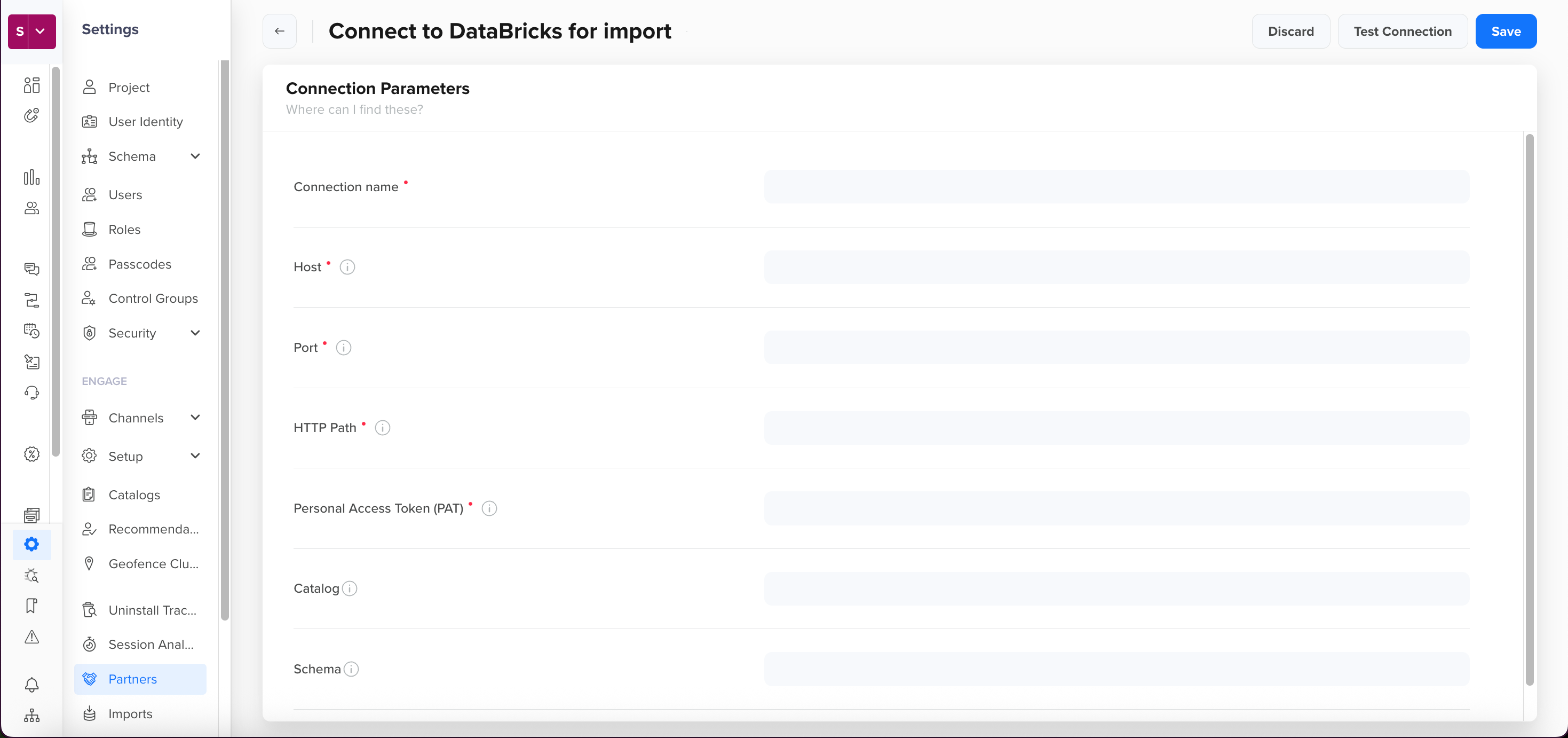 Connection Details for Databricks
-
To connect Databricks with CleverTap, go to Settings > Partners > Databricks and select Add Database. To create or retrieve details from your Databricks workspace, refer to Create a new Catalog, SQL Warehouse, User/Principal, and Schema or Use existing Databricks credentials and configure the following:
| Field | Description |
| --------------------------- | ---------------------------------------------------------------------------------------------------------------------------- |
| Connection name | A unique name that you will use further to identify your configuration while setting up imports. |
| Host | The Databricks workspace host (domain only; no protocol). Refer to Obtain Your Databricks Host. |
| Port | HTTPS port used to reach Databricks. If a port is specified, CleverTap uses it; otherwise, the connection defaults to443. |
| HTTP Path | The HTTP path of the target SQL Warehouse/endpoint in Databricks. |
| Personal Access Token (PAT) | The token used by CleverTap to authenticate to Databricks. Refer to Create or Retrieve a PAT. |
| Catalog | The Unity Catalog used for CleverTap data operations. |
| Schema | The specific schema within the catalog that will contain tables created by CleverTap. | -
Click Test Connection or Save to start the import after adding the details:
- Test Connection: Verifies if the workspace, HTTP Path, token, and privileges are correct. A successful test confirms the connection; a failure prompts you to review your settings.
- Save: Saves the connection details, enabling you to proceed with the data import process.
-
After saving the Databricks Connection, Create Import from the Import Connections dashboard.
FAQs
How can I delete a connection that has running imports?
Go to Import Connections, select the connection, click Delete, review the list of running imports, and confirm Delete. This will result in stopping all the imports that were running before deleting the connection.
How can I filter import connections?
Use the Filter option on Import Connections to refine displayed databases:
- Connected On: Select a date range to view connections created within that timeframe.
- Connected By: Filter by email IDs of users who created the connections.
How can I whitelist IPs for CleverTap integration?
To ensure seamless communication between CleverTap and your systems, whitelist the required IP ranges. To access the list of IPs to whitelist for import integrations, refer to CleverTap IP Ranges.
Updated 19 days ago