
Create Snowflake Import
Learn how to import data from Snowflake into CleverTap to enable personalized targeting and optimized campaigns.
Overview
Once your CleverTap Snowflake integration is in place, you can seamlessly import data from Snowflake into CleverTap. To get started, set up your import by specifying your data source and query type and validating your setup.
This document guides you through setting up a new Snowflake import, including query creation and data validation, to ensure smooth and accurate data ingestion.
Create Import
To begin importing from Snowflake to CleverTap, perform the following steps:
- Go to Settings > Partners > Import center and click Create Import.
- Select Snowflake from the Create Import popup.
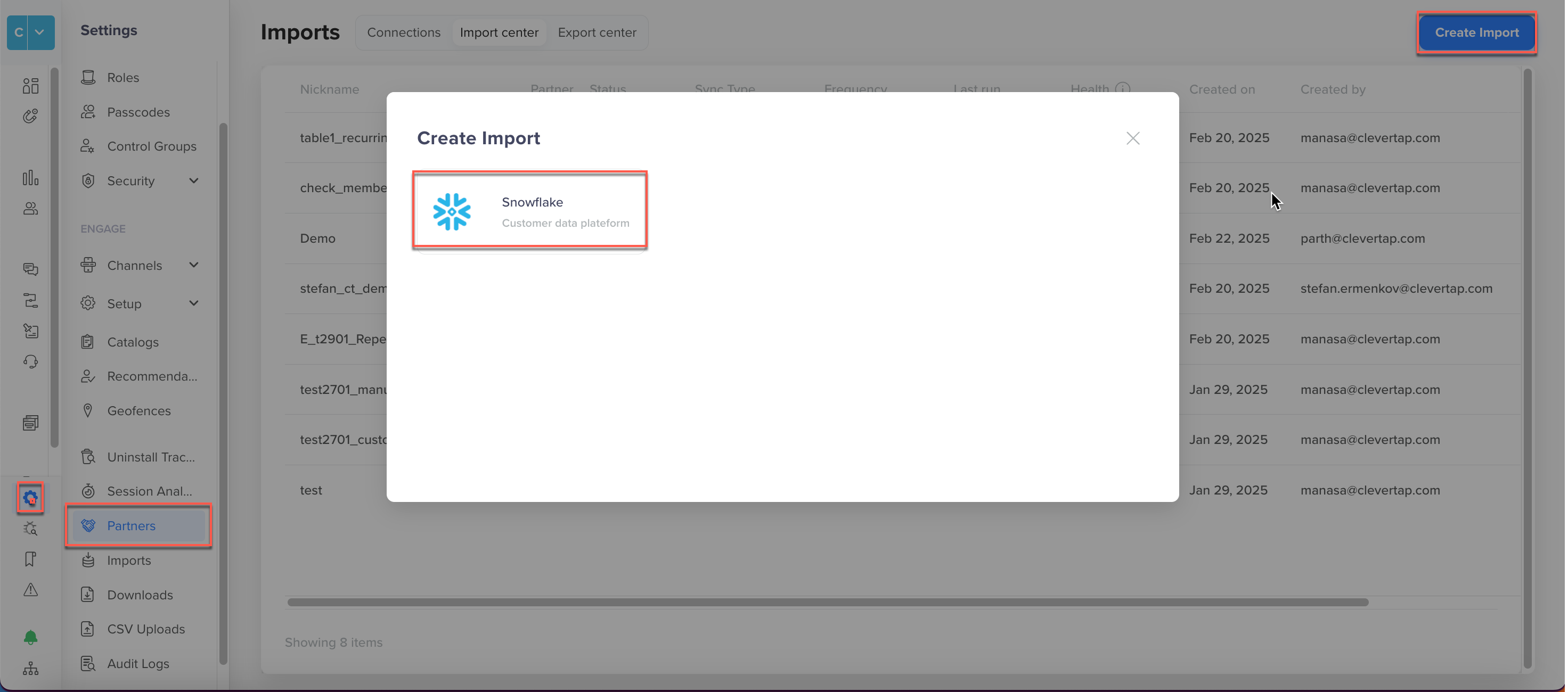
Create Import
- Under Configure Import, add the following details:
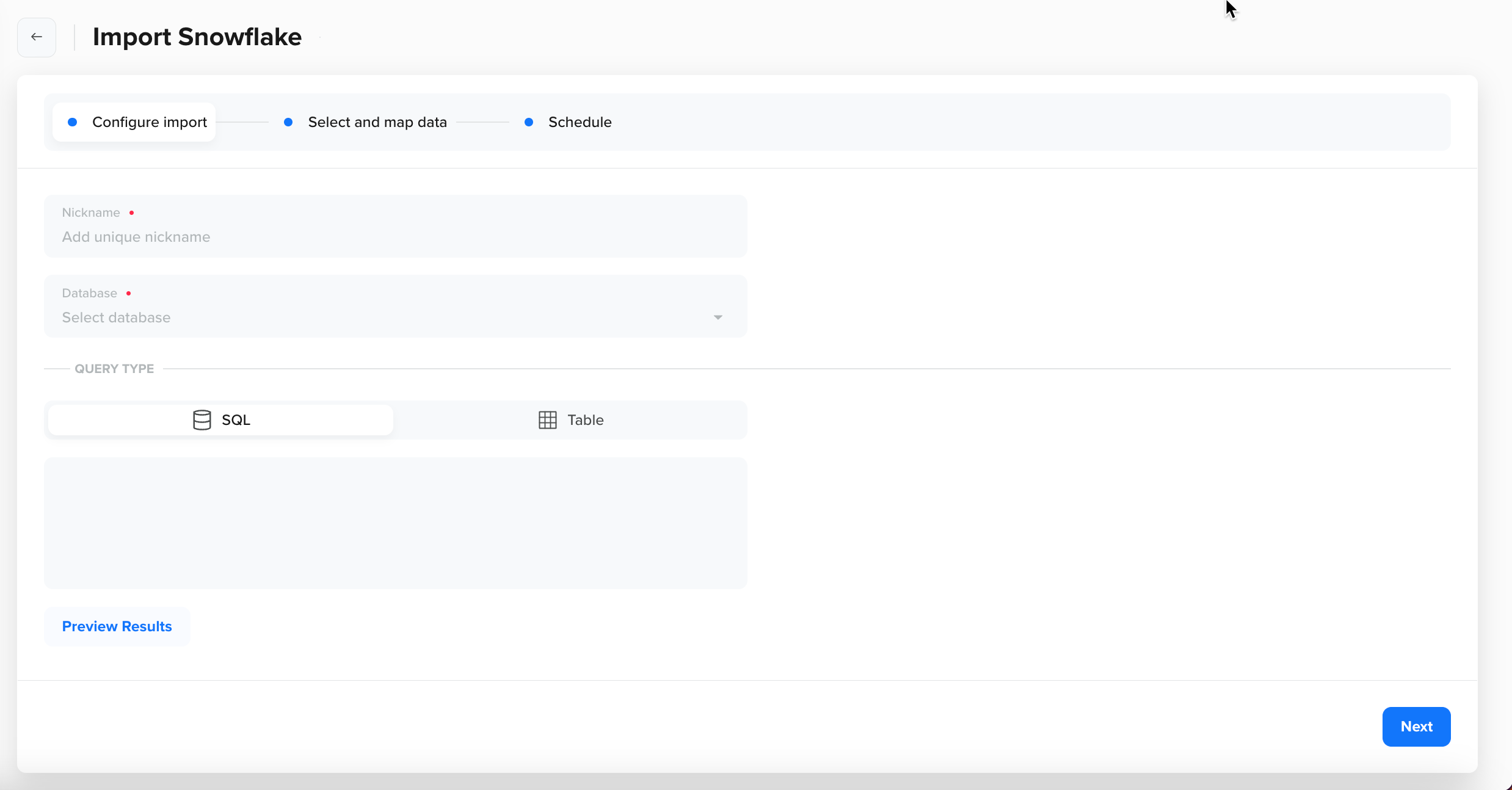
Configure Import
Field | Description |
|---|---|
Nickname | A unique name to identify the import configuration in CleverTap. Choose a name that reflects the purpose of the import (for example, "User Data Import"). |
Database | Select the Snowflake database from the dropdown. Ensure the database has been integrated with CleverTap. For more information, refer to Database Details. |
Query Type | Specifies how data is selected from Snowflake for import into CleverTap. Available options are as follows: |
Preview Results | Fetches a preview of query results to validate data accuracy before saving the configuration. When you select Preview Results, the provided SQL query or table selection is executed on the Snowflake database, and a limited number of rows are fetched to minimize processing time. The retrieved data is displayed, allowing you to validate the query or table selection. If there are any issues, such as syntax errors or access problems, they are highlighted to help with troubleshooting. |
Preview ResultsPreviewing results is solely for validation purposes and does not import any data into CleverTap.
Once you validate your data using Preview Results, click Next to move on to the mapping step. In this step, map event data or user profile data from your Snowflake database to ensure accurate data with the datatype is transformed before pushing it to CleverTap. For detailed instructions, refer to Map Data for Snowflake Import.
Updated 19 days ago