
Branded Domain
Learn how to configure system and custom domains to generate branded tracking links to boost engagement.
Overview
Branded Domains in CleverTap help you apply your brand to tracking across Email, SMS, WhatsApp, and RCS campaigns.
- For SMS, WhatsApp, and RCS campaigns, it is used to generate short, trackable links.
- For Email campaigns, it is used to brand links and open-tracking pixels using a custom domain.
Using branded domains improves user trust and can boost engagement rates.
Private BetaThis feature is currently released in Private Beta. If you want to access the feature, contact your Customer Success Manager.
Domain Types
CleverTap supports two types of branded domains:
| Domain | Description | Supported Channels |
|---|---|---|
| System Domain | Provided by CleverTap, where you can customize the system-generated short links with your brand's prefix for easy integration without the need for DNS configuration. | WhatsApp, SMS & RCS |
| Custom Domain | Enables you to use your own subdomain for complete control over your branding and tracking. To use a custom domain, you will need to configure DNS records with your domain provider for proper verification and campaign tracking. | Email, WhatsApp, SMS & RCS |
Both options allow you to define specific settings, such as the URL structure and 404 error page, ensuring your branded domain is set up to suit your needs.
Add Domain
This section provides information about creating a branded system and a custom domain for your campaigns. To add a domain, perform the following steps:
- Go to Settings > Set Up > Branded Domain.
- Click Add Domain and select the channel.
- Enter the details you are prompted to provide based on the selected channel. For more information, refer to System Domain and Custom Domain.
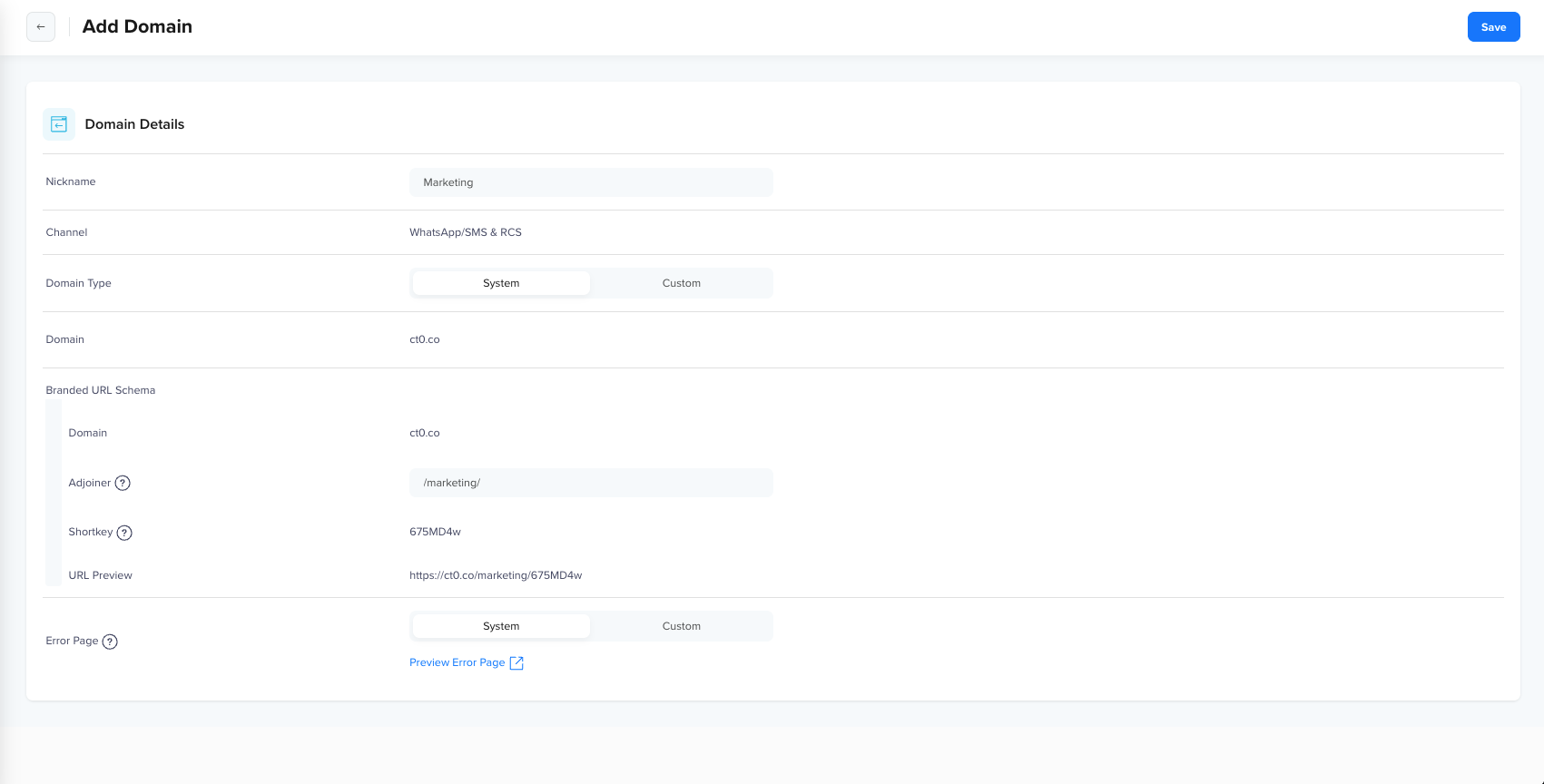
Add Domain
- Click Save.
- For a System Domain, the status is set to Active immediately.
- For a Custom Domain, the status is set to Pending Verification, and DNS records are generated for you to configure with your domain provider.
Add System Domain
You can create a system domain to quickly start using branded links in your WhatsApp/SMS & RCS campaigns without DNS configuration. To add a system domain, enter the following details:
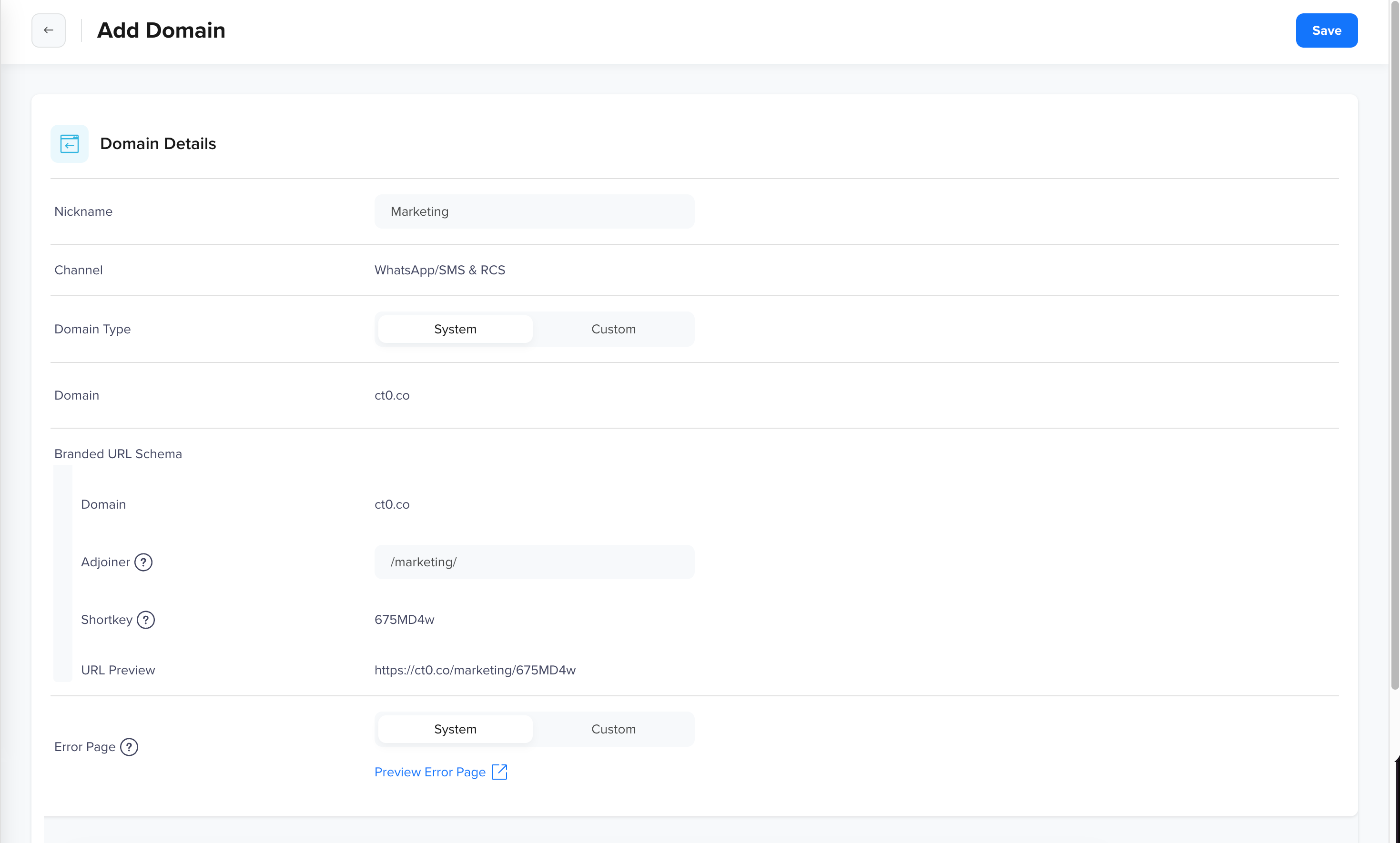
Add System Domain for WhatsApp/SMS & RCS
| Field | Description |
|---|---|
| Nickname | Provide a name to identify the domain (for example, "Marketing"). |
| Channel | Displays the channel for which the branded domain is being created. |
| Domain Type | A CleverTap-provided system domain that can be customized with your brand prefix. No DNS setup required. This is available only for WhatsApp/SMS & RCS channels. |
| Domain | The base domain used for branding and tracking. When adding a system domain, this is auto-filled based on your account region. For more information, refer to Domain and Account Region Mapping for WhatsApp/SMS & RCS below the table. |
| Branded URL Schema | Defines the structure of the branded tracking URL. This is available for WhatsApp/SMS & RCS channels and is required for adding a system domain. URL Structure:
ct3.io/clevertap/abc123 |
| Error Page | The page users see if a tracking link is invalid or has expired. You can use CleverTap’s system error page or provide a custom URL to maintain brand consistency even in error scenarios. Click Preview Error Page to view and verify the error before the domain becomes active. |
Once you enter all the details, click Save. The status is set to Active immediately
Domain and Account Region Mapping for WhatsApp/SMS & RCS
Dashboard URL Region System Domain Example URL eu1.dashboard.clevertap.com EU ct1.io ct1.io/25AlJz in1.dashboard.clevertap.com IN ct3.io ct3.io/52KlAz sg1.dashboard.clevertap.com SG ct4.io ct4.io/25ZlAz us1.dashboard.clevertap.com US ct5.io ct5.io/52ZlKa mec1.dashboard.clevertap.com Middle East ct8.io ct8.io/25ZaJz aps3.dashboard.clevertap.com Indonesia ct9.io ct9.io/52KJz
Add Custom Domain
Use your own subdomain (for example, sales.yourbrand.com) for maximum brand visibility. This option allows you to fully control the branding and tracking for your campaigns.
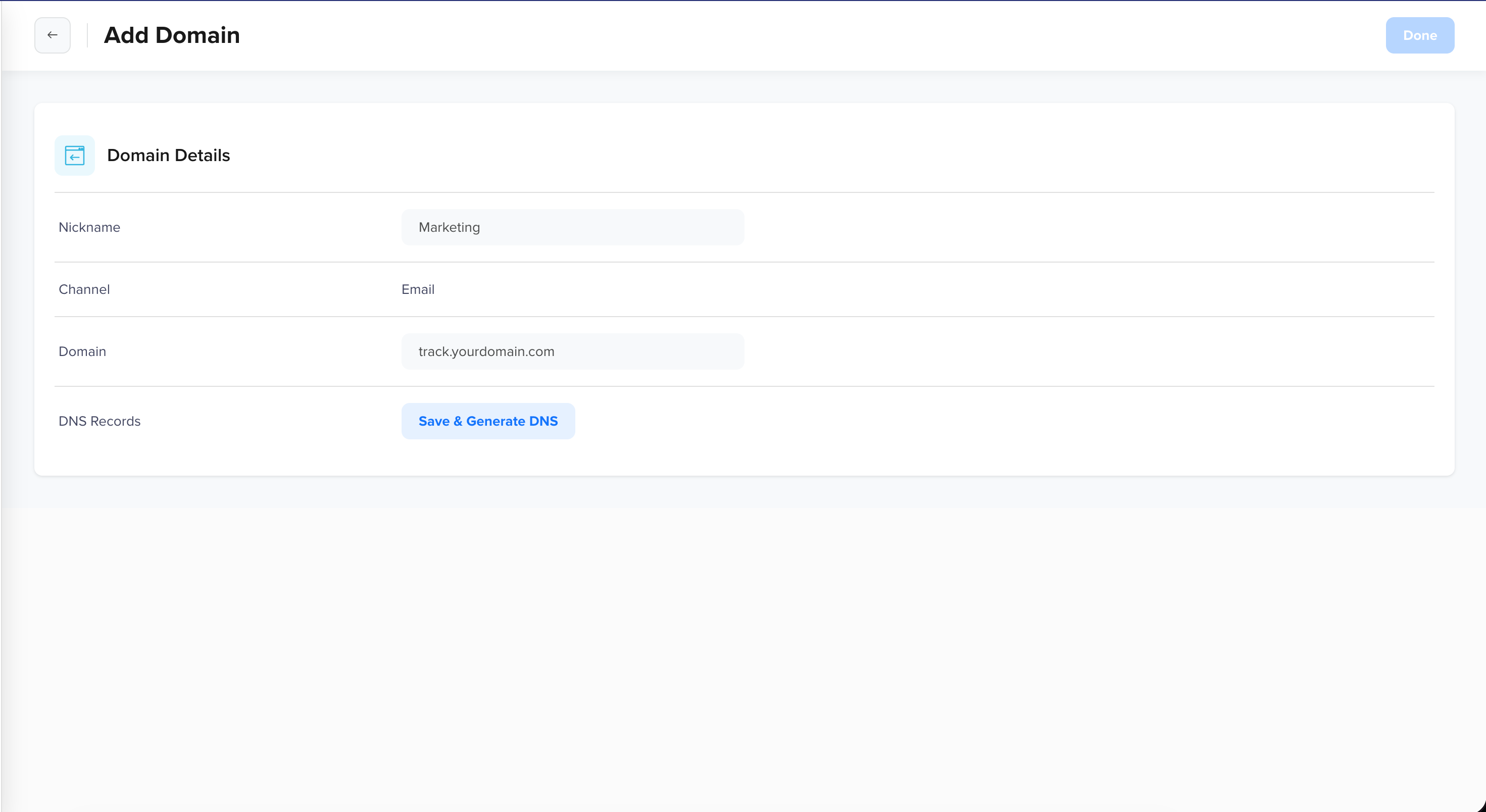
Add Custom Domain for Email
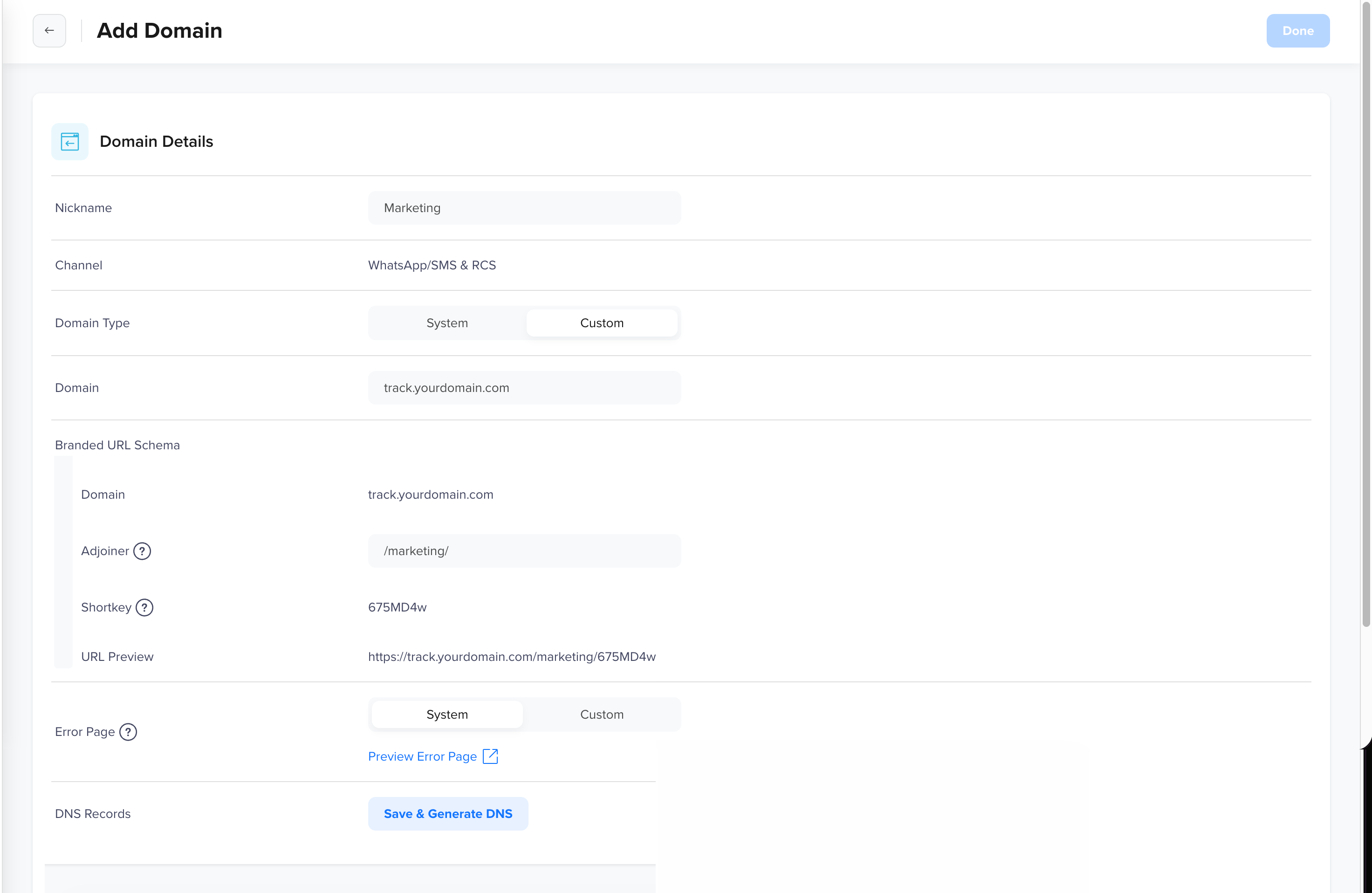
Add Custom Domain for WhatsApp/SMS & RCS
| Field | Description |
|---|---|
| Nickname | Provide a name to identify the domain (for example, "Marketing"). |
| Channel | The channel this branded domain will be used for. |
| Domain Type | Your own subdomain (for example, links.yourbrand.com) that requires DNS configuration. |
| Domain | Enter your own subdomain to be used for branding and tracking |
| Branded URL Schema | This is available for WhatsApp/SMS & RCS channels and is required for adding a custom domain. It defines the structure of the branded tracking URL. |
| Error Page | Optional field. Available only for WhatsApp/SMS & RCS channels. Provide the page you want users to see if a tracking link is invalid or has expired. You can use CleverTap’s system error page or provide a custom URL to maintain brand consistency even in error scenarios. Click Preview Error Page to view and verify the error before the domain becomes active. |
Once you enter all the details, click Save & Generate DNS. The domain status is set to Pending Verification immediately, and DNS Records are generated to configure it on your Domain provider dashboard. The generated records include two CNAME records and one TXT record
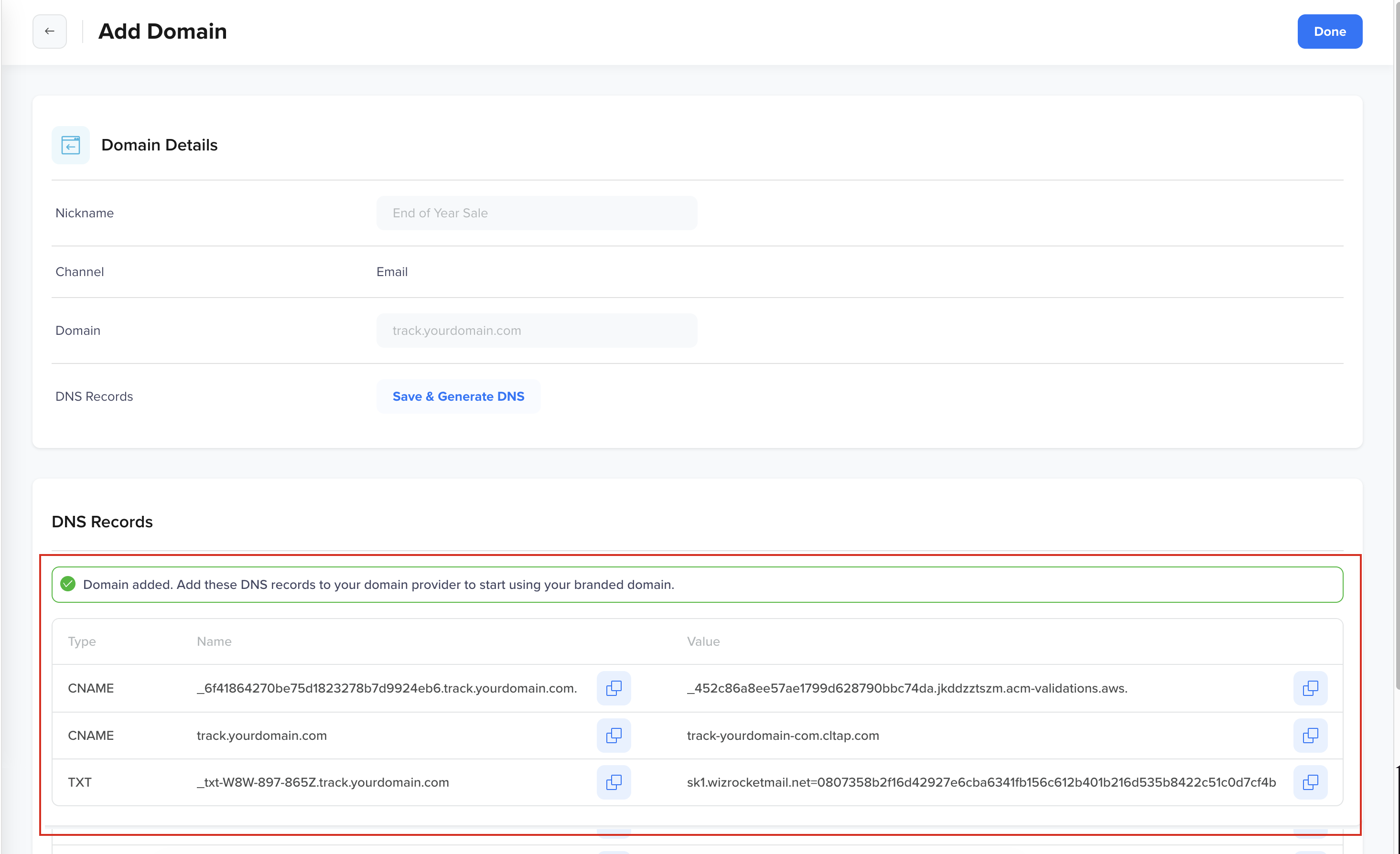
DNS Records Generated for Email
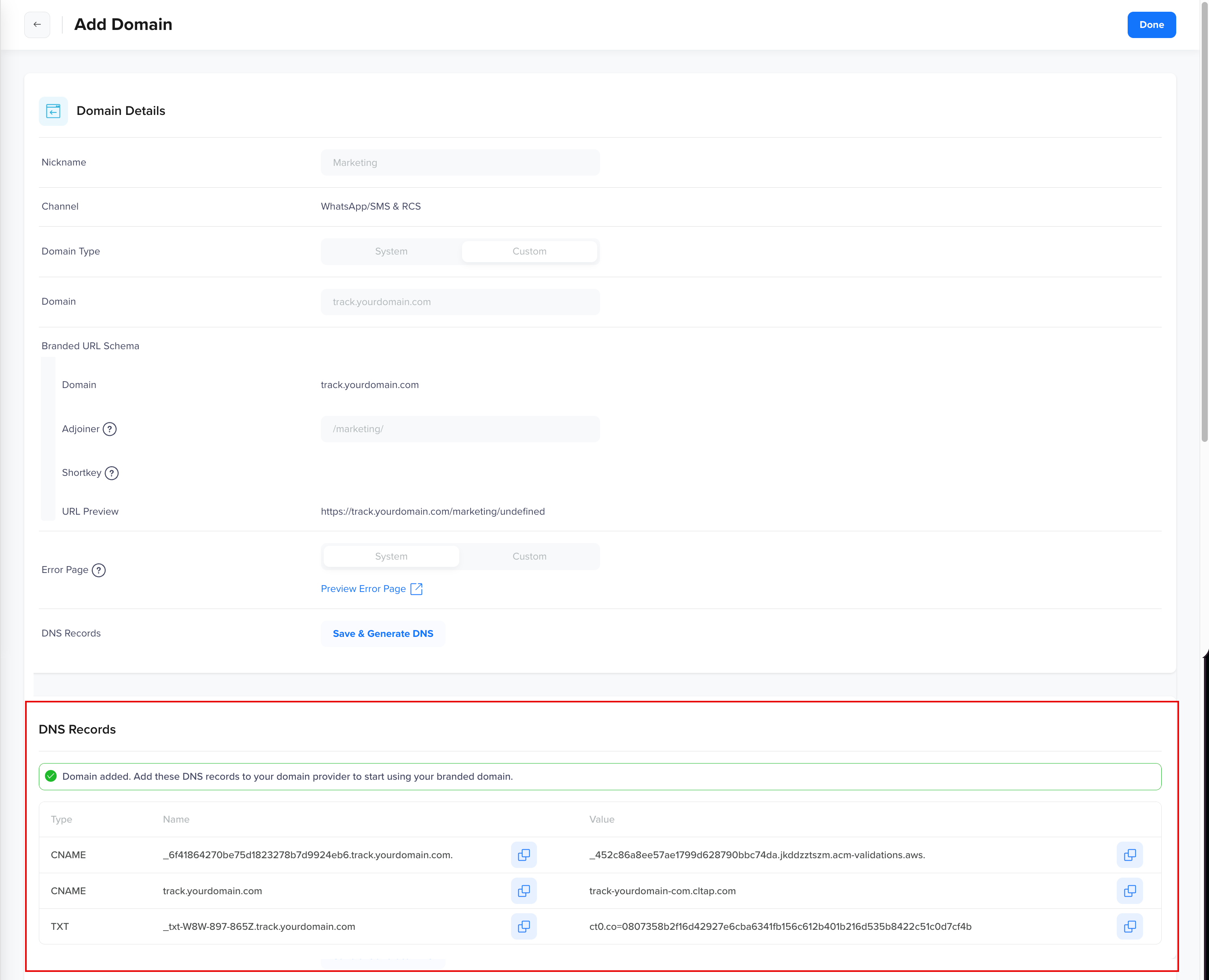
DNS Records Generated for WhatsApp/SMS & RCS
Verify Custom Domain
After DNS records are generated, verify them so the domain becomes active and available for use. To do so, perform the following steps:
- Go to the domain provider dashboard and configure the following DNS records. When configuring DNS records with your domain provider, enter only the prefix part in the Name field. The prefix is the part that precedes the main domain. For example, if the CNAME is
_c58ebcb5c******5f03bb6b174349.track.yourdomain.com, enter_c58ebcb5c******5f03bb6b174349.trackin the Name field.
| Type | Description |
|---|---|
| CNAME | Used for domain ownership verification. |
| CNAME | Redirects branded links to CleverTap's short URL service for WhatsApp/SMS & RCS campaigns. For Email campaigns, it supports click and open tracking. |
| TXT | Verifies domain association with CleverTap. |
- Once your DNS records are saved, go back to the Branded Domain page on the CleverTap dashboard.
- Click the
 icon next to your domain to verify your domain and refresh the status on the CleverTap dashboard. DNS verification may take up to 24 hours to complete. If verification fails, check your DNS configuration with your domain provider to ensure it is accurate. If the settings are correct, try refreshing after some time.
Best Practices for Adding Domain in CleverTap
Here are some tips to ensure your branded domain setup is effective and compliant:
- For System Domains (like
ct3.io/yourbrand/abc123):- Choose a short and meaningful Adjoiner that clearly represents your brand or campaign type.
- Use lowercase letters and hyphens (
-) if needed (for example,/clevertap/,/new-user/,/sale2024/). - Keep it concise: Aim for 5–8 characters in the Adjoiner (excluding the slashes) to avoid long URLs in campaigns.
- Avoid vague terms like
/track/or/link/— use something unique to your brand.
- For Custom Domains (like
links.yourbrand.com):- Use a subdomain such as links., click., or promo. (for example,
links.yourbrand.com,click.yourbrand.com). - Keep the Subdomain short, relevant, and easy to remember.
- Avoid complex words, long phrases, or special characters in the Subdomain name.
- Ensure you configure DNS records exactly as shown after setup to avoid delays in verification.
- Use a subdomain such as links., click., or promo. (for example,
- Avoid the following:
- Using more than 20 characters in the Adjoiner or Subdomain.
- Starting or ending Adjoiners with hyphens.
- Using non-brand-specific generic terms.
Pro Tip: Buy New Short Domain for CampaignsIf your existing domain is long or complex, consider purchasing a new, short domain for marketing messages. Ideally, the domain must be 5–8 characters long and phonetically similar to your brand name. This improves:
- Link trustworthiness
- User recall and voice-based sharing (for example, over phone or radio)
- Visual clarity in messages and notifications
Examples:
- If your brand name is long (for example, ExampleStore), consider short domain options like exstr.in, exsto.co, or exst.co.
- For multi-word brand names (for example, Example Food Market), you could use shortened versions such as exfdmr.com, efmkt.in, or xfmk.co.
Manage Branded Domains
The Domain Listing page allows you to view and manage all your configured domains. You can easily edit domain settings, view DNS records, and make any necessary updates to check if your domains are correctly set up and functioning.
Go to Settings > Set Up > Branded Domains. You can see a list of all your domains (system or custom), including the following details:
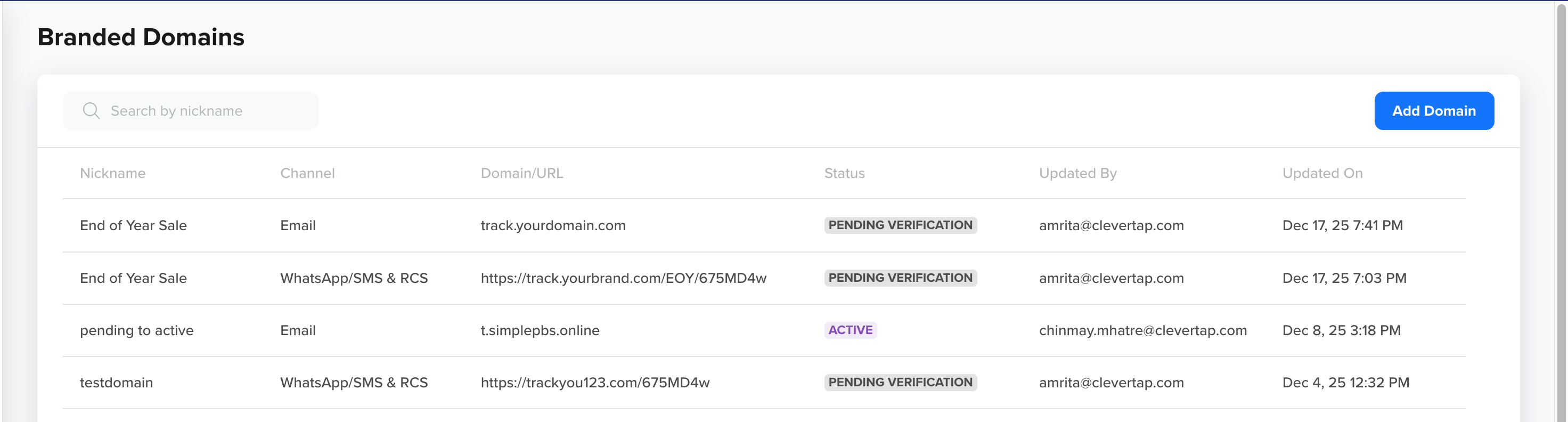
Branded Domains Page
| Column | Description |
|---|---|
| Nickname | A user-defined name to help you identify the domain (for example, "Sales Campaign"). |
| Domain URL | Displays the full URL of the branded domain being used for tracking links in the case of WhatsApp/SMS & RCS campaigns (for example, ct3.io/clevertap/abc123). Displays the branded domain being used for email campaigns (for example, track.yourdomain.com). |
| Created By | The email address of the user who created the domain. |
| Status | The current status of the domain. It can be:
|
| Last Updated On | The timestamp when the domain settings were last updated. |
After adding the domain, you can perform the following operations by hovering it:
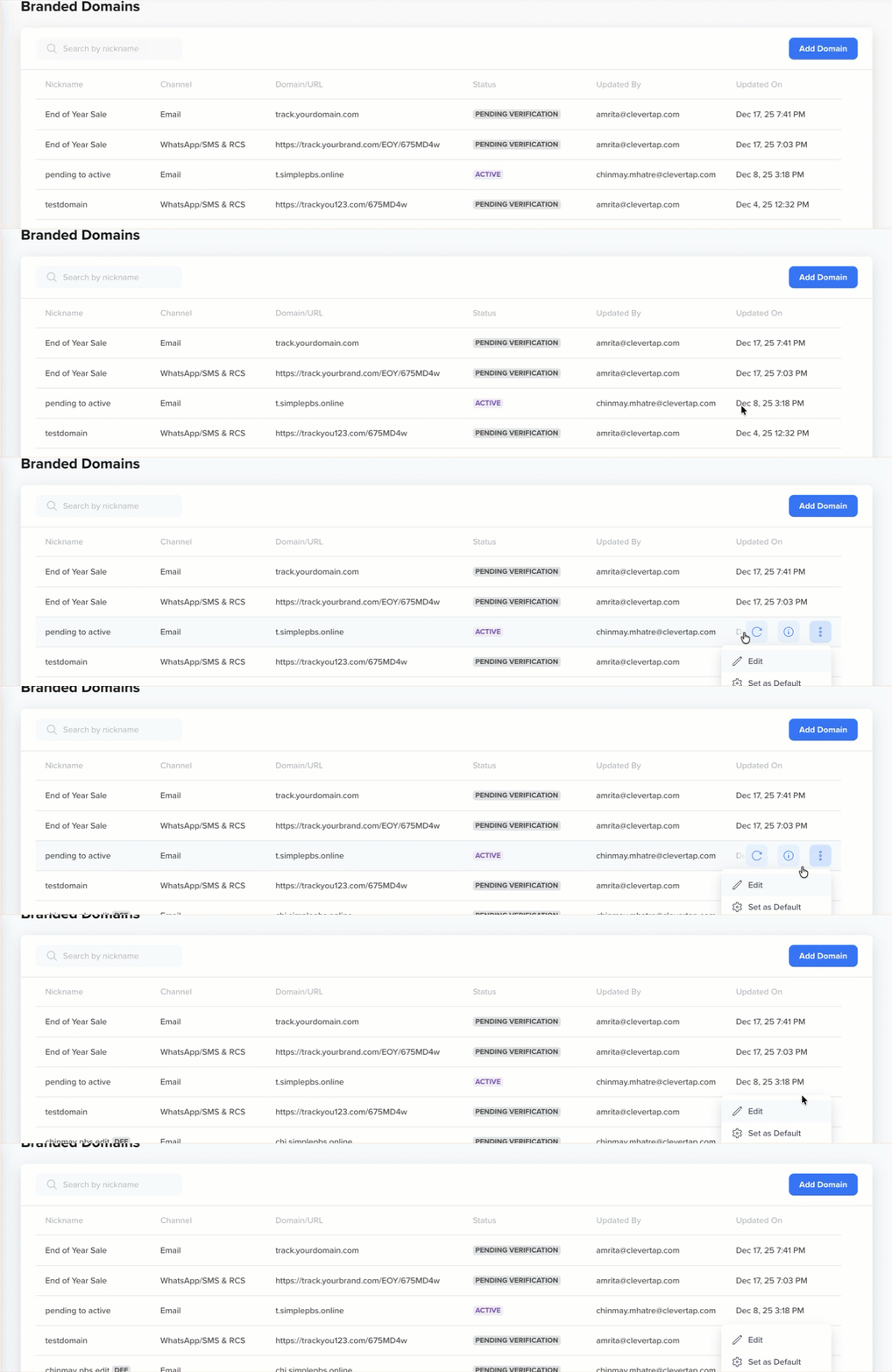
Manage Branded Domains
-
Set as Default: You can set one verified domain as the default for WhatsApp, SMS, and RCS, and a different verified domain as the default for Email. This domain is automatically used for wrapping and tracking links in SMS, WhatsApp, RCS, and Email campaigns (including template buttons). You can override it per campaign when creating new ones.
-
Edit: You can edit the nickname of the domain. Additionally, for WhatsApp/SMS & RCS campaigns, you can set a custom 404 error page (except for system defaults).
-
Verify Domain: You can manually verify the domain by checking the status. If the verification fails, you can click the
 icon next to the domain to retry after making the necessary corrections.
 -
View DNS Records: You can access and review the DNS settings associated with your domain. This includes details such as CNAME and TXT records, which are essential for domain verification and proper tracking. By viewing these records, you can ensure that the domain is correctly configured with your DNS provider for seamless integration and functionality.
FAQs
Can I switch between path-based and query-based adjoiners?
No, you must choose one format per domain — either path-based (/yourbrand/) or query-based (?key=yourbrand). You cannot mix both formats in a single domain configuration.
What happens if my custom domain becomes unverified?
If a branded domain used for Email moves from Active to Pending Verification or Failed:
- CleverTap sends an email alert to inform you of the status change
- CleverTap automatically falls back to the system domain for email click and open tracking
- Email campaigns continue to send without interruption
Once the domain is verified again, it can be reused in future campaigns.
Will old campaigns use the new branded domain?
No. Campaigns created before you set up a branded domain will continue using the System Domain unless you manually edit or recreate them with the new branded domain.
I configured the DNS records, but my domain has still not been verified. What should I do?
Check the following:
- DNS records are entered exactly as shown in the CleverTap dashboard.
- You’ve entered only the required prefix in the Key field (for example, short, not short.clevertap.com)
- Wait up to 24 hours, then try refreshing again
When will a link preview be shown for my branded domain link?
A link preview is generated when the messaging platform (such as SMS, WhatsApp, or RCS) scans the URL included in your message and detects the required Open Graph metadata on the destination page. The following tags must be present and properly configured in the page’s HTML:
<meta property="og:title" content="..."><meta property="og:description" content="..."><meta property="og:image" content="...">
If these tags are available and valid, the platform may display a visual preview containing a title, description, and image. A preview may not be shown in the following cases:
- The Open Graph tags are missing or incorrectly implemented
- The domain is blocked by
robots.txtor firewalls - The page is inaccessible to external crawlers
To validate whether your Open Graph metadata is implemented correctly, use any metadata testing tool or Open Graph debugger.
How do link previews work on iOS devices, and why might they not appear?
iOS devices running version 10 or above support link previews in the native Messages application. These previews may still appear for SMS-based messages, but several conditions must be met for reliable rendering.
Preview Requirements
- Only one link should be included in the message. Messages with multiple links will not generate a preview.
- The link must be the final element in the message. No text, punctuation, or symbols should follow the link.
- The domain must be served over HTTPS and use a valid SSL certificate. Self-signed, expired, or incomplete certificates will block preview generation.
- The recipient must tap Tap to Load Preview for metadata to be fetched.
iOS-specific Behaviors and Limitations
- iOS delays metadata fetching until after the message is delivered, and in some cases, until the user interacts with the message.
- Devices may display cached metadata even after updates have been made to the page’s Open Graph tags.
- Certain third-party messaging apps may block previews by default, unless they are explicitly enabled in the settings.
These constraints can lead to inconsistent preview rendering on iOS devices, even when metadata is correctly configured.
Updated 9 months ago